
Roinvou 2+64G
Roinvou 9-inch Android Car Stereo User Manual
Model: 2+64G | Compatible with Fiat 500 (2007-2015)
1. Introduction
This manual provides comprehensive instructions for the installation, operation, and maintenance of your Roinvou 9-inch Android Car Stereo. This unit is specifically designed for Fiat 500 models manufactured between 2007 and 2015, offering advanced features such as Android 15, Wireless CarPlay, Android Auto, GPS navigation, Bluetooth, and a high-definition touchscreen. Please read this manual thoroughly before installation and use to ensure proper functionality and safety.

Figure 1.1: Roinvou 9-inch Android Car Stereo with Android 15 interface.
2. Safety Information
- Always prioritize safe driving. Do not operate the device in a manner that distracts you from the road.
- Ensure the vehicle is parked and the parking brake is engaged before performing any complex operations on the stereo.
- Professional installation is recommended to prevent damage to the unit or vehicle's electrical system.
- Do not attempt to disassemble or modify the unit. This may cause damage and void the warranty.
- Keep the unit away from water and excessive moisture.
3. Package Contents
Verify that all items listed below are included in your package:
- Roinvou 9-inch Android Car Stereo Unit
- Power Cable
- CANBUS Decoder
- RCA Harness
- GPS Antenna
- AHD Backup Camera
- External Microphone
- Rear Camera Input Cable
- 2 x USB Cables
- Installation Tool & Accessories

Figure 3.1: Package contents and unit dimensions.
4. Installation Guide
4.1. Compatibility Check
This Android Car Stereo is compatible with Fiat 500 models from 2007 to 2015. Before installation, confirm your vehicle's model and year. If unsure, consult a professional or the manufacturer.
4.2. Pre-Installation Notes
- Disconnect the vehicle's battery before starting installation to prevent electrical shorts.
- Ensure all wiring is correctly routed and secured to avoid interference or damage.
- Refer to your vehicle's specific dashboard removal instructions.

Figure 4.1: Before and after installation view in a Fiat 500 dashboard.
4.3. Wiring Connections
Carefully connect all cables according to the diagrams provided. Incorrect wiring can damage the unit or vehicle.

Figure 4.2: Wiring port diagram for the car stereo.
4.3.1. Reversing Camera Wiring
Connect the red cable to the positive terminal of the car's reverse light cable and the black cable to the negative terminal. The reverse input cable must be plugged in even if the camera is not used, as it affects Bluetooth and WiFi signal reception.

Figure 4.3: Reversing camera wiring diagram.
4.3.2. CANBUS Connection
The CANBUS decoder facilitates communication between the stereo and your vehicle's systems, including steering wheel controls.
- Without CANBUS Decoder: Connect the steering wheel control wires (Key1/Key2) in the power cable to the corresponding port or wire of your original car. Then, navigate to Settings > Car Settings > General (Enter SWC setting interface) to manually match and activate button functions.
- With CANBUS Decoder: Connect the CANBUS before powering on the machine. Go to Settings > Car Settings > Factory (000000) > CarType Setting. Select the brand of the CANBUS decoder, then the matching model and year to ensure SWC works correctly.
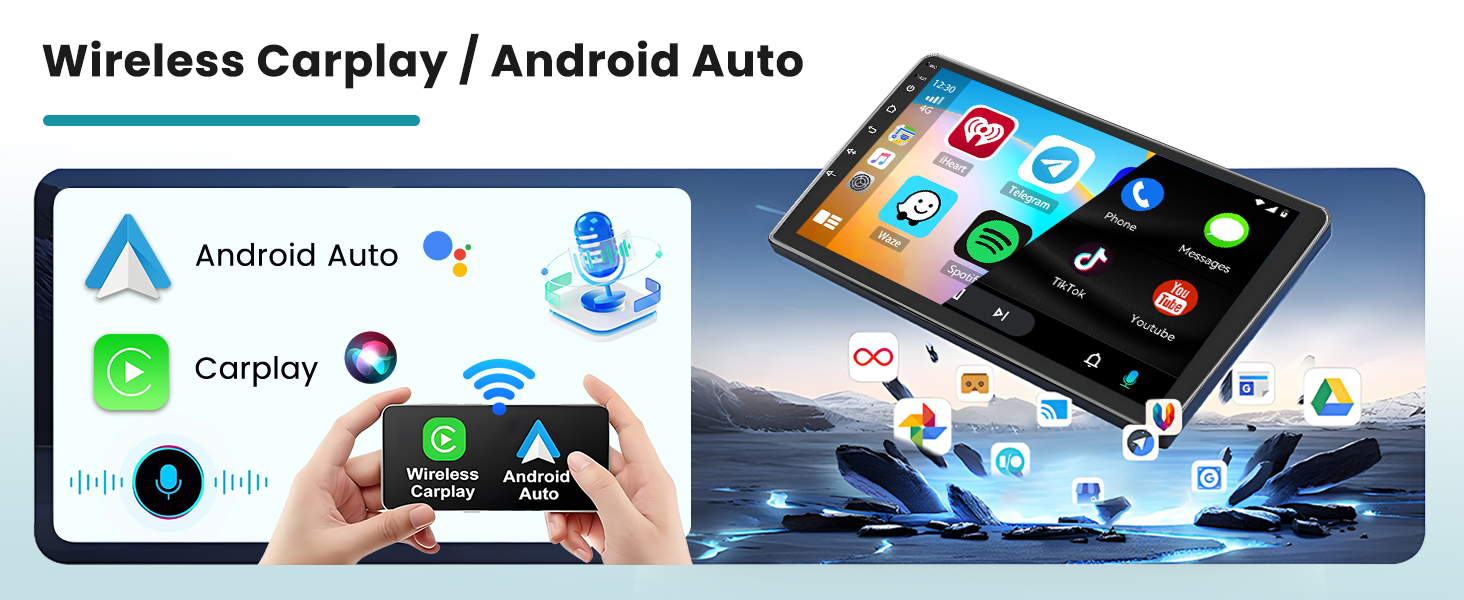
Figure 4.4: CANBUS connection and setup instructions.
5. Operating Instructions
5.1. Power On/Off
The unit typically powers on automatically with the vehicle's ignition. To manually power off or restart, press and hold the power button on the unit's front panel.
5.2. Touchscreen Interface
The 9-inch HD touchscreen provides intuitive control over all functions. Navigate through menus by tapping icons and swiping. The 1024*600P resolution ensures clear visibility.
5.3. Wireless CarPlay & Android Auto
Connect your smartphone wirelessly or via USB to access Apple CarPlay or Android Auto. This allows for seamless integration of phone functions like navigation, calls, messages, and music directly on the stereo's display.
- Ensure Bluetooth is enabled on your phone and the car stereo.
- Pair your phone with the car stereo via Bluetooth.
- Select the CarPlay or Android Auto icon on the stereo's main menu.
- Follow on-screen prompts to complete the connection.

Figure 5.1: CarPlay, Android Auto, and Mirror Link features.
5.4. GPS Navigation
The unit supports GPS navigation. You can use pre-installed maps or download additional navigation applications via WiFi from the Play Store for offline use. Connect to a 5G WiFi network for real-time traffic updates and online map services.

Figure 5.2: GPS Navigation and WiFi connectivity.
5.5. Bluetooth Connectivity
Pair your phone via Bluetooth for hands-free calling and audio streaming. The unit supports automatic phone book loading.
- Go to the Bluetooth menu on the stereo.
- Enable Bluetooth on your phone and search for available devices.
- Select the stereo's name (e.g., "Roinvou Car Stereo") and confirm pairing.
5.6. FM/RDS Radio
Access FM radio stations. The RDS (Radio Data System) feature provides station names, traffic conditions, and news where available. The unit includes intelligent channel memory for frequently listened-to stations.

Figure 5.3: Bluetooth hands-free and FM/RDS radio interface.
5.7. Steering Wheel Control (SWC)
The unit supports original steering wheel control buttons. After proper CANBUS configuration (refer to Section 4.3.2), you can control volume, track changes, and other functions directly from your steering wheel.

Figure 5.4: Steering wheel control and AHD rear view camera display.
5.8. DSP & EQ Settings
Utilize the Digital Sound Processor (DSP) and Equalizer (EQ) settings to customize your audio experience. The EQ offers multi-mode one-key switching and manual adjustment for high, medium, and low frequency bands.
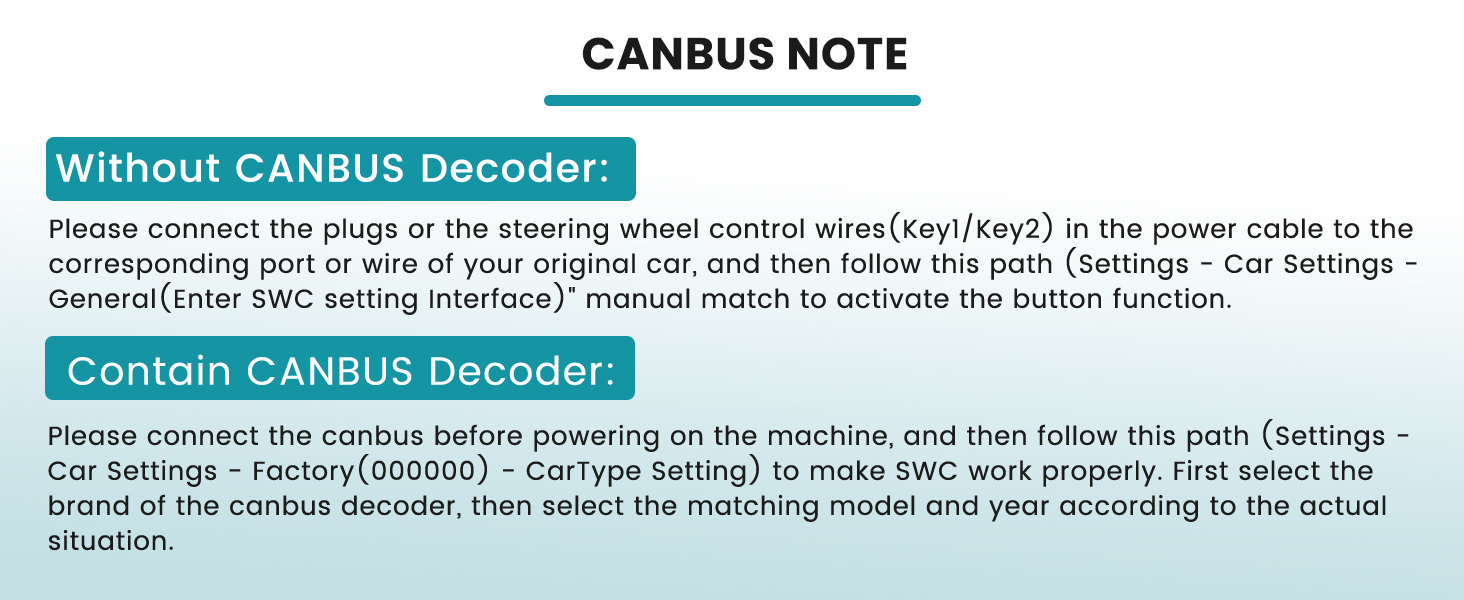
Figure 5.5: Customizable UI themes and EQ settings.
5.9. Mirror Link
The Mirror Link function allows you to mirror your smartphone's screen onto the car stereo display, providing access to apps and content not directly supported by CarPlay or Android Auto.
6. Maintenance
- Cleaning: Use a soft, dry cloth to clean the screen and unit. Avoid abrasive cleaners or solvents.
- Software Updates: Periodically check for system updates via the settings menu to ensure optimal performance and access to new features. A stable internet connection is required for updates.
- Temperature: Avoid exposing the unit to extreme temperatures, which can affect its lifespan and performance.
7. Troubleshooting
If you encounter issues with your Roinvou car stereo, refer to the following common problems and solutions:
| Problem | Possible Cause | Solution |
|---|---|---|
| Unit does not power on. | Incorrect wiring, blown fuse, power supply issue. | Check power cable connections, inspect vehicle fuses, ensure proper grounding. |
| No sound. | Volume too low, incorrect audio output settings, speaker wiring issues. | Increase volume, check audio settings (e.g., balance, fader), verify speaker connections. |
| GPS signal lost or inaccurate. | GPS antenna obstructed or improperly installed. | Ensure GPS antenna has a clear view of the sky and is securely connected. |
| Bluetooth/WiFi connectivity issues. | Interference, incorrect pairing, reverse camera cable not connected. | Ensure reverse camera input cable is connected. Re-pair devices, check for other wireless interference. |
| System crashes or is sluggish. | Software issue, too many applications running, outdated firmware. | Restart the unit. Close unnecessary applications. Check for and install system updates. If issues persist, perform a factory reset (note: this will erase all user data). |
| Steering Wheel Controls not working. | Incorrect CANBUS setup or wiring. | Review CANBUS wiring and software configuration steps in Section 4.3.2. |
8. Specifications
| Feature | Detail |
|---|---|
| Operating System | Android 15 |
| Display Size | 9 Inches |
| Display Resolution | 1024*600P |
| RAM | 2GB |
| ROM | 64GB |
| Connectivity Technology | Bluetooth, USB, Wi-Fi (5G) |
| Special Features | Wireless CarPlay/Android Auto, Touchscreen, FM RDS Radio, Mirror Link, GPS Navigation, DSP, EQ, SWC, 26 Desktop Themes |
| Audio Output Mode | Stereo |
| Mounting Type | Dashboard Mount |
| Vehicle Service Type | Car (Fiat 500 2007-2015) |
| Item Weight | 4.88 pounds |
| Package Dimensions | 11.81 x 7.68 x 7.48 inches |
9. Warranty Information
The Roinvou 9-inch Android Car Stereo comes with a 1-Year Warranty from the date of purchase. This warranty covers manufacturing defects and malfunctions under normal use. It does not cover damage caused by improper installation, misuse, accidents, or unauthorized modifications. Please retain your proof of purchase for warranty claims.
10. Customer Support
For technical assistance, warranty claims, or any questions not covered in this manual, please contact Roinvou customer support. You can typically find contact information on the product packaging or the official Roinvou website. When contacting support, please have your product model (2+64G) and purchase details ready.
Related documents2+64G


Ask a question about this manual
Ask about setup, troubleshooting, compatibility, parts, safety, or missing instructions. Manuals+ will review the question and use this page’s manual context to help answer it.