
Sovboi E30Max
Sovboi E30Max Projector User Manual
Model: E30Max
1. Introduction
This manual provides detailed instructions for the setup, operation, maintenance, and troubleshooting of your Sovboi E30Max Projector. Please read this manual thoroughly before using the product to ensure proper function and longevity.
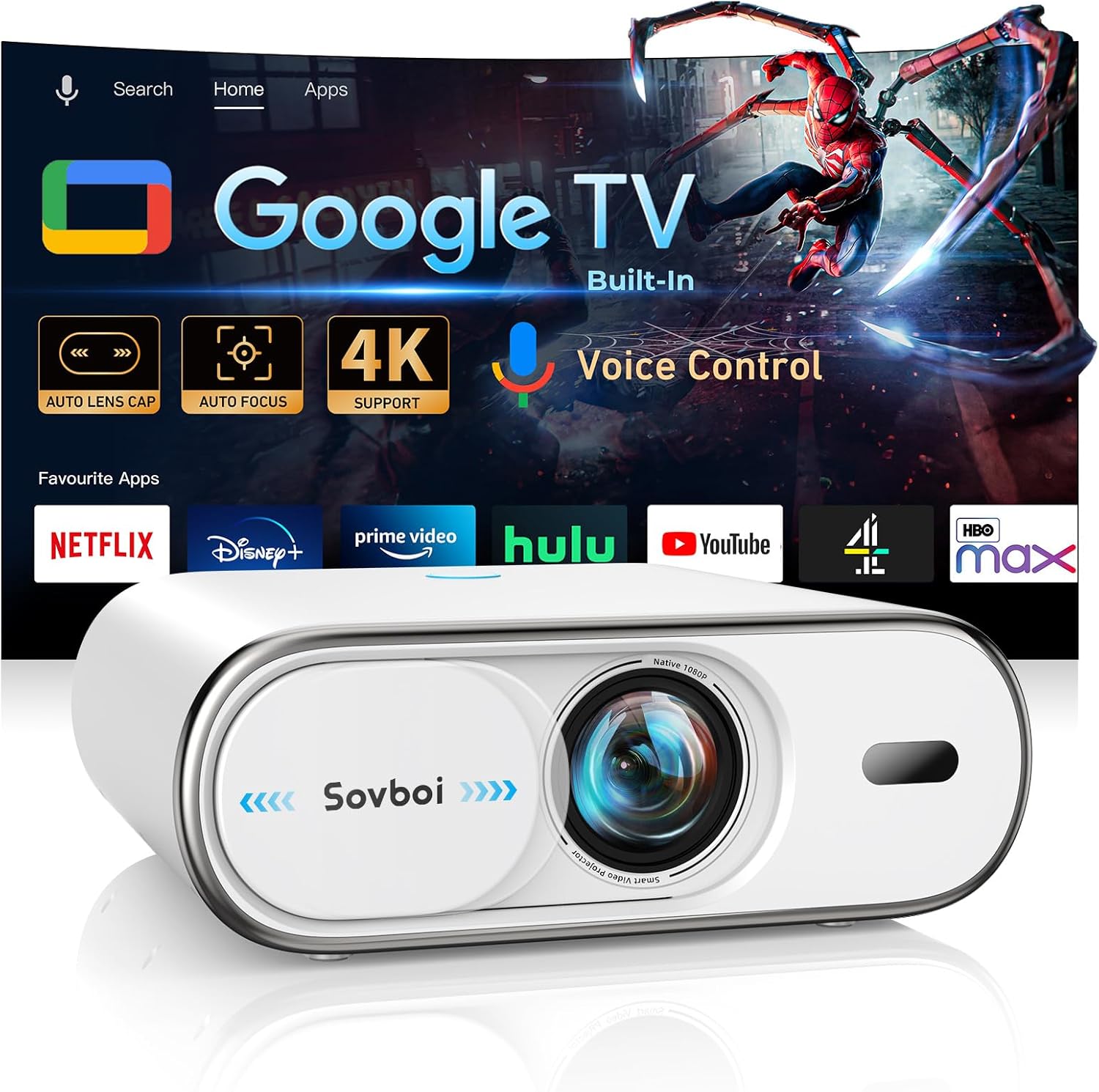
Image 1.1: The Sovboi E30Max Projector displaying the Google TV interface with various streaming applications.
2. Setup
2.1 Unpacking and Initial Placement
Carefully remove all components from the packaging. Ensure the projector is placed on a stable, flat surface or mounted securely. The projector supports both ceiling and table mounting.
2.2 Connecting Power and Devices
Connect the power cord to the projector and a suitable power outlet. Use the provided HDMI cable to connect external devices such as gaming consoles, laptops, or streaming devices. The projector also supports USB 2.0 for media playback.

Image 2.1: The projector connected to a PlayStation 5, laptop, and headphones, illustrating various connectivity options.
2.3 Automatic Setup Features
The E30Max projector features Auto-Setup Express for quick image optimization:
- Auto Focus: The projector automatically adjusts for a sharp image within 3 seconds.
- Automatic Keystone Correction: Vertical keystone correction (up to ±50°) is applied automatically.
- 4D Manual Fine-Tune: For precise adjustments, 4D manual fine-tuning is available.
- Auto Lens Cover: The motorized lens cap automatically opens upon power-on and closes upon shutdown.

Image 2.2: Visual representation of the projector's automatic setup features, including auto focus and keystone correction.
3. Operating Instructions
3.1 Google TV Integration
The projector includes an official Google TV system, providing access to over 230 million applications from the Google Play Store. Log in with your Google account to synchronize viewing history and receive personalized content recommendations.

Image 3.1: The Google TV interface, highlighting steps for installing apps, logging in, voice search, and using a phone as a remote.
3.2 Voice Control with Google Assistant
Utilize Google Assistant for hands-free control. Simply say "Hey Google" followed by your command to find content, adjust settings, or launch applications. Google Assistant supports over 200 languages.

Image 3.2: The projector's remote control featuring the Google Assistant button, demonstrating voice command functionality.
3.3 Bluetooth Remote Control
The advanced Bluetooth remote offers responsive control from over 30 feet, even through obstacles, eliminating the need for direct line-of-sight. The remote's CEC function allows control of HDMI-connected devices.

Image 3.3: The CEC-enabled remote control, illustrating its ability to control multiple devices.
3.4 Wireless Connectivity (Wi-Fi 6 & Bluetooth 5.2)
The projector supports dual-band Wi-Fi 6 for smooth streaming and low-latency Bluetooth 5.2 for connecting speakers or headphones. Chromecast is built-in for direct content casting from compatible devices.

Image 3.4: A couple enjoying content projected wirelessly, highlighting Wi-Fi 6 and Bluetooth 5.2 capabilities.
3.5 Using Your Phone as a Remote
Download the Google Home app to use your smartphone as a remote control for the projector. This allows for convenient power, volume, and navigation control.

Image 3.5: A smartphone screen showing the Google Home app interface, used as a remote for the projector.
4. Maintenance
4.1 Auto-Guard Smart System
The projector is equipped with an Auto-Guard Smart System to protect its components:
- Motorized Lens Cap: The exclusive motorized lens cap automatically seals upon shutdown, protecting the lens from dust and scratches.
- Seamless OTA Updates: The system receives Over-The-Air (OTA) updates to ensure firmware remains current and reliable.

Image 4.1: The projector with a visual representation of seamless automatic updates.
5. Troubleshooting
5.1 Common Issues and Solutions
- Cannot wirelessly cast content from certain apps (Hulu, Netflix, Disney+): Due to copyright restrictions, some content cannot be cast directly. Use the pre-installed licensed streaming apps on the projector. Navigate to the homepage, select "Apps," search for the desired app, and log in to play content.
- Remote control not working:
- Ensure two AAA batteries are correctly installed in the remote control.
- Avoid mixing new and old batteries, as this can lead to insufficient power and operational issues.
- Projector not accessing the Google Play Store: The projector supports the Google Play Store. Ensure you are connected to the internet and logged into your Google account. You can freely download apps supported by the Google Play Store.
- Skewed or fuzzy image: The Auto Focus feature instantly sharpens your picture. The 4D Keystone (up/down/left/right + angle) corrects image distortion automatically, eliminating the need for manual adjustments.

Image 5.1: A visual summary of frequently asked questions and their solutions regarding the projector's functionality.
6. Specifications
| Feature | Detail |
|---|---|
| Brand | Sovboi |
| Model | E30Max |
| Display Technology | LCD |
| Native Resolution | 1920 x 1080 (1080P) |
| 4K Support | Yes |
| Image Brightness | 1500 ANSI Lumens |
| Image Contrast Ratio | 3000 Pixels |
| Aspect Ratio | 16:9 |
| Color Gamut | 98% NTSC |
| HDR Support | HDR10 with Widevine L1 DRM |
| Operating System | Official Google TV Built-In |
| Wireless Connectivity | Dual-Band Wi-Fi 6, Bluetooth 5.2 |
| Casting | Built-in Chromecast |
| Voice Control | Google Assistant |
| Auto Focus | Yes (3 seconds) |
| Keystone Correction | Automatic ±50° Vertical, 4D Manual Fine-Tune |
| Lens Protection | Motorized Auto Lens Cover |
| Hardware Interface | 3.5mm Audio, Bluetooth, HDMI, USB 2.0 |
| Refresh Rate | 240 Hz |
| Product Dimensions | 20.3 x 20 x 12 cm |
| Item Weight | 1.13 kg |

Image 6.1: Key visual and performance specifications of the projector.
7. Warranty and Support
Sovboi provides comprehensive after-sales service for your projector:
- Warranty: A three-year guarantee service is included.
- Technical Support: Lifetime technical support is available.
- Contact: For any questions or issues, please reach out via the after-sales email or the Sovboi website.
Detailed user manuals and YouTube tutorials are also available to assist with your experience.
Related documentsE30Max


Ask a question about this manual
Ask about setup, troubleshooting, compatibility, parts, safety, or missing instructions. Manuals+ will review the question and use this page’s manual context to help answer it.