
1. Product Overview
The Bextgoo Mini Sports Body Camera (Model CS15-CA) is a compact and versatile recording device designed for various applications, including outdoor activities, personal security, and hands-free documentation. It features 1080P Full HD video recording, 12MP photo capture, and a 180° rotatable lens for flexible viewing angles. The camera includes a 64GB memory card and supports smart loop storage for continuous recording.
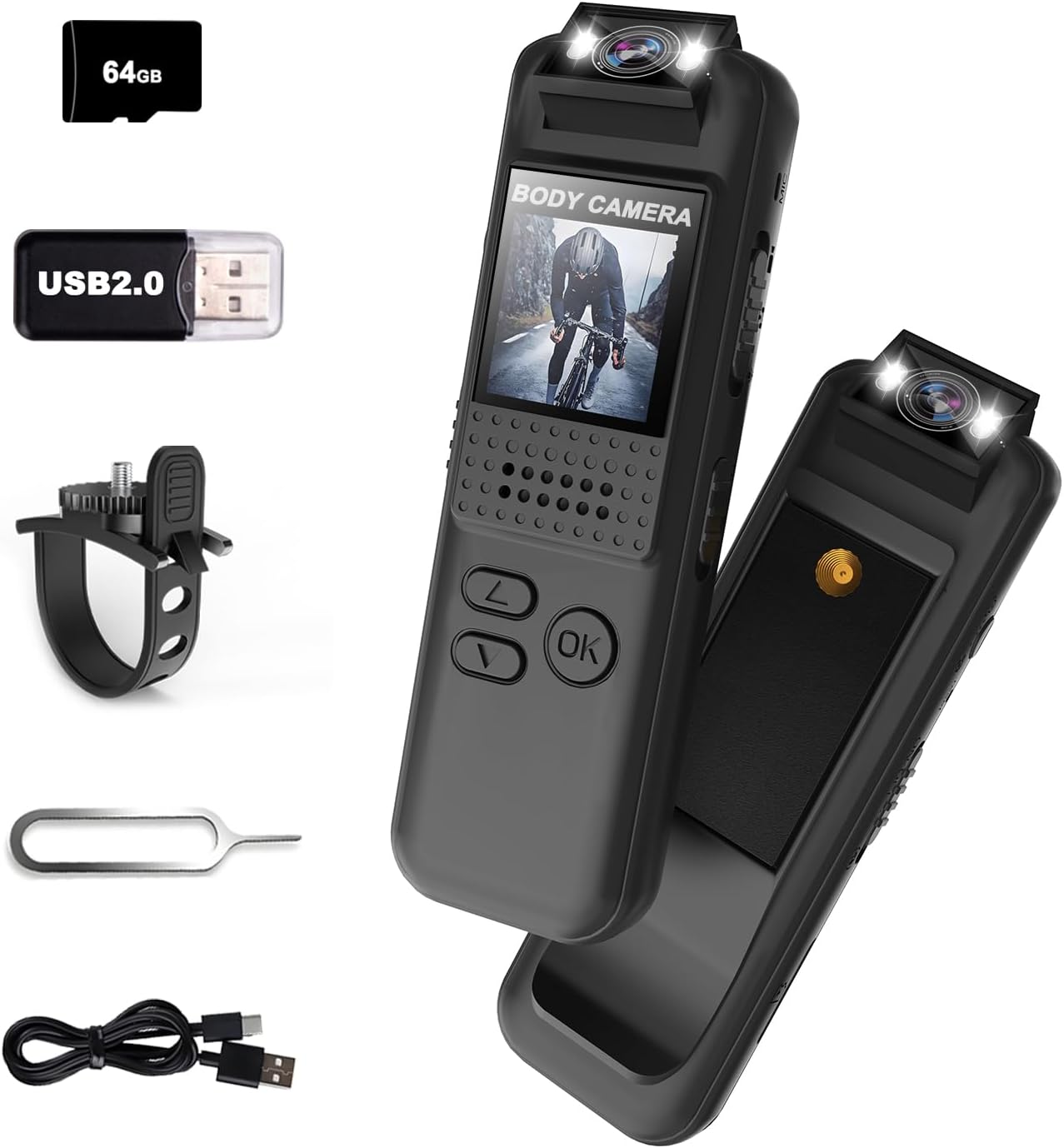
Image: The Bextgoo Mini Sports Body Camera shown with its various accessories, including the 64GB TF card, USB adapter, bike mount, reset pin, and charging cable.
Key Features:
- 1080P Full HD Video & 12MP Photos: Captures clear video and sharp images.
- 64GB Memory Card & Smart Loop Storage: Pre-installed 64GB card with automatic overwrite for continuous recording.
- 180° Rotatable Lens: Allows adjustment of the camera angle for optimal capture.
- Instant Playback on Full-Color Screen: Review footage directly on the device without a computer.
- Built-in Fill Light & Night Vision: Enhances visibility in low-light conditions and functions as a flashlight.
- Versatile Mounting Options: Includes a magnetic back clip and bike mount for flexible attachment.
- Hassle-Free File Access: View videos directly on the camera, computer, or via a card reader.
2. What's in the Box
Upon opening your Bextgoo Mini Sports Body Camera package, please verify that all the following components are included:
- 1x Bextgoo Body Camera
- 1x 64GB Memory Card (pre-installed)
- 1x Cycle Bracket (Bike Mount)
- 1x Card Reader (USB 2.0 adapter)
- 1x Reset Pin
- 1x User Manual (this document)
- 1x USB Charging Cable
Video: An unboxing and overview of the Bextgoo body camera, demonstrating the included accessories and initial setup steps like inserting the SD card and attaching the bike mount.
3. Device Layout and Controls
Familiarize yourself with the physical components and controls of your Bextgoo Mini Sports Body Camera:

Image: A detailed diagram illustrating the location and function of all buttons, switches, and ports on the Bextgoo body camera.
- 180° Rotatable Lens: Located at the top, allows for flexible recording angles.
- Fill Lights: Positioned next to the lens for illumination in dark environments.
- LCD Screen: Front-facing display for live view and playback.
- Power Key: On the side, for turning the device on/off.
- Photo/Flip Keys: For capturing photos and navigating menus.
- Scroll Up/Down Keys: For menu navigation and adjusting settings.
- OK Key: For confirming selections.
- Video/Save/Record On Key: Dedicated button for starting/stopping video recording.
- Key to Turn On Fill Light: Activates the built-in illumination.
- Micro SD Card Slot: Located on the side for memory card insertion.
- Reset Hole: A small pinhole for factory reset (use the included reset pin).
- USB-C Port: For charging and data transfer.
- Magnetic Back Clip: Integrated on the back for secure attachment to clothing or metal surfaces.
- Standard Camera Mount Thread: On the back, compatible with standard camera accessories like the bike mount.
4. Setup
4.1 Charging the Device
Before first use, fully charge the camera. Connect the included USB charging cable to the camera's USB-C port and a standard USB power adapter (not included) or a computer's USB port. The charging indicator will show the charging status and turn off when fully charged.
4.2 Inserting/Removing Micro SD Card
The camera comes with a 64GB Micro SD card pre-installed. If you need to replace or remove it:
- Locate the Micro SD card slot on the side of the camera.
- Gently push the card inward until it clicks, then release to eject.
- To insert, align the card correctly and push it into the slot until it clicks into place.
4.3 Attaching Mounts
The camera features a magnetic back clip and a standard camera mount thread for versatile attachment.
- Magnetic Back Clip: Simply attach the camera to any metal surface or clip it onto clothing, bags, or other items.
- Bike Mount: Use the included cycle bracket by screwing it into the standard camera mount thread on the back of the camera. Secure the bracket to your bike's handlebars or other suitable locations.

Image: Examples of the Bextgoo body camera being used in various hands-free scenarios, including mounted on a bike, clipped to a delivery uniform, and worn by a security guard.
4.4 Initial Power On and Date/Time Settings
After charging, slide the Power Key to the 'ON' position. The camera will power on. You may need to set the correct date and time for accurate timestamps on your recordings. Refer to the on-screen menu using the scroll and OK keys to navigate to the 'Date/Time' settings and adjust as needed. If the device becomes unresponsive, use the included reset pin to press the reset button located in the reset hole.

Image: The camera's screen displaying the date and time settings menu, alongside a sample video frame with a visible date and time overlay.
5. Operating Instructions
5.1 Power On/Off
- To Power On: Slide the Power Key to the 'ON' position.
- To Power Off: Slide the Power Key to the 'OFF' position.
5.2 Video Recording
To start and stop video recording:
- Ensure the camera is powered on.
- Press the 'Video/Save/Record On' key once to begin recording. The screen will indicate recording status.
- Press the 'Video/Save/Record On' key again to stop recording. The video file will be saved to the Micro SD card.
5.3 Photo Capture
To take still photographs:
- Ensure the camera is powered on.
- Press the 'Photo/Flip' key once to capture a photo. The image will be saved to the Micro SD card.
5.4 Audio Recording
The camera supports audio-only recording. Locate the audio recording switch on the side of the device. Slide it to the 'ON' position to enable audio recording or 'OFF' to disable it.
5.5 Night Vision/Fill Light
To activate the built-in fill light for night vision:
- Ensure the camera is powered on.
- Press the 'Key to Turn On Fill Light' button. The fill lights will illuminate.
- Press the button again to turn off the fill light.

Image: A visual comparison showing a dark environment before and after activating the camera's built-in fill light, highlighting its effectiveness for night vision.
5.6 Playback on Device
You can review recorded videos and photos directly on the camera's full-color LCD screen:
- Navigate to the playback menu using the scroll keys.
- Select the desired file using the scroll keys and press the 'OK' key to play/view.
- Use the 'Photo/Flip' key to exit playback or return to the previous menu.
5.7 Transferring Files to PC
To access your recorded files on a computer:
- Direct Connection: Connect the camera to your computer using the USB-C cable. The camera will appear as a removable disk, allowing you to copy files.
- Using Card Reader: Remove the Micro SD card from the camera and insert it into the included USB card reader. Plug the card reader into your computer's USB port to access the files.

Image: The camera displaying a video on its screen, and a separate image showing the camera connected to a laptop for file transfer, illustrating easy access to footage.
6. Maintenance
6.1 Cleaning
- Use a soft, dry cloth to clean the camera body.
- For the lens, use a specialized lens cleaning cloth and solution to avoid scratches.
- Do not use harsh chemicals or abrasive materials.
6.2 Storage
- Store the camera in a cool, dry place away from direct sunlight and extreme temperatures.
- If storing for extended periods, ensure the battery is partially charged (around 50%) to prolong its lifespan.
6.3 Battery Care
- Avoid fully discharging the battery frequently.
- Charge the battery regularly, even if the camera is not in use, to maintain battery health.
7. Troubleshooting
If you encounter issues with your Bextgoo Mini Sports Body Camera, refer to the following common problems and solutions:
| Problem | Possible Cause | Solution |
|---|---|---|
| Camera not turning on | Low battery; device frozen | Charge the camera; use the reset pin to restart the device. |
| Cannot record video/take photos | Micro SD card full or corrupted; incorrect mode selected | Delete old files or format the SD card; ensure sufficient space; verify correct mode is active. |
| Poor video/photo quality | Dirty lens; low light conditions; unstable mounting | Clean the lens; activate fill light/night vision; ensure camera is securely mounted. |
| Files not transferring to PC | Faulty USB cable/port; driver issues | Try a different USB cable or port; use the included card reader; ensure camera is in mass storage mode if applicable. |
| Date/Time incorrect | Settings not saved or battery depleted | Re-enter date/time settings and ensure they are saved; keep battery charged. |
If the problem persists after attempting these solutions, please contact Bextgoo customer support for further assistance.
8. Specifications
Detailed technical specifications for the Bextgoo Mini Sports Body Camera (Model CS15-CA):
| Feature | Specification |
|---|---|
| Brand Name | Bextgoo |
| Model Number | CS15-CA |
| Item Weight | 1.44 ounces (40.8 grams) |
| Product Dimensions | 0.55 x 1.02 x 3.35 inches (1.4 x 2.6 x 8.5 cm) |
| Batteries | 1 A battery required (included) |
| Color | Black |
| Video Capture Resolution | 1080p |
| Photo Sensor Technology | CMOS |
| Maximum Focal Length | 4.3 Millimeters |
| Maximum Aperture | 2.4 f |
| Flash Memory Type | Micro SD (64GB included) |
| Video Capture Format | Video |
| Supported Audio Format | MP3 |
| Screen Size | 0.9 Inches |
| Connectivity Technology | USB |
| Special Features | 1080P FHD Video & 12MP Photos, Built-In Flash, Vivid Color Night Vision, 180° Rotatable Lens |
9. Warranty and Support
Your Bextgoo Mini Sports Body Camera is covered by a manufacturer's warranty. For specific details regarding warranty coverage, duration, and terms, please refer to the warranty information provided with your purchase or contact Bextgoo customer support.
Customer Support:
If you have any questions, require technical assistance, or need to claim warranty service, please contact Bextgoo customer support through the official channels provided at the time of purchase or on the Bextgoo website. Please have your product model number (CS15-CA) and purchase details ready when contacting support.
