Introduction
Thank you for choosing the MoreJoy CUBE SLIM 2025 Projector. This compact and powerful projector is designed to deliver an immersive viewing experience with its 1080P support and 200 ANSI brightness. Featuring an Android operating system with built-in Netflix and YouTube, electric focus, keystone correction, and a full-sealed enclosure for dust protection, it's perfect for home cinema, gaming, karaoke, and even business presentations.
This manual provides detailed instructions to help you get the most out of your new projector, from initial setup to advanced features and troubleshooting.
What's in the Box
Please check the contents of your package to ensure all items are present:
- MoreJoy CUBE SLIM 2025 Projector
- Remote Control
- Power Adapter
- User Manual (this document)
Product Overview
Familiarize yourself with the different parts of your MoreJoy CUBE SLIM 2025 Projector.
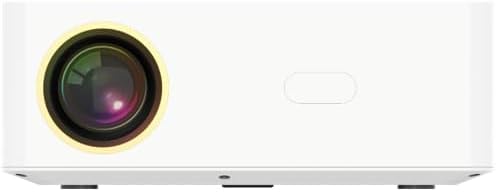
Figure 1: Front View. This image displays the front of the projector, highlighting the main projection lens. The lens is centrally located, indicating the direction of the projected image.

Figure 2: Rear View. This image shows the back panel of the projector, featuring various input and output ports. From left to right, you can see an IR receiver, two USB ports, an HDMI port, and a 3.5mm headphone jack. These ports allow for diverse connectivity options.
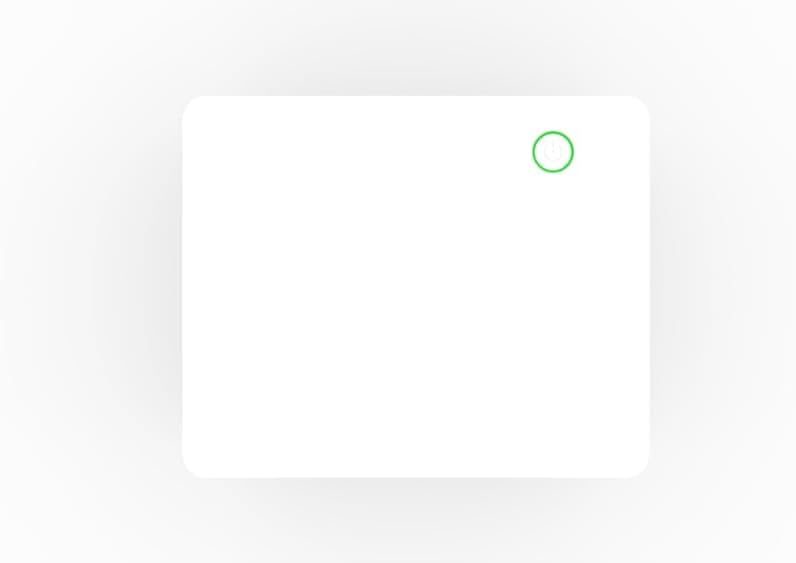
Figure 3: Top View. This image presents the top surface of the projector, featuring a subtle power button icon with a circular outline, indicating the location for power control.
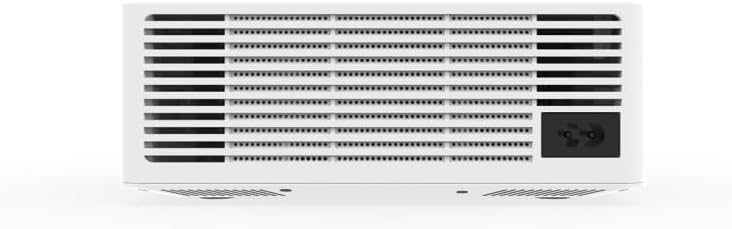
Figure 4: Bottom View (Ventilation). This image shows the underside of the projector, dominated by a large ventilation grille. A power input socket is visible on the right side, indicating where the power cable connects.
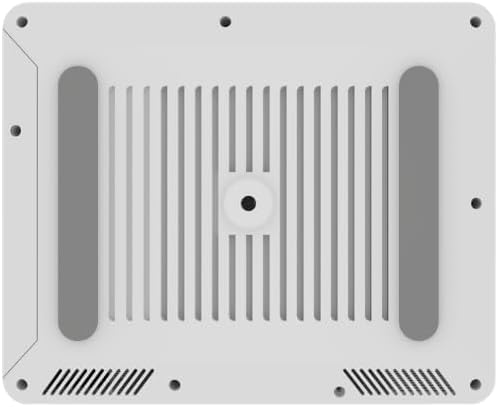
Figure 5: Bottom View (Mounting). This image provides another perspective of the projector's bottom, highlighting the four rubber feet for stability and a central threaded hole for tripod or ceiling mounting. Ventilation slots are also visible.

Figure 6: Side View. This image shows a plain side view of the projector, emphasizing its sleek, minimalist design and compact form factor.
Setup Guide
1. Initial Power-On
- Place the projector on a stable, flat surface or mount it securely. Ensure there is adequate ventilation around the unit.
- Connect the power adapter to the projector's power input port (refer to Figure 4) and then plug it into a power outlet.
- Press the power button on the projector (refer to Figure 3) or on the remote control to turn on the device.
2. Focus and Keystone Correction
The CUBE SLIM 2025 features electric focus and digital keystone correction for a clear and properly shaped image.
- Electric Focus: Use the focus buttons on the remote control to adjust the image clarity until it is sharp. This is a manual electric adjustment, providing precise control.
- Digital Keystone Correction: If the projected image appears trapezoidal (wider at the top or bottom), use the keystone correction settings in the projector's menu to adjust the image geometry until it is rectangular.
3. Network Connection (Wi-Fi)
To access online content and streaming services, connect your projector to a Wi-Fi network:
- Navigate to the "Settings" menu on the projector's home screen.
- Select "Network" or "Wi-Fi Settings".
- Choose your desired Wi-Fi network from the list of available networks.
- Enter the Wi-Fi password using the on-screen keyboard and confirm.
Operating Instructions
1. Navigating the Interface
The MoreJoy CUBE SLIM 2025 runs on an Android operating system. Use the remote control's directional buttons and OK button to navigate through menus and select options. The "Back" button will return you to the previous screen, and the "Home" button will take you to the main home screen.
2. Using Built-in Applications
Your projector comes with pre-installed applications like Netflix and YouTube. Ensure you are connected to Wi-Fi to use these services.
- From the home screen, select the desired application icon (e.g., Netflix, YouTube).
- Log in with your account credentials if prompted.
- Browse and enjoy content as you would on any Android smart device.
3. Connecting External Devices
The projector supports various external connections:
- HDMI: Connect a laptop, game console, Blu-ray player, or other HDMI-enabled device to the HDMI port (refer to Figure 2). Select the HDMI input source from the projector's input menu.
- USB: Insert USB drives into the USB ports (refer to Figure 2) to play media files (videos, photos, music) directly from the drive.
- 3.5mm Audio Jack: Connect external speakers or headphones to the 3.5mm audio output jack for enhanced sound (refer to Figure 2).
4. Screen Mirroring (Miracast/AirPlay)
Mirror your iOS or Android device screen to the projector wirelessly:
- Ensure both your projector and mobile device are connected to the same Wi-Fi network.
- On the projector, select the "Screen Mirroring" or "Cast" application.
- On your mobile device, enable screen mirroring (e.g., "Smart View" on Android, "Screen Mirroring" on iOS) and select the projector from the list of available devices.
5. Karaoke Function
The projector is karaoke-ready with built-in 5W speakers and a microphone-ready chipset.
- Connect a compatible microphone (not included) to the projector if a dedicated microphone input is available, or use a USB microphone.
- Access karaoke applications or YouTube karaoke videos through the projector's smart interface.
- The projector's speakers will output both the music and your singing.
Maintenance
Proper maintenance ensures the longevity and optimal performance of your projector.
- Dust-Proof Design: The CUBE SLIM 2025 features a fully sealed metallic enclosure, significantly reducing dust ingress. This design minimizes black spots and blur images, enhancing picture quality and durability.
- Cleaning the Lens: Gently wipe the projector lens with a soft, lint-free cloth specifically designed for optical surfaces. Do not use abrasive cleaners or excessive force.
- Cleaning the Exterior: Use a soft, dry cloth to clean the exterior of the projector. For stubborn marks, a slightly damp cloth can be used, followed by a dry cloth. Avoid using strong detergents or solvents.
- Ventilation: Ensure the ventilation openings (refer to Figure 4) are not blocked to prevent overheating. Do not place the projector on soft surfaces that might obstruct airflow.
Troubleshooting
If you encounter issues with your projector, please refer to the following common problems and solutions:
| Problem | Possible Cause | Solution |
|---|---|---|
| No image projected |
|
|
| Image is blurry |
|
|
| Image is trapezoidal |
|
|
| No sound |
|
|
| Wi-Fi connection unstable |
|
|
If the problem persists after trying these solutions, please contact customer support.
Specifications
Key technical specifications for the MoreJoy CUBE SLIM 2025 Projector:
| Feature | Detail |
|---|---|
| Brand | MoreJoy |
| Model Number | CUBE SLIM AND (B0FCF12SFL) |
| Display Resolution | 1280 x 720 (Supports 1080P input) |
| Brightness | 200 ANSI Lumens |
| Special Features | Dust-Proof (Full-Sealed Enclosure), Built-In Speaker (5W), Digital Keystone Correction, Electric Focus, Built-In Wi-Fi, Android Edition (Netflix, YouTube), Bluetooth, Miracast, AirPlay |
| Connectivity Technology | Wi-Fi, USB (x2), HDMI (x1), 3.5mm Audio Jack (x1), IR |
| Item Weight | 1 pound |
| Recommended Uses | Education, Home Cinema, Gaming, Business, Karaoke, Sports Events |
| Country of Origin | China |
Warranty and Support
MoreJoy products are designed for reliability and performance. For information regarding warranty coverage, please refer to the warranty card included with your purchase or visit the official MoreJoy website.
If you require technical assistance, have questions about your product, or need to report an issue, please contact MoreJoy customer support. Contact details can typically be found on the product packaging, the official website, or your purchase receipt.
For the latest updates and FAQs, please visit the MoreJoy Store on Amazon.


