
TECURS KC009
TECURS Wireless Keyboard User Manual
Model: KC009
1. Product Overview
The TECURS Wireless Keyboard is designed to enhance the functionality of your Microsoft Surface Pro tablet, offering a comfortable typing experience and a responsive trackpad. This ultra-thin, rechargeable keyboard features a 7-color LED backlight, making it suitable for various lighting conditions.
Key Features:
- Bluetooth Connection for seamless pairing.
- Magnetic attachment for easy setup and portability.
- 7-Color LED Backlight with 3 levels of brightness adjustment.
- Responsive Trackpad supporting scrolling, zooming, and multi-touch gestures.
- Ultra-slim and lightweight design for enhanced portability.

Figure 1: TECURS Wireless Keyboard with 7-color backlight and integrated trackpad.
2. Setup Guide
2.1. Compatibility Check
This keyboard is specifically designed for Microsoft Surface Pro 7, Pro 7+, Pro 6, Pro 5, Pro 4, and Pro 3 (12.3-inch models). It is NOT compatible with Surface Pro 11/10/9/8/X (13-inch) or other models.
To confirm your Surface Pro model:
- Go to Settings on your Surface Pro.
- Select System.
- Click on About to view your model name.
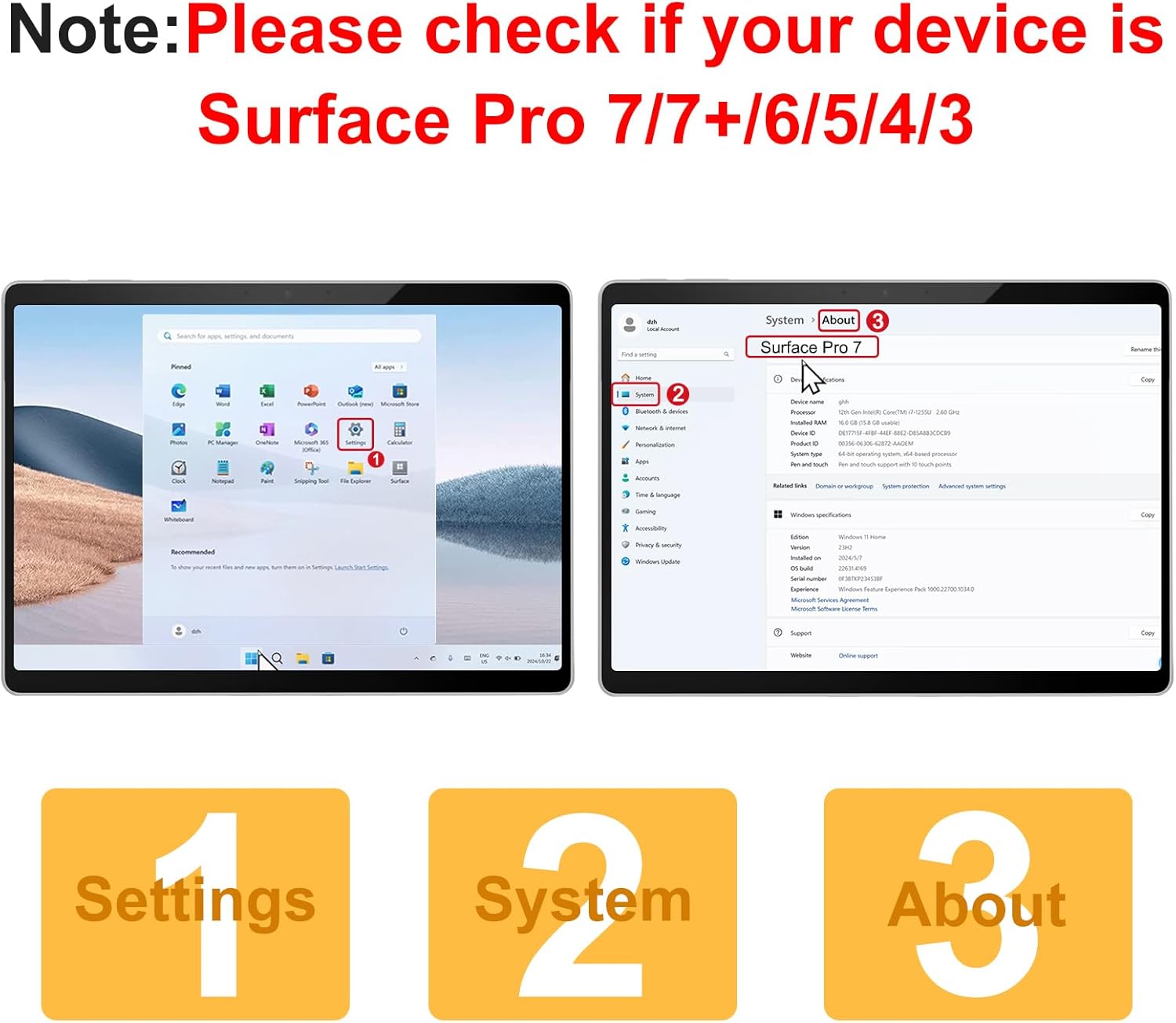
Figure 2: Steps to verify your Microsoft Surface Pro model for compatibility.

Figure 3: Visual guide to compatible and incompatible Surface Pro models.
2.2. Physical Attachment
The keyboard attaches magnetically to your Surface Pro tablet. Simply align the magnetic strip at the top of the keyboard with the bottom edge of your tablet until it snaps into place. The magnetic strip is for physical attachment only and does not provide charging or data connection.

Figure 4: Magnetic attachment of the keyboard to the Surface Pro, offering two typing angles.
2.3. Charging the Keyboard
The keyboard has a built-in rechargeable battery and is charged via a Type-C charging cable (included). Connect the Type-C cable to the charging port on the keyboard and a suitable USB power source. A full charge takes approximately 2 hours and provides up to 50 hours of working time.

Figure 5: Charging the TECURS Wireless Keyboard via its Type-C port.
2.4. Bluetooth Connection Steps
Follow these steps to pair your keyboard with your Surface Pro:
- Turn on the power switch located on the side of the keyboard.
- Press the "Fn" + "C" keys simultaneously to activate the keyboard's Bluetooth pairing mode. The Bluetooth indicator light will blink.
- On your Surface Pro, go to Settings > Bluetooth & devices and ensure Bluetooth is turned ON.
- Click "Add a device" and select "Bluetooth Keyboard" from the list to complete the pairing process.
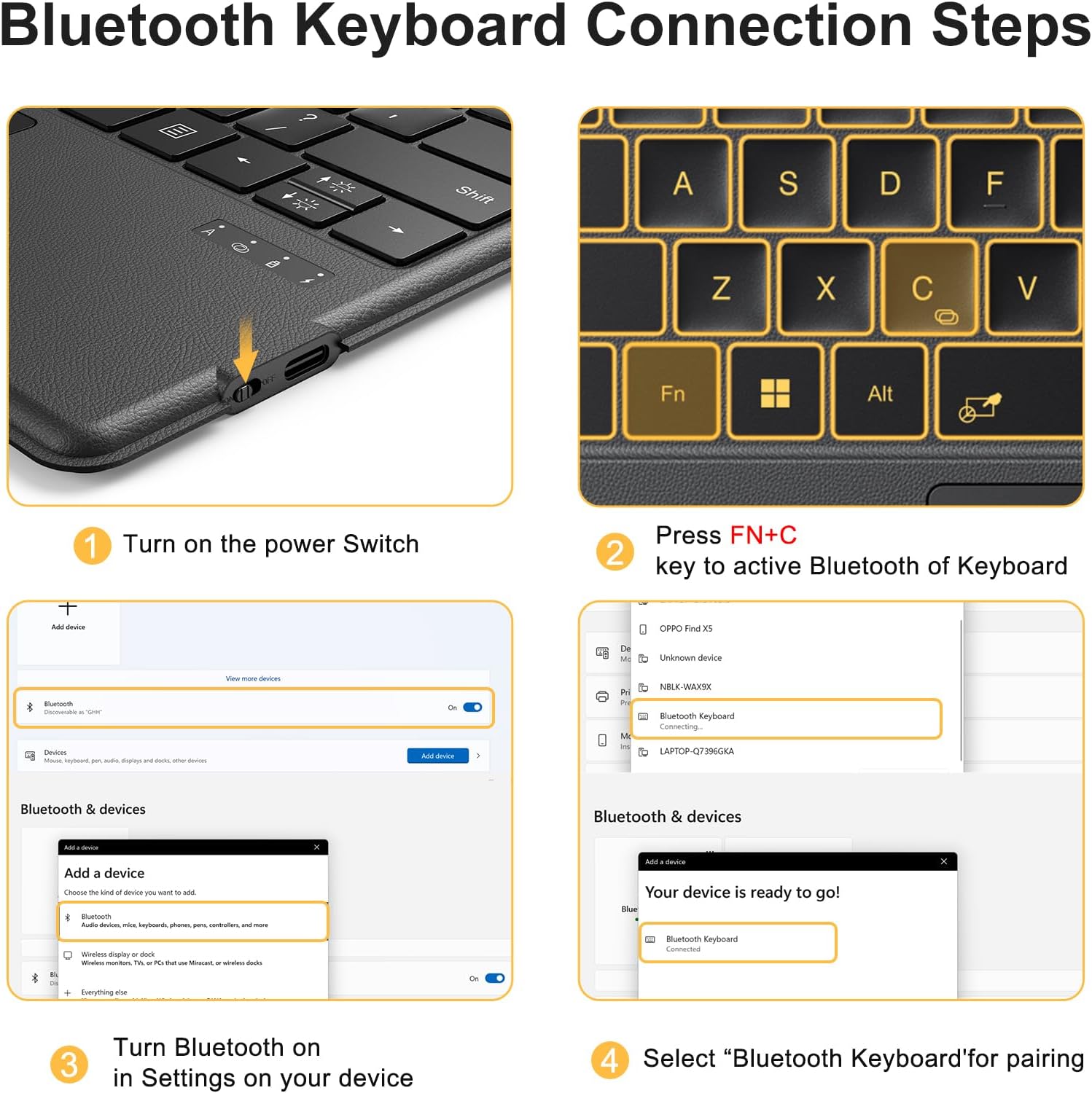
Figure 6: Detailed steps for establishing a Bluetooth connection between the keyboard and your Surface Pro.
3. Operating Instructions
3.1. Keyboard and Typing
The keyboard features a standard QWERTY layout with 78 keys, providing a comfortable and responsive typing experience. The keys are designed for silent and comfortable typing, similar to a laptop keyboard.
3.2. Backlight Control
The keyboard is equipped with a 7-color LED backlight. You can adjust the color and brightness to suit your preference and environment.
- To adjust the backlight color: Press "Fn" + (light bulb icon). Cycle through the 7 available colors.
- To adjust the backlight brightness: Press "Fn" + (sun icon). There are 3 levels of brightness adjustment, including off.

Figure 7: Controls for adjusting keyboard backlight colors and brightness levels.
3.3. Trackpad Functionality
The built-in responsive trackpad supports precise cursor control and multi-touch gestures, similar to a mouse.
- To turn the trackpad ON/OFF: Press "Fn" + Spacebar.
- One finger slide: Move cursor.
- Two fingers tapping: Right-click.
- Two fingers up/down: Scroll vertically.
- Two fingers pinch: Zoom in/out.
- Three fingers tap: Search.
- Three fingers up: Open all task windows.
- Three fingers down: Back to desktop.
- Four fingers tap: Open the activity center.
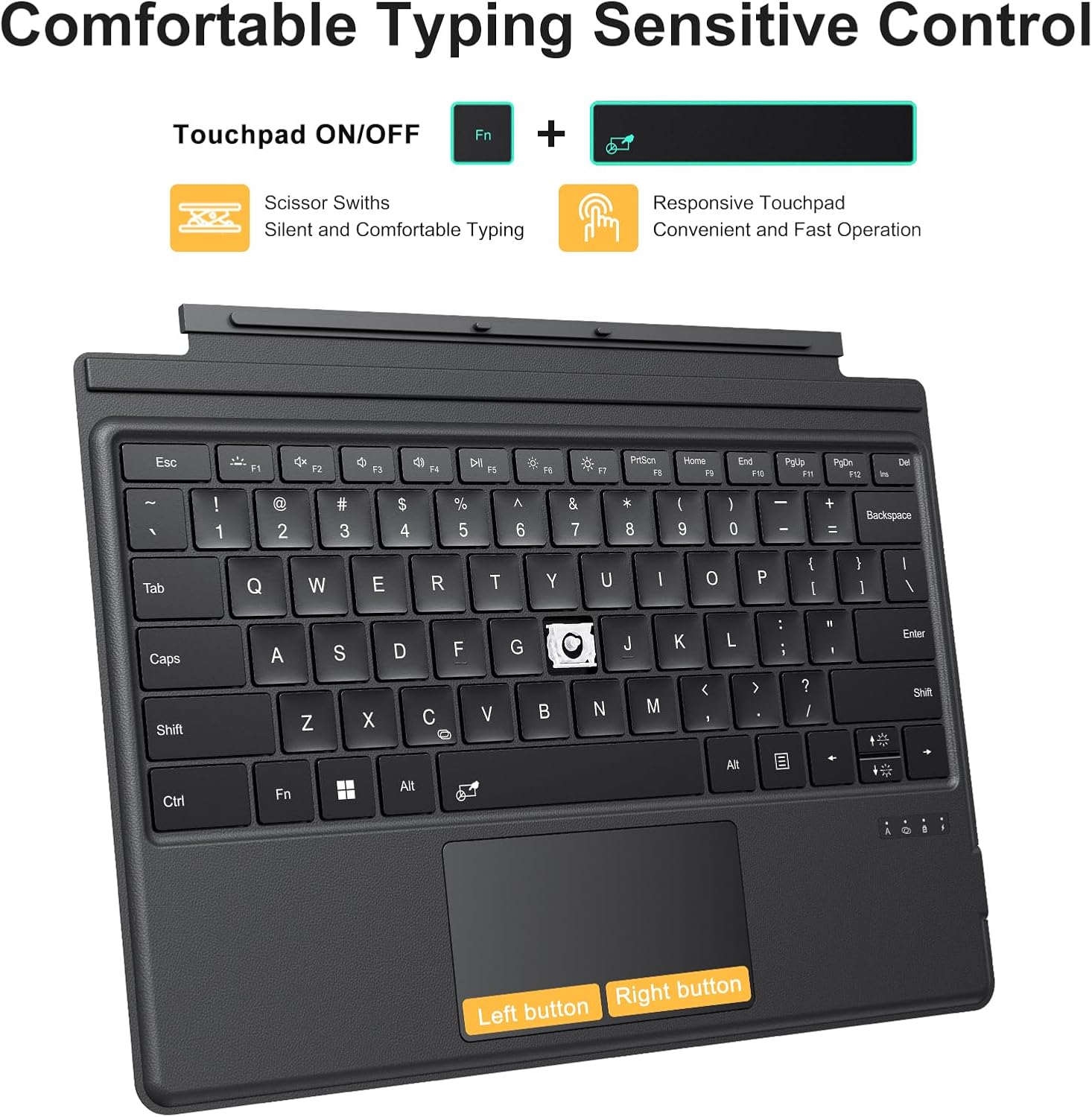
Figure 8: Trackpad features and multi-finger gestures for enhanced control.
3.4. Function Keys and Shortcuts
The top row of keys provides various function and shortcut controls:
- Esc: Escape
- F1: Mute
- F2: Decrease Volume
- F3: Increase Volume
- F4: Play/Pause
- F5: Previous Track
- F6: Next Track
- F7: Dim Screen
- F8: Brighten Screen
- F9: Print Screen
- F10: Home (Start of Line)
- F11: End (End of Line)
- F12: Page Up
- Del: Delete

Figure 9: Overview of keyboard function keys and their shortcuts.
4. Maintenance
Proper maintenance ensures the longevity and optimal performance of your TECURS Wireless Keyboard.
- Cleaning: Use a soft, lint-free cloth slightly dampened with water or a mild cleaning solution to wipe the surface of the keyboard and trackpad. Avoid excessive moisture. Do not use harsh chemicals or abrasive materials.
- Storage: When not in use, keep the keyboard attached to your Surface Pro to protect the screen and keys. Store in a cool, dry place away from direct sunlight and extreme temperatures.
- Battery Care: To preserve battery life, avoid fully discharging the keyboard frequently. Charge it regularly, even if not in constant use.
5. Troubleshooting
If you encounter issues with your TECURS Wireless Keyboard, refer to the following common problems and solutions:
- Keyboard not connecting via Bluetooth:
- Ensure the keyboard's power switch is ON.
- Press "Fn" + "C" to put the keyboard into pairing mode.
- Check that Bluetooth is enabled on your Surface Pro.
- Forget the "Bluetooth Keyboard" device in your Surface Pro's Bluetooth settings and attempt to re-pair.
- Ensure the keyboard is charged.
- Backlight not working or dim:
- Press "Fn" + (sun icon) to increase brightness levels.
- Ensure the keyboard has sufficient battery charge.
- Trackpad unresponsive:
- Press "Fn" + Spacebar to toggle the trackpad ON/OFF.
- Ensure the keyboard is properly connected via Bluetooth.
- Clean the trackpad surface to remove any debris.
- Keys not responding:
- Verify Bluetooth connection.
- Recharge the keyboard.
- Restart your Surface Pro.
6. Specifications
| Feature | Detail |
|---|---|
| Brand | TECURS |
| Compatible Devices | Microsoft Surface Pro 7/Pro 7+ /Pro 6 /Pro 5 /Pro 4 /Pro 3 (12.3 inch) |
| Connectivity Technology | Bluetooth |
| Keyboard Description | Rechargeable Battery |
| Special Features | Backlit, Ergonomic, Portable |
| Color | Black |
| Number of Keys | 78 |
| Keyboard Backlighting Color Support | RGB (7 Colors) |
| Included Components | 1 x Keyboard, 1 x Type-C Charging Cable, 1 x User Manual |
| Keyboard Layout | QWERTY |
| Item Weight | 1.21 pounds |
| Package Dimensions | 13.43 x 9.92 x 0.59 inches |
| Charging Time | Approx. 2 hours |
| Working Time | Approx. 50 hours |
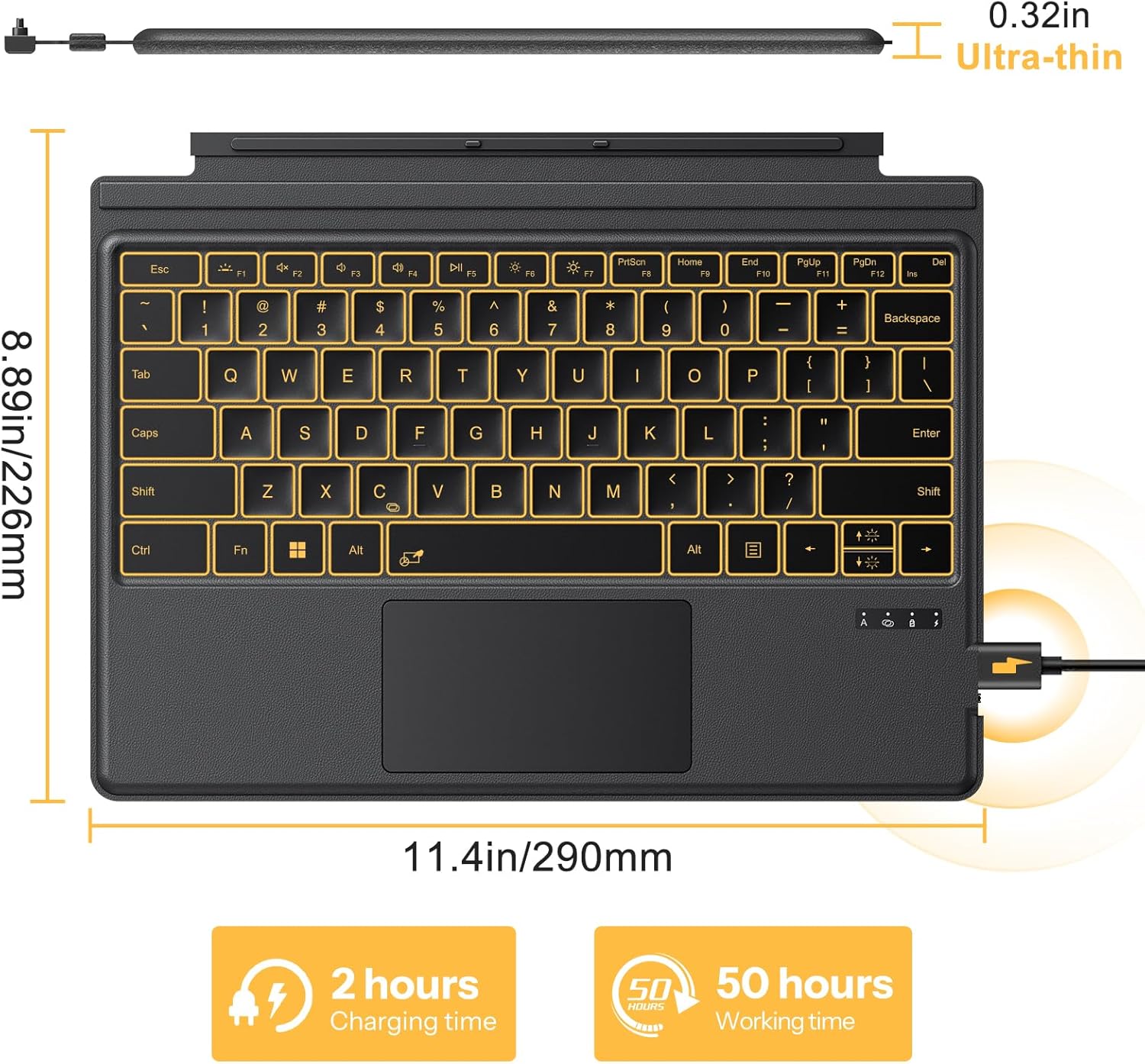
Figure 10: Physical dimensions and battery performance of the keyboard.
7. Warranty and Support
TECURS products are designed for reliability and performance. For any product-related inquiries, technical support, or warranty claims, please refer to the contact information provided with your purchase or visit the official TECURS website.
Additional protection plans may be available for purchase separately to extend coverage beyond the standard warranty. Please check with your retailer for details.
Related documentsKC009


Ask a question about this manual
Ask about setup, troubleshooting, compatibility, parts, safety, or missing instructions. Manuals+ will review the question and use this page’s manual context to help answer it.