Introduction
This manual provides detailed instructions for the installation, operation, and maintenance of your STAPON S13 13.3-inch Android Car Stereo. This advanced head unit features a QLED display, Android 15 operating system, and supports a wide range of functionalities including CarPlay, Android Auto, 4G connectivity, DSP audio processing, and 360-camera integration. Please read this manual thoroughly before using the product to ensure proper operation and to maximize your user experience.

Figure 1: Front view of the STAPON S13 13.3-inch Android Car Stereo.
1. Setup and Installation
Proper installation is crucial for the optimal performance of your STAPON S13 car stereo. It is recommended that installation be performed by a qualified professional.
1.1 Package Contents
Verify that all components are present in the package:
- STAPON S13 13.3-inch Display Unit
- Wiring Harnesses
- GPS Antenna
- USB Cables
- Mounting Brackets and Screws
- User Manual (this document)
1.2 Physical Installation
The unit is designed for in-dash mounting and can be adjusted for compatibility with 9 or 10-inch frames. Ensure sufficient space for the 13.3-inch display.

Figure 2: Installation diagram showing the unit's adjustable mounting and fixing points.
1.3 Wiring Connections
Connect the provided wiring harnesses to the corresponding ports on the back of the head unit and to your vehicle's electrical system. Pay close attention to power, ground, speaker, and accessory connections. If integrating a 360-camera system, connect the camera inputs as specified in the camera's manual.

Figure 3: Rear panel connections for the STAPON S13 head unit.
1.4 Dimensions
Refer to the following dimensions for proper fitment:

Figure 4: Side profile dimensions of the STAPON S13 unit.
2. Operating Instructions
2.1 Power On/Off and Basic Navigation
Press and hold the power button to turn the unit on or off. The Android 15 interface allows for intuitive navigation through apps and settings. Swipe gestures and touch controls are used to interact with the system.
Video 1: Demonstration of the STAPON 13-inch head unit's user interface, including app navigation, 360-camera view, CarPlay, and sound settings.
2.2 QLED Display
The 13.3-inch QLED screen with 1920x1200 resolution provides vibrant colors and clear visuals. Adjust brightness and display settings via the system menu for optimal viewing.

Figure 5: The 2K QLED screen showcasing its ultra-clear resolution and excellent color performance.
2.3 Audio Settings (DSP)
Utilize the built-in Digital Sound Processor (DSP) with 36 bands of adjustment to customize your audio experience. Access the equalizer, field, surround, and bass enhancement settings to fine-tune sound output.
Figure 6: DSP sound processing interface for audio customization.
2.4 Connectivity (4G, WiFi, Bluetooth)
The unit supports 4G, WiFi, and Bluetooth 5.0 for seamless connectivity. Insert a 4G SIM card for mobile data access. Connect to local WiFi networks for internet access. Pair your smartphone via Bluetooth for hands-free calling and audio streaming.

Figure 7: The unit's interface showing 4G network capabilities and various applications.
2.5 CarPlay and Android Auto
Connect your iPhone or Android smartphone to enable CarPlay or Android Auto. This allows for integrated access to navigation, music, messages, and other compatible apps directly on the stereo's display.
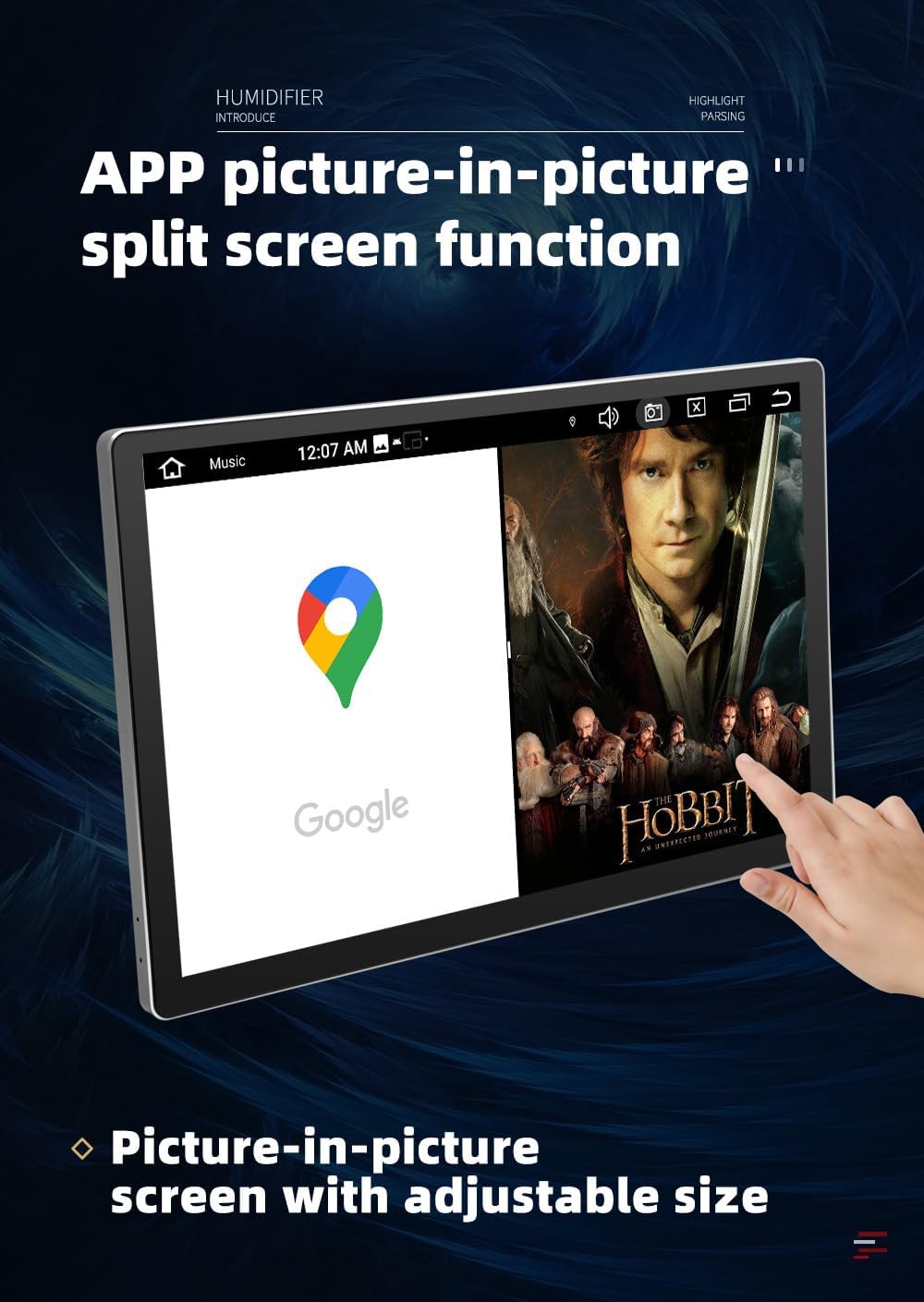
Figure 8: CarPlay and Android Auto integration for smartphone mirroring.
2.6 360-Camera System
If a compatible 360-camera system is installed, access the 360 Panorama app to view a comprehensive surround view of your vehicle. This feature enhances parking and maneuvering safety.
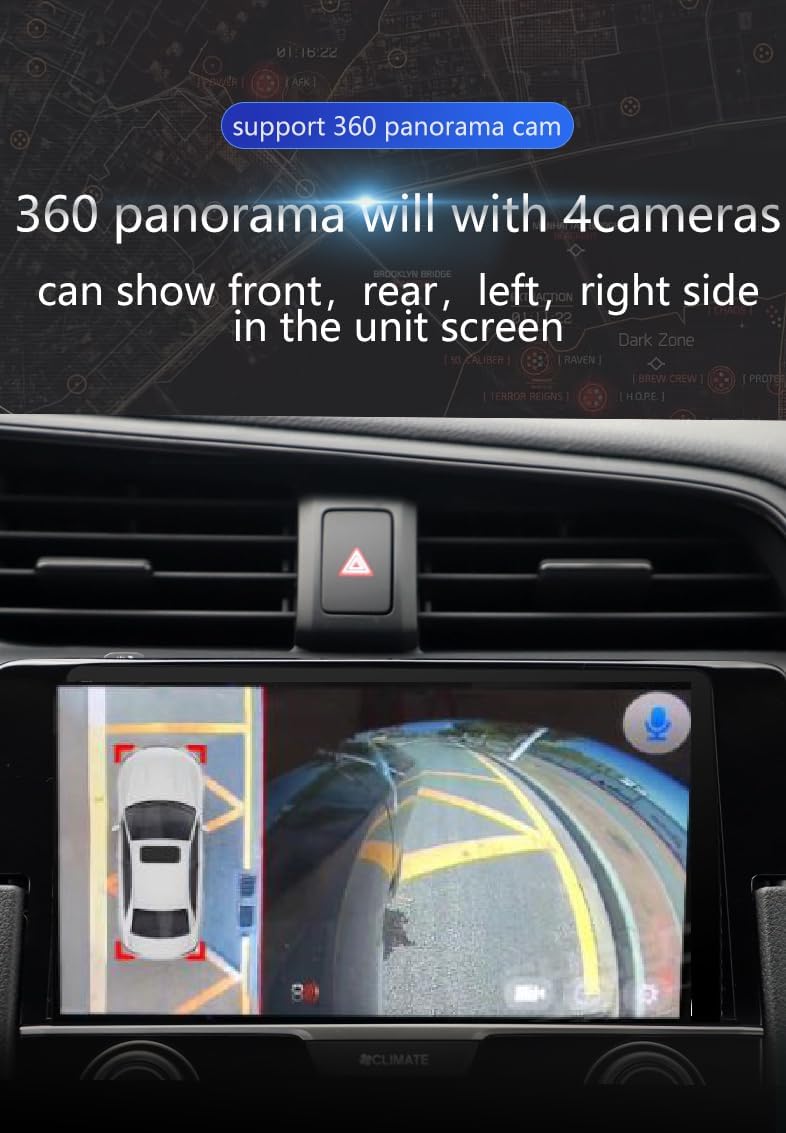
Figure 9: 360-degree panoramic camera view for enhanced safety.
Video 2: Demonstration of the STAPON 13-inch head unit's 360-camera functionality, showing various camera angles and views.
2.7 Split Screen Functionality
The unit supports picture-in-picture and split-screen functions, allowing you to run two applications simultaneously, such as navigation and a media player.

Figure 10: Split screen functionality displaying navigation and media playback.
3. Maintenance
- Cleaning: Use a soft, dry cloth to clean the screen and exterior. Avoid abrasive cleaners or solvents.
- Software Updates: Periodically check for software updates through the system settings to ensure optimal performance and access to new features.
- Data Backup: Regularly back up important data to prevent loss.
- Temperature: Operate the unit within the specified temperature range of -4°F to 140°F (-20°C to 60°C).
4. Troubleshooting
- No Power: Check all power connections and fuses. Ensure the vehicle's ignition is on.
- No Sound: Verify speaker connections. Check volume levels and DSP settings. Ensure the mute function is not active.
- Touchscreen Unresponsive: Try restarting the unit. If the issue persists, a factory reset may be necessary (note: this will erase all user data).
- GPS Signal Loss: Ensure the GPS antenna is properly installed and has a clear view of the sky.
- Bluetooth Connection Issues: Ensure Bluetooth is enabled on both the stereo and your device. Try unpairing and re-pairing the devices.
- CarPlay/Android Auto Not Connecting: Ensure your phone is compatible and the USB cable is functioning correctly. Try restarting both the phone and the stereo.
5. Specifications
| Feature | Specification |
|---|---|
| Display Size | 13.3 Inches |
| Display Type | QLED, 2K (1920x1200p) |
| Operating System | Android 15 |
| Processor | Octa-Core (UIS7862 12nm CPU) |
| RAM | 8GB |
| Internal Storage | 128GB |
| Connectivity | 4G, WiFi, Bluetooth 5.0 |
| Audio Features | DSP (36-band equalizer), AK7604, TDA7850 |
| Navigation | Built-in GPS, Online Map Support |
| Smartphone Integration | CarPlay, Android Auto |
| Radio | AM/FM with RDS |
| Dimensions (Product) | 7.84 x 2 x 7.5 inches |
| Item Weight | 4.4 pounds |
| Operating Temperature | -4°F to 140°F (-20°C to 60°C) |
6. Warranty Information
The STAPON S13 13.3-inch Android Car Stereo comes with a 1-year warranty from the date of purchase. This warranty covers manufacturing defects and malfunctions under normal use. It does not cover damage caused by improper installation, misuse, accidents, or unauthorized modifications. Please retain your proof of purchase for warranty claims.
7. Customer Support
For technical assistance, troubleshooting, or warranty inquiries, please contact your retailer or the manufacturer's customer support. Refer to your purchase documentation for specific contact details.


