
1. Introduction
Welcome to the user manual for your PTHTECHUS 4G Kids Smartwatch Model A22. This guide provides essential information for setting up, operating, and maintaining your smartwatch. Please read it carefully to ensure proper use and to fully utilize all available features.
2. Product Overview
The PTHTECHUS 4G Kids Smartwatch is designed to keep children connected and safe. It features 4G connectivity for calls and video calls, GPS tracking, an SOS function, and various educational and entertainment features. The watch is compatible with both iOS and Android devices via the 'Junicare' application.
Key Features:
- 4G Connectivity: Supports voice and video calls.
- GPS Tracking: Real-time location and safety zone alerts.
- SOS Function: One-button emergency dialing to pre-set contacts.
- Class Mode: Disables distractions during school hours.
- Communication: Voice chat, SMS, and video calls.
- Multimedia: Built-in camera, games.
- Health & Time Management: Pedometer, alarm clock, stopwatch.
- Display: 2-inch touch screen.
- Durability: Water-resistant design.
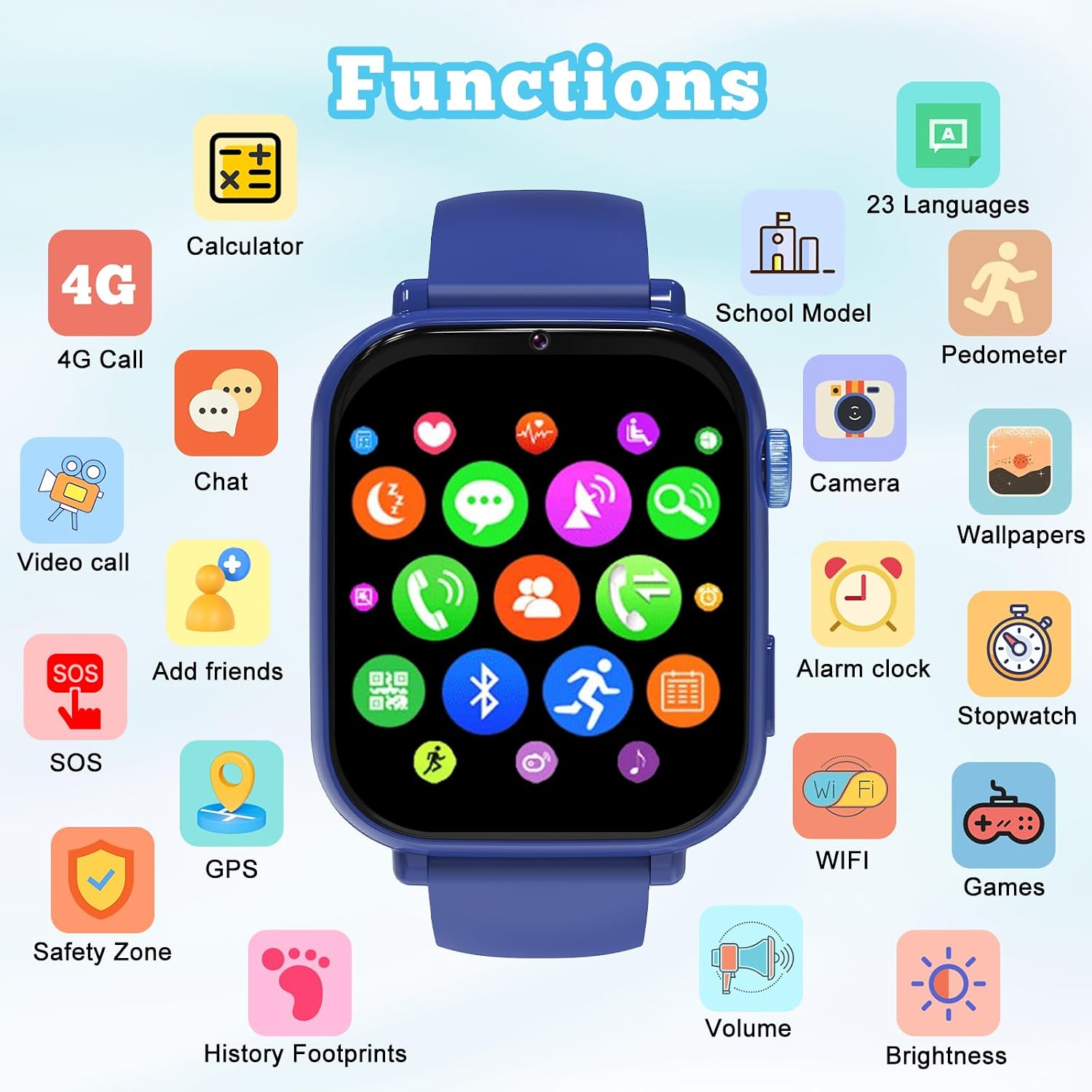
Image: The smartwatch interface showing icons for various functions like calls, chat, SOS, GPS, camera, games, and more.
3. Setup
3.1 SIM Card Installation
The smartwatch requires a Nano SIM card for 4G connectivity, calls, and GPS features. Ensure the watch is powered off before inserting the SIM card.
- Power off the smartwatch completely.
- Locate the SIM card slot on the side of the watch.
- Carefully insert a Nano SIM card into the slot with the chip facing up, ensuring it clicks into place.
- Power on the watch. The signal icon should appear on the screen once the SIM card is recognized.

Image: Illustration demonstrating the correct Nano SIM card type and insertion method for the smartwatch.
3.2 App Connection (Junicare)
To manage the smartwatch and access advanced features, download and install the 'Junicare' application on your smartphone.
- Scan the QR code provided in the watch packaging or search for 'Junicare' in your smartphone's app store (iOS or Android).
- Install the application and create an account.
- Follow the in-app instructions to bind the smartwatch to your account. This typically involves scanning a QR code displayed on the watch screen.
- Once connected, you can manage contacts, set safety zones, view location history, and configure other watch settings.
4. Operating Instructions
4.1 Basic Navigation
The smartwatch features a touch screen for navigation. Swipe left/right to browse applications, swipe up/down for notifications or quick settings, and tap to select.
4.2 Making and Receiving Calls
With a Nano SIM card inserted, the smartwatch supports 4G voice and video calls. You can make calls to contacts saved in the 'Junicare' app and receive calls from approved numbers.
- To make a call: Tap the "Phone" icon, select a contact, and tap the call button.
- To receive a call: Tap the green answer button on the screen.
- Video Calls: Tap the "Video Call" icon and select a contact for a video conversation.

Image: The smartwatch supports 4G video calls, allowing parents and children to communicate visually.
4.3 SOS Emergency Function
In an emergency, the SOS function allows the child to quickly alert pre-selected contacts.
- Activation: Press and hold the dedicated SOS button on the watch.
- Process: The watch will automatically dial three emergency contacts in sequence until a connection is made. It will also send location alerts to these contacts.

Image: The SOS feature allows the child to quickly contact emergency numbers by pressing a dedicated button.
4.4 GPS Tracking and Safety Zones
Monitor your child's location and set up virtual boundaries using the 'Junicare' app.
- Real-time Location: View the watch's current location on a map within the app.
- Location History: Review past movements of the watch.
- Safety Zones (Geofencing): Define safe areas (e.g., home, school) on the map. You will receive alerts if the watch enters or exits these zones.

Image: The smartwatch's GPS function allows for real-time tracking and setting up safety zones via the companion app.
4.5 Class Mode
To minimize distractions during school or study times, activate Class Mode.
- Activation: Configure Class Mode schedules through the 'Junicare' app.
- Functionality: During active Class Mode, games and incoming calls (except SOS) are automatically blocked, allowing the child to focus.
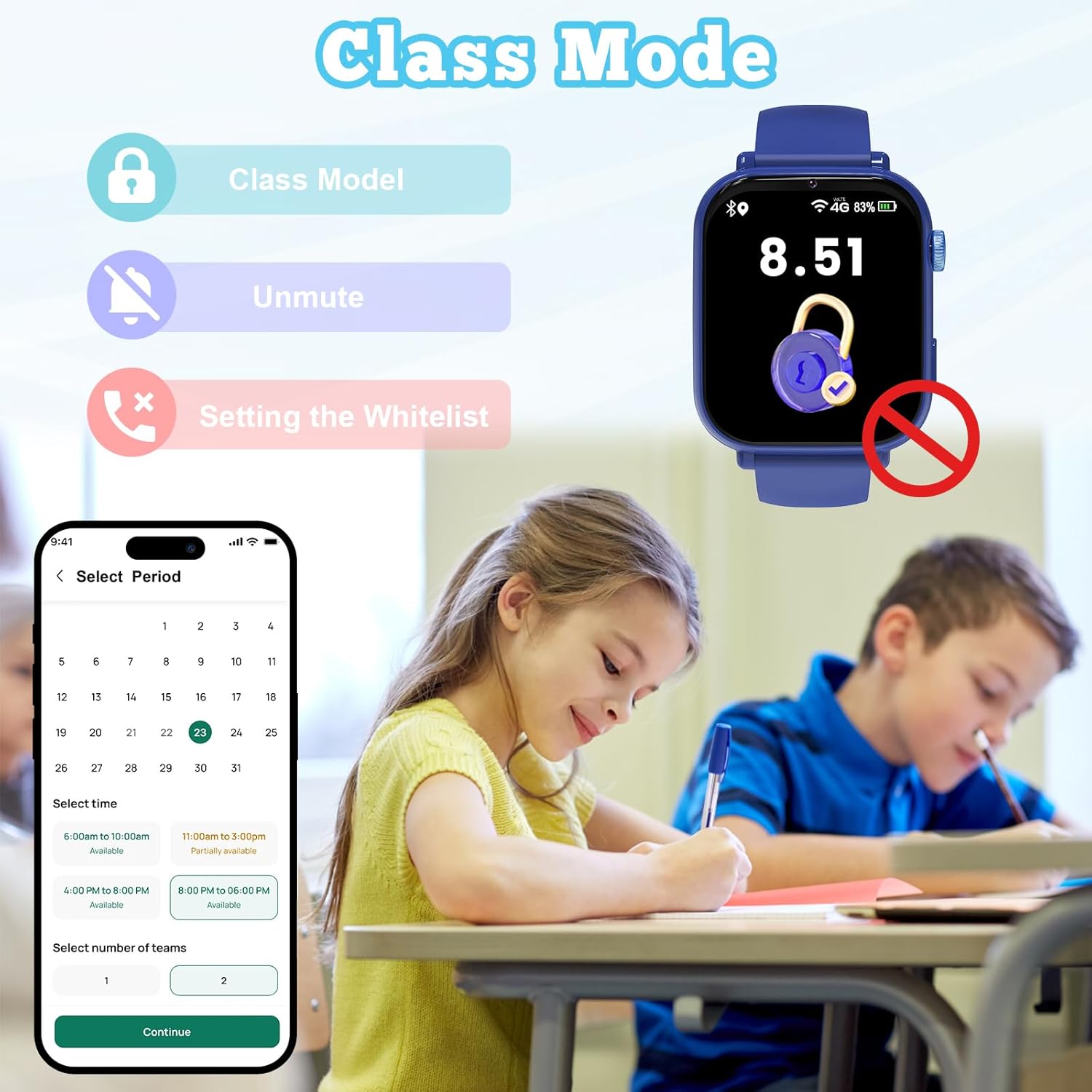
Image: Class Mode helps children focus by disabling games and calls during set school hours.
4.6 Camera and Entertainment
The smartwatch includes a built-in camera for capturing photos and videos, along with pre-installed games.
- Camera: Tap the "Camera" icon to take photos or record short videos.
- Games: Access various age-appropriate puzzle games from the main menu.

Image: The smartwatch features a camera for photos and videos, and includes various games for entertainment.
4.7 Pedometer and Time Management
Encourage healthy habits and time awareness with the integrated pedometer, alarm, and stopwatch.
- Pedometer: Tracks daily steps and activity levels.
- Alarm Clock: Set alarms for reminders or waking up.
- Stopwatch: Use for timing activities.

Image: The smartwatch includes a pedometer to track activity, along with games, camera, alarm, stopwatch, and calculator functions.
5. Maintenance
5.1 Cleaning
To clean the smartwatch, use a soft, dry, lint-free cloth. Avoid using harsh chemicals, abrasive materials, or excessive moisture, as these can damage the device.
5.2 Water Resistance
The smartwatch is water-resistant, suitable for daily activities like hand washing or light rain. It is not recommended for swimming, showering, or submersion in water. Avoid exposure to hot water or steam.
5.3 Charging
Charge the smartwatch using the provided charging cable. Connect the cable to a standard USB power adapter (not included). Ensure the charging contacts on the watch and cable are clean and dry before charging. Do not use damaged cables or chargers.
5.4 Storage
When not in use for extended periods, store the smartwatch in a cool, dry place away from direct sunlight and extreme temperatures. Ensure the battery has some charge to prevent deep discharge.
6. Troubleshooting
| Problem | Possible Cause | Solution |
|---|---|---|
| Watch does not detect SIM card. | Incorrect SIM card size or improper insertion. Watch not powered off during insertion. | Ensure it is a Nano SIM card. Power off the watch, re-insert the SIM card correctly, and restart. |
| Short battery life. | Frequent use of power-intensive features (video calls, GPS). Background app activity. | Reduce usage of video calls. Ensure Class Mode is active during school hours. Fully charge the watch before use. |
| Cannot make calls or use app functions. | Watch not properly linked to administrator in 'Junicare' app. Incorrect contact numbers. No network signal. | Verify the watch is correctly bound to the 'Junicare' app. Check if contact numbers are saved correctly. Ensure the watch has a stable 4G signal. |
| GPS location is inaccurate. | Environmental factors (indoors, dense urban areas, poor satellite signal). | GPS accuracy can vary. For best results, ensure clear sky visibility. Location services may be less precise indoors. |
| SOS button triggers accidentally. | Button pressed unintentionally due to activity or watch position. | Educate the child on proper use. Ensure the watch is worn securely to prevent accidental presses. |
7. Specifications
| Feature | Detail |
|---|---|
| Brand | PTHTECHUS |
| Model Name | A22 |
| Operating System | Android & iOS Compatible |
| Memory Storage Capacity | 512 MB |
| Battery Capacity | 700 mAh (Lithium-ion) |
| Connectivity Technology | Wi-Fi, 4G Cellular |
| Wireless Communication Standard | 802.11ac |
| GPS | Integrated GPS |
| Screen Size | 2 Inches |
| Display Type | LCD |
| Resolution | 240 x 240 |
| Input Method | Touch Screen |
| Band Material Type | Silicone |
| Water Resistance Level | Water-resistant |
| SIM Card Size | Nano |
| Target Audience | Children (4-12 years) |
| Box Contents | Smartwatch x1, User Manual x1, Charging Cable x1 |
8. Warranty and Support
8.1 Warranty Information
This PTHTECHUS 4G Kids Smartwatch Model A22 comes with a 2-year limited warranty from the date of purchase. This warranty covers manufacturing defects and malfunctions under normal use. It does not cover damage caused by misuse, accidents, unauthorized modifications, or normal wear and tear.
8.2 Customer Support
If you encounter any issues or have questions not addressed in this manual, please contact PTHTECHUS customer support. Refer to your purchase documentation for specific contact details or visit the official PTHTECHUS website for assistance.


