
1. Introduction
The Tukio Smart Air Tracker Tag K7 is an Apple MFi Certified Bluetooth item finder designed to help you locate your belongings using the Apple Find My network. This ultra-slim and portable device offers wireless charging, IP68 waterproof protection, and advanced privacy features, making it ideal for tracking wallets, keys, luggage, and more. This manual provides detailed instructions for setup, operation, maintenance, and troubleshooting.

The Tukio Smart Air Tracker Tag K7, a compact black device with a power symbol, attached to a keyring and a black lanyard.
2. Product Overview
Key Features
- Ultra-thin and Portable: Measures 2.88mm thin and weighs 8g, designed to fit easily into wallets, pockets, or bags.
- Wide Compatibility: Works with wallets, keys, suitcases, backpacks, and other items. Compatible with iOS devices only.
- Smart Tracking: Features an 80-100 dB loud buzzer for nearby item location and utilizes the Apple Find My network for remote tracking. Supports Siri voice control.
- Left-Behind Remind: Notifies you when the tracker leaves your phone's Bluetooth range, providing the last known location.
- Lost Mode: Allows anonymous contact information sharing and secure location updates when an item is found by others on the Find My network.
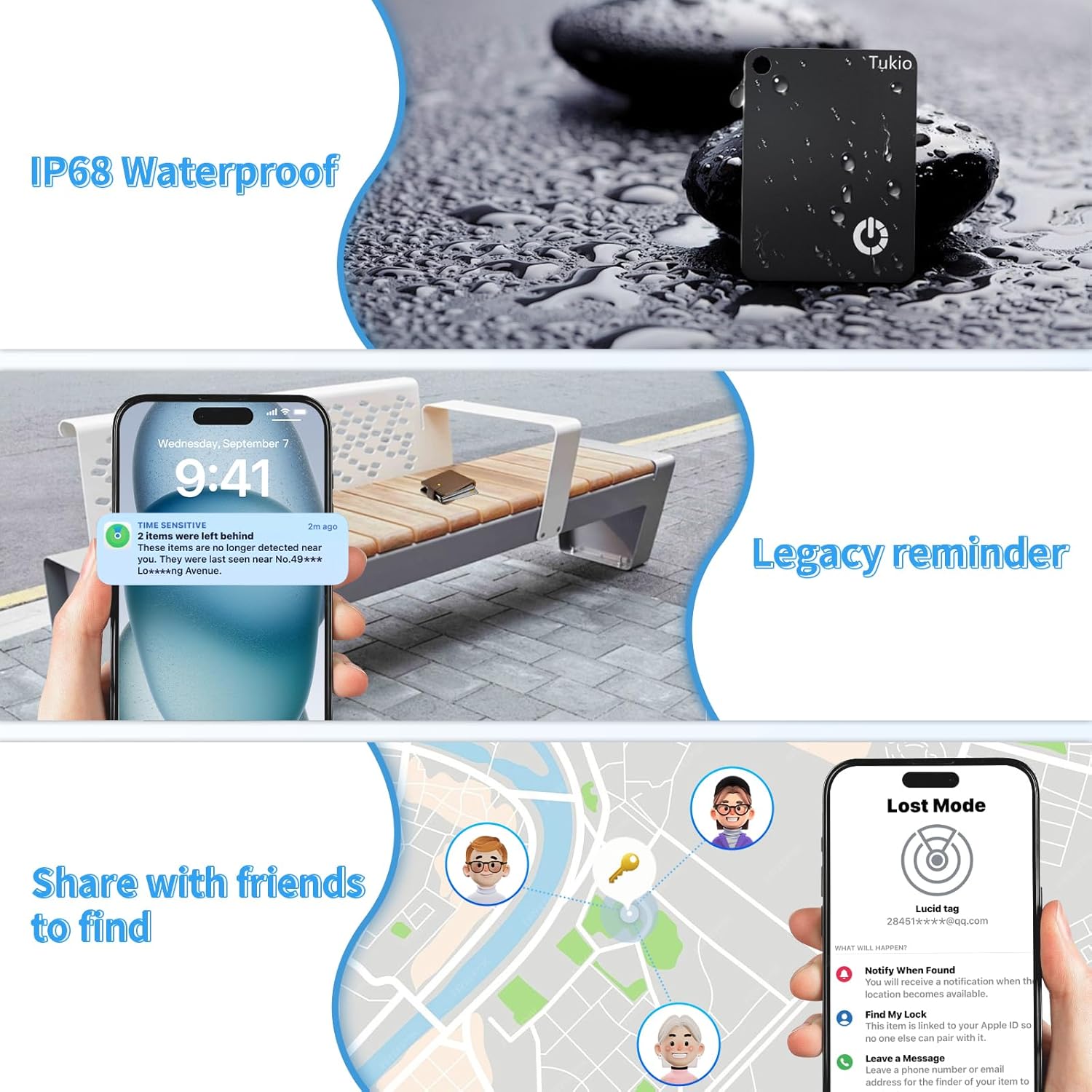
- IP68 Waterproof: Protects against rain splashes and short-term immersion.
- Wireless Charging: Convenient charging without cables, with a battery life of up to 6 months per charge.
- Privacy Protection: Apple MFi certified, ensuring anonymous and encrypted communication. Location data is not stored on the tag, and anti-tracking features are built-in.

An infographic highlighting the key features of the Tukio Smart Tracker Tag, including compatibility with Apple Find My, Siri, its rechargeable battery, and built-in privacy.
What's in the Box
- Tukio Smart Tag x 1
- Keyring x 1
- Nylon Lanyard x 1
- User Manuals x 1
- After-sales service information

An image showing the contents of the product box: one Smart Tag, one keyring, one nylon lanyard, and user manuals.
3. Setup
Follow these steps to pair your Tukio Smart Air Tracker Tag K7 with your iOS device:
- Power On: Press the button on the tracker tag for approximately 3 seconds until you hear a confirmation sound or see an indicator light.
- Enable Bluetooth: Ensure Bluetooth is enabled on your iPhone or iPad.
- Open Find My App: Launch the "Find My" application on your iOS device.
- Add Item: Navigate to the "Items" tab, then select "Add New Item" and choose "Other Supported Item".
- Connect: In the enabled state, the app will search for "WL FINDER". Select it to complete the pairing process.

A visual guide demonstrating the four steps to pair the tracker tag with an iOS device using the Apple Find My app: pressing the tag button, opening Find My, adding a new item, and connecting to 'WL FINDER'.
4. Operating Instructions
Finding Items Nearby
When your item is within Bluetooth range, you can use the sound feature to locate it.
- Open the "Find My" app on your iOS device.
- Select your Tukio Smart Tag from the "Items" list.
- Tap "Play Sound" to activate the 80-100 dB buzzer, helping you pinpoint the item's location.

An iPhone screen displaying the Find My app, showing a map and options to 'Play Sound' to locate a wallet hidden in a couch cushion, indicated by sound waves.
Finding Items Far Away
If your item is out of Bluetooth range, the Apple Find My network can help you locate it remotely.
- Open the "Find My" app on your iOS device.
- Select your Tukio Smart Tag from the "Items" list.
- View its location on the map to track it remotely. The Find My network uses hundreds of millions of Apple devices to securely relay location information.

Two iPhones displaying the Find My app, showing a map with a tracked item's location, illustrating how to find items remotely.
Activating Lost Mode
Lost Mode helps you recover items that are truly lost by allowing others to contact you.
- In the "Find My" app, select your Tukio Smart Tag.
- Scroll down and select "Lost Mode".
- Follow the prompts to enter your contact information (phone number or email address).
- Activate Lost Mode. If your item is found by another Apple device user, they can access your contact information to return it.

A visual guide demonstrating the four steps to activate Lost Mode in the Find My app: selecting 'Lost Mode', checking information, entering contact details, and activating the mode.
Left-Behind Remind
Receive notifications if you accidentally leave your item behind.
- Enable "Notify When Left Behind" in the "Find My" app settings for your tracker.
- Your iOS device will send a notification if the tracker tag is separated from your device, showing its last known location.

An iPhone displaying a notification that a 'Tukio smart Tag' has been left behind, showing its last detected location.
Siri Voice Control
Use Siri to quickly locate your items when they are nearby.
- If your item is nearby, you can use Siri to locate it.
- Simply say, for example, "Hey Siri, where is my wallet?" (assuming you have named your tag "wallet" in the Find My app).

An image showing two tracker tags and an iPhone with Siri activated, demonstrating how to ask Siri to find the tracker tag.
Sharing Items
You can share the location of your Tukio Smart Tag with trusted friends and family.
- Through the "Find My" app, you can share your tracker's location.
- Note: Both parties must be using iOS 17, iPadOS 17, macOS 14, or later versions for this feature.

An iPhone screen showing the 'Lost Mode' interface with options to share the item's location, overlaid on a map with multiple user icons, indicating shared tracking.
5. Charging
The Tukio Smart Air Tracker Tag K7 features convenient wireless charging.
- Place the tracker tag on a compatible magnetic wireless charging pad.
- A single full charge can provide power for up to 6 months of use.
The black tracker tag placed on a wireless charging pad, with blue light effects indicating active charging.
6. Maintenance
The Tukio Smart Air Tracker Tag K7 is designed for durability and protection.
- The tracker tag is IP68 rated, meaning it is protected against dust ingress and can withstand immersion in water up to 1.5 meters for up to 30 minutes.
- This makes it suitable for various daily and outdoor environments, protecting it from rain splashes and accidental short-term immersion.
- To clean, wipe with a soft, dry cloth. Avoid harsh chemicals or abrasive materials.

The tracker tag shown with water droplets splashing around it, illustrating its IP68 waterproof rating.
7. Troubleshooting
If you encounter issues with your Tukio Smart Air Tracker Tag K7, refer to the following common solutions:
- Device Not Pairing:
- Ensure Bluetooth is enabled on your iOS device.
- Make sure the tracker tag is powered on (press the button for 3 seconds).
- Confirm you are using the "Find My" app and selecting "Other Supported Item".
- Ensure your iOS device is updated to a compatible version (iOS 14.5 or later recommended).
- Cannot Hear Buzzer:
- Check if the item is within Bluetooth range of your iOS device.
- Ensure the tracker tag's battery is not depleted.
- The buzzer volume is 80-100 dB, which may vary based on ambient noise levels.
- Inaccurate Location:
- Location accuracy relies on the Apple Find My network. In areas with fewer Apple devices, location updates might be less frequent or precise.
- Ensure your iOS device has a stable internet connection for map updates.
- Battery Life Shorter Than Expected:
- Frequent use of the "Play Sound" feature or constant tracking in areas with weak Bluetooth signals can consume more battery.
- Ensure the device is fully charged using a compatible wireless charger.
8. Specifications
| Feature | Detail |
|---|---|
| Model Number | K7 |
| Dimensions | 1.85 x 1.3 x 0.11 inches (47.2mm x 33.1mm x 2.88mm) |
| Item Weight | 0.282 ounces (8g) |
| Connectivity | Bluetooth |
| Battery | 1 Lithium Polymer battery (included) |
| Charging | Wireless Charging |
| Water Resistance | IP68 |
| Buzzer Volume | 80-100 dB |
| Compatibility | iOS devices only (iPhone, iPad, Mac with Find My app) |
| Material | Plastic |
| Manufacturer | Tukio |
9. Usage Scenarios
The Tukio Smart Air Tracker Tag K7 is versatile and can be used in various situations to keep track of your valuables.

For Keys
Attach to your keys to prevent misplacement.

For Wallets
Its slim design fits perfectly into most wallets.

For Luggage
Track your bags during travel for peace of mind.

For Backpacks
Secure your backpack during commutes or outings.
10. Warranty and Support
The Tukio Smart Air Tracker Tag K7 comes with a 1+1 year warranty, providing coverage for manufacturing defects and malfunctions under normal use.
For any support inquiries, technical assistance, or warranty claims, please refer to the contact information provided with your product packaging or visit the official Tukio website for customer service details.

Tukio's commitment to environmental responsibility and customer support.


