
Introduction
Thank you for choosing the Sceptre 20-inch Professional Monitor (Model: E205W-16003R.A1). This monitor is designed to provide a clear and vibrant visual experience for various applications, from professional work to casual entertainment. Featuring a 1600 x 900 HD+ resolution, dual HDMI inputs, built-in speakers, and a 75Hz refresh rate with FreeSync technology, this monitor offers versatility and performance. This manual provides essential information for setting up, operating, and maintaining your new monitor.
Package Contents
Please check the package for the following items:
- Sceptre 20-inch Professional Monitor (E205W-16003R.A1)
- Monitor Stand (Base and Neck)
- Power Adapter
- HDMI Cable
- User Manual
- M4 10mm Screws (for VESA mounting)
Setup Instructions
Step 1: Unpacking the Monitor
Carefully remove the monitor and all accessories from the packaging. Place the monitor face down on a soft, clean surface to prevent scratches.
Step 2: Assembling the Stand
Attach the stand neck to the monitor, then secure the base to the neck. Ensure all screws are tightened. Alternatively, the monitor supports VESA wall mounting (75mm x 75mm) using the included M4 10mm screws.
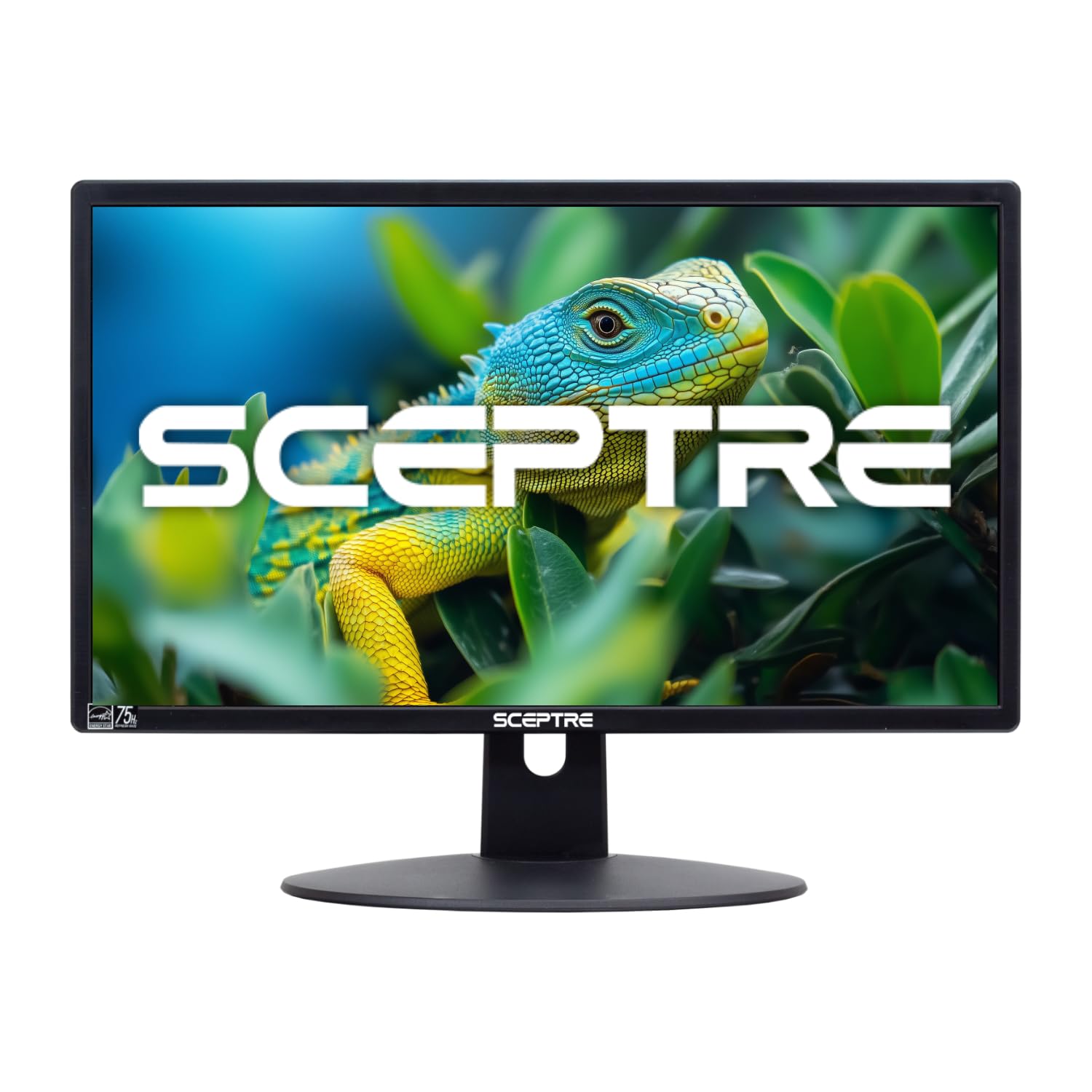
Image: Front view of the Sceptre 20-inch Professional Monitor with its assembled stand.
Step 3: Connecting the Monitor
Connect the power adapter to the monitor's power input and then to a power outlet. Use the provided HDMI cable to connect your computer or other video source to one of the monitor's HDMI ports. A VGA port is also available for older devices.

Image: Rear view of the monitor highlighting the multi-port connectivity, including two HDMI ports, one VGA port, and audio input/output.
Video: An overview showcasing various Sceptre monitors in different usage scenarios, including work, creation, gaming, and streaming, demonstrating the versatility of Sceptre displays.
Operating the Monitor
Power On/Off
Press the power button located on the monitor to turn it on or off. The power indicator light will illuminate when the monitor is active.
Input Selection
Use the input selection button (often labeled 'Source' or an icon) to cycle through the available input sources: HDMI1, HDMI2, and VGA. Select the input corresponding to your connected device.
On-Screen Display (OSD) Menu
Access the OSD menu to adjust various display settings. Common adjustments include brightness, contrast, color temperature, and picture modes. Navigate the menu using the physical buttons on the monitor.
Key Features
- Blue Light Shift: Reduces blue light emissions to minimize eye strain during prolonged use.
- Gaming Mode (FPS/RTS): Optimizes display settings for specific game genres, enhancing visibility in dark areas and improving response times.
- Built-in Speakers: Provides integrated audio output, eliminating the need for external speakers.
- Adaptive Sync (FreeSync): Synchronizes the monitor's refresh rate with your graphics card's frame rate to reduce screen tearing and stuttering, providing smoother gameplay.
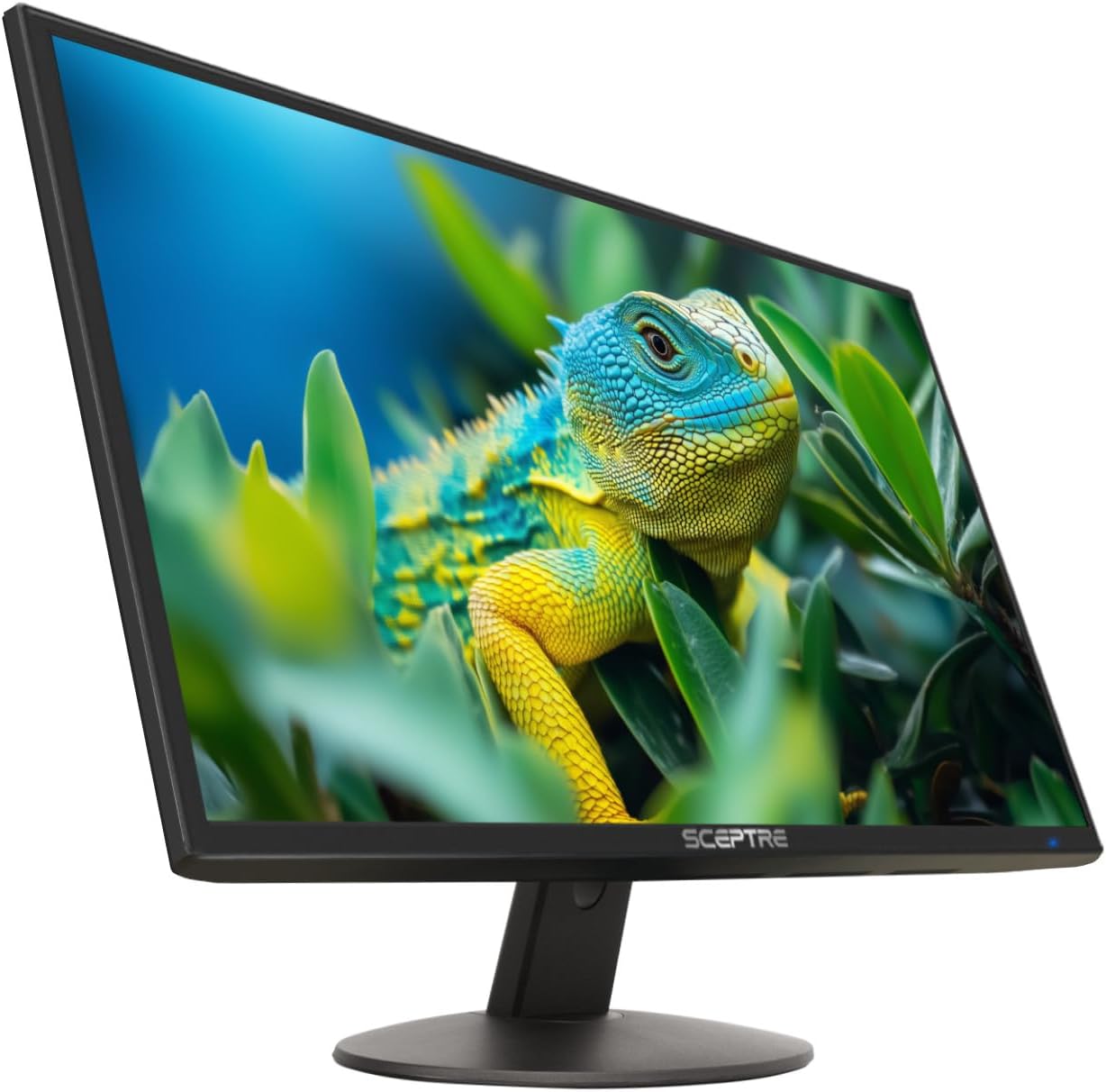
Image: The monitor's front view, illustrating key features such as 1600x900 resolution, 75Hz refresh rate, Adaptive Sync technology, and Eye Care functions.
Maintenance
Cleaning the Monitor
To clean the screen, gently wipe it with a soft, lint-free cloth. For stubborn marks, dampen the cloth with a small amount of water or a non-abrasive screen cleaner. Avoid using harsh chemicals or abrasive materials, as these can damage the screen surface. Ensure the monitor is powered off and unplugged before cleaning.
General Care
Keep the monitor away from direct sunlight, excessive heat, and moisture. Do not block the ventilation openings. Avoid placing heavy objects on the monitor or its cables.
Troubleshooting
If you encounter issues with your monitor, refer to the table below for common problems and solutions. If the problem persists, contact customer support.
| Problem | Possible Solution |
|---|---|
| No image on screen | Ensure the power cable is securely connected and the monitor is turned on. Verify the video cable (HDMI/VGA) is properly connected to both the monitor and the source device. Select the correct input source using the monitor's OSD menu. |
| No sound from speakers | Check the monitor's volume settings in the OSD menu. Ensure the audio output on your source device is set to the monitor. If using HDMI, audio should transmit automatically; for VGA, ensure an audio cable is connected to the monitor's Audio In port. |
| Image is blurry or distorted | Adjust the resolution settings on your computer to match the monitor's native resolution (1600 x 900). Check the video cable for damage or loose connections. |
| Monitor flickers | Ensure the refresh rate is set correctly (up to 75Hz). Check for external interference from other electronic devices. Update your graphics card drivers. |
Specifications
Detailed technical specifications for the Sceptre 20-inch Professional Monitor E205W-16003R.A1:
| Feature | Description |
|---|---|
| Model Number | E205W-16003R.A1 |
| Screen Size | 20 Inches |
| Resolution | 1600 x 900 (HD+) |
| Aspect Ratio | 16:9 |
| Refresh Rate | 75 Hz |
| Response Time | 3 Milliseconds |
| Display Type | LED |
| Contrast Ratio | 1500:1 |
| Connectivity | 2 x HDMI, 1 x VGA |
| Audio | Built-in Speakers, Audio In, Audio Out |
| Adaptive Sync | FreeSync |
| Special Features | Blue Light Filter, Eye Care, Frameless Design |
| Dimensions (D x W x H) | 7"D x 18"W x 13.5"H |
| Item Weight | 2.99 Kilograms |
| VESA Mount | 75mm x 75mm |

Image: Dimensional drawing of the Sceptre 20-inch Professional Monitor, indicating its width, height, and depth.
Warranty Information
This Sceptre monitor comes with a limited 1-year warranty from the date of purchase. This warranty covers manufacturing defects and workmanship under normal use. For detailed warranty terms and conditions, please refer to the warranty card included in your package or visit the official Sceptre website.
Customer Support
For technical assistance, troubleshooting, or warranty claims, please contact Sceptre customer support. You can find contact information and additional resources on the official Sceptre website or through their Amazon store page: Sceptre Amazon Store.

