
1. Introduction
This manual provides detailed instructions for the setup, operation, and maintenance of your ASHATA 4G LTE Portable WiFi Mobile Hotspot. Please read this manual thoroughly before using the device to ensure optimal performance and safety.
2. Product Overview
The ASHATA 4G LTE Portable WiFi Mobile Hotspot is a versatile device designed to provide high-speed internet access on the go. It supports LTE CAT4 standards, offering speeds up to 300Mbps, and features a built-in 10000mAh battery for extended usage. This hotspot allows up to 10 devices to connect simultaneously, making it ideal for travel, home, or outdoor activities.
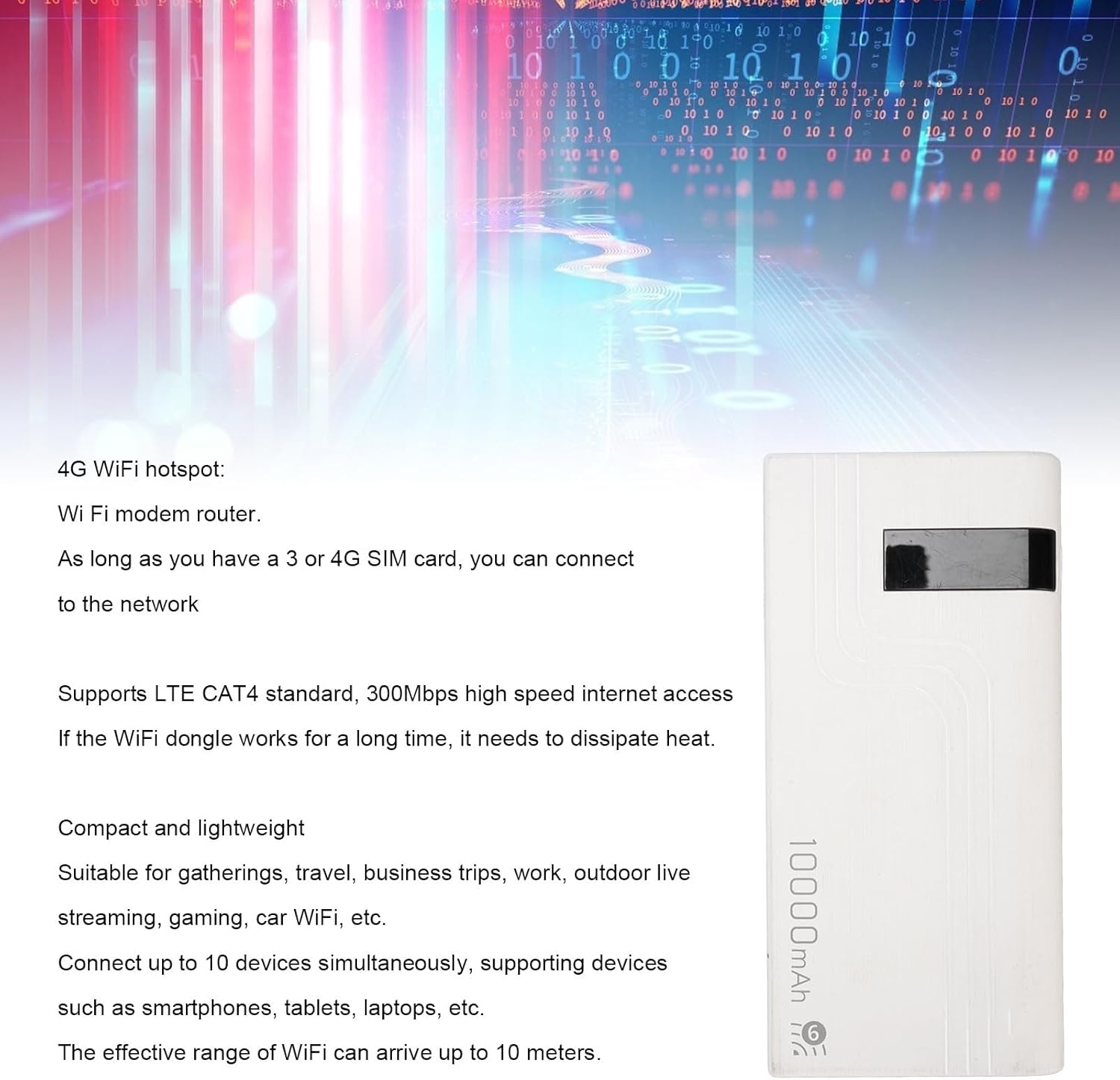
Image 2.1: Front view of the ASHATA 4G LTE Portable WiFi Mobile Hotspot highlighting its 4G/5G WiFi capability and 10000mAh battery capacity.

Image 2.2: Angled view of the ASHATA 4G LTE Portable WiFi Mobile Hotspot, emphasizing its high flexibility and portability.
3. Package Contents
Please check the package for the following items:
- 1 x ASHATA 4G LTE Mobile Hotspot Router
- 1 x USB Cable (Type-C)
- 1 x User Manual (this document)

Image 3.1: The ASHATA 4G LTE Portable WiFi Mobile Hotspot shown with its accompanying USB charging cable.
4. Setup
4.1 SIM Card Installation
- Locate the SIM card slot on the device.
- Insert a 3G or 4G SIM card into the slot. Ensure the SIM card is activated and its PIN is disabled before insertion.
4.2 Powering On/Off
- To power on the device, press and hold the power button located on the side until the indicators light up.
- To power off, press and hold the power button again until the indicators turn off.
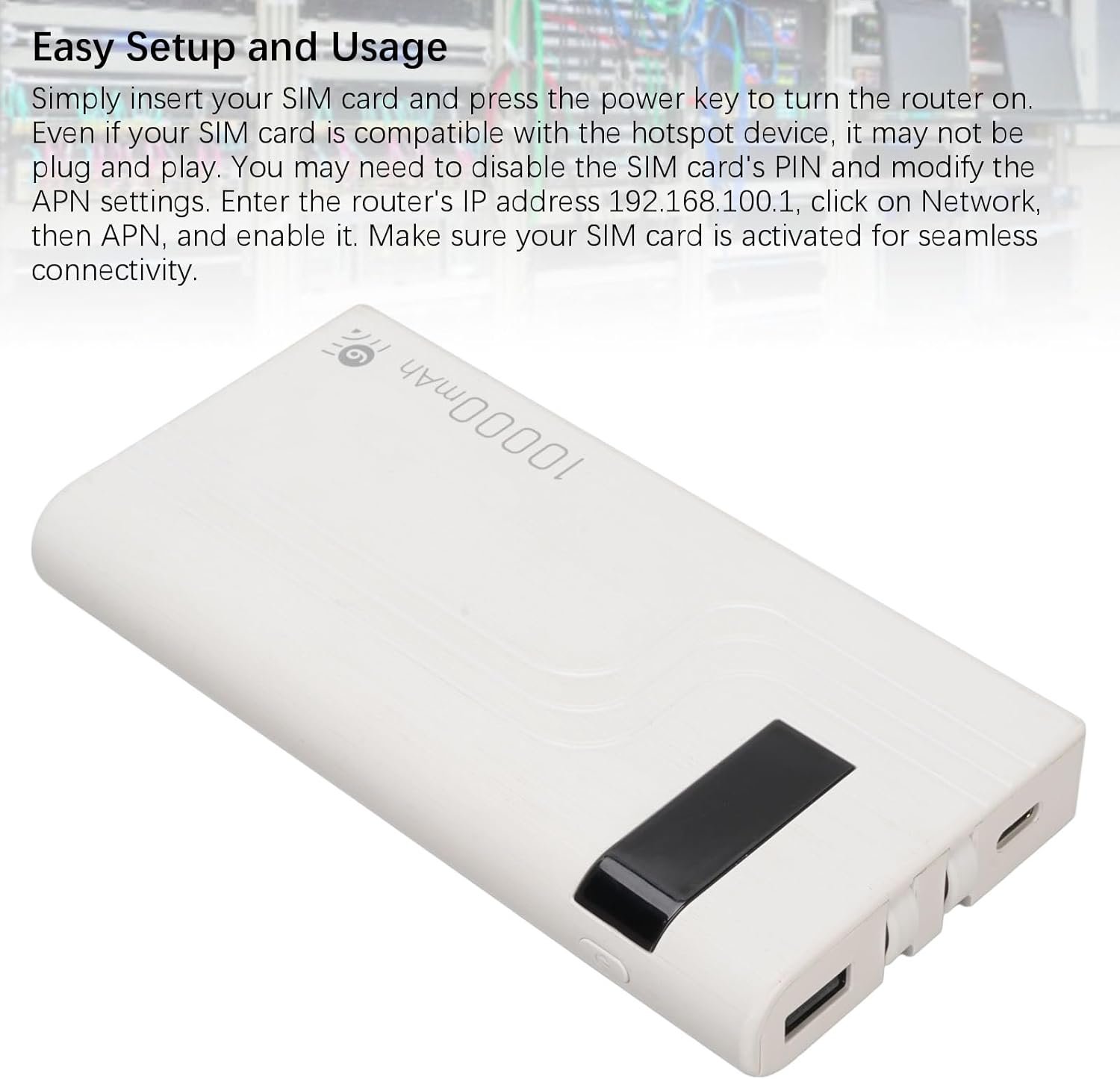
Image 4.1: Close-up of the ASHATA 4G LTE Portable WiFi Mobile Hotspot illustrating the SIM card insertion area and power button for easy setup.
4.3 Initial Configuration (APN Settings)
Even if your SIM card is compatible, it may not be plug-and-play. You might need to modify the APN settings:
- Connect a device (e.g., smartphone, laptop) to the hotspot's Wi-Fi network.
- Open a web browser and enter the router's IP address: 192.168.100.1
- Navigate to the Network section, then select APN.
- Enable APN settings and configure them according to your SIM card provider's specifications.
- Ensure your SIM card is activated for seamless connectivity.
Video 4.1: This video demonstrates the general setup process for a portable WiFi hotspot, including connecting the USB cable and powering on the device. While the device shown may vary, the basic steps are applicable.
5. Operating Instructions
5.1 Connecting Devices
Once the hotspot is powered on and configured, you can connect up to 10 devices:
- On your device (smartphone, tablet, laptop), search for available Wi-Fi networks.
- Select the network name (SSID) corresponding to your ASHATA hotspot.
- Enter the Wi-Fi password (usually found on a sticker inside the device or in the web interface).
- Your device should now be connected to the internet via the hotspot.
5.2 Charging the Device
The hotspot features a built-in 10000mAh battery, providing over 18 hours of continuous usage. To charge:
- Connect the provided USB Type-C cable to the charging port on the hotspot.
- Connect the other end of the USB cable to a compatible USB power adapter or computer USB port.
- The charging indicator will show the charging status.

Image 5.1: Top view of the ASHATA 4G LTE Portable WiFi Mobile Hotspot, highlighting its long-lasting 10000mAh battery life.
5.3 Heat Dissipation
If the WiFi hotspot operates for an extended period, it may generate heat. This is normal. Ensure the device is placed in a well-ventilated area to facilitate proper heat dissipation and maintain optimal performance.
6. Specifications
The following table details the technical specifications of the ASHATA 4G LTE Portable WiFi Mobile Hotspot:
| Feature | Specification |
|---|---|
| Item Type | 4G LTE Mobile Hotspot Router |
| Material | ABS |
| Color | White |
| Size | Approx. 14.6 x 7 x 1.9 cm / 5.75 x 2.76 x 0.75 in |
| Battery | Built-in 10000mAh Lithium-ion Battery |
| SIM Card Slot | 1 x SIM Card (SIM card not included) |
| Network Bands | B1, 3, 5, 7, 8, 20, 28, 38, 40, 41 |
| Sharing | Up to 10 users |
| Interfaces | Type-C and USB |
| WiFi Standard | 802.11 b/g/n 2x2 |
| Max WiFi Speed | Up to 300Mbps |
| Item Weight | 9.3 ounces |
| Frequency Band Class | Tri-Band |

Image 6.1: The ASHATA 4G LTE Portable WiFi Mobile Hotspot with its physical dimensions clearly indicated.
7. Troubleshooting
If you encounter issues with your ASHATA 4G LTE Portable WiFi Mobile Hotspot, please refer to the following common solutions:
- No Internet Connection:
- Ensure your SIM card is properly inserted and activated.
- Verify that the APN settings are correctly configured (refer to Section 4.3).
- Check for network signal strength on the device display.
- Restart the hotspot and the connected device.
- Cannot Connect to Hotspot Wi-Fi:
- Ensure the hotspot is powered on.
- Double-check the Wi-Fi password.
- Move closer to the hotspot to ensure you are within range (effective range up to 10 meters).
- Restart both the hotspot and your connecting device.
- Slow Internet Speed:
- Speed depends on network signal strength; try moving to an area with better reception.
- Reduce the number of connected devices.
- Ensure the device is not overheating (refer to Section 5.3).
- Device Not Powering On:
- Ensure the battery is charged. Connect the device to a power source using the USB cable.
- Press and hold the power button for a few seconds.
8. Maintenance and Safety Information
8.1 General Maintenance
- Keep the device clean and free from dust. Use a soft, dry cloth for cleaning.
- Avoid exposing the device to extreme temperatures, direct sunlight, or high humidity.
- Do not attempt to disassemble or repair the device yourself. This will void the warranty.
8.2 Safety Precautions
- Use only the provided or recommended charging cable.
- Keep the device away from water and flammable liquids.
- Do not drop or subject the device to strong impacts.
- Dispose of the battery and device according to local regulations.
9. Warranty and Support
For warranty information or technical support, please refer to the contact details provided with your purchase or visit the ASHATA official website. Keep your proof of purchase for warranty claims.