
JmGO PicoPlay-White-400 ISO Lumens
JMGO PicoPlay 1080P Smart Portable Projector User Manual
Brand: JmGO | Model: PicoPlay-White-400 ISO Lumens
1. Introduction
The JMGO PicoPlay is a versatile 3-in-1 entertainment hub, integrating a mini projector, an immersive Bluetooth speaker, and a dynamic ambient light. Designed for both home and outdoor use, it offers a seamless and high-quality visual and audio experience. This manual provides detailed instructions to help you get the most out of your PicoPlay projector.
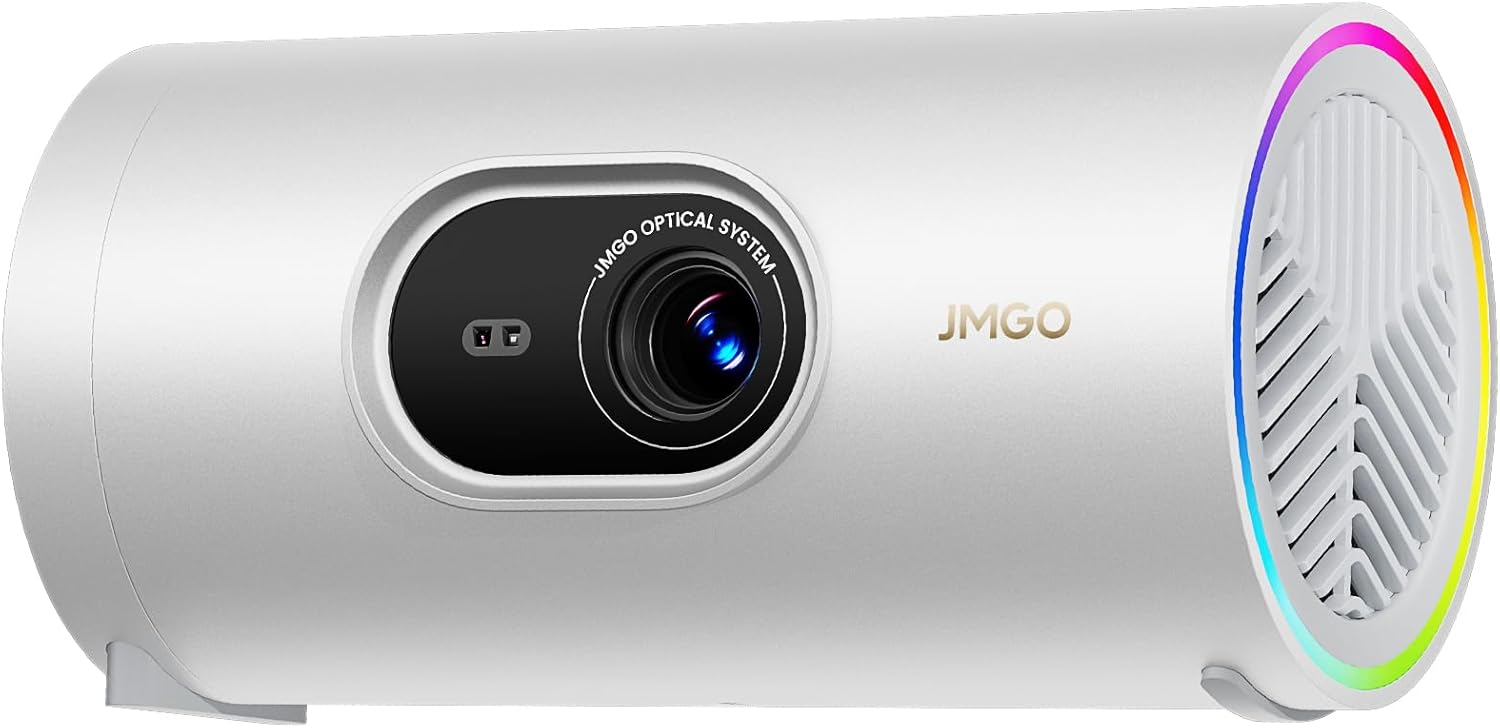
Figure 1.1: JMGO PicoPlay Projector

Figure 1.2: PicoPlay - Let Vibe Play
2. What's in the Box
Upon unboxing your JMGO PicoPlay, please ensure all the following items are included:
- PicoPlay Projector
- Remote Control
- Portable Bag
- Light-shadow Filter
- Adapter
- Lanyard

Figure 2.1: All items included in the PicoPlay package.
3. Setup
3.1 Initial Power On and Automatic Adjustments
To begin, connect the PicoPlay projector to a power source using the provided adapter. Press the power button to turn on the device. The PicoPlay features a Flexismart System with automatic adjustments for a hassle-free setup:
- Auto Focus: The projector automatically adjusts the image clarity.
- Auto Keystone Correction: The image is automatically squared, even if the projector is placed at an angle.
- Smart Screen Alignment: The projector intelligently aligns the image to your projection surface.

Figure 3.1: Automatic display correction in action.
3.2 Manual Keystone Correction
For precise adjustments, you can use the manual keystone correction feature. This allows you to fine-tune the corners of the projected image to achieve a perfect fit for any surface.
Watch the official product video below for a demonstration of the setup process, including automatic and manual adjustments:
Video 3.1: JMGO PicoPlay 1080P Smart Portable Projector - Setup and Features Overview. This video demonstrates the unboxing, automatic adjustments, and various projection capabilities of the PicoPlay projector.
4. Operating the Projector
4.1 Basic Controls
The PicoPlay can be controlled via the included remote control, the touch buttons on the device, or the JMGO App. The action button on the device provides quick access to frequently used settings and applications.

Figure 4.1: Instant App Access with Action Button.

Figure 4.2: Easy Control with Multiple Control Options.
4.2 Projection Flexibility
The PicoPlay's 88° Rotating Gimbal allows for effortless projection from various angles, including walls, screens, and even ceilings. The Flexismart System ensures the image remains optimized regardless of the projection surface.

Figure 4.3: Effortless Angle Mastery with 88° Rotating Gimbal.

Figure 4.4: Projecting onto a ceiling for comfortable viewing.
Enjoy a massive viewing experience with projection sizes up to 200 inches, maintaining crisp 1080P resolution.

Figure 4.5: Flawless Visuals at Every Scale, up to 200 inches.
4.3 Immersive Visuals
Experience breathtaking visuals with 400 ISO Lumens brightness, 90% DCI-P3 cinema-grade color, and crisp 1080P resolution. HDR10 support enhances contrast and color accuracy.

Figure 4.6: Pixel-Perfect Clarity: Every Detail Shines.

Figure 4.7: Brilliant Picture Quality, Pure Visual Immersion.
The PicoPlay also supports Blu-ray 3D, offering a realistic and immersive 3D experience.

Figure 4.8: Experience Realistic 3D Beyond the Screen.
4.4 Smart Entertainment Hub
With built-in Google TV, the PicoPlay provides instant access to over 10,000 apps and 800+ free live channels, including Netflix, YouTube, and more. This eliminates the need for external streaming devices.

Figure 4.9: Fantastic Entertainment, All in One with Google TV.
Utilize Google Assistant for voice control, making navigation and content search effortless.

Figure 4.10: Voice Control with Google Assistant.
Seamlessly cast content from your devices using Google Cast, supported by Wi-Fi 5.0 and Bluetooth 5.1 connectivity.

Figure 4.11: Cast Effortlessly at Your Fingertips.
4.5 Audio and Ambient Light
The PicoPlay features 8W Dolby Audio speakers for clear and powerful sound. It can also function as a standalone Bluetooth speaker.

Figure 4.12: 2-in-1 Projector & Bluetooth Speaker.
The customized mood light (with Optical Filter) adds a dynamic touch, creating the perfect atmosphere. You can customize light colors and brightness.

Figure 4.13: Custom Light, Cozy Vibes with Ambient Light.

Figure 4.14: Bring the Aurora Home with JMGO's Creativity.
4.6 Vertical Mode
The PicoPlay supports Portrait Full-Screen Mode, ideal for viewing short-form video content from platforms like TikTok or YouTube Shorts.
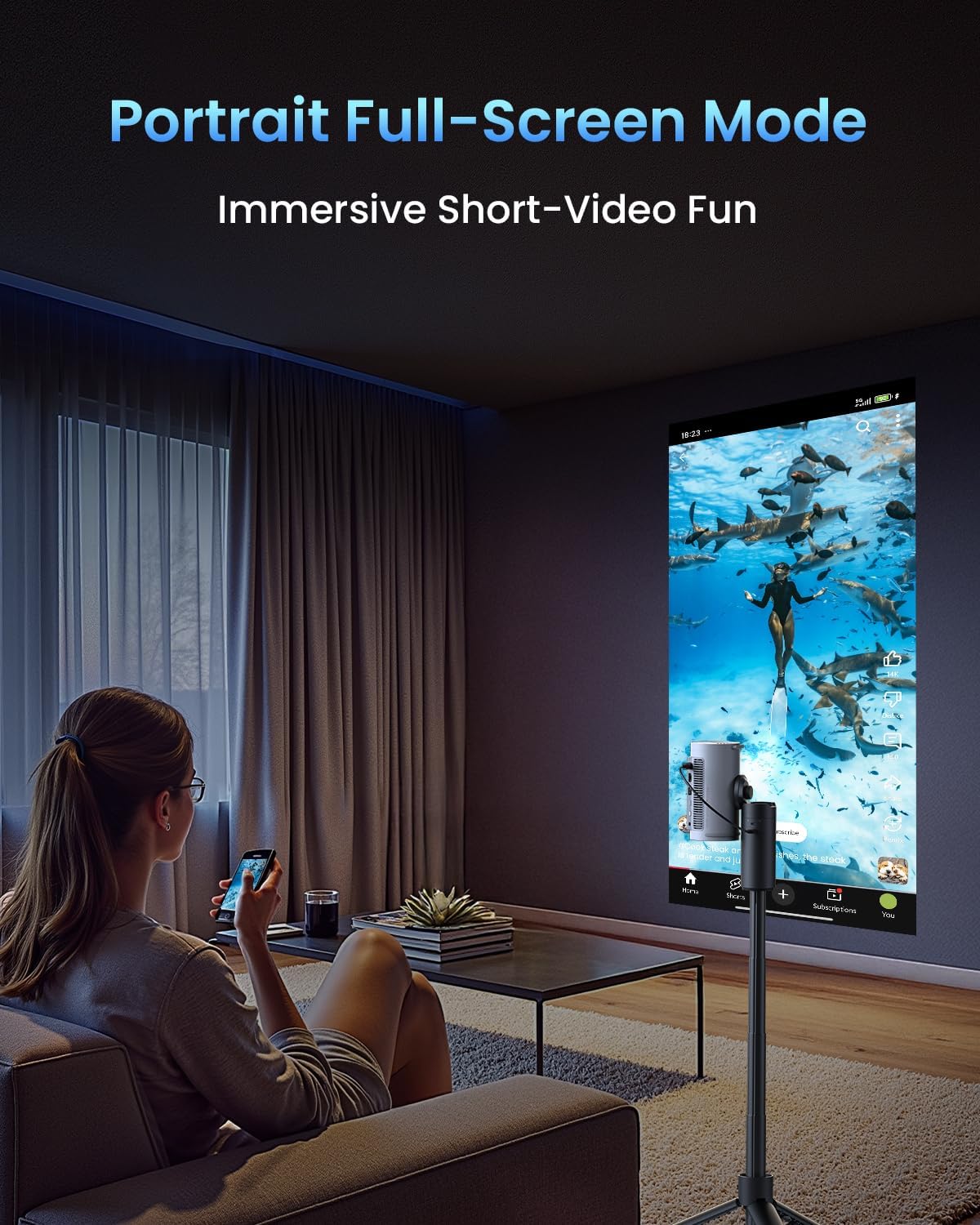
Figure 4.15: Portrait Full-Screen Mode for Immersive Short-Video Fun.

Figure 4.16: Immersive Enjoyment of Short-Video Entertainment.
4.7 Gaming
Enjoy smooth game streaming with low latency (23ms @ 1080P 60Hz) and HDMI 2.1 ARC support.

Figure 4.17: Game Streaming, Made Easy.
5. Connectivity
The PicoPlay offers multiple connectivity options for seamless integration with your devices:
- HDMI (ARC): Connect external media players, gaming consoles, or other HDMI-enabled devices.
- USB-A: For connecting USB drives or other peripherals.
- USB-C: For charging and data transfer.
- Wi-Fi 5.0: For internet connectivity and streaming.
- Bluetooth 5.1: For connecting external audio devices or using the PicoPlay as a Bluetooth speaker.

Figure 5.1: More Ways to Connect, More Ways to Enjoy.
6. Portability and Power
The JMGO PicoPlay is designed for ultimate portability, weighing only 2.2 pounds (0.73kg) and measuring 3.3 x 3.3 x 6.5 inches (8.5 x 8.5 x 16.6 cm).

Figure 6.1: Portable Entertainment, Anytime, Anywhere.

Figure 6.2: Effortless Projection on the Go.
For extended use on the go, the PicoPlay can be seamlessly connected to a 65W Type-C power bank or a JMGO battery tripod (sold separately). This provides up to 3 hours of video playback or 7 hours of music playback in Standard Mode.

Figure 6.3: Power Your Adventures with external power bank.
Enjoy outdoor movie nights and entertainment with ease:

Figure 6.4: Outdoor Movie Night Setup.

Figure 6.5: Enjoying a meal with projected entertainment outdoors.

Figure 6.6: Family movie night with the PicoPlay.
7. Specifications
| Feature | Detail |
|---|---|
| Brand Name | JmGO |
| Item Weight | 2.2 pounds |
| Product Dimensions | 3.3 x 3.3 x 6.5 inches |
| Country of Origin | China |
| Color Name | White |
| Special Features | Portable |
| Recommended Uses For Product | Home Cinema, Gaming |
| Connectivity Technology | Bluetooth, Wi-Fi, USB, HDMI |
| Display Resolution | 1920 x 1080 |
For a detailed comparison with other lifestyle projectors, refer to the image below:

Figure 7.1: JMGO PicoPlay vs. Competitor Lifestyle Projectors.
8. Troubleshooting
If you encounter any issues with your JMGO PicoPlay, please refer to the following common troubleshooting tips:
- No Power: Ensure the power adapter is securely connected to both the projector and a working power outlet.
- No Image: Check that the lens cap is removed. Verify the input source is correctly selected if using HDMI.
- Blurry Image: Allow the auto-focus to complete. If still blurry, try manual keystone correction. Ensure the projection surface is flat.
- No Sound: Check the volume level on the projector and any connected devices. Ensure Bluetooth speaker mode is not accidentally activated if you expect projection audio.
- Wi-Fi/Bluetooth Connectivity Issues: Restart the projector and your router/Bluetooth device. Ensure the projector is within range of the network/device.
For more complex issues, please contact customer support.
9. Maintenance
To ensure the longevity and optimal performance of your JMGO PicoPlay, follow these maintenance guidelines:
- Cleaning the Lens: Use a soft, lint-free cloth specifically designed for optical lenses. Avoid abrasive materials or harsh chemicals.
- Cleaning the Exterior: Wipe the projector's exterior with a soft, dry cloth. Do not use liquid cleaners directly on the device.
- Ventilation: Ensure the ventilation vents are clear of obstructions to prevent overheating. Do not block the air inlets or outlets.
- Storage: When not in use for extended periods, store the projector in a cool, dry place, preferably in its portable bag, away from direct sunlight and extreme temperatures.
10. Warranty and Support
JMGO is committed to providing excellent customer service and product reliability. Your PicoPlay projector is covered by the following:
- 90 Days Price Match Guarantee
- 90 Days Free Return and Exchange
- 12 Months Manufacturer Warranty
For any inquiries, technical assistance, or warranty claims, please contact JMGO Customer Service:
- Email: after-sales@jmgo.com
- Customer Support: Available 24 Hours

Figure 10.1: Contact JMGO Customer Service Anytime.
Ask a question about this manual
Ask about setup, troubleshooting, compatibility, parts, safety, or missing instructions. Manuals+ will review the question and use this page’s manual context to help answer it.