1. Introduction
This manual provides detailed instructions for the setup, operation, maintenance, and troubleshooting of your ATKGEAR VXE MAD R Ultra-Lightweight Wireless Gaming Mouse. Designed for competitive gaming, the MAD R mouse combines an ultra-lightweight design with high-performance sensors and advanced wireless technology to deliver precision and responsiveness.
2. Package Contents
Please verify that all items are present in your product package:
- ATKGEAR VXE MAD R Wireless Gaming Mouse
- 2.4 GHz Wireless Dongle
- Detachable Braided USB Type-C Paracord Cable
- User Manual (this document)
3. Product Overview
The ATKGEAR VXE MAD R mouse features an ergonomic design with strategically placed buttons for optimal control and comfort during extended gaming sessions.
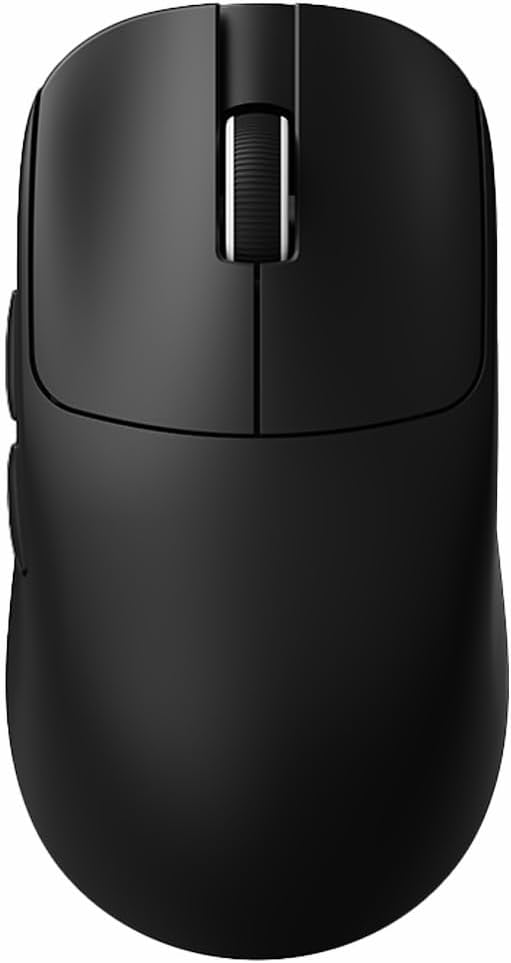
Figure 3.1: Top-down view of the ATKGEAR VXE MAD R Wireless Gaming Mouse, showcasing its ambidextrous shape and button layout.

Figure 3.2: An exploded view illustrating the lightweight internal structure, the PAW3395/3950 sensor, and Omron Optical Microswitches, contributing to the mouse's 36g weight and smooth ice-feeling coating.
Key Components:
- Left/Right Click Buttons: Equipped with ATK optical switches for rapid response.
- Scroll Wheel: For navigation and customizable functions.
- Side Buttons: Two programmable buttons on the left side.
- DPI Button: (Functionality typically managed via software, or a dedicated button if present, check software for details).
- USB-C Port: For wired connection and charging.
- Optical Sensor: PAW3395 or PAW3950 for precise tracking.
4. Setup
4.1. Charging the Mouse
Before initial use, it is recommended to fully charge the mouse. Connect the provided USB Type-C cable to the mouse's front port and the other end to a powered USB port on your computer or a USB wall adapter. The mouse's indicator light will show charging status (refer to software for detailed battery level).
4.2. Wired Connection
To use the mouse in wired mode, simply connect the USB Type-C cable from the mouse to an available USB port on your computer. The mouse will function immediately and charge simultaneously.
4.3. Wireless 2.4 GHz Connection
For wireless operation, use the included 2.4 GHz wireless dongle.
- Insert the 2.4 GHz wireless dongle into an available USB port on your computer.
- Ensure the mouse is powered on (check the switch on the bottom of the mouse, if present).
- The mouse should automatically connect to the dongle. If not, refer to the ATK V-Hub software for pairing instructions.

Figure 4.1: The 8K wireless dongle, which enables high polling rates, alongside minimum recommended PC hardware specifications for optimal performance.
5. Operating Instructions
The ATKGEAR VXE MAD R mouse offers extensive customization through the ATK V-Hub software. Basic functions are available out-of-the-box.
5.1. Basic Mouse Functions
- Left Click: Primary action, selection.
- Right Click: Context menu, secondary action.
- Scroll Wheel: Vertical scrolling. Pressing the scroll wheel often acts as a middle click.
- Side Buttons: Default to forward/back in web browsers, but are fully programmable.

Figure 5.1: The classic ergonomic design of the mouse, engineered to provide a comfortable fit for various grip styles, including claw and palm grips.
5.2. DPI Adjustment
The mouse features a high-precision optical sensor (PAW3395/PAW3950) with up to 26,000 DPI. DPI settings are primarily managed and customized through the ATK V-Hub software. You can set multiple DPI stages and switch between them as needed.
5.3. Polling Rate
The ATKGEAR VXE MAD R supports a 1KHz polling rate in wired mode and up to an 8KHz polling rate in wireless mode via Smart Speed X technology. Polling rate adjustments are configured within the ATK V-Hub software to optimize responsiveness for your system.
6. ATK V-Hub Software
The ATK V-Hub software is essential for unlocking the full customization potential of your ATKGEAR VXE MAD R mouse. It allows you to:
- Remap up to six buttons.
- Adjust DPI settings and create custom profiles.
- Configure polling rates.
- Set macros for complex commands.
- Manage RGB indicator settings (if applicable).
- Customize scroll behavior.
The software is available as both a web and desktop application. Please visit the official ATKGEAR website to download the latest version of the ATK V-Hub software.

Figure 6.1: A visual representation of the ATK V-Hub software interface, demonstrating its capabilities for customizing mouse performance, alongside an illustration of the mouse's smooth ice-feeling coating.
7. Maintenance
7.1. Cleaning
To maintain optimal performance and appearance, clean your mouse regularly:
- Use a soft, lint-free cloth slightly dampened with water or a mild cleaning solution.
- Avoid harsh chemicals, abrasives, or solvents.
- Clean the optical sensor area gently with a cotton swab to remove dust or debris.
7.2. Battery Care
The mouse is equipped with a rechargeable battery (200 mAh or 500 mAh for '+' models). To prolong battery life:
- Avoid fully discharging the battery frequently.
- Store the mouse in a cool, dry place when not in use for extended periods.
- If storing for a long time, charge the battery to about 50% before storage.
8. Troubleshooting
If you encounter issues with your ATKGEAR VXE MAD R mouse, please refer to the following common solutions:
- Mouse not responding: Ensure the mouse is charged. Check if the USB cable is securely connected or if the wireless dongle is properly inserted. Try a different USB port.
- Wireless connection issues: Ensure the mouse is within range of the dongle (up to 10m). Re-pair the mouse using the ATK V-Hub software if necessary. Avoid interference from other wireless devices.
- Inconsistent tracking: Clean the optical sensor. Ensure you are using the mouse on a suitable mouse pad or surface. Update mouse firmware via ATK V-Hub software.
- Buttons not working: Check button assignments in the ATK V-Hub software. Ensure no software conflicts are present.
- Battery not charging: Verify the USB-C cable is functional and connected to a powered USB port. Try a different cable or port.
For further assistance, consult the ATKGEAR V-Hub software or the official ATKGEAR support website.
9. Specifications
Detailed technical specifications for the ATKGEAR VXE MAD R Wireless Gaming Mouse:

Figure 9.1: A comprehensive table outlining the specifications for various models, including MAD R and MAD R+, detailing dimensions, coating, sensor type, chip, transmission technology, polling rate, battery capacity, weight, connection method, scroll wheel, and microswitches.
| Feature | Specification |
|---|---|
| Model | MAD R |
| Weight | 36 g (±3 g); '+' models 42 g |
| Sensor | PAW3395 / PAW3950 (up to 26,000 DPI, 650 IPS, 50 G acceleration) |
| Polling Rate | 125–1 kHz wired, 125–8 kHz wireless |
| Connectivity | USB-C wired, 2.4 GHz wireless (Smart Speed X) |
| Switches | ATK Optical Switches, rated for 70 million clicks |
| MCU & Chipset | Nordic nRF52840 |
| Coating | “Ice-feel” matte finish |
| Dimensions | 120.1 × 63.2 × 38.1 mm |
| Battery | 200 mAh / 500 mAh ('+' models); 60+ hours play time |
| Software | ATK V-Hub (web & desktop) |
| Item Weight (Package) | 14.1 ounces |
| Package Dimensions | 8.11 x 5.51 x 3.35 inches |
| Date First Available | June 13, 2025 |
10. Warranty and Support
ATKGEAR products are designed for durability and performance. For information regarding warranty coverage, technical support, and frequently asked questions, please visit the official ATKGEAR website or contact their customer service directly. Keep your proof of purchase for warranty claims.


