
Cuifati CUIFATIpbi51wg9sz
CUIFATI 5G WiFi 6 Mobile Hotspot
User Manual
1. Introduction
Thank you for choosing the CUIFATI 5G WiFi 6 Mobile Hotspot. This device provides high-speed wireless internet access, allowing you to connect multiple devices simultaneously. With its portable design and long-lasting battery, it is an ideal solution for travel, business, and home use. This manual will guide you through the setup, operation, and maintenance of your new mobile hotspot.
2. Safety Information
- Do not expose the device to extreme temperatures, direct sunlight, or high humidity.
- Avoid dropping or subjecting the device to strong impacts.
- Use only the original or certified charger and cables provided with the device.
- Do not attempt to disassemble, repair, or modify the device yourself. Refer to qualified service personnel.
- Keep the device away from water and other liquids.
- Dispose of the device and its battery responsibly according to local regulations.
3. Package Contents
Please check the package for the following items:
- CUIFATI 5G WiFi 6 Mobile Hotspot
- USB Charging Cable
- SIM Ejector Tool
- User Manual (this document)
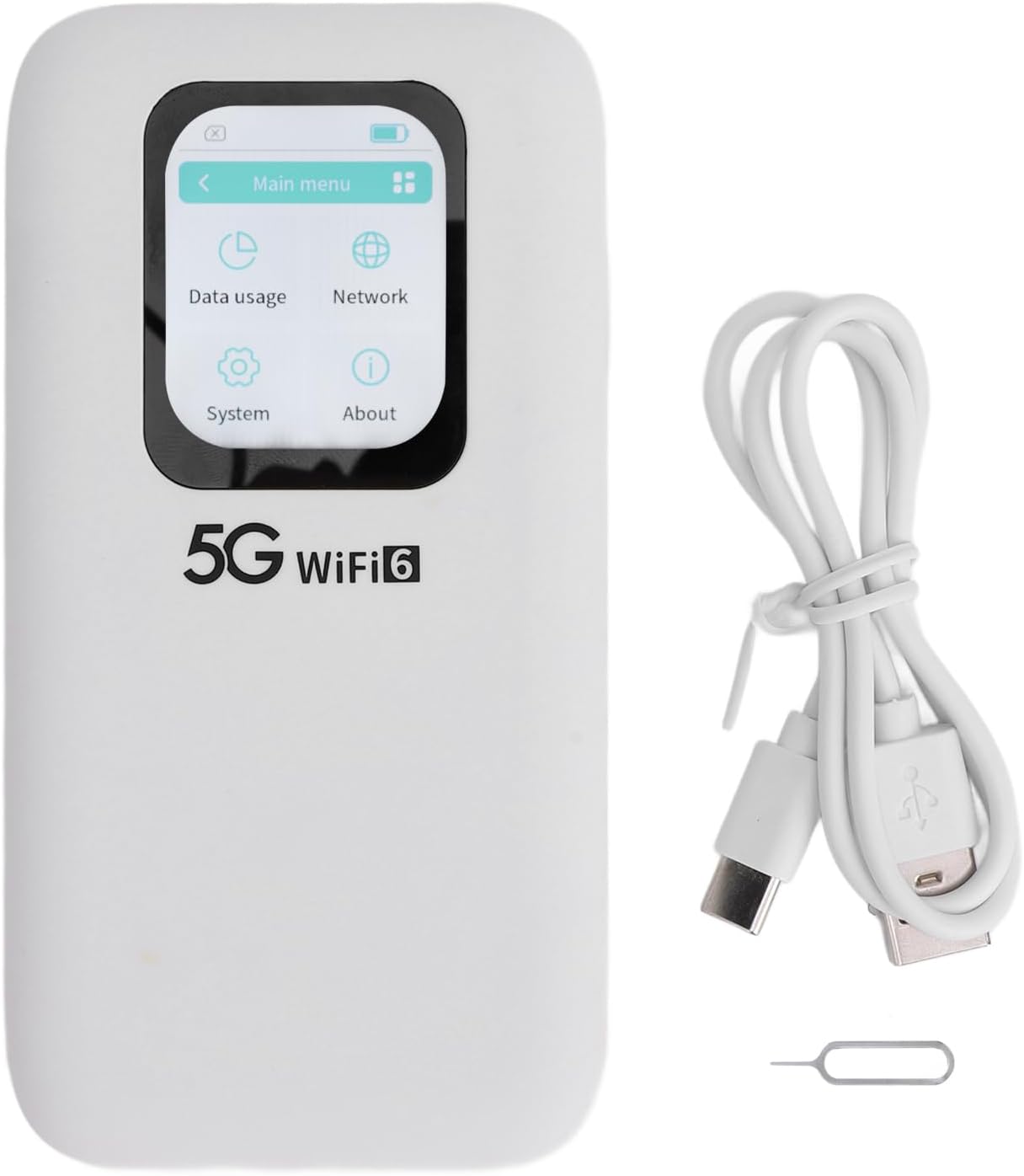
Image: Contents of the CUIFATI 5G WiFi 6 Mobile Hotspot package, including the device, USB charging cable, and SIM ejector tool.
4. Product Overview
Familiarize yourself with the physical components of your mobile hotspot.
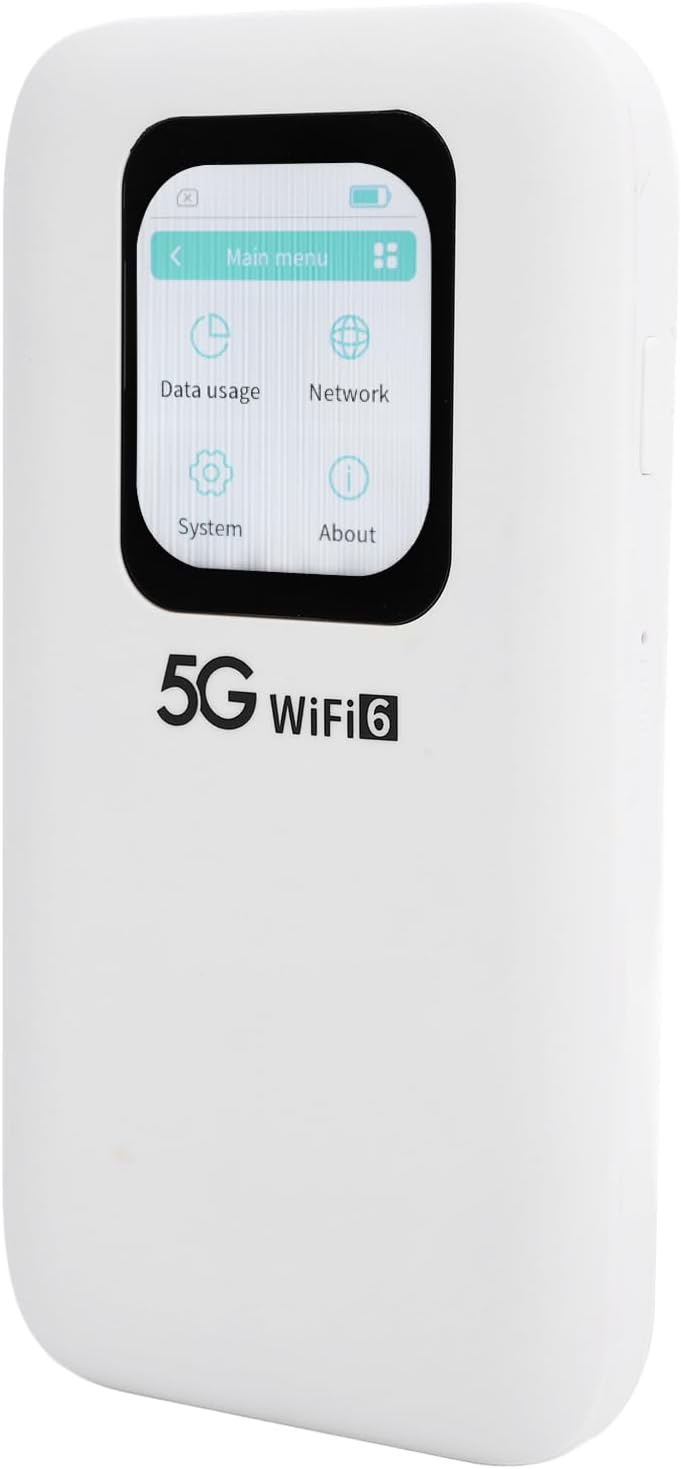
Image: Front view of the CUIFATI 5G WiFi 6 Mobile Hotspot, highlighting its 2.01-inch touch screen display.

Image: Side view of the CUIFATI 5G WiFi 6 Mobile Hotspot, illustrating the location of the power button and reset pinhole.

Image: Back view of the CUIFATI 5G WiFi 6 Mobile Hotspot, displaying the product label with default Wi-Fi network names (SSID) and password (WiFi Key).
Device Components
| Component | Description |
|---|---|
| Touch Screen Display | 2.01-inch screen for monitoring status, data usage, and managing settings. |
| Power Button | Press and hold to power on/off the device. Short press to wake/sleep the screen. |
| USB-C Port | For charging the device and connecting to a computer. |
| Nano SIM Card Slot | Insert your Nano SIM card here for cellular data connectivity. |
| Reset Pinhole | Use the SIM ejector tool to press and hold for factory reset. |
5. Setup
5.1 Inserting the Nano SIM Card
- Ensure the device is powered off.
- Locate the SIM card slot on the side of the device.
- Use the provided SIM ejector tool to gently press into the small hole next to the SIM tray until the tray pops out.
- Place your Nano SIM card into the tray with the gold contacts facing down, ensuring it is correctly oriented.
- Carefully push the SIM tray back into the slot until it clicks into place.
5.2 Charging the Device
- Connect the USB charging cable to the USB-C port on the device.
- Connect the other end of the cable to a compatible USB power adapter (not included) or a computer's USB port.
- The battery indicator on the screen will show the charging status. A full charge typically takes several hours.
5.3 Powering On/Off
- To Power On: Press and hold the Power Button for approximately 3 seconds until the screen lights up.
- To Power Off: Press and hold the Power Button for approximately 3 seconds. A power-off confirmation prompt will appear on the screen. Select 'Power Off' to shut down the device.
- Screen On/Off: A short press of the Power Button will turn the screen on or off without powering down the device.
6. Operation
6.1 Connecting Devices to Wi-Fi
- Ensure the mobile hotspot is powered on.
- On your Wi-Fi enabled device (e.g., smartphone, laptop, tablet), open the Wi-Fi settings.
- Search for available Wi-Fi networks. The default network names (SSID) for your hotspot are typically found on the back label of the device (e.g., 'stoneoim_5C16_5G' or 'stoneoim_5C16_2.4G').
- Select the desired Wi-Fi network (SSID).
- Enter the Wi-Fi Key (password) displayed on the device's back label or screen.
- Your device should now be connected to the internet via the mobile hotspot.
6.2 Using the Touch Screen Interface
The 2.01-inch touch screen allows for easy navigation and configuration of your hotspot. Swipe left/right or tap icons to access different menus.
- Main Menu: Displays icons for Data Usage, Network, System, and About.
- Data Usage: Monitor your current data consumption.
- Network: View network status, signal strength, and configure Wi-Fi settings (e.g., change SSID, password, band).
- System: Access device information, update firmware, and perform factory resets.
- About: Displays device model, software version, and other relevant information.
7. Maintenance
7.1 Cleaning
- Use a soft, dry, lint-free cloth to clean the device.
- Do not use liquid cleaners, aerosols, or solvents.
7.2 Battery Care
- To prolong battery life, avoid fully discharging the battery frequently.
- Store the device in a cool, dry place when not in use for extended periods.
- If the device will not be used for a long time, charge it to about 50% before storing.
7.3 Firmware Updates
- Periodically check for firmware updates through the device's touch screen interface (under 'System' or 'About' menu) or the manufacturer's website.
- Ensure the device has sufficient battery life (at least 50%) and a stable internet connection before performing an update.
8. Troubleshooting
| Problem | Possible Cause | Solution |
|---|---|---|
| Device won't power on. | Low battery; faulty power button. | Charge the device for at least 30 minutes. If still unresponsive, contact support. |
| No internet connection. | No SIM card; incorrect APN settings; no signal; data limit reached. | Ensure SIM is inserted correctly. Check signal strength on screen. Verify APN settings (consult your carrier). Check data plan. |
| Cannot connect to Wi-Fi. | Incorrect Wi-Fi password; device too far from hotspot. | Double-check Wi-Fi password. Move closer to the hotspot. Restart both devices. |
| Slow internet speed. | Weak signal; network congestion; too many connected devices. | Move to an area with better signal. Disconnect unnecessary devices. |
| Device freezes or is unresponsive. | Software glitch. | Press and hold the power button for 10 seconds to force restart. If persistent, perform a factory reset (data will be lost). |
9. Specifications
Detailed technical specifications for the CUIFATI 5G WiFi 6 Mobile Hotspot.
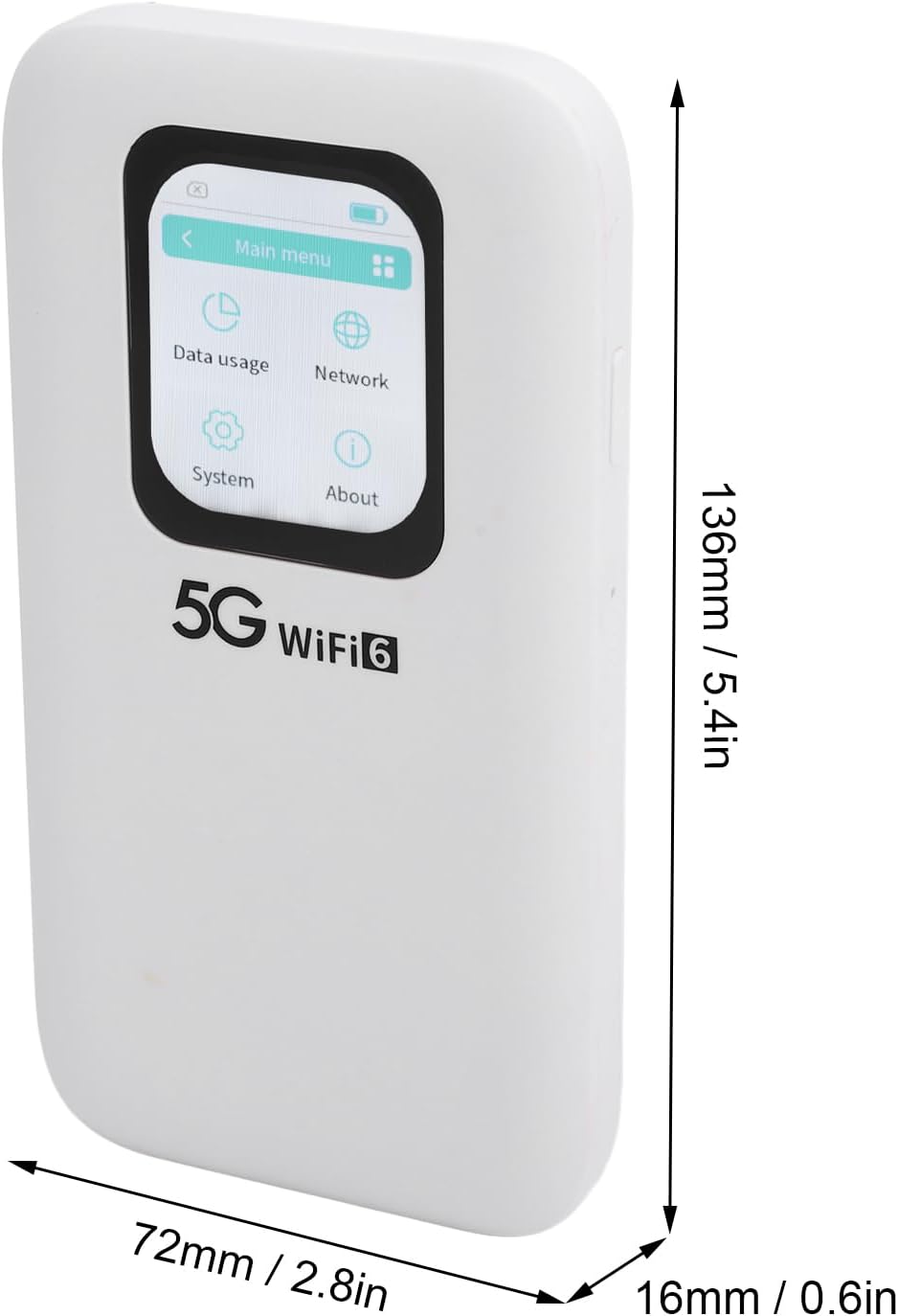
Image: Physical dimensions of the CUIFATI 5G WiFi 6 Mobile Hotspot.
| Feature | Detail |
|---|---|
| Model Number | CUIFATIpbi51wg9sz |
| Connectivity Technology | 5G NR, 4G LTE (FDD/TDD), 3G |
| Wi-Fi Standard | WiFi 6 (802.11a/b/g/n/ac/ax) |
| Frequency Bands | 2.4GHz, 5.8GHz (Dual Band) |
| Max Download Speed | Up to 2.77Gbps |
| Max Upload Speed | Up to 1.25Gbps |
| Battery Capacity | 7100mAh Polymer Battery |
| Display | 2.01-inch Touch Screen |
| SIM Card Type | Nano SIM |
| Max Connected Devices | Up to 16 devices simultaneously |
| Dimensions (L x W x H) | 6.69 x 4.33 x 1.57 inches (approx. 170 x 110 x 40 mm) |
| Item Weight | 10.8 ounces (approx. 306 grams) |
| Ingress Protection (IP) Rating | IP67 (Reinforced design for drop and water resistance) |
10. Warranty and Support
The CUIFATI 5G WiFi 6 Mobile Hotspot comes with a standard manufacturer's warranty. Please refer to the warranty card included in your package or visit the official Cuifati website for detailed warranty terms and conditions.
For technical support, troubleshooting assistance, or any inquiries regarding your device, please contact Cuifati customer service. Contact information can typically be found on the manufacturer's website or on the product packaging.
Online Support: Visit the Cuifati official website for FAQs, driver downloads, and support resources.
Email Support: Refer to your product documentation for the customer support email address.
Ask a question about this manual
Ask about setup, troubleshooting, compatibility, parts, safety, or missing instructions. Manuals+ will review the question and use this page’s manual context to help answer it.