Introduction
Welcome to the user manual for your ATKGEAR F1 Extreme Wireless Mouse. This guide provides comprehensive instructions for setting up, operating, maintaining, and troubleshooting your device. Please read this manual carefully to ensure optimal performance and longevity of your mouse.

Image: The ATKGEAR F1 Extreme Wireless Mouse in LEVIATAN Blue, showcasing its ergonomic design.
Product Overview
The ATKGEAR F1 Extreme is a high-performance wireless gaming mouse designed for precision and comfort. It features an ultra-lightweight design, advanced sensor technology, and versatile connectivity options.
Key Features:
- Extreme Lightweight Design: Weighing approximately 35 grams, the mouse is crafted from durable, light materials for enhanced agility.
- PAW3950 Ultra Sensor: Offers precise, sensitive, and stable pixel-level positioning with up to 42000 DPI and 750 IPS tracking speed.
- Nordic nRF52840 Chip: Utilizes Smart Speed Wireless Gen-2 Transmission Technology and ATK ApexShark Professional Esports Firmware for reliable performance.
- Omron Optical Switches: Features Omron White Dot Optical and ATK Custom Tuned Optical Switches for a swift mechanical feel and rapid trigger response.
- 8000Hz Polling Rate: Achieves zero latency with a dedicated 8000Hz dongle, providing a 100% increased polling rate.
- Long Battery Life: Equipped with a 200mAh high-performance lithium battery, offering up to 60 hours of usage.
- Ice-Feel Coating: An ergonomic, anti-slip, stain-resistant coating for comfortable grip and consistent performance.

Image: Visual representation emphasizing the mouse's ultra-lightweight design at 35 grams.
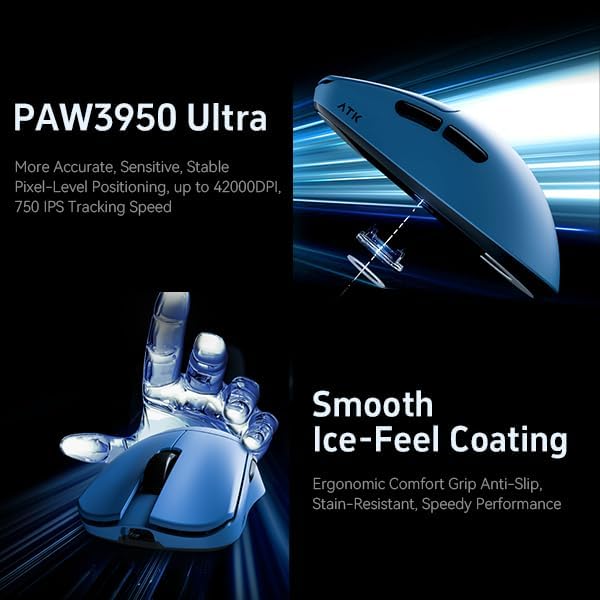
Image: Details of the PAW3950 Ultra sensor and the smooth Ice-Feel Coating for enhanced grip and comfort.

Image: Internal components including the Nordic nRF52840 chip and Omron optical switches, highlighting advanced technology.
Setup Guide
Connecting Your Mouse
The ATKGEAR F1 Extreme Wireless Mouse offers multiple connectivity options:
- USB Wireless Dongle: Insert the provided USB wireless dongle into an available USB port on your computer. The mouse should automatically connect.
- Wi-Fi: For Wi-Fi connectivity, ensure your computer's Wi-Fi is enabled and follow the pairing instructions specific to your operating system.
- Bluetooth: To connect via Bluetooth, activate Bluetooth on your computer and put the mouse into pairing mode (refer to the mouse's physical switch or button for Bluetooth pairing). Select the mouse from your computer's Bluetooth device list.
System Requirements for 8000Hz Polling Rate
To experience the ATKGEAR F1 Extreme mouse at its full 8000Hz polling rate, your computer configuration should meet or exceed the following recommendations:
- CPU: Intel i7-9700K or higher, or AMD Ryzen 5 3600X or higher
- Monitor: Screen refresh rate of 240Hz or higher
- Graphics Card: NVIDIA GTX 1080 or higher, or AMD RX 5700 or higher
- Memory: 16GB or more
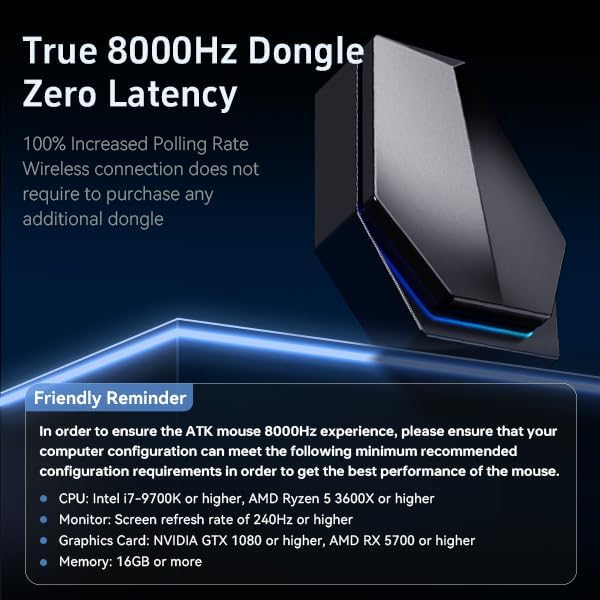
Image: The 8000Hz wireless dongle and a reminder of the recommended system specifications for optimal performance.
Operating Instructions
Once connected, the ATKGEAR F1 Extreme mouse functions as a standard computer mouse with enhanced features. Familiarize yourself with its buttons and scroll wheel:
- Left Click: Primary action button.
- Right Click: Secondary action button, typically for context menus.
- Scroll Wheel: Used for vertical scrolling. Can also be clicked for middle-button functionality.
- Side Buttons: Programmable buttons, often used for forward/back navigation in web browsers or in-game actions.
- DPI Button (if present): Cycles through preset DPI sensitivity levels.

Image: A side profile of the ATKGEAR F1 Extreme mouse, showing its ergonomic shape and side buttons.
Customization with ATK V-HUB
Unlock the full potential of your ATKGEAR F1 Extreme mouse using the ATK V-HUB software. This application allows you to customize various settings to suit your preferences and gaming style.
- DPI Settings: Adjust the mouse's sensitivity (DPI) to precise levels.
- Key Remapping: Assign custom functions or macros to the mouse buttons.
- Polling Rate: Confirm and adjust the polling rate.
- Firmware Updates: Keep your mouse's firmware up-to-date for the best performance and new features.
Please visit the official ATKGEAR website to download the latest version of the ATK V-HUB software.

Image: The ATK V-HUB software interface, demonstrating options for DPI adjustment and key remapping.
Maintenance
Proper maintenance ensures the longevity and consistent performance of your ATKGEAR F1 Extreme mouse.
- Cleaning: Use a soft, dry cloth to wipe the mouse surface. For stubborn dirt, slightly dampen the cloth with water or a mild cleaning solution. Avoid harsh chemicals.
- Sensor Care: Keep the optical sensor on the underside of the mouse clean and free from dust or debris.
- Battery Care: To maximize battery life, avoid fully discharging the mouse frequently. Charge the mouse using the provided cable.
- Storage: When not in use for extended periods, store the mouse in a cool, dry place.

Image: The ATKGEAR F1 Extreme mouse highlighting its stable battery life of up to 60 hours from a 200mAh battery.
Troubleshooting
If you encounter issues with your ATKGEAR F1 Extreme mouse, try the following troubleshooting steps:
- Mouse Not Responding:
- Ensure the mouse is charged.
- Check if the wireless dongle is securely plugged into a working USB port.
- If using Bluetooth, ensure Bluetooth is enabled on your computer and the mouse is paired.
- Try connecting the mouse to a different USB port or computer to rule out port issues.
- Intermittent Connection:
- Move the mouse closer to the wireless dongle or computer.
- Avoid placing the dongle near other wireless devices that may cause interference.
- Ensure the mouse firmware is up-to-date via ATK V-HUB.
- Cursor Movement Issues:
- Clean the optical sensor on the underside of the mouse.
- Ensure you are using the mouse on a suitable surface (a mouse pad is recommended).
- Adjust DPI settings using the DPI button or ATK V-HUB software.
- Buttons Not Working:
- Check button assignments in the ATK V-HUB software.
- Restart your computer.
Technical Specifications
| Feature | Detail |
|---|---|
| Model | F1 Extreme (LEVIATAN Blue) |
| Product Dimensions | 4.65 x 2.45 x 0.04 inches (118.2mm x 62.4mm x 38.8mm) |
| Weight | Approximately 35g (Mouse Feet Excluded) |
| Sensor | PAW3950 Ultra (up to 42000 DPI, 750 IPS Tracking Speed) |
| Transmission Technology | Smart Speed Wireless Gen-2 Transmission Technology |
| Chip | Nordic nRF52840 |
| Primary Switches | Omron White Dot Optical / ATK Custom Tuned Optical |
| Battery Life | 200mAh (up to 60 hours) |
| Connectivity Technology | Bluetooth, USB, Wi-Fi (Wired/Wireless) |
| Special Features | Ergonomic Design, Lightweight, Wireless, 8000Hz Polling Rate |
| Movement Detection Technology | Optical |
| Manufacturer | ATKGEAR |
| Date First Available | June 13, 2025 |
Warranty and Support
The ATKGEAR F1 Extreme Wireless Mouse comes with a standard manufacturer's warranty. For specific warranty terms, duration, and conditions, please refer to the warranty card included with your product or visit the official ATKGEAR website.
For technical support, troubleshooting assistance beyond this manual, or warranty claims, please contact ATKGEAR customer service through their official website or the contact information provided with your purchase.


