
1. Introduction
This manual provides essential information for the setup, operation, and maintenance of your AISLPC R36T Retro Gaming Console. Please read this manual thoroughly to ensure proper use and to maximize your gaming experience.
2. What's in the Box
Verify that all items listed below are included in your package:
- 1 x Handheld Game Console (R36T)
- 1 x Portable Storage Bag
- 1 x Type-C Charging Cable
- 1 x Instruction Manual
- 1 x 64GB TF Card (pre-installed)
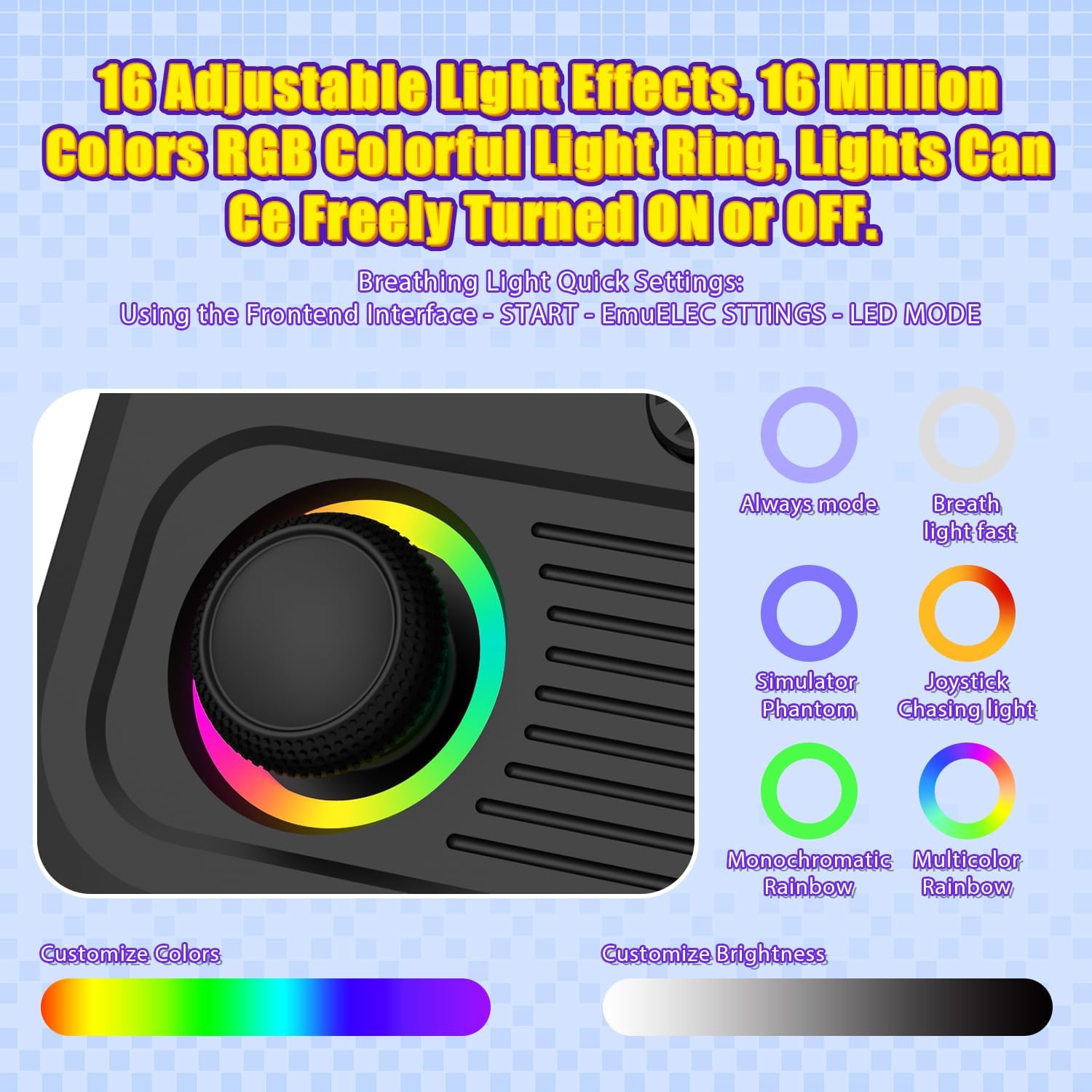
Figure 2.1: Package contents including the console, case, charging cable, and manual.
3. Product Overview
The AISLPC R36T is a retro handheld gaming console designed for portable entertainment. It features a 3.5-inch IPS screen with a CRT-inspired display, a high-precision joystick with customizable RGB lighting, and supports a wide range of retro game emulators.
3.1 Console Layout
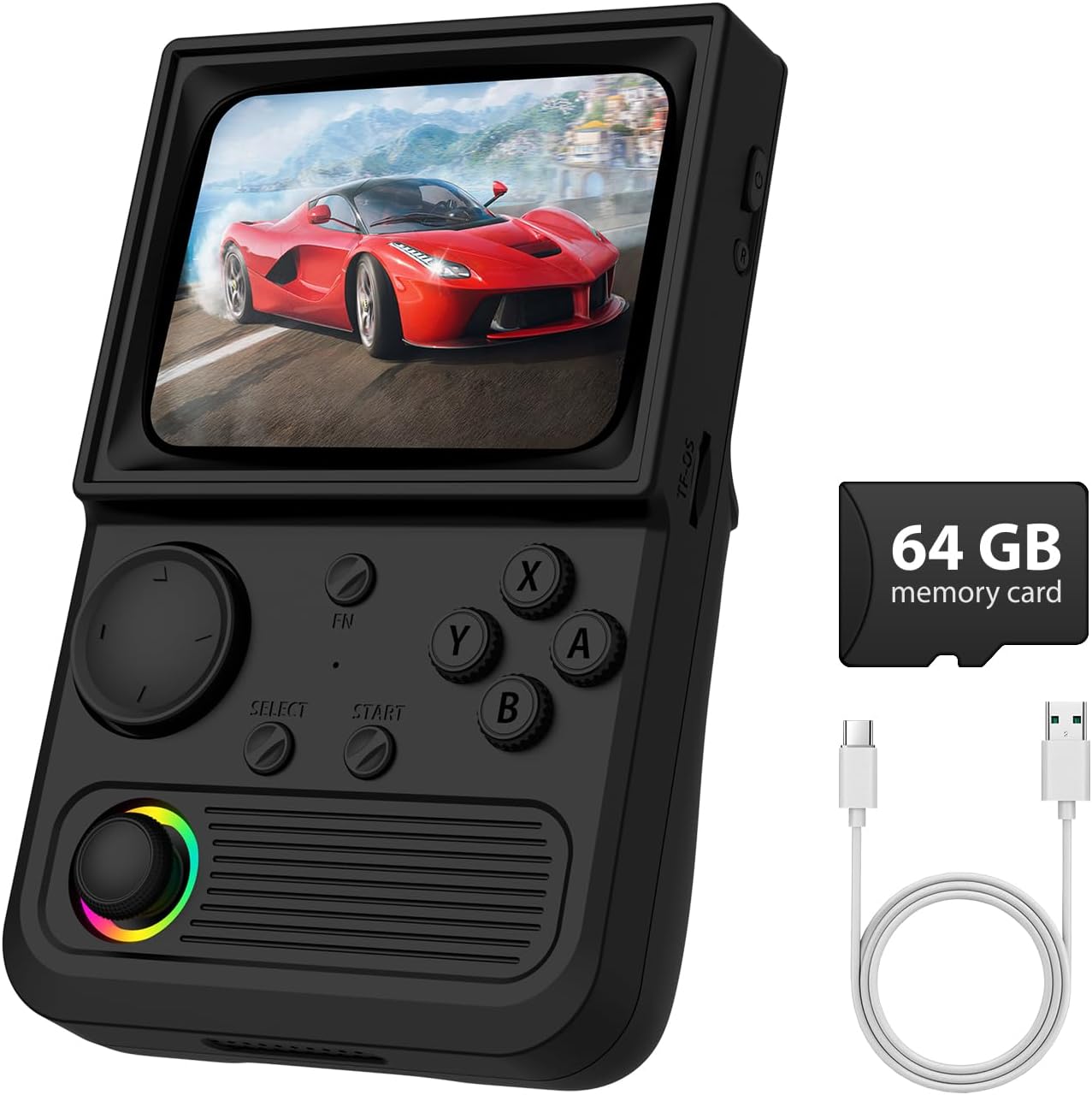
Figure 3.1: Front view of the R36T console, showing the screen, controls, and joystick.
- 3.5-inch IPS Screen: Full-viewing angle display with 640*480 resolution, featuring CRT-inspired bezels.
- Controls: D-pad, A/B/X/Y buttons, SELECT/START buttons, FN button, and a high-precision joystick with RGB lighting.
- Shoulder Buttons: L1, L2, R1, R2 buttons located on the rear of the console for enhanced gameplay.
- Ports: Type-C charging port, OTG port (for external display/accessories), 3.5mm headphone jack.
- TF Card Slot: Supports a 64GB TF card for game storage.
- Speakers: Built-in speakers for audio output.
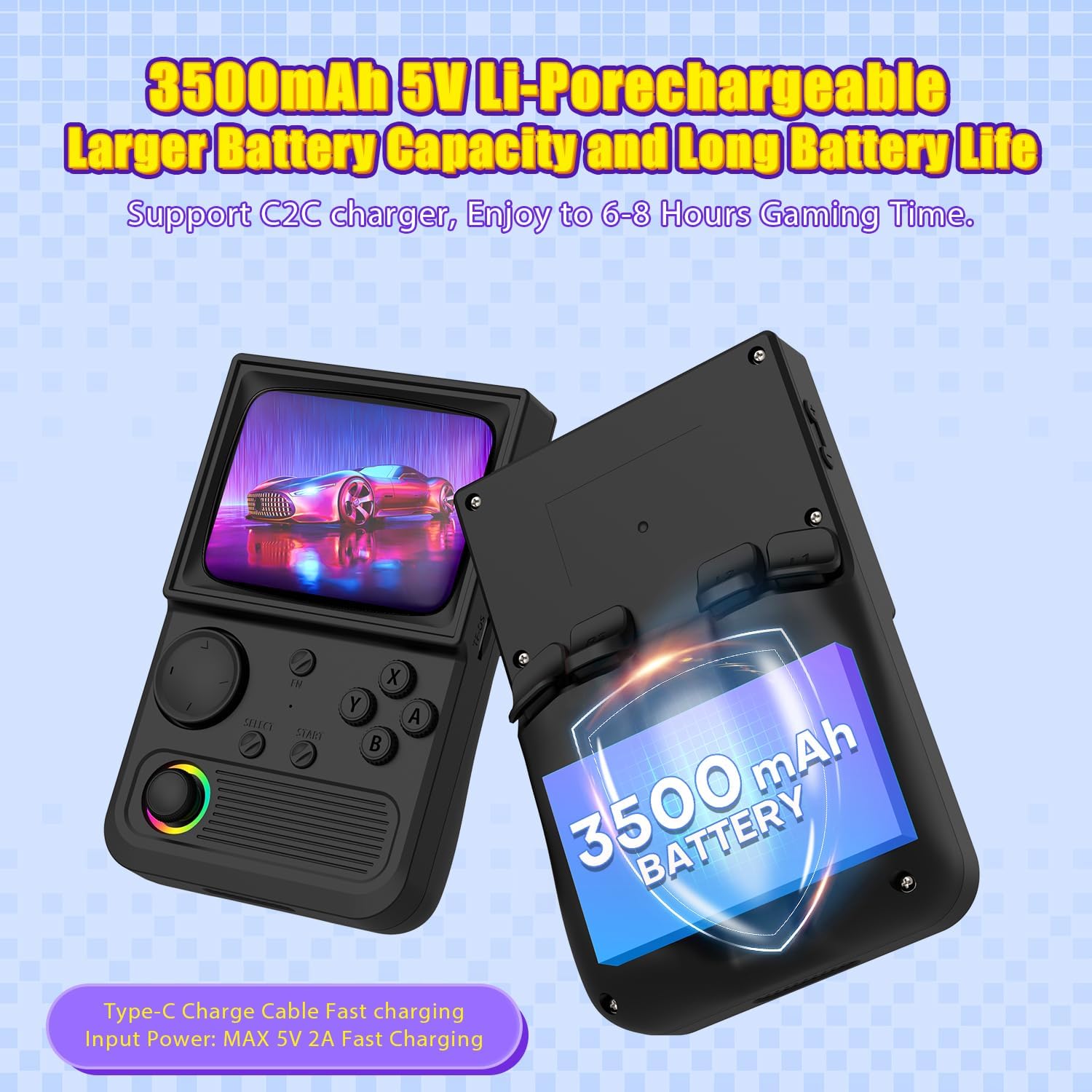
Figure 3.2: The high-precision joystick features 16 million colors and 16 adjustable light effects.

Figure 3.3: The console is equipped with a 3500mAh battery, providing 6-8 hours of gameplay.
3.2 Product Videos
Video 3.1: An overview of the R36T Retro Gaming Console, demonstrating its features and design. This video provides a general introduction to the device and its capabilities.
Video 3.2: A detailed look at the R36T Retro Gaming Console's 3.5-inch IPS screen, showcasing its display quality and retro aesthetic. This video highlights the visual aspects of the console.
4. Setup
4.1 Charging the Console
- Connect the provided Type-C charging cable to the DC port on the console.
- Connect the other end of the cable to a compatible USB power adapter (not included).
- The host's red light will turn on, indicating that the console is charging.
- The red light will automatically turn off when the console is fully charged.
- Do not press the reset button while charging. The charger must not exceed 5V/2A.
4.2 TF Card Installation
The 64GB TF card comes pre-installed with over 18000+ classic games. If you need to remove or reinsert the card:
- Gently push the TF card into its slot until it clicks to secure it.
- To remove, gently push the card again until it springs out.
5. Operating Instructions
5.1 Power On/Off
- Power On: Press and hold the power button for 5 seconds. Wait patiently for approximately 20 seconds for the operating interface to appear.
- Power Off: Press and hold the power button for 7 seconds to display the shutdown menu. Press the A button to confirm shutdown.
- Please exit the game before shutting down the console.
5.2 Navigation and Game Selection
The console runs on the EmuELEC System, supporting over 23 game simulators.
- Use the joystick or D-pad to navigate through the game menus.
- Press the A button to select a game or option.
- Press the B button to go back to the previous menu.
- The FN button provides additional function shortcuts.
5.3 Multiplayer Functionality
The R36T supports 5G WiFi and 2.4G OTG Wireless Controller connectivity for online multiplayer gaming.
- Connect to Wi-Fi: From the main menu, go to START -> MAIN MENU -> Network Settings -> Connect to the SAME Wi-Fi network.
- Launch Game: Both players should open the SAME game on their devices.
- Connecting Consoles: Player 1 (Host) navigates to Netplay -> Host -> Start Netplay Host. Player 2 (Client) navigates to Netplay -> Connect to Netplay Host and manually enters Player 1's IP address.
- Start Fighting: Once connected, Player 1 selects 'Multiplayer Mode' to begin. Player 1's controller is the 'Main Control Handle' by default.

Figure 5.1: Illustration of two R36T consoles engaged in networked multiplayer gameplay.
6. Game Management
6.1 Adding Games
To add more games, insert the TF card into your computer and open the EE_ROMs drive. Place downloaded games in the corresponding emulator folder. Put game images in /media/screenshot. Open gamelist.xml with a text editor, add the new game's info following existing entries, and save. Eject the TF card, insert it back into the device, and power-on the newly added games will now appear in your library.
6.2 Saving and Loading Games
- Save Game Progress: Press SELECT + R1.
- Load Saved Game Progress: Press SELECT + L1.
7. System Settings
The main menu provides access to various settings:
- Game Settings: Adjust game-specific options.
- Controller Settings: Configure controller inputs and mappings.
- Sound Settings: Adjust volume and audio output.
- Network Settings: Manage Wi-Fi connections.
- System Settings: General system configurations.
7.1 Adjusting Screen Brightness
- Press the START button to open the selection menu.
- Select System Settings and press A to enter.
- Choose Brightness option.
- Use Left D-pad to decrease brightness or Right D-pad to increase brightness.
8. Maintenance
8.1 Battery Care
- Avoid fully discharging the battery frequently to prolong its lifespan.
- Charge the console using only the provided Type-C cable and a compatible 5V/2A adapter.
- Do not expose the console to extreme temperatures.
8.2 Cleaning
- Use a soft, dry cloth to clean the console's exterior.
- For the screen, use a microfiber cloth specifically designed for electronics.
- Avoid using harsh chemicals or abrasive materials.
9. Troubleshooting
- Console does not power on: Ensure the battery is charged. Connect the console to a charger and try again.
- Games not loading: Verify the TF card is properly inserted. Check if the game files are correctly placed in the emulator folders.
- Screen issues: If the screen is unresponsive or displays incorrectly, try restarting the console.
- Connectivity problems: Ensure the console is within range of a stable Wi-Fi network. Re-enter Wi-Fi credentials if necessary.
10. Specifications
| Feature | Specification |
|---|---|
| Model Number | R36T |
| Screen Size | 3.5 Inches |
| Display Type | IPS |
| Resolution | 640*480 |
| Memory Storage Capacity | 64 GB |
| Battery Capacity | 3500mAh |
| Battery Life | 6-8 Hours |
| Power Source | Battery Powered |
| Controller Type | Joystick |
| Connectivity | 5G WiFi, 2.4G OTG Wireless Controller |
| Material | Plastic |
| Item Weight | 0.36 Kilograms (12.6 ounces) |
| Product Dimensions | 5 x 2 x 6 inches |
11. Warranty and Support
For warranty information and customer support, please refer to the documentation included with your purchase or contact AISLPC customer service. Protection plans may be available for extended coverage.


