
1. Introduction
Welcome to the user manual for your Sansnail Camera Glasses. This guide provides comprehensive instructions for setting up, operating, maintaining, and troubleshooting your new smart glasses. Designed for sports and outdoor activities, these glasses feature 1080P HD video recording and WiFi connectivity, allowing you to capture and share your experiences with ease. Please read this manual carefully to ensure optimal performance and longevity of your device.
2. Product Overview
2.1. Package Contents
Upon opening the package, please verify that all the following items are included:
- Sansnail Camera Glasses
- USB Charging Cable
- User Manual (this document)
- 32GB Micro SD Card
2.2. Key Features
The Sansnail Camera Glasses are equipped with advanced features for a seamless recording experience:
- 1080P HD Video Recording: Capture clear, high-definition video at 1080p resolution.
- Integrated Camera: A discreet camera lens is built into the frame for first-person perspective recording.
- WiFi Connectivity: Connect wirelessly to your smartphone for instant video transmission and control.
- Polarized Lenses: Designed to reduce glare from reflective surfaces, enhancing visual clarity in various light conditions.
- Lightweight and Durable Design: Comfortable for extended wear during sports and outdoor activities.
- Expandable Storage: Supports Micro SD (TF) cards for ample storage of recordings.
- USB Interface: For charging and direct data transfer to a computer.

Figure 2.2.1: Front view of the Sansnail Camera Glasses highlighting the integrated camera lens.
3. Setup
3.1. Charging the Device
Before first use, fully charge your Sansnail Camera Glasses. Connect the provided USB cable to the charging port on the glasses and the other end to a USB power adapter (not included) or a computer's USB port. The charging indicator light will show the charging status (refer to LED indicator section for details). A full charge typically takes approximately 2-3 hours.
3.2. Inserting the Micro SD Card
Your glasses come with a 32GB Micro SD card. Locate the Micro SD card slot on the frame of the glasses. Gently insert the Micro SD card with the gold contacts facing down until it clicks into place. To remove the card, gently push it in again until it springs out.
3.3. Powering On/Off
- To Power On: Press and hold the Power button for approximately 3 seconds until the blue indicator light illuminates.
- To Power Off: Press and hold the Power button for approximately 3 seconds until the indicator lights turn off.
3.4. Connecting to Mobile App (Viidure)
The Sansnail Camera Glasses can connect to your smartphone via Wi-Fi for real-time viewing and data transfer using the Viidure application.
- Download the App: Search for and download the "Viidure" application from your smartphone's app store (e.g., Apple App Store or Google Play Store).
- Activate Wi-Fi Mode on Glasses: Ensure the glasses are powered on (blue light). Long press the Photo button on the glasses until the green indicator light illuminates. This indicates the glasses have entered Wi-Fi mode.
- Connect Phone to Glasses Wi-Fi: On your smartphone, go to your Wi-Fi settings. Locate and select the Wi-Fi network named "YJ01_XXXXX" (the exact name may vary slightly). The default password for this network is 12345678.
- Open Viidure App: Once connected, open the Viidure application. The app will prompt you to link the recorder. Click the link for "YJ01_XXXXX" and enter the password if prompted.
- Real-time Viewing: After successful connection, you can view real-time video content directly within the Viidure app.

Figure 3.4.1: Visual guide for connecting the Sansnail Camera Glasses to the Viidure mobile application via Wi-Fi.
4. Operating Instructions
4.1. Video Recording
To begin recording video, ensure the glasses are powered on. Press the Video Record button (refer to diagram in section 2.2 for button location). The indicator light will change to indicate recording is in progress. Press the Video Record button again to stop recording. Videos are saved automatically to the Micro SD card.
4.2. Photo Capture
To take a still photograph, ensure the glasses are powered on. Briefly press the Photo button. The indicator light will flash to confirm a photo has been taken. Photos are saved to the Micro SD card.
4.3. Data Transfer
You can transfer recorded videos and photos from your glasses to a computer or smartphone:
- Via USB Cable: Connect the glasses to your computer using the provided USB cable. The glasses will appear as a removable disk drive. You can then drag and drop files to your computer.
- Via Wi-Fi (Mobile App): As described in Section 3.4, connect your smartphone to the glasses via the Viidure app. The app allows you to browse, download, and manage files directly on your phone without needing to physically connect the glasses to a computer.
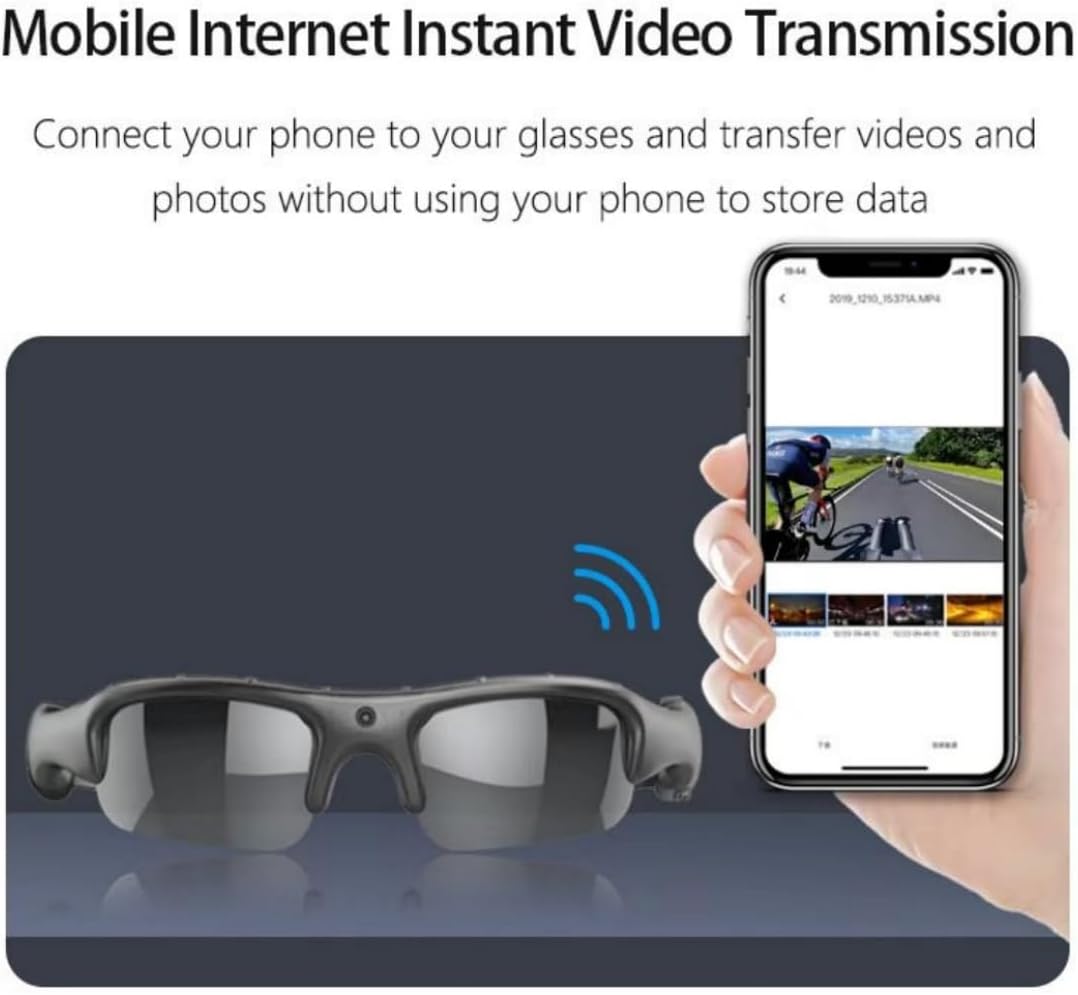
Figure 4.3.1: Wireless data transmission from the camera glasses to a mobile device.
4.4. Polarized Lens Functionality
The lenses of your Sansnail Camera Glasses are polarized. This feature helps to filter out reflected light and glare from surfaces such as roads, water, snow, and glass. This significantly improves visual clarity and reduces eye strain, making them suitable for both indoor and outdoor use, especially in bright conditions.

Figure 4.4.1: Demonstration of polarized lens effectiveness in reducing glare.
4.5. Usage Scenarios
These camera glasses are versatile and ideal for capturing moments during various activities:
- Cycling: Record your rides from a first-person perspective.
- Running: Document your outdoor runs without holding a camera.
- Fishing: Capture your fishing adventures and catches.
- Driving: Record your journeys for safety or scenic routes.

Figure 4.5.1: Examples of suitable scenarios for using the Sansnail Camera Glasses.

Figure 4.5.2: First-person perspective recording during cycling, demonstrating the camera's field of view.
5. Maintenance
5.1. Cleaning
- Lenses: Use a soft, lint-free microfiber cloth specifically designed for optics to clean the lenses. Avoid using abrasive materials or harsh chemicals, which can damage the polarized coating.
- Frame: Wipe the frame with a slightly damp, soft cloth. Ensure no moisture enters the electronic components.
5.2. Battery Care
- Avoid fully discharging the battery frequently.
- Charge the device regularly, even if not in use, to maintain battery health.
- Store the glasses in a cool, dry place away from extreme temperatures.
5.3. Micro SD Card Management
- Regularly back up your recorded data to a computer or cloud storage.
- Format the Micro SD card periodically (e.g., once a month) using the glasses' formatting function (if available) or a computer. This helps maintain card performance and prevents data corruption.
- Use only compatible Micro SD cards (Class 10 or higher recommended for 1080P recording).
6. Troubleshooting
If you encounter issues with your Sansnail Camera Glasses, please refer to the following common problems and solutions:
| Problem | Possible Cause | Solution |
|---|---|---|
| Device does not power on. | Low battery; Power button not pressed long enough. | Charge the device fully. Press and hold the Power button for at least 3 seconds. |
| Cannot connect to Wi-Fi. | Glasses not in Wi-Fi mode; Incorrect Wi-Fi password; Phone too far from glasses. | Ensure green light is on (Wi-Fi mode). Verify password "12345678". Keep phone close to glasses. Restart both devices. |
| No video recording or poor quality. | Micro SD card full or corrupted; Incorrect recording mode; Lens is dirty. | Check Micro SD card capacity, format if necessary. Ensure sufficient lighting. Clean the camera lens. |
| Battery drains quickly. | Frequent use of Wi-Fi; Old battery; Extreme temperatures. | Reduce Wi-Fi usage when not needed. Ensure proper charging habits. Avoid extreme temperatures. |
| Micro SD card not recognized. | Card inserted incorrectly; Incompatible card; Card is damaged. | Reinsert the card correctly. Try a different compatible Micro SD card. |
If the problem persists after trying these solutions, please contact Sansnail customer support for further assistance.
7. Specifications
| Feature | Detail |
|---|---|
| Brand | Sansnail |
| Model Name | Glasses Camera |
| Item Weight | 5.6 ounces |
| Product Dimensions | 2 x 2.2 x 7.05 inches |
| Batteries | 1 9V batteries required (included) |
| Color | Black |
| Connectivity Technology | Micro SD card (TF), Wi-Fi |
| Video Capture Resolution | 1080p |
| Video Capture Format | AVI |
| Photo Sensor Technology | AVI |
| Special Feature | 1080P |
| Maximum Focal Length | 1 Millimeter |
| Maximum Aperture | 1.6 f |
| Number of Component Outputs | USB |
8. Warranty and Support
For information regarding the product warranty, please refer to the warranty card included with your purchase or visit the official Sansnail website. If you require technical assistance, troubleshooting beyond this manual, or have questions about your product, please contact Sansnail customer support. Contact details are typically available on the product packaging or the manufacturer's website.