
1. Introduction
The IIWEY iK8 is an 8-inch portable touchscreen device designed to integrate wireless Apple CarPlay and Android Auto into any vehicle. It offers a range of features including a 1080P backup camera, rotatable display for portrait and landscape modes, Bluetooth connectivity, GPS navigation, and screen mirroring capabilities. This manual provides comprehensive instructions for setup, operation, maintenance, and troubleshooting to ensure optimal use of your device.

Image: IIWEY iK8 Wireless CarPlay & Android Auto Overview
2. Product Overview & Key Features
- Wireless Apple CarPlay & Android Auto: Seamless smartphone integration for navigation, calls, messages, and music without physical connection.
- Portrait & Landscape Mode: One-touch screen rotation for flexible viewing preferences.
- Voice Control: Hands-free operation with Siri and Google Assistant for safer driving.
- 8-Inch Full HD Touchscreen: Crystal-clear 1280×800 resolution at 60Hz for vivid visuals.
- Flexible Magic Strap Mount: Versatile, tool-free installation on dashboard or windshield.
- Wireless Mirroring: Supports AirPlay and Miracast for streaming content directly from your smartphone.
- 1080P Backup Camera: High-definition rearview camera with auto-activation and adjustable parking guidelines.
- Real-Time Navigation: Utilizes Apple Maps, Google Maps, and Waze via CarPlay/Android Auto.
- Easy Plug-and-Play Installation: No dashboard dismantling required.
3. What's in the Box
- IIWEY iK8 Main Unit
- 1080P Reverse Camera (23FT cable)
- Flexible Mounting Arm
- Car Charger with Extra USB Port
- Strong Velcro Base (x2)
- User Manual
- FAQ Card
- Wire Buckle (x5)
- Card Pin
- Crowbar

Image: IIWEY iK8 Packing List
4. Setup & Installation
4.1. Mounting the Device
The IIWEY iK8 offers flexible mounting options using the provided magic strap mount. You can choose to install it on your dashboard or windshield. The mount is adjustable to achieve your preferred viewing angle.
- Select an optimal, clear position on your dashboard or windshield that does not obstruct your view or interfere with driving.
- Clean the selected surface thoroughly to ensure proper adhesion.
- Peel the protective film from the strong Velcro base(s) and firmly affix it to the chosen position.
- Attach the flexible mounting arm to the device and then secure the device to the Velcro base. The arm is bendable to adjust the screen angle.

Image: Installation Instructions for Dashboard and Windshield Mounting

Image: Multiple Installation Choices: Center Console, Dashboard, and Windshield
4.2. Power Connection
Connect the provided car charger to your vehicle's 12V cigarette lighter socket and then plug the Type-C end into the iK8 main unit. The car charger features a built-in FM transmitter for audio output.
4.3. Backup Camera Installation (Optional)
The 1080P backup camera can be hardwired to your vehicle's reverse light circuit for automatic activation when reversing. Alternatively, it can be connected via the AUX port on the iK8 unit. Refer to the detailed wiring diagram in the included user manual for hardwiring instructions.
Video: Demonstration of the 8-inch CarPlay screen with a rotatable mount, showcasing its flexibility and ease of adjustment within a car interior.
5. Operating Instructions
5.1. Wireless Apple CarPlay Connection
- On the iK8 screen, select the CarPlay mode.
- Open Bluetooth settings on your iPhone. Find and connect to the device named "IIWEY-iK8XXXXXX".
- Agree to pair when prompted.
- When prompted with "Use CarPlay with SmartScreen?", tap "Use CarPlay".
- Wait 5-30 seconds for the iK8 to automatically enter CarPlay.

Image: Wireless Apple CarPlay Connection Guide
5.2. Wireless Android Auto Connection
- On the iK8 screen, select the Android Auto mode.
- Open Android phone settings and Bluetooth. Find and connect to the device named "IIWEY-iK8XXXXXX".
- Agree to pair and allow necessary permissions.
- Wait 5-30 seconds for the iK8 to automatically enter Android Auto.

Image: Wireless Android Auto Connection Guide
5.3. Screen Rotation (Portrait & Landscape Mode)
The iK8 supports seamless switching between portrait and landscape display modes with a single touch. This allows for optimal viewing of navigation, media, or other applications without restarting the device.
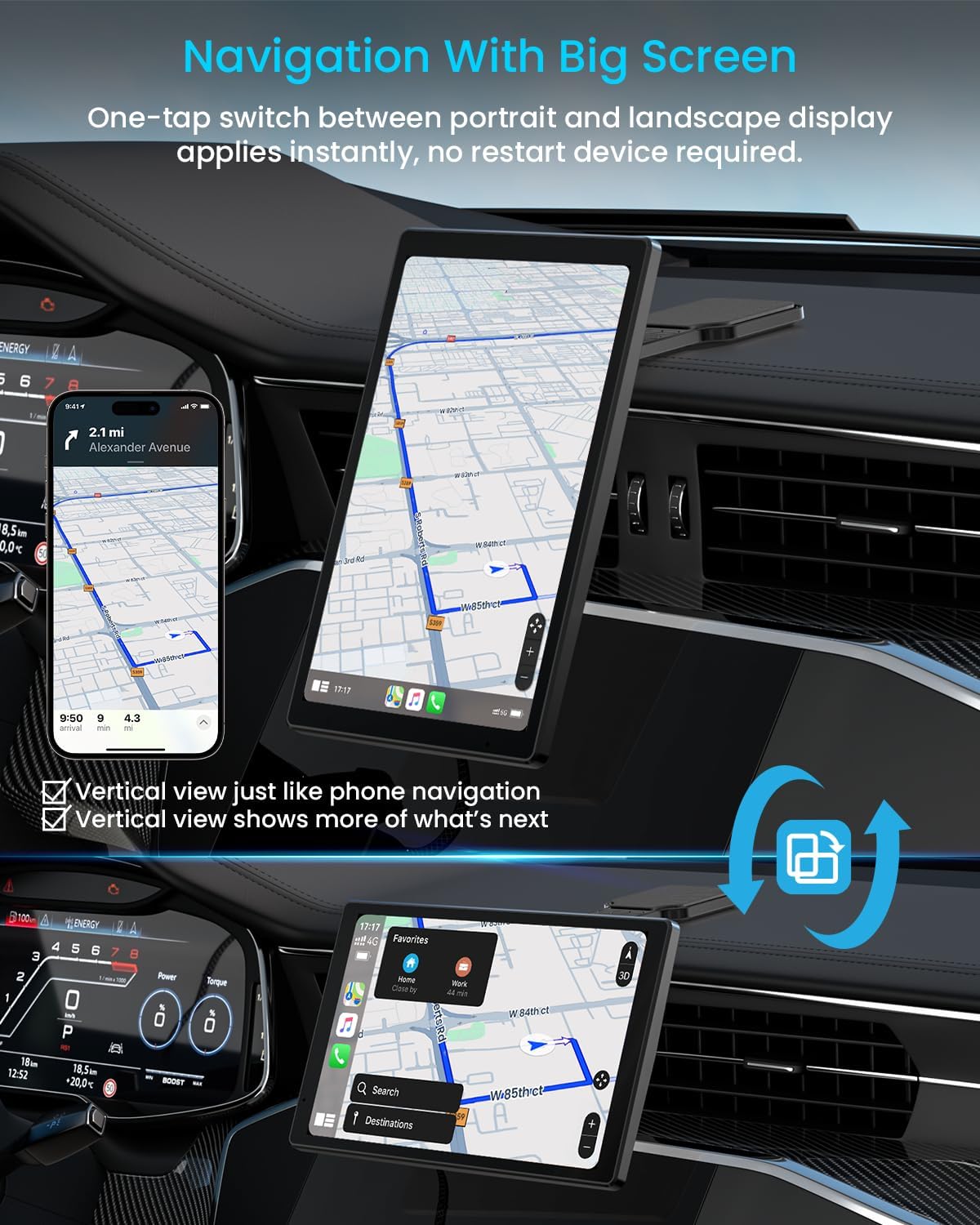
Image: Navigation with Big Screen: One-tap switch between portrait and landscape display.

Image: Supports Landscape and Portrait Mode Operation
5.4. Voice Control
Utilize voice commands for hands-free operation. Simply activate Siri (for iPhone) or Google Assistant (for Android) to make calls, send messages, get directions, or play music.
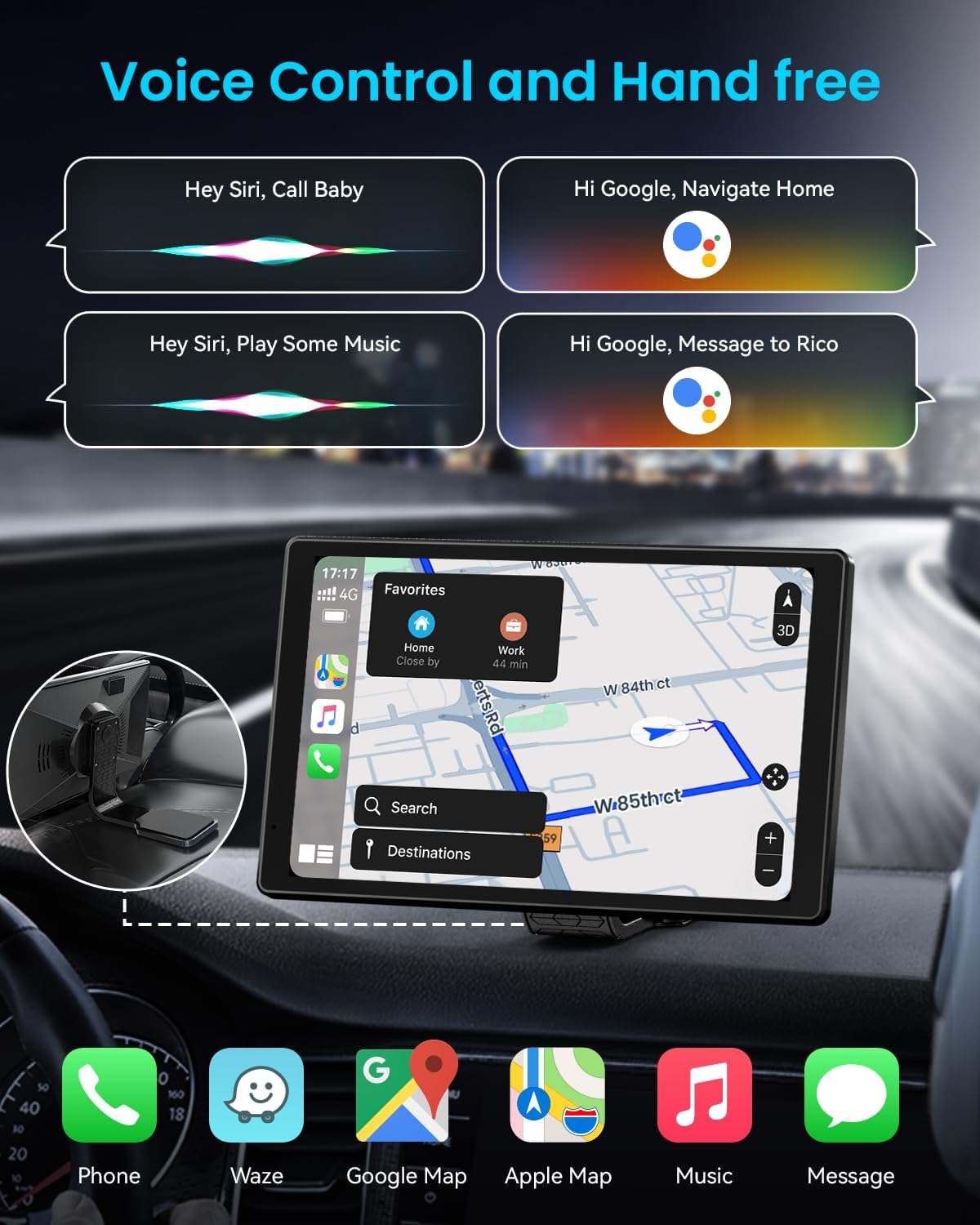
Image: Voice Control and Hands-Free Operation
5.5. Audio Output Options
The iK8 offers multiple ways to output audio to your car's speaker system:
- Built-in Speaker: For direct audio playback from the device.
- FM Transmit: Transmit audio to your car's FM radio by tuning both devices to the same frequency.
- Bluetooth: Connect the iK8 to your car's existing Bluetooth audio system.
- AUX-Out: Use an AUX cable (not included) to connect the iK8 to your car's AUX input.

Image: Three Ways to Connect to Your Car Speaker
5.6. Wireless Mirroring (AirPlay & Miracast)
Mirror your smartphone's screen directly onto the iK8 display for media consumption or navigation apps.
- AirPlay (for iOS):
- Choose AirPlay Mode on the iK8.
- Disconnect Bluetooth and Wi-Fi on your phone if you have used CarPlay mode.
- Turn on Wi-Fi and connect to "IIWEY-iK8XXXXXX" (password: 12345678).
- Select screen mirroring from your iPhone's Control Center and connect to "iK8XXXXXX".
- Miracast (for Android):
- Choose Miracast Mode on the iK8.
- Disconnect Bluetooth and Wi-Fi on your phone if you have used Android Auto mode.
- Find "Screen Mirroring" in your phone settings (name may vary) and connect to "iK8XXXXXX".
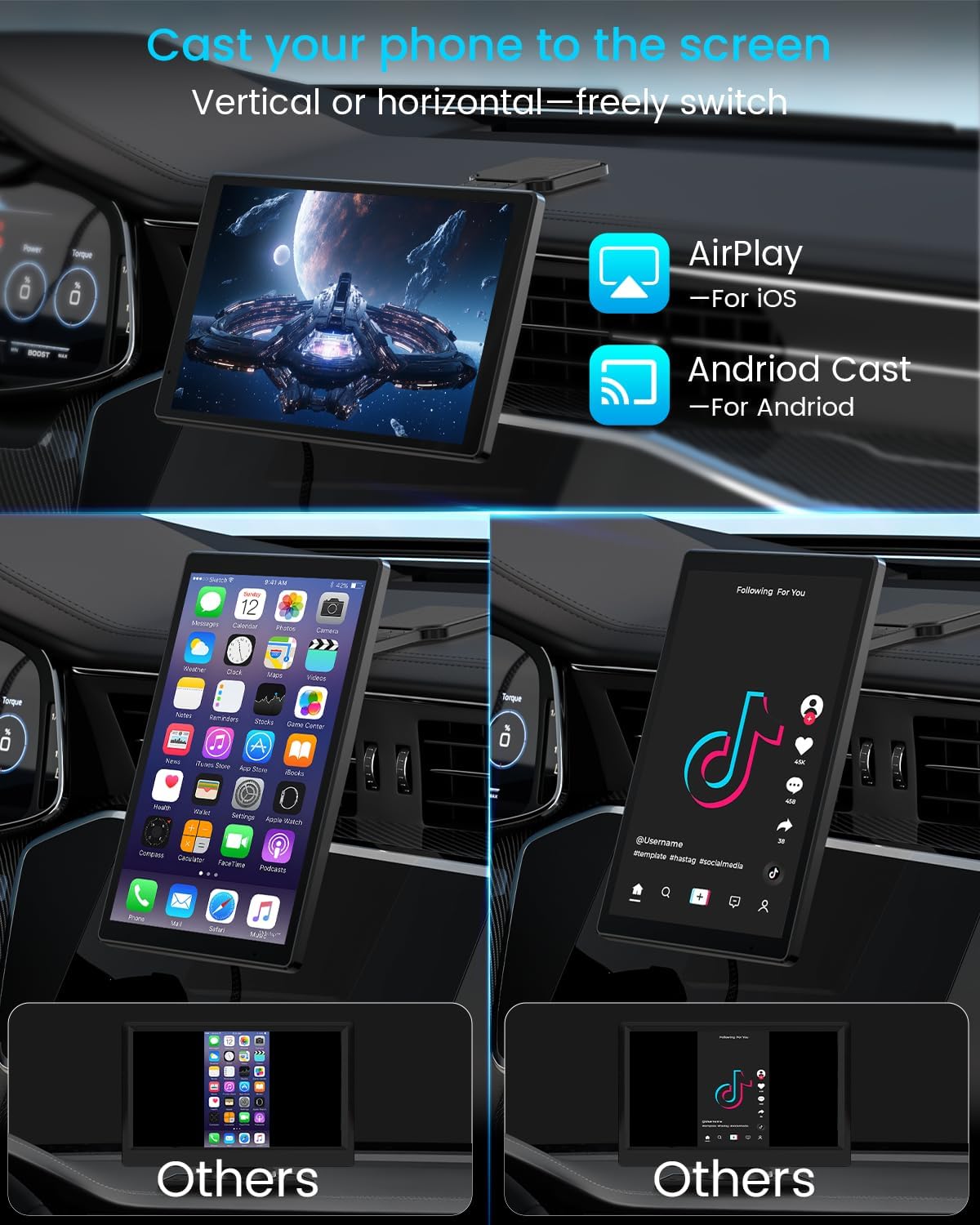
Image: Cast Your Phone to the Screen: Vertical or Horizontal
5.7. 1080P Backup Camera Operation
When the backup camera is properly installed and connected, it will automatically display a high-definition 1080P rearview image on the iK8 screen when your vehicle is put into reverse. Adjustable parking guidelines assist with safer and easier parking.

Image: 8" Large Screen & Reverse Assist: 1080P Full HD Reverse Image
Video: A user demonstrating the functionality of the IIWEY iK8's backup camera, showing the clear display and parking guidelines.
5.8. Auto-Connect Feature
Once initially paired, the iK8 will automatically reconnect to CarPlay or Android Auto when you start your car, provided the connection mode remains unchanged.

Image: Auto-Connect Next Time - No Setup Needed
6. Specifications
| Feature | Detail |
|---|---|
| Model Name | iK8 |
| Brand | IIWEY |
| Screen Size | 8 inches |
| Display Resolution | 1280x800 |
| Refresh Rate | 60Hz |
| Connectivity Technology | Bluetooth, Wi-Fi |
| Special Features | Wireless Apple CarPlay, Android Auto, 1080P Backup Camera, Rotatable Touchscreen, Voice Control, Mirror Link (AirPlay & Miracast) |
| Audio Output Mode | Built-in Speaker, Bluetooth, AUX-Out, FM Transmission |
| Mounting Type | Dashboard Mount, Windshield Mount, Adjustable Strap Mount |
| Item Weight | 2.21 pounds |
| Product Dimensions | 7.67 x 1 x 4.72 inches |
7. Maintenance
To ensure the longevity and optimal performance of your IIWEY iK8 device, follow these maintenance guidelines:
- Cleaning: Use a soft, lint-free cloth to gently wipe the screen and exterior. Avoid abrasive cleaners or solvents that may damage the surface.
- Temperature: Avoid exposing the device to extreme temperatures, both hot and cold. Prolonged exposure to direct sunlight or very cold conditions can affect performance and lifespan.
- Cable Management: Ensure all cables are neatly routed and secured to prevent damage or interference with driving controls.
- Storage: If removing the device for extended periods, store it in a cool, dry place away from direct sunlight.
8. Troubleshooting
If you encounter issues with your IIWEY iK8, refer to the following common troubleshooting steps:
- Device Not Powering On: Ensure the car charger is securely plugged into the 12V socket and the Type-C cable is firmly connected to the iK8 unit. Check your vehicle's fuse for the cigarette lighter if necessary.
- CarPlay/Android Auto Connection Issues:
- Ensure both Wi-Fi and Bluetooth are enabled on your smartphone.
- Forget the device from your phone's Bluetooth/Wi-Fi settings and attempt to reconnect.
- Restart both your smartphone and the iK8 device.
- Screen Not Responding: Try restarting the device. If unresponsive, use the reset button (refer to the diagram in the user manual for location).
- Audio Problems: Verify the selected audio output mode (Built-in Speaker, FM, Bluetooth, AUX) is correctly configured on the iK8 and your car's audio system. Adjust volume levels on both devices.
- Backup Camera Not Displaying: Check all cable connections for the backup camera. Ensure the camera is receiving power if hardwired.
- Performance in Cold Weather: Some users have reported the screen may take longer to display or may flicker in very cold temperatures (e.g., below 38°F). Allow the car interior to warm up.
9. Warranty & Support
The IIWEY iK8 comes with a 1-Year Manufacturer's Warranty. For any product inquiries, technical assistance, or warranty claims, please contact IIWEY customer support.
Customer Support Email: support@iiwey.com
You can also extend your warranty by scanning the QR code provided in the packaging or user manual.