
UGREEN Revodok Max Thunderbolt 5 Dock
Contents
UGREEN Revodok Max Thunderbolt 5 Dock User Manual
Model: Revodok Max Thunderbolt 5 Dock
1. Introduction
The UGREEN Revodok Max Thunderbolt 5 Dock is a high-performance 13-in-1 docking station designed to expand the connectivity and capabilities of your laptop or computer. Featuring Thunderbolt 5 technology, it offers ultra-fast data transfer speeds, extensive display options, and powerful charging capabilities. This manual provides detailed instructions for setting up, operating, and maintaining your Revodok Max Dock.

Image 1.1: UGREEN Revodok Max Thunderbolt 5 Dock and the accompanying USB-C to HDMI cable.
2. Product Features
- Lightning-Fast 120Gbps Transfer: Delivers industry-leading 120Gbps bandwidth for rapid data syncing and large file transfers.
- Professional Multi-Display Setup: Supports single 8K or dual 6K 60Hz displays; bundled HDMI cable adds 4K 60Hz output for expanded workspace.
- 140W Laptop Fast Charging: Powers laptops at up to 140W via Thunderbolt 5 Power Delivery (PD) charging while simultaneously running peripherals.
- 13-in-1 Versatile Connectivity: Includes 2.5GbE Ethernet, multiple USB-A/C ports, SD 4.0 TF Card Reader, and HDMI/DP outputs for comprehensive expansion.
- Universal Thunderbolt 4/3 Compatibility: Seamlessly works with Thunderbolt 5/4/3 MacBooks, Windows laptops, and HDMI-supported devices (plug-and-play).
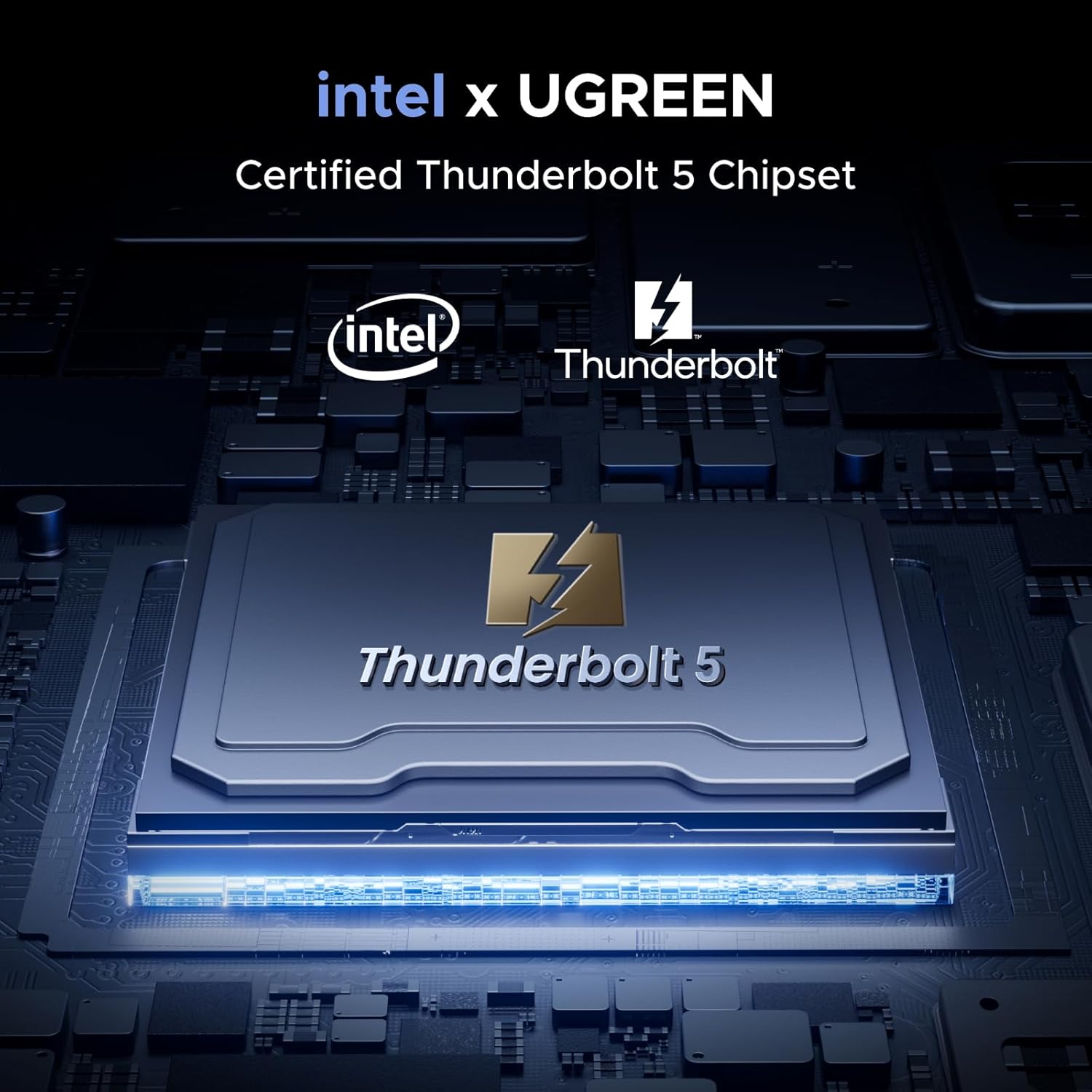
Image 2.1: The UGREEN Revodok Max Dock features a certified Thunderbolt 5 chipset, ensuring high performance and compatibility.
3. Package Contents
Please check the package contents upon unboxing to ensure all items are present:
- UGREEN Revodok Max Thunderbolt 5 Dock
- USB-C to HDMI Cable (4K@60Hz, 6.6FT)
- Power Adapter
- User Manual (this document)

Image 3.1: The included USB-C to HDMI cable, essential for display connectivity.
4. Product Diagram and Ports
Familiarize yourself with the various ports and components of the Revodok Max Dock:

Image 4.1: Detailed diagram illustrating the 13-in-1 connectivity options of the dock.
Front Panel:
- Power Button: To power on/off the dock.
- 2x USB-A (5Gbps): For connecting USB peripherals like keyboards, mice, or external drives.
- 1x SD & Micro SD 4.0 (312MB/s): High-speed card readers for memory cards.
- 1x USB-C (10Gbps, 20W Max): Versatile port for data transfer and charging.
- 1x Combo Audio In/Out (3.5mm): For headphones or microphones.
Rear Panel:
- 1x Thunderbolt 5 Upstream (80Gbps, 140W Max): Connects to your host laptop for data, video, and power.
- 2x Thunderbolt 5 Downstream Port-A/B/C (80Gbps/8K@30Hz/30W Max or 15W Max): For connecting additional Thunderbolt devices or displays.
- 2x USB-A (10Gbps): High-speed USB ports for data transfer.
- 1x 2.5 Gigabit Ethernet: For high-speed wired network connection.
- 1x DC-IN (21V 8.57A): Power input for the dock.

Image 4.2: Front and rear views of the dock, highlighting its compact design and port layout.
5. Setup Guide
- Connect Power: Plug the included power adapter into the DC-IN port on the rear of the dock, then connect the adapter to a power outlet.
- Connect to Host Device: Use a Thunderbolt 5 certified cable (or the included Thunderbolt 5 upstream cable) to connect the Thunderbolt 5 Upstream port on the dock to your laptop's Thunderbolt port.
- Power On: Press the power button on the front of the dock. The power indicator light should illuminate.
- Connect Peripherals:
- Displays: Connect your monitors to the available Thunderbolt 5 Downstream ports or use the included USB-C to HDMI cable for HDMI displays. Ensure your display cables are securely connected.
- USB Devices: Plug in your USB-A and USB-C peripherals (e.g., keyboard, mouse, external hard drive) into the corresponding ports.
- Ethernet: Connect an Ethernet cable from your router or modem to the 2.5 Gigabit Ethernet port for wired network access.
- SD/TF Cards: Insert your SD or Micro SD cards into the card reader slots.
- Audio: Connect headphones or speakers to the 3.5mm audio jack.
- Driver Installation (if necessary): For most modern operating systems (Windows 10/11, macOS), the dock is plug-and-play. If prompted, allow your system to install any necessary drivers automatically.
6. Operating Instructions
6.1 Multi-Display Configuration
The Revodok Max Dock supports advanced display configurations:
- Single Display: Up to 8K resolution at 30Hz via a single Thunderbolt 5 downstream port.
- Dual Displays: Up to 6K resolution at 60Hz for each display when connected to two Thunderbolt 5 downstream ports.
- Additional Display: The included USB-C to HDMI cable provides an additional 4K@60Hz output.
Note: Only TBT5 Windows PCs & Apple M4, M4 Pro/Max Macs support dual 6K@60Hz. Dual display is not supported on M1/M2/M3 base, Intel TBT3 Macs, or full-featured USB-C Windows PCs.

Image 6.1: Example of a dual 6K@60Hz display setup using the Revodok Max Dock.
6.2 Power Delivery and Charging
The dock provides robust power delivery to your host laptop and connected devices:
- Laptop Charging: Up to 140W Power Delivery via the Thunderbolt 5 Upstream port to your connected laptop.
- Downstream Charging:
- Thunderbolt 5 Downstream Port-A: Up to 30W Max.
- Thunderbolt 5 Downstream Port-B/C: Up to 15W Max each.
- USB-C Port (Front): Up to 20W Max.
Note: The data above represent the maximum charging power for a single port. Actual power delivery may vary based on connected devices and cable quality.

Image 6.2: The dock's comprehensive charging capabilities for laptops and peripherals.
6.3 Ultra-Fast Data Transfer
Leverage the Thunderbolt 5 technology for unparalleled data speeds:
- Thunderbolt 5 Ports: Up to 120Gbps bandwidth for connecting high-speed external SSDs, RAID arrays, or other data-intensive devices.
- USB 3.0 Ports: 5Gbps for standard USB devices.
- USB 3.2 Gen 2 Ports: 10Gbps for faster USB devices.
- SD/TF Card Reader: Up to 312MB/s for quick media transfers.
Note: Ensure hosts, cables, and external devices all support Thunderbolt 5 protocol for optimal performance. Non-compliant connections may default to lower bandwidths.

Image 6.3: Visual representation of the ultra-fast 120Gbps data transfer capability.
6.4 Network Connectivity
The integrated 2.5 Gigabit Ethernet port provides a stable and high-speed wired network connection, ideal for large file transfers and online gaming.

Image 6.4: The 2.5 Gigabit Ethernet port provides reliable and fast network access.
7. Maintenance
- Keep the dock in a dry, well-ventilated area, away from direct sunlight and heat sources.
- Avoid exposing the device to water or excessive moisture.
- Clean the surface of the dock with a soft, dry cloth. Do not use abrasive cleaners or solvents.
- Ensure all cables are securely connected to prevent intermittent issues.
- Periodically check for firmware updates from the UGREEN official website to ensure optimal performance and compatibility.
8. Troubleshooting
| Problem | Possible Cause | Solution |
|---|---|---|
| No power to the dock. | Power adapter not connected or faulty. | Ensure the power adapter is securely plugged into the dock and a working power outlet. Try a different outlet. |
| Display not working or flickering. | Incorrect cable, loose connection, or incompatible display settings. |
|
| USB devices not recognized. | Loose connection, device driver issue, or power limitation. |
|
| Slow data transfer speeds. | Non-Thunderbolt 5 cable, host limitation, or external device limitation. |
|
| Network connection issues. | Loose Ethernet cable, network driver issue, or router problem. |
|
9. Specifications
| Feature | Detail |
|---|---|
| Model Name | Revodok Max Thunderbolt 5 Dock |
| Connectivity | 13-in-1 |
| Host Connection | Thunderbolt 5 Upstream (140W PD) |
| Data Transfer Speed | Up to 120Gbps (Thunderbolt 5) |
| Video Output | Single 8K@30Hz or Dual 6K@60Hz (Thunderbolt 5), 4K@60Hz (via bundled HDMI cable) |
| Ethernet | 2.5 Gigabit Ethernet |
| USB Ports | 2x USB-A (5Gbps), 2x USB-A (10Gbps), 1x USB-C (10Gbps, 20W Max) |
| Card Reader | SD 4.0 & Micro SD 4.0 (312MB/s) |
| Audio Port | 3.5mm Combo Audio In/Out |
| Power Delivery | 140W (Upstream), 30W/15W (Downstream Thunderbolt), 20W (Front USB-C) |
| Compatibility | Thunderbolt 5/4/3 MacBooks, Windows Laptops, HDMI-supported devices |
| Color | Grey |
10. Warranty and Support
UGREEN products are designed and manufactured to the highest quality standards. For detailed warranty information and technical support, please refer to the warranty card included with your product or visit the official UGREEN website. You can also contact UGREEN customer service for assistance with any product-related inquiries or issues.
UGREEN Official Website: www.ugreen.com
Ask a question about this manual
Ask about setup, troubleshooting, compatibility, parts, safety, or missing instructions. Manuals+ will review the question and use this page’s manual context to help answer it.