
1. Product Overview
This manual provides instructions for the Roinvou Android 15 Car Radio Head Unit, designed for Kia Optima K5 models from 2010 to 2013. This unit features a 9-inch HD touchscreen, Wireless CarPlay, Android Auto, Bluetooth 5.0, GPS navigation, and a 32-band equalizer for an enhanced in-car experience.
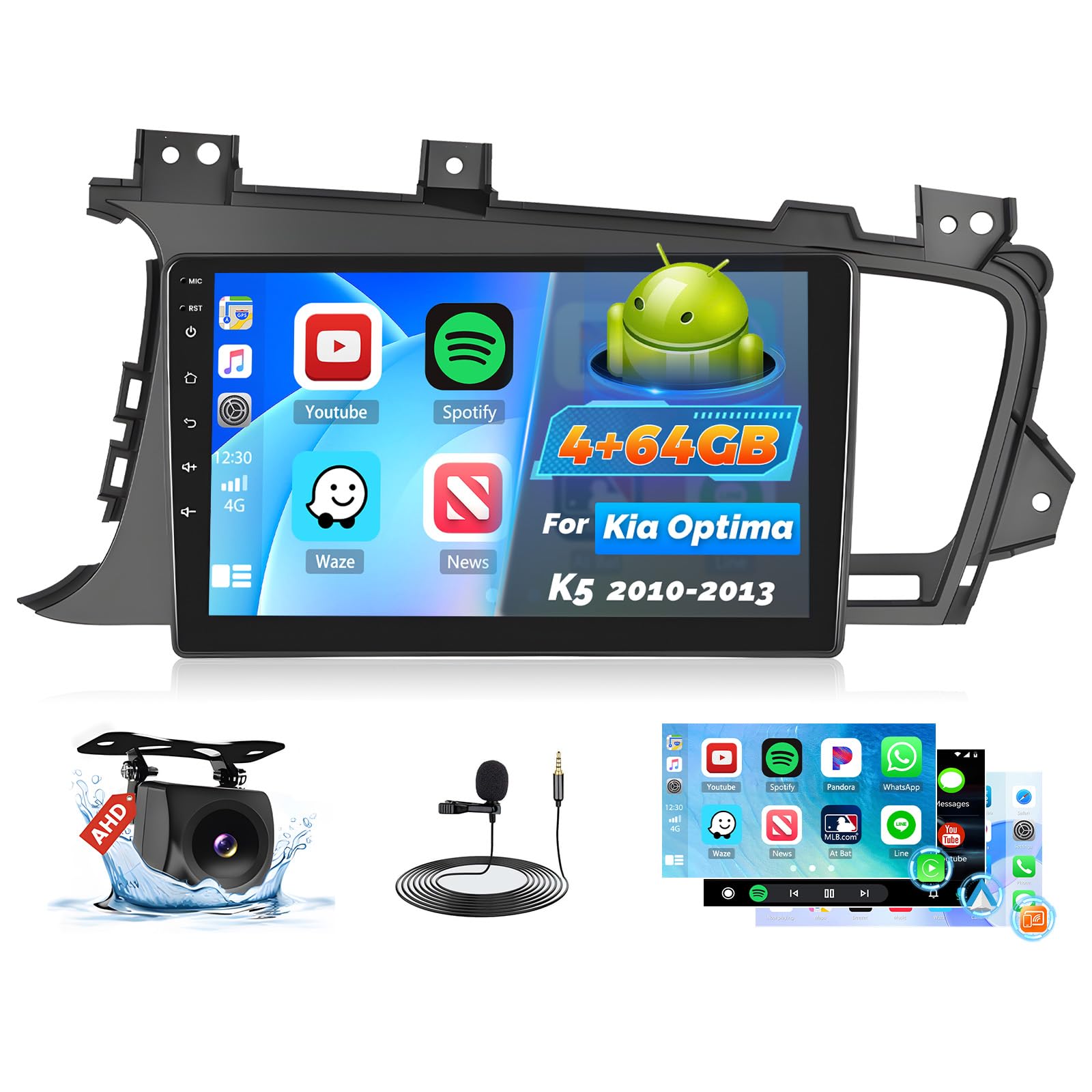
Image: Roinvou Android 15 Car Radio Head Unit. This image displays the main product unit, a 9-inch touchscreen car radio.
2. Setup and Installation
2.1 Vehicle Compatibility
This car stereo is compatible with Kia Optima K5 models manufactured between 2010 and 2013. It is designed for seamless replacement of the original dash panel without requiring wiring modifications. Please verify your car's dashboard configuration against the images below to ensure compatibility, especially regarding original reverse cameras and power amplifiers.

Image: Compatibility with Central Control. This image shows various Kia Optima K5 dashboard configurations, indicating which are compatible and which are not, based on the presence of original reverse cameras or power amplifiers.

Image: Before and After Installation for Kia Optima K5. This image illustrates the appearance of the car's dashboard before and after the installation of the Roinvou head unit.
2.2 Package Contents
Verify that all items are present in the package:
- Kia Optima K5 Car Stereo
- 2 x Power Cable
- 1 x Radio Antenna
- 1 x USB Adapter Cable
- 1 x Canbus
- 1 x RCA Harness
- 1 x GPS Antenna
- 1 x AHD Backup Camera
- 1 x External Microphone
- 1 x Rear Camera Input Cable
- 2 x USB Cable
- 1 x Installation Tool

Image: Product Size & Package List. This image shows the dimensions of the head unit and a visual representation of all included accessories in the package.
2.3 Wiring Connections
Refer to the wiring diagram for proper connection of all cables. Ensure all connections are secure before powering on the unit.

Image: Wiring Port Diagram. This diagram illustrates the various connection ports on the back of the head unit and the corresponding cables (Power, RCA, USB, Camera Input, Radio Antenna, GPS Antenna).
2.4 Reversing Camera Wiring
The reverse input cable must be connected even if a reverse camera is not used, as it affects Bluetooth and Wi-Fi signal reception. Connect the red cable to the positive terminal of the car's reverse light cable and the black cable to the negative terminal.

Image: Reversing Camera Wiring Diagram. This diagram shows how to connect the reversing camera to the head unit and the car's power system.
2.5 CANBUS Decoder Connection
Without CANBUS Decoder: Connect the plugs or steering wheel control wires (Key1/Key2) in the power cable to the corresponding port or wire of your original car. Then, navigate to "SteeringWheel Key" in the settings to manually match and activate the button functions.
With CANBUS Decoder: Connect the CANBUS before powering on the machine. Go to Apps > Settings > Factory Settings (password 8888/8317) > Vehicle > Automotive type. Select the brand of the CANBUS decoder and then the matching model and year according to your vehicle's specifications.

Image: CANBUS Decoder Instructions. This image provides a visual guide for connecting and configuring the CANBUS decoder for steering wheel control functionality.
3. Operating Instructions
3.1 Display and Interface
The unit features a 9-inch HD touchscreen with 1280x720 resolution, offering wide viewing angles and responsive capacitive touch control.

Image: 1280x720P HD Display. This image highlights the high-definition resolution and QLED quantum screen technology of the head unit's display.
3.2 Wireless CarPlay & Android Auto
Connect your iPhone or Android smartphone wirelessly to access navigation, music, calls, and voice assistants (Siri/Google Assistant) directly from the head unit. This feature provides a seamless and integrated smartphone experience.

Image: Wireless CarPlay & Android Auto Interface. This image shows a smartphone connected wirelessly to the head unit, displaying common applications like Spotify, YouTube, and WhatsApp.
3.3 Mirror Link Function
The Mirror Link function allows you to synchronize your Android or iOS smartphone screen with the head unit, enabling you to view and interact with your phone's content on the larger display.

Image: Mirror Link Function Display. This image demonstrates the Mirror Link feature, showing a smartphone screen mirrored onto the head unit's display.
3.4 GPS Navigation & Wi-Fi
The unit comes with preloaded offline maps. Connect to Wi-Fi (5G supported) to download additional maps, receive real-time traffic updates, and use online navigation services. Wi-Fi also enables faster app updates and internet browsing.

Image: GPS Navigation and WiFi Interface. This image displays the GPS navigation interface with map data and icons representing various online applications accessible via Wi-Fi.
3.5 Bluetooth 5.0 Connectivity
Bluetooth 5.0 ensures stable connections for hands-free calling, music streaming, and phonebook synchronization. Pair your smartphone to make and receive calls safely while driving.

Image: Bluetooth 5.1 Interface. This image shows the Bluetooth interface for calls and music playback, with a driver interacting with the system.
3.6 FM/RDS Radio
Tune into your favorite FM radio stations. The RDS (Radio Data System) feature displays station information, song titles, and other relevant data where available.

Image: FM/RDS Radio Interface. This image displays the digital interface for the FM/RDS radio, showing frequency tuning and station information.
3.7 32-Band EQ Settings
Customize your audio experience with the professional 32-band equalizer. Adjust frequency levels to achieve your preferred sound profile for various music genres.

Image: 32 EQ Settings Interface. This image shows the graphical interface for the 32-band equalizer, allowing detailed audio customization.
3.8 Steering Wheel Control (SWC)
Retain the functionality of your factory steering wheel buttons for safe and convenient control of the head unit. This includes volume adjustment, track skipping, and answering calls.

Image: Steering Wheel Control and Backup Camera Display. This image illustrates the steering wheel controls and also shows the display of the AHD backup camera.
3.9 Split Screen and Homepage Display
The unit supports a three-panel homepage display for quick access to multiple functions. Utilize the split-screen feature to run two applications simultaneously, such as navigation and music playback.

Image: Three-Panel Homepage and Split Screen Display. This image demonstrates the customizable homepage layout and the split-screen functionality of the head unit.
4. Maintenance
To ensure the longevity and optimal performance of your Roinvou car radio, follow these maintenance guidelines:
- Cleaning the Screen: Use a soft, lint-free cloth to gently wipe the touchscreen. For stubborn smudges, slightly dampen the cloth with water or a screen-safe cleaner. Avoid harsh chemicals or abrasive materials.
- General Cleaning: Keep the unit and surrounding dashboard area free from dust and debris. Use a soft brush or compressed air for hard-to-reach areas.
- Software Updates: Periodically check for available software updates through the unit's settings or the manufacturer's website to ensure you have the latest features and bug fixes.
- Avoid Extreme Temperatures: Do not expose the unit to extreme heat or cold for extended periods, as this can affect its electronic components.
5. Troubleshooting
If you encounter issues with your car radio, refer to the following common troubleshooting steps:
| Problem | Possible Cause | Solution |
|---|---|---|
| No Power | Loose power connection, blown fuse. | Check power cables and connections. Inspect and replace any blown fuses in the car or unit. |
| No Sound | Volume too low, incorrect audio source, loose speaker wires. | Increase volume. Select correct audio source. Check speaker wire connections. |
| Bluetooth Not Connecting | Bluetooth off on phone/unit, pairing mode not active, interference. | Ensure Bluetooth is enabled on both devices. Put unit in pairing mode. Move closer to the unit. Restart both devices. |
| GPS Not Working / Inaccurate | Poor satellite signal, outdated maps, GPS antenna issue. | Ensure clear view of the sky. Update maps via Wi-Fi. Check GPS antenna connection. |
| Steering Wheel Controls Not Working | Incorrect CANBUS setup or wiring, manual mapping required. | Review CANBUS decoder instructions (Section 2.5). Perform manual steering wheel key mapping in settings. |
| Touchscreen Unresponsive | Software glitch, screen protector interference. | Restart the unit. Remove any screen protectors to test. If issue persists, contact support. |
If these steps do not resolve the issue, please contact customer support for further assistance.
6. Specifications
| Feature | Detail |
|---|---|
| Model Number | B0FC65G1LF |
| Display Size | 9 Inches |
| Display Resolution | 1280x720P |
| Operating System | Android 15 |
| RAM | 4GB |
| ROM | 64GB |
| Processor | 4 Core |
| Connectivity | Bluetooth 5.0, USB, Wi-Fi (5G) |
| Special Features | Wireless CarPlay, Wireless Android Auto, Mirror Link, Touchscreen, GPS Navigation, FM RDS Radio, Support Reverse Input, Split Screen, 32-Band EQ Setting, Steering Wheel Control |
| Audio Output Mode | Stereo |
| Output Power | 45 Watts |
| Item Weight | 3.56 pounds |
| Package Dimensions | 14.17 x 8.27 x 3.15 inches |
7. Warranty Information
The Roinvou Android 15 Car Radio Head Unit comes with a 1-Year Warranty from the date of purchase. This warranty covers manufacturing defects and malfunctions under normal use. Please retain your proof of purchase for warranty claims.
For detailed warranty terms and conditions, please refer to the official Roinvou website or contact customer support.
8. Customer Support
If you have any questions, require technical assistance, or need to make a warranty claim, please contact Roinvou customer support:
- Online Support: Visit the Roinvou store on Amazon and click 'Ask a question'.
- Email: roinvouservices@163.com
Please provide your product model number (B0FC65G1LF) and a detailed description of your issue when contacting support to ensure a prompt resolution.


