1. Introduction
This manual provides essential information for the safe and effective operation of your Ortur R2 Laser Engraver and Cutter. The Ortur R2 is a smart 20W machine designed for engraving and cutting various materials, including wood and metal. Please read this manual thoroughly before using the device.

Figure 1: Ortur R2 Laser Engraver and Cutter with its accompanying 40L Air Assist Pump.
2. Safety Information
The Ortur R2 is a Class 1 laser product, meaning it is designed with safety features to prevent exposure to laser radiation during normal operation. However, it is crucial to adhere to all safety guidelines to ensure safe use.
- Always operate the device in a well-ventilated area.
- Do not attempt to bypass or disable any safety features.
- Ensure the enclosure is properly closed during operation.
- The built-in flame detection system will automatically shut off power if unusual heat or flames are detected. Do not interfere with this system.
- Keep children and pets away from the operating area.
- Refer to local regulations for proper disposal of materials and waste.

Figure 2: The Ortur R2 is a Class 1 Safety Certified device, ensuring a high level of user protection.
3. Product Features
The Ortur R2 Laser Engraver and Cutter incorporates several advanced features for enhanced performance and user experience:
- Plug-and-Play Minimalist Experience: Designed for immediate use with no complex installation required. Simply connect power to begin.
- 20W TOP Cutting Capability: This laser engraver offers powerful cutting capabilities, comparable to industrial CNC cutters. It can cut 10mm basswood plywood, 15mm pine board, and 8mm black acrylic in a single pass.
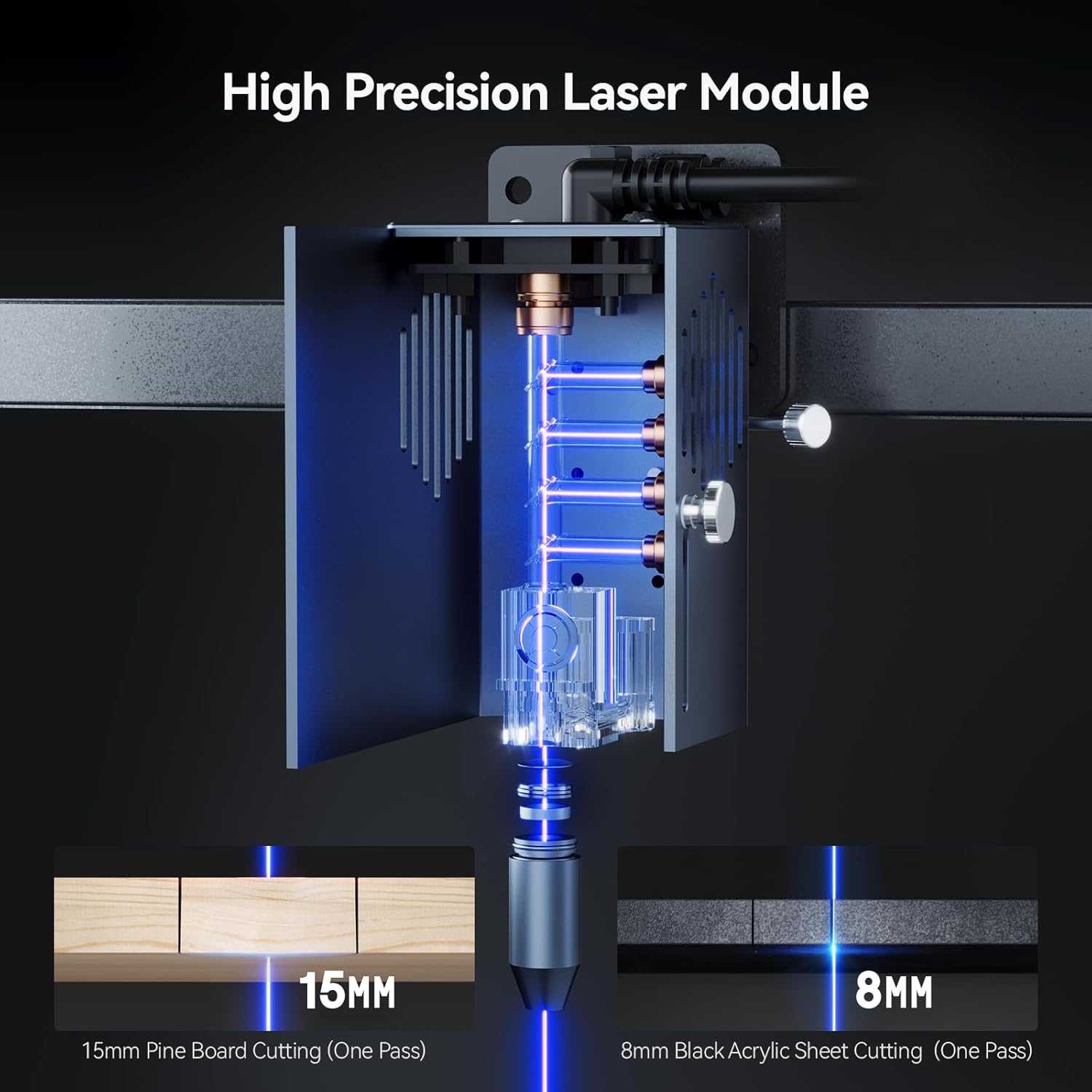
Figure 3: The high-precision laser module demonstrating its ability to cut 15mm pine board and 8mm black acrylic in one pass.
- APP with Built-in AI Assist Function: The companion application features AI algorithms to optimize images for engraving, reducing design barriers. It supports hand-drawn engraving, a puzzle mode for customizable designs, and QR code generation from text, photos, or videos for permanent engraving.

Figure 4: Overview of the Ortur R2 mobile application, highlighting its one-app solution, 1-tap pairing, extensive template library, and user community features.

Figure 5: The AI-powered engraving assistant within the Ortur R2 app, showing how it enhances image suitability for engraving.
- Smart Camera for Enhanced Precision: An HD full-frame camera provides a clear view of the workspace, allowing precise positioning of designs by dragging and dropping them onto the material.
- Visual High-definition Display Screen: Real-time monitoring of device status, supporting self-checks and offline processing. The device preserves engraving history across devices for seamless batch production.
- Flip-UP Touch Screen: Offers ergonomic comfort and viewing flexibility, allowing users to find the perfect angle for productive work.
- Military-grade Safety Protection System: Includes a built-in flame detection system that instantly shuts off power upon detecting unusual heat or flames.
- 40L Air Assist Pump: Equipped with a dedicated air assist pump to improve cutting precision and efficiency.
- Engraving Performance: Features an engraving stroke of 11.81" x 8.26" (300 x 190mm) and a super engraving efficiency of 20000mm/min. The laser spot size is 0.01mm.

Figure 6: Detailed view of the Ortur R2's engraving area, speed, HD camera position, and precise laser spot size.
4. Setup
The Ortur R2 is designed for a minimalist setup. Follow these steps to prepare your device for operation:
- Unboxing: Carefully remove all components from the packaging. Verify that all parts listed in the packing list are present.
- Placement: Place the Ortur R2 on a stable, level surface in a well-ventilated area, away from flammable materials. Ensure adequate space around the machine for air circulation and access.
- Power Connection: Connect the power adapter to the device and then to a suitable power outlet.
- Air Assist Pump Connection: Connect the 40L air assist pump to the designated port on the Ortur R2. Ensure the hose is securely attached.
- Initial Power On: Press the power button to turn on the device. The high-definition display screen will illuminate.
5. Operating Instructions
Operating the Ortur R2 involves preparing your design, setting up the material, and initiating the engraving or cutting process.
5.1. Material Preparation
- Place the material to be engraved or cut securely within the working area of the machine.
- Ensure the material is flat and properly aligned.
- The Ortur R2 can engrave and cut a wide range of materials, including but not limited to:
- Wood (basswood, pine, plywood)
- Acrylic
- Metal (for engraving)
- Bamboo
- Rubber
- Felt
- Paper
- Ceramics (for engraving)
- Stainless Steel (for engraving)
- Slate Stone (for engraving)
- Glass (for engraving)
- Cake (for engraving)
- Aluminum (for engraving)
- Leather

Figure 7: Examples of various materials that can be processed by the Ortur R2 for cutting and engraving applications.
5.2. Design and Operation
- Using the APP:
- Download and install the Ortur R2 companion application on your mobile device.
- Pair your device with the Ortur R2 via the app (1-tap pairing).
- Import or create your design within the app. Utilize AI assist functions for image optimization, hand-drawn engraving, or puzzle mode.
- Use the smart camera preview to drag and drop your design precisely onto the material on screen.
- Adjust laser power, speed, and passes as needed for your material.
- Initiate the engraving/cutting process from the app.
- Offline Processing:
- Designs can be prepared and saved to the device for offline operation.
- Use the visual high-definition display screen to select and start saved projects without needing a connected device.
- The flip-up touch screen provides ergonomic control and monitoring.

Figure 8: The Ortur R2's display screen allows for offline operation and is designed for comfortable viewing whether standing or sitting.
- Monitoring: Monitor the progress of your engraving/cutting job via the display screen or the app. The flame detection system provides an additional layer of safety during operation.
6. Maintenance
Regular maintenance ensures the longevity and optimal performance of your Ortur R2. Always power off and unplug the device before performing any maintenance.
- Cleaning the Laser Lens: Periodically inspect and gently clean the laser lens with a lint-free cloth and appropriate lens cleaning solution. Dust and debris can affect laser performance.
- Cleaning the Working Area: Remove any debris, dust, or material scraps from the engraving bed after each use.
- Air Assist Pump: Ensure the air assist pump is free from obstructions and operating correctly. Refer to the pump's specific manual for maintenance if provided separately.
- General Cleaning: Wipe down the exterior of the machine with a soft, damp cloth. Avoid using harsh chemicals.
7. Troubleshooting
This section provides solutions to common issues you might encounter. If the problem persists, please contact Ortur customer support.
| Problem | Possible Cause | Solution |
|---|---|---|
| Device does not power on. | Power cable not connected; power outlet issue. | Ensure power cable is securely connected. Test the power outlet with another device. |
| Laser not firing or weak. | Dirty laser lens; incorrect power settings; material too far/close. | Clean the laser lens. Verify power settings in the app. Ensure material is properly positioned. |
| Engraving/cutting results are inconsistent. | Material not flat; incorrect speed/power settings; material type. | Ensure material is flat and secured. Adjust speed and power settings based on material. |
| App cannot connect to device. | Bluetooth/Wi-Fi issue; device not in pairing mode. | Restart both the device and your mobile device. Ensure Bluetooth/Wi-Fi is enabled. Follow app pairing instructions. |
8. Specifications
| Attribute | Detail |
|---|---|
| Brand | Ortur |
| Model Number | 2025060601 |
| Color | Grey |
| Product Dimensions | 40 x 21.4 x 47 cm |
| Item Weight | 14.2 Kilograms |
| ASIN | B0FC62F933 |
| Date First Available | 12 July 2025 |
| Laser Output Power | 20W |
| Engraving Area | 300 x 190 mm (11.81" x 8.26") |
| Engraving Speed | Up to 20000mm/min |
| Laser Spot Size | 0.01mm |
| Air Assist Pump | 40L included |
| Safety Class | Class 1 |
9. Warranty and Support
For warranty information and technical support, please refer to the official Ortur website or contact their customer service directly. Keep your purchase receipt as proof of purchase for warranty claims.
For further assistance, you may visit the Ortur Official Website or contact their support team through the contact information provided on their site.