
1. Initial Setup
1.1 Unboxing and Charging
Upon receiving your Jugeman P131 Smart Watch, carefully remove all components from the packaging. Before first use, ensure the watch is fully charged.
- Connect the provided charging cable to the charging port on the back of the watch.
- Plug the USB end of the cable into a standard USB power adapter (not included) or a computer USB port.
- The watch screen will display a charging indicator. A full charge typically takes approximately 2.5 hours.
1.2 App Installation and Pairing
To utilize all features of your P131 Smart Watch, you must install the companion application on your smartphone and pair the devices.
- Enable Bluetooth: On your smartphone, navigate to settings and ensure Bluetooth is enabled.
- Download App: Scan the QR code provided in the watch's quick start guide or search for "GloryfitPro" in your smartphone's app store (Google Play Store for Android, Apple App Store for iOS). Install the application.
- Add Device: Open the GloryfitPro app, navigate to the 'Device' section, and click 'Add Device'.
- Search and Connect: The app will search for nearby devices. Select 'P131' from the list of found devices.
- Pairing Confirmation: A Bluetooth pairing request will appear on your phone. Click 'Pair' to confirm the connection.
- Enable Notifications: Allow the smartwatch to display notifications by granting the necessary permissions within your phone's settings and the GloryfitPro app.
Once connected, you can use the watch to answer and make calls directly from your wrist.
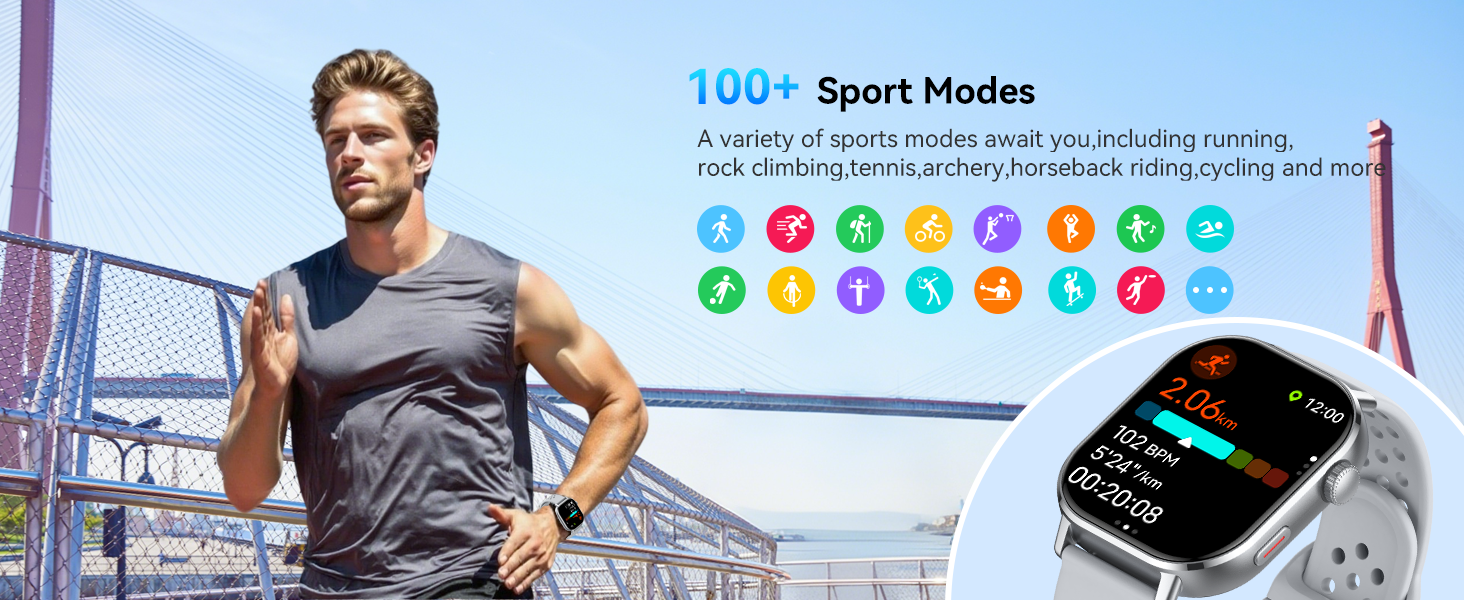
Image: Step-by-step guide for connecting the P131 Smart Watch to a smartphone via the GloryfitPro app, showing Bluetooth enabling, app download, device selection, pairing, and notification settings.
2. Basic Operation
2.1 Navigating the Interface
The P131 Smart Watch features a 2.06-inch HD AMOLED touchscreen for intuitive navigation.
- Swipe Up/Down: Access quick settings or notifications.
- Swipe Left/Right: Scroll through various widgets and features like heart rate, activity data, weather, etc.
- Tap: Select an icon or option.
- Press Side Button: Return to the home screen or access the main menu.
2.2 Bluetooth Calling and Notifications
With Bluetooth 5.4, the watch supports direct call management and message alerts.
- Making Calls: Access the dial pad on the watch screen or select a contact from your synced phonebook to initiate a call.
- Answering Calls: When an incoming call is received, tap the green icon on the watch screen to answer.
- Message Notifications: Receive alerts for SMS, WhatsApp, Facebook, Instagram, Twitter, and other social media applications directly on your watch.

Image: A user interacting with the P131 Smart Watch to manage calls and view social media notifications, illustrating the Bluetooth call and message alert features.
2.3 Always-On Display
The P131 features an Always-On Display mode, ensuring the time is visible without needing to activate the screen.
- To enable or disable this feature, navigate to the watch settings menu.
- Select 'Always-on display' and toggle the setting as desired.
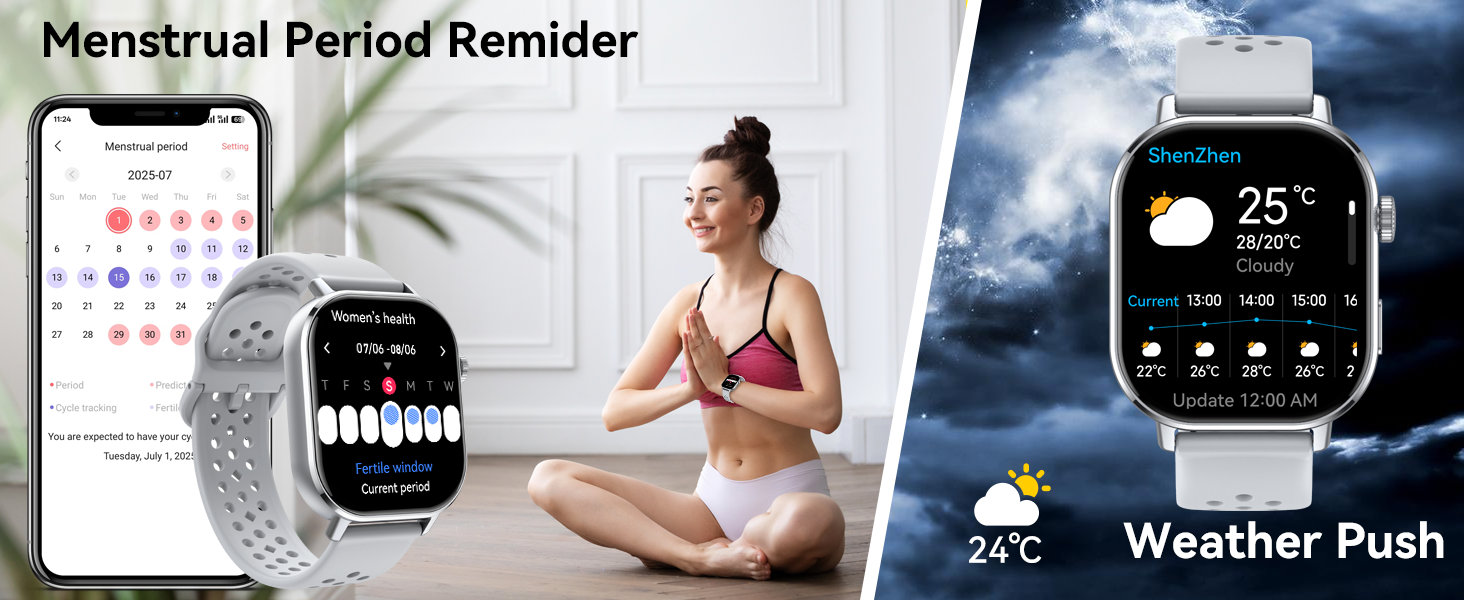
Image: The P131 Smart Watch displaying the time in Always-On Display mode, with a visual guide to access and customize this feature in the settings.
3. Health Monitoring
The P131 Smart Watch is equipped with optical sensors for continuous health tracking.
3.1 Heart Rate Monitoring
The watch continuously monitors your heart rate throughout the day.
- View real-time heart rate data on the watch or in the GloryfitPro app.
- The app provides historical data and trends.
3.2 Blood Oxygen (SpO2) Monitoring
Monitor your blood oxygen levels to gain insights into your respiratory health.
- To take a measurement, ensure the watch is snug on your wrist and remain still.
- Results are displayed on the watch and recorded in the app.
3.3 Sleep Monitoring
The watch tracks your sleep patterns, including deep sleep, light sleep, and awake times.
- Wear the watch during sleep for automatic tracking.
- Detailed sleep analysis and quality scores are available in the GloryfitPro app.
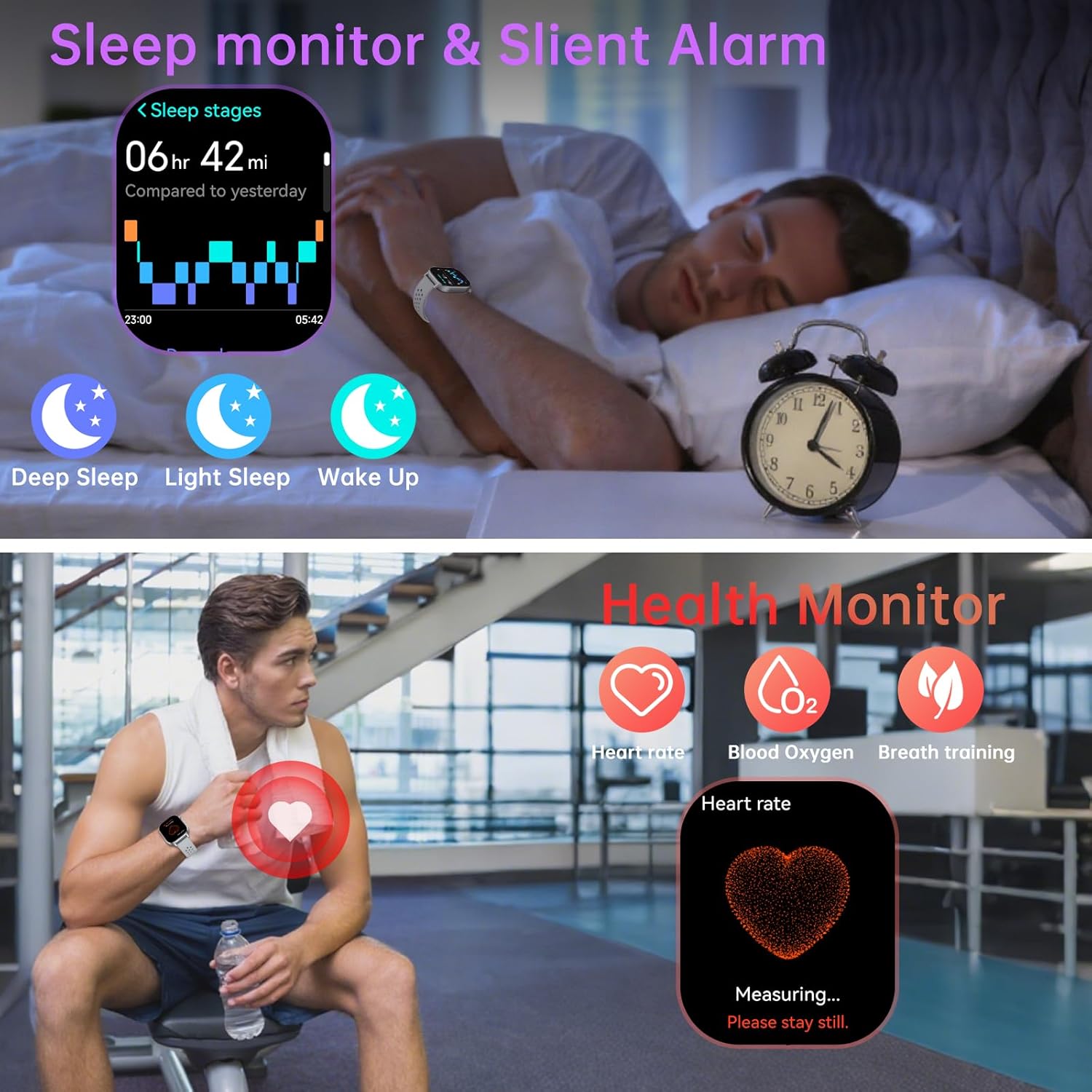
Image: Visual representation of sleep stages (deep, light, wake up) and health monitoring features including heart rate, blood oxygen, and breathing training on the P131 Smart Watch.
3.4 Breathing Training
Utilize the guided breathing exercises to help manage stress and improve relaxation.
- Access the breathing training feature from the watch's menu.
- Follow the on-screen prompts for guided breathing sessions.
3.5 Women's Health Tracking
The watch supports tracking for women's health cycles when configured in the GloryfitPro app.
- Input your cycle information into the app to receive reminders and predictions.
4. Sports Modes and GPS
The P131 Smart Watch offers over 100 sports modes and built-in GPS for comprehensive activity tracking.
4.1 Activity Tracking
The watch records daily activities such as steps, distance, and calories burned.
- View your daily activity summary directly on the watch face or in the app.
4.2 Using Sports Modes
Select from over 100 sports modes to accurately track your workouts.
- Navigate to the 'Sports' menu on the watch.
- Select your desired activity (e.g., Running, Cycling, Swimming).
- The watch will begin tracking relevant metrics for that activity.

Image: A visual display of various sports icons representing over 110 built-in sports modes available on the P131 Smart Watch, including football, swimming, dancing, elliptical, yoga, and more.
4.3 Built-in GPS and Outdoor Features
The P131 features an independent GPS module for accurate outdoor tracking, along with a compass, altimeter, and barometer.
- GPS: Provides accurate tracking of your route, distance, and pace during outdoor activities. Activate GPS route tracking in open areas for best results.
- Compass: Displays your current heading.
- Altimeter: Shows your current altitude.
- Barometer: Indicates air pressure dynamics.
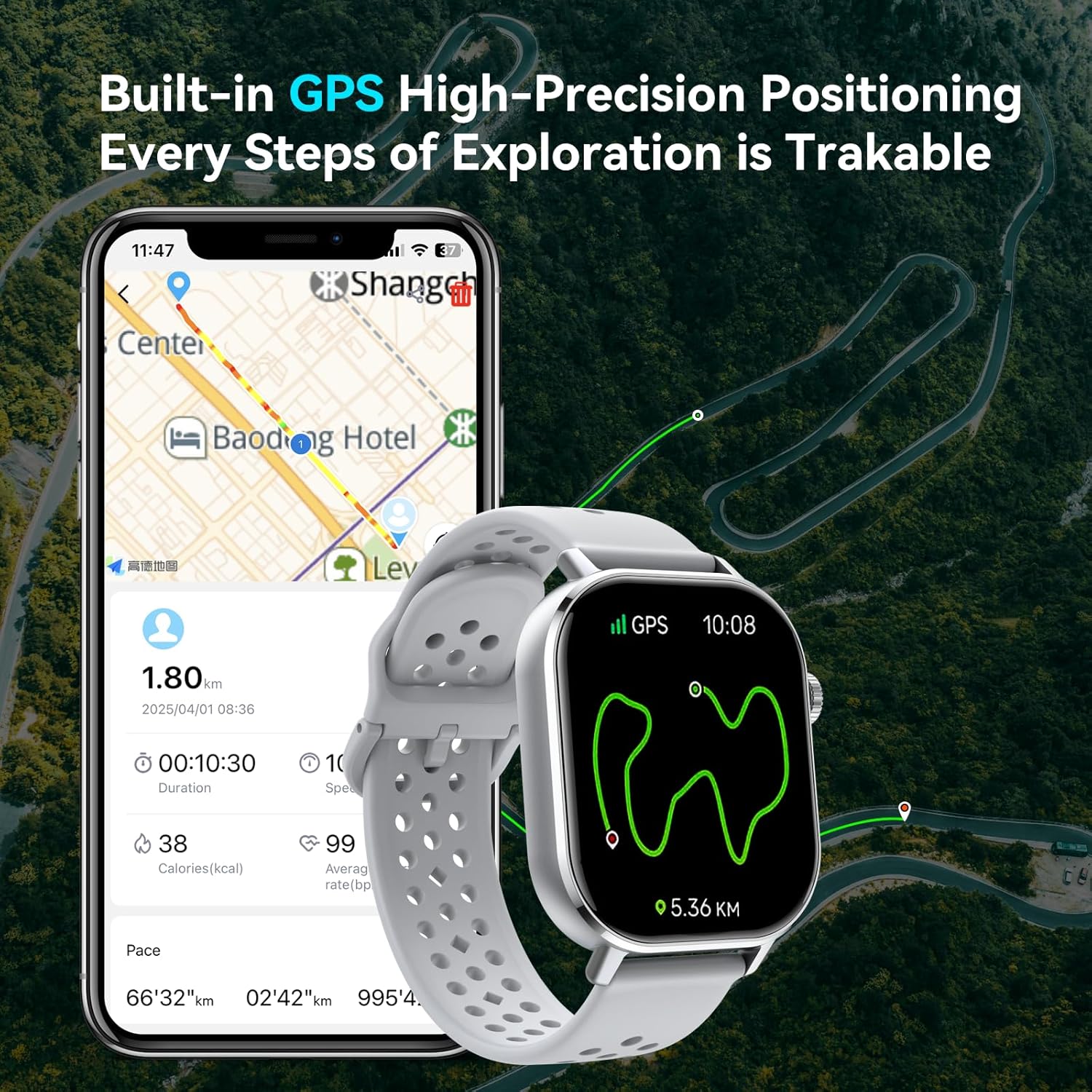
Image: The P131 Smart Watch displaying GPS tracking data alongside a smartphone showing a map, highlighting the high-precision positioning feature for outdoor exploration.

Image: The P131 Smart Watch displaying compass, current altitude (824m), and barometric pressure (980hPa) readings, set against a mountain landscape, demonstrating its suitability for outdoor adventures.
5. Connectivity and Smart Features
The P131 Smart Watch integrates seamlessly with your smartphone for enhanced functionality.
5.1 AI Voice Assistant
Utilize the built-in voice assistant for quick commands and information.
- Activate the voice assistant from the watch menu.
- Ask questions, control music playback, and more using voice commands.
5.2 Music Control
Control music playback on your smartphone directly from your watch.
- Access the music control feature to play, pause, skip tracks, and adjust volume.
5.3 Remote Camera Control
Use your watch as a remote shutter for your smartphone's camera.
- Open the camera function on your watch and tap to capture photos on your phone.
5.4 Find Phone Feature
Locate your misplaced smartphone using your watch.
- Activate the 'Find Phone' feature on your watch, and your phone will ring (if within Bluetooth range).
5.5 Weather Forecast
Receive real-time weather updates on your watch.
- Ensure your watch is connected to your phone and location services are enabled for accurate forecasts.
5.6 Other Functions
The P131 Smart Watch includes additional practical functions:
- Stopwatch & Timer: For timing activities.
- Alarm Clock: Set alarms directly from the watch.
- Sedentary Reminder: Prompts you to move after periods of inactivity.
- Water Reminder: Reminds you to drink water.
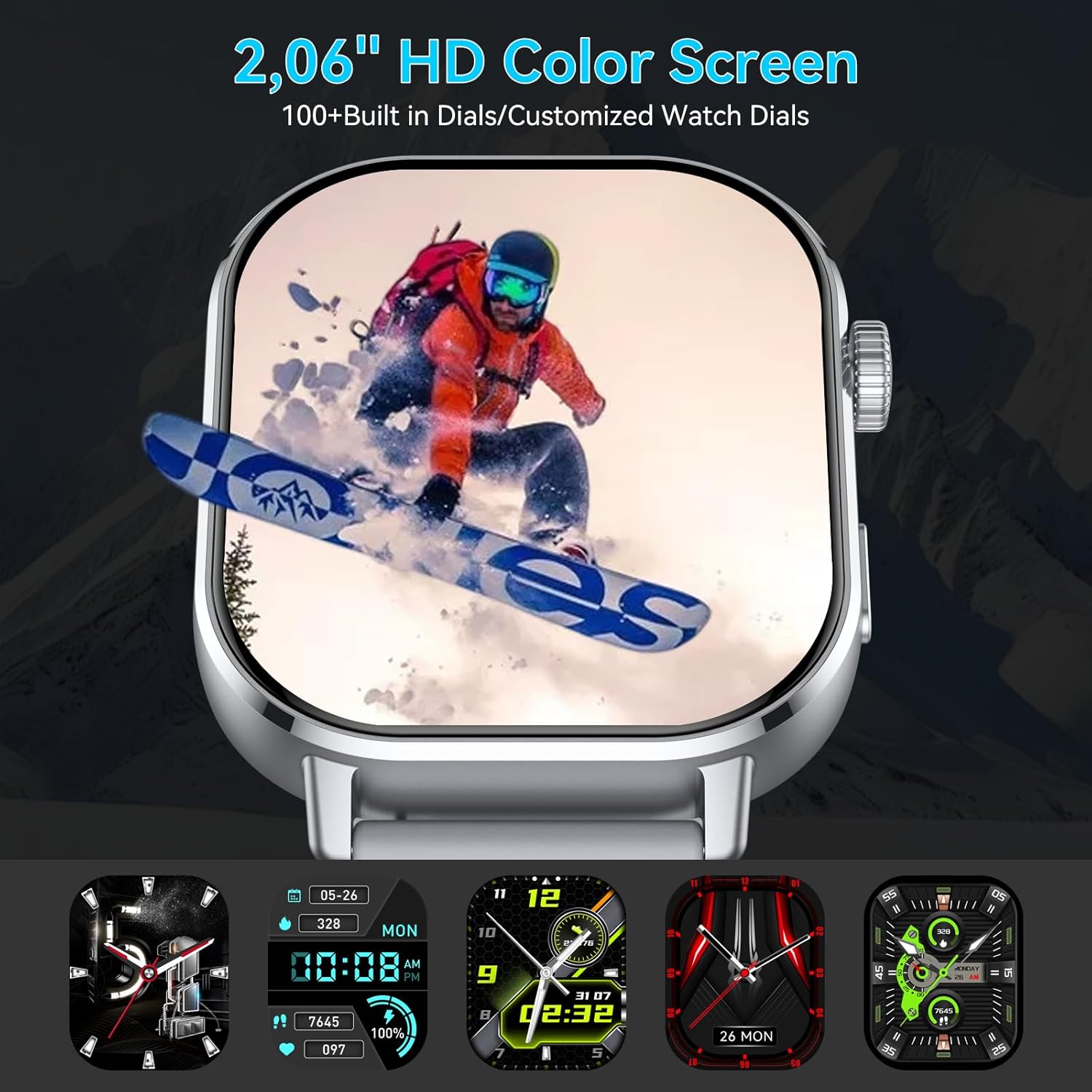
Image: A visual representation of various icons depicting the multi-functional capabilities of the P131 Smart Watch, including message reminder, call reminder, heart rate monitoring, camera control, music control, stopwatch & timer, sleep tracker, exercise records, breathing training, sedentary notification, find phone, and voice assistant.
6. Maintenance and Care
Proper care ensures the longevity and optimal performance of your Jugeman P131 Smart Watch.
6.1 Water Resistance
The P131 Smart Watch has a 5 ATM water-resistance rating.
- It can withstand rain, splashes, and hand washing.
- Do not use for swimming, diving, hot showers, or sauna. Exposure to hot water or steam may compromise the water seal.

Image: The P131 Smart Watch being splashed with water, illustrating its 5 ATM water-resistance for activities like rain, swimming (light), and hand washing.
6.2 Cleaning
- Wipe the watch screen and body with a soft, damp cloth.
- Avoid using harsh chemicals or abrasive materials.
- Clean the charging contacts regularly to ensure efficient charging.
6.3 Battery Life
The watch offers extended battery life with typical usage.
- Typical use: 7-10 days.
- Standby mode: Up to 30 days.
- Continuous GPS use: Approximately 3 days.
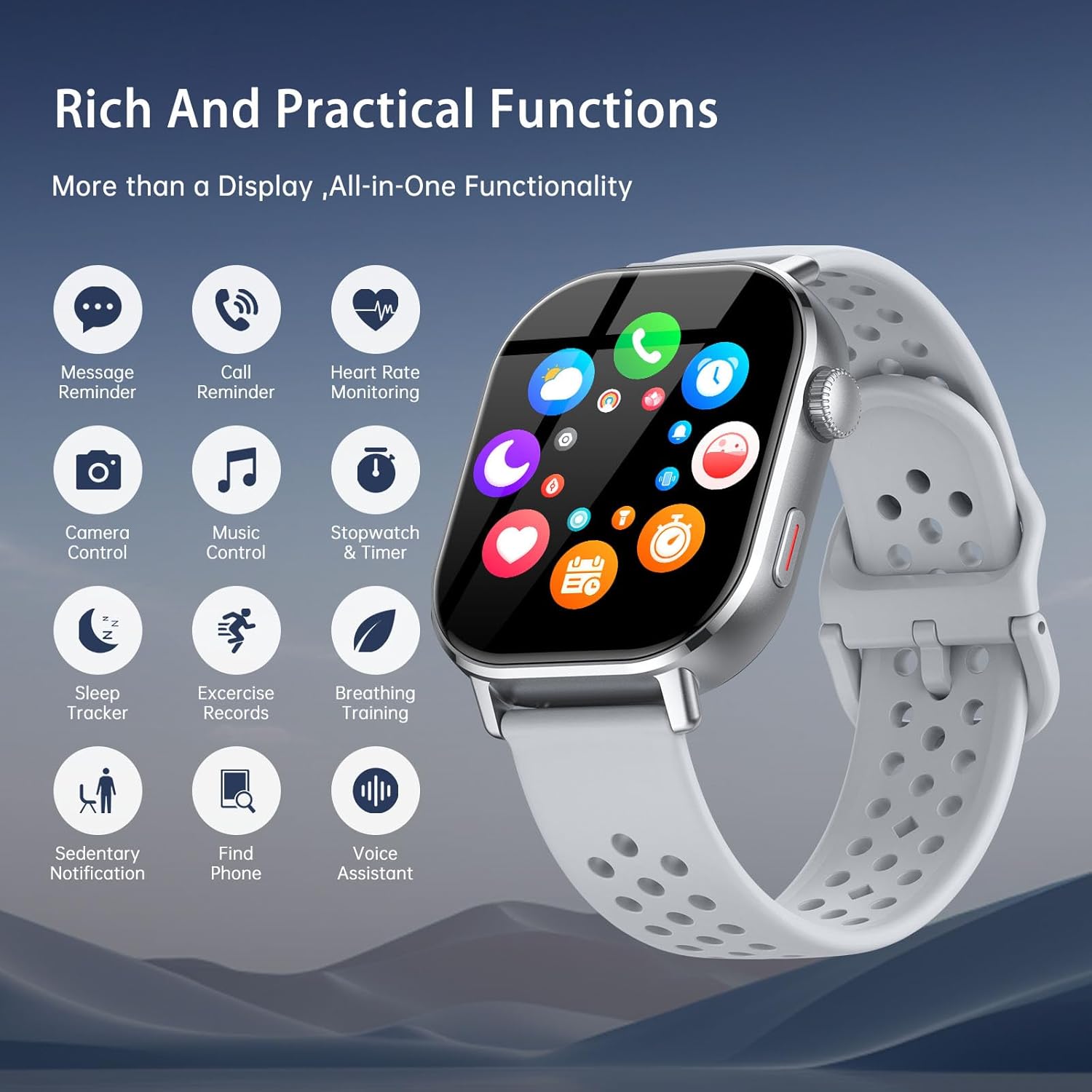
Image: The P131 Smart Watch connected to its charging cable, with text indicating a 2.5-hour charging time, 7 days of typical use, and 30 days of standby time, highlighting its outstanding battery life.
7. Troubleshooting
If you encounter issues with your P131 Smart Watch, refer to the following common solutions.
| Problem | Possible Solution |
|---|---|
| Watch not turning on | Ensure the watch is fully charged. Connect to the charger for at least 30 minutes. |
| Unable to pair with phone | Ensure Bluetooth is enabled on your phone. Restart both the watch and phone. Make sure the GloryfitPro app is updated. Check if the watch is already paired with another device. |
| Notifications not received | Verify notification permissions are granted for the GloryfitPro app in your phone's settings. Ensure the app is running in the background. Check if 'Do Not Disturb' mode is active on the watch or phone. |
| Inaccurate GPS tracking | Ensure GPS route tracking is activated in open areas with a clear sky view. Update the watch firmware via the app. |
| Short battery life | Reduce screen brightness. Limit continuous heart rate monitoring. Disable unnecessary notifications. Turn off Always-On Display if not needed. |
| Screen unresponsive | Restart the watch by pressing and holding the side button. If unresponsive, allow the battery to drain completely and then recharge. |
8. Product Specifications
| Feature | Detail |
|---|---|
| Model Name | P131 |
| Brand | Jugeman |
| Screen Size | 2.06 Inches |
| Display Type | HD AMOLED |
| Connectivity | Bluetooth 5.4 |
| GPS | Built-in GPS (compatible with GPS, BeiDou, Galileo, GLONASS) |
| Water Resistance | 5 ATM |
| Battery Life (Typical) | 7-10 days |
| Battery Life (Standby) | Up to 30 days |
| Charging Time | Approx. 2.5 hours |
| Health Monitoring | Heart Rate, SpO2, Sleep, Breathing Training, Women's Health |
| Outdoor Sensors | Compass, Altimeter, Barometer |
| Sports Modes | 100+ |
| Operating System | Android Wear 1.0 |
| Compatibility | Android / iOS |
| Item Weight | 5.3 ounces |
| Package Dimensions | 6.69 x 3.27 x 1.22 inches |
9. Warranty and Support
For warranty information and customer support, please refer to the documentation included with your product or contact Jugeman customer service.
- Return Policy: 30-day refund/replacement policy from the date of purchase.
- Protection Plans: Optional 2-Year and 3-Year protection plans may be available for purchase.
10. Video Demonstrations
10.1 Jugeman Smart Watch Overview
Video: An overview of the Jugeman P131 Smart Watch, showcasing its 2.06" HD AMOLED display, built-in GPS, compass, and the ability to answer and make calls. This video highlights key features and design elements.

