CAMECHO 9-inch Android 13 Car Stereo User Manual
For BMW 1 Series (E81, E82, E87, E88)
1. Introduction and Overview
This manual provides comprehensive instructions for the CAMECHO 9-inch Android 13 Car Stereo. This unit is specifically designed for BMW 1 Series models E81, E82, E87, and E88. It integrates advanced features such as an 8-core processor, 6GB RAM, 128GB internal storage, and a high-resolution 1280x720 IPS touchscreen. Key functionalities include wireless CarPlay, Android Auto, integrated GPS navigation, Bluetooth 5.0 connectivity, Digital Sound Processor (DSP), FM/RDS radio, and support for a rear view camera. Please read this manual thoroughly to ensure proper installation and optimal use of your new car stereo system.
2. Compatibility
This CAMECHO car stereo is compatible with the following BMW 1 Series models:
- BMW 1 Series E81
- BMW 1 Series E82
- BMW 1 Series E87
- BMW 1 Series E88
Important Compatibility Note: This product is designed for vehicles with a left-hand drive configuration. Large screens are not supported for right-hand drive vehicles. Before purchasing or installing, please verify your car's central control panel matches the 'Option A' configuration shown below. If you are unsure about compatibility, please send a photo of your car's central control unit and the back of the original CD player to the seller for assistance.

3. Features
The CAMECHO car stereo offers a range of features to enhance your driving experience:
- Operating System: Android 13
- Processor: 8-core CPU for smooth performance
- Memory & Storage: 6GB RAM + 128GB ROM
- Display: 9-inch IPS touchscreen with 1280x720 resolution
- Connectivity: Built-in Bluetooth 5.0, Wi-Fi, and GPS
- Smartphone Integration: Wireless and wired Apple CarPlay & Android Auto, Mirror Link (wireless and wired)
- Audio: Digital Sound Processor (DSP) with 32-band equalizer for customizable sound, FM/RDS radio tuner
- Multitasking: Split-screen function to run multiple applications simultaneously
- Voice Control: Smart Voice Assistant support
- Camera Support: Rear view camera input (AHD/CVBS)
- Steering Wheel Control: Supports original steering wheel controls
- Customization: Multiple UI desktop themes and customizable home screen apps
- Additional Functions: Global weather display, network radio, video output, dual USB interfaces.

4. Setup and Installation
This section outlines the general installation process. Professional installation is recommended.
4.1 Package Contents
Verify that all components are present in the package:
- Main Unit (9-inch display)
- Power Cable
- RCA Cable
- USB Cables (2 interfaces)
- GPS Antenna
- Radio Adapter
- Microphone
- Canbus Decoder
- Installation Tool
- User Manual
- AHD Rear Camera (optional purchase)
- Accessories (mounting brackets, screws)

4.2 Pre-Installation Check
Before beginning installation, ensure your vehicle is compatible (refer to Section 2). Disconnect the car battery's negative terminal to prevent electrical shorts.
4.3 Installation Steps (General)
- Carefully remove the original car stereo and trim panels. Refer to your vehicle's service manual for specific instructions.
- Connect the main power cable (1) to the car's wiring harness.
- Connect the RCA cables (2) for audio output and auxiliary input.
- Connect the USB cables (3) for external devices.
- Connect the camera input cable (4) if installing a rear view camera.
- Connect the radio adapter (5) to the car's antenna.
- Connect the GPS antenna (6) and position it in a location with clear sky view (e.g., dashboard).
- Mount the new head unit into the dashboard opening using the provided brackets and screws.
- Reconnect the car battery.
- Turn on the car stereo and perform initial setup.
Note: The rear of the unit features clearly labeled ports for Power, RCA, USB, Camera Input, Radio Adapter, and GPS Antenna. Ensure all connections are secure.
5. Operating Instructions
5.1 Basic Operation
- Power On/Off: Press and hold the power button.
- Volume Control: Use the volume knob or steering wheel controls.
- Touchscreen: Navigate menus and select functions by touching the screen.
5.2 Wireless CarPlay & Android Auto
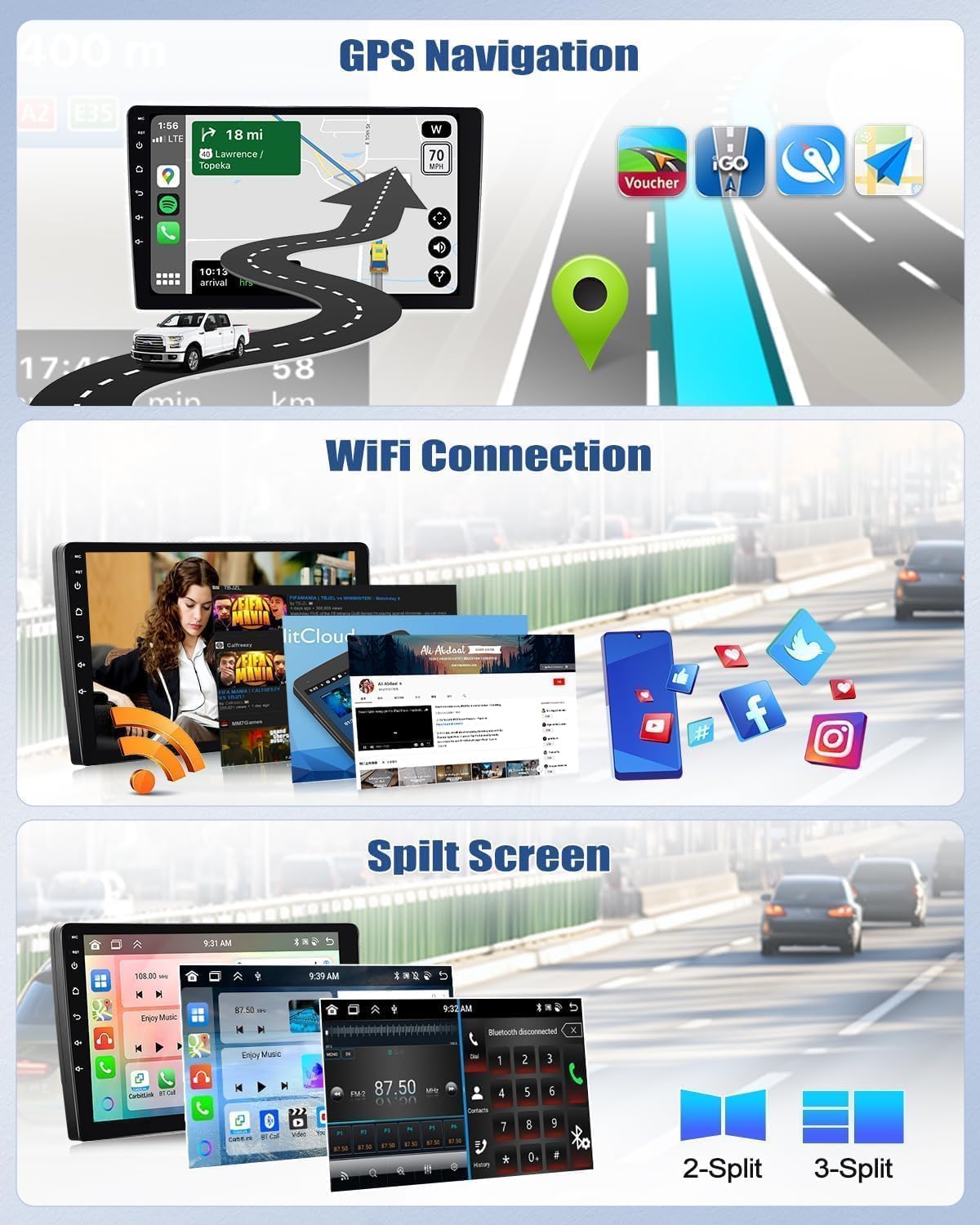
Connect your smartphone wirelessly or via USB to access Apple CarPlay or Android Auto. This allows you to use compatible apps like Spotify, Google Maps, Waze, and WhatsApp directly on the car stereo display.

5.3 GPS Navigation
The unit has a built-in GPS module. You can use pre-installed offline maps (requires internet for initial download) or online navigation apps like Google Maps, Waze, etc., when connected to Wi-Fi.
5.4 Bluetooth 5.0
Pair your phone via Bluetooth for hands-free calling and audio streaming. The built-in microphone ensures clear communication.

5.5 FM/RDS Radio
Tune into your favorite FM radio stations. The RDS (Radio Data System) feature displays station information, traffic updates, and more.
5.6 Split Screen Function
Utilize the split-screen feature to run two applications simultaneously, such as navigation and music playback.
5.7 Steering Wheel Control (SWC)
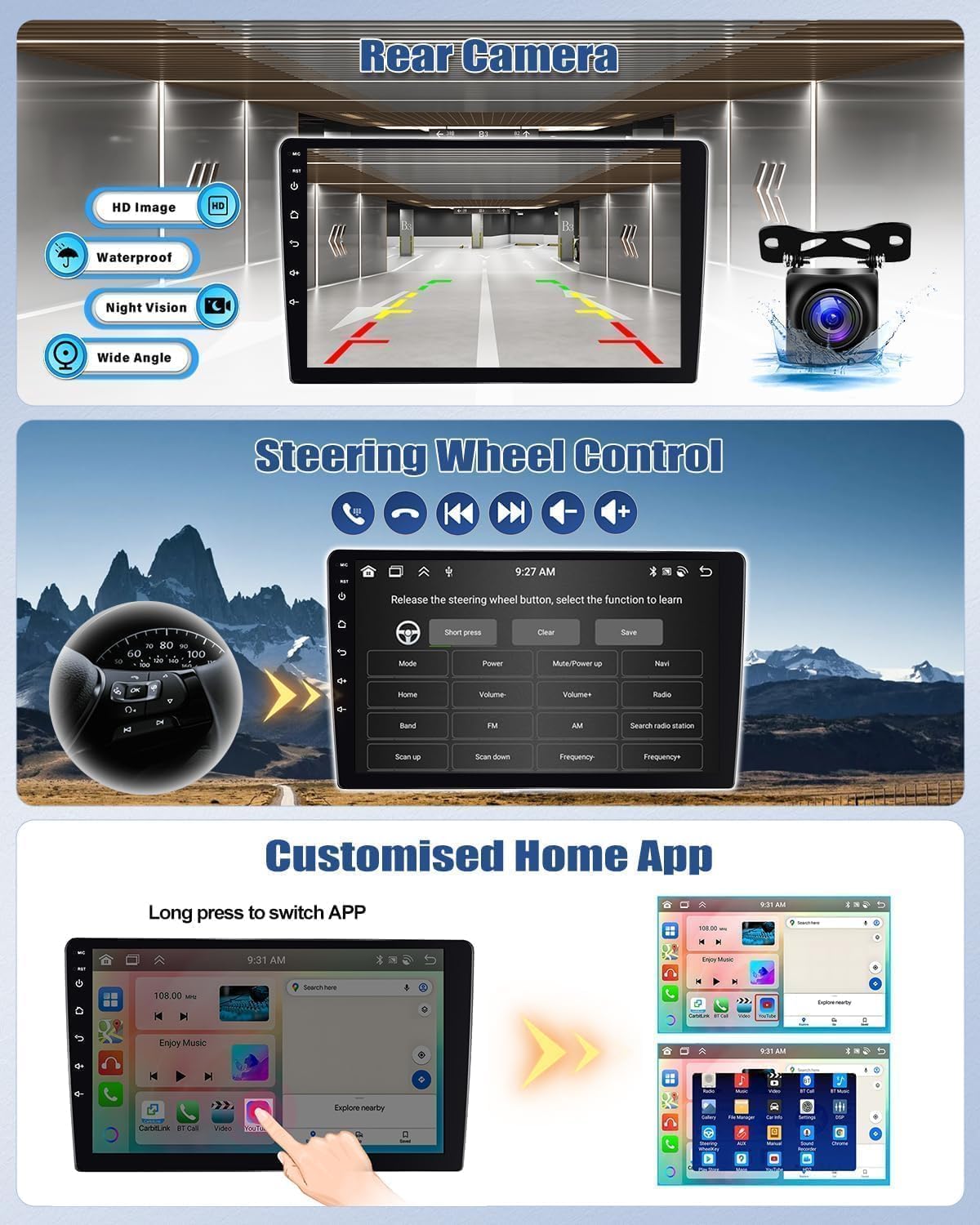
The unit supports your car's original steering wheel controls. You can configure buttons to control volume, track changes, mode selection, and more directly from your steering wheel.
5.8 Voice Assistant
Activate the smart voice assistant for hands-free control of navigation, music, and other functions.

6. Maintenance
To ensure the longevity and optimal performance of your car stereo, follow these maintenance guidelines:
- Cleaning: Use a soft, dry cloth to clean the screen and unit. Avoid abrasive cleaners or solvents.
- Temperature: Operate the unit within the specified temperature range (-20°C to 75°C). Extreme temperatures can affect performance.
- Software Updates: Periodically check for and install software updates to ensure the system runs efficiently and securely.
- Cable Connections: Ensure all cables are securely connected and free from damage.
7. Troubleshooting
If you encounter issues with your car stereo, refer to the following common troubleshooting tips:
- No Power: Check all power connections and the car's fuse box. Ensure the car battery is properly connected.
- No Sound: Verify speaker connections, volume settings, and audio source selection. Check if the mute function is active.
- GPS Signal Loss: Ensure the GPS antenna is properly installed and has a clear view of the sky.
- Bluetooth Connection Issues: Ensure Bluetooth is enabled on both the stereo and your phone. Try unpairing and re-pairing the devices.
- Touchscreen Unresponsive: Try restarting the unit. If the issue persists, a factory reset might be necessary (note: this will erase all user data).
- CarPlay/Android Auto Not Working: Ensure your phone's operating system is up to date. Try connecting with a different USB cable or restarting your phone.
For persistent issues, please contact customer support.
8. Specifications
| Feature | Specification |
|---|---|
| System | Android 13 |
| Chipset | 8257 (8-core) |
| Screen Size | 9 inches |
| Memory (RAM) | 6GB |
| Storage (ROM) | 128GB |
| Screen Resolution | 1280x720 |
| Radio Chip | 8035 |
| Output Power | 4 x 45W |
| Bluetooth Version | 5.0 |
| Operating Temperature | -20°C to 75°C |
| External Microphone Support | Yes |
| Radio Band | FM/RDS |
| Video Output | Support |
| Reverse Input | AHD/CVBS |
| Wi-Fi / Split Screen | Support |
| Maps | Built-in offline maps (requires internet for data download) |
| USB Interfaces | Dual USB |
| Audio Format Support | APE/FLAC/WAV/MP3/WMA |
| Video Format Support | MKV/RMVB/AVI/MP4/MDV |
| Image Format Support | PNG/JPEG/JPG/GIF/WBMP/BNP |
| Bluetooth Pairing Code | 0000 |
| Supported Languages | Spanish, German, English, French, Italian, Portuguese, Russian, Turkish, Vietnamese, Hebrew, Polish, Chinese, Arabic |
9. Warranty and Support
For warranty information, please refer to the documentation provided with your purchase or contact the seller directly. If you require technical assistance or have questions not covered in this manual, please reach out to CAMECHO customer support. Provide your product model number and a detailed description of the issue for efficient service.


