
Jugeman P131
Jugeman P131 Smart Watch User Manual
Model: P131
Introduction
This manual provides essential information for the safe and effective use of your Jugeman P131 Smart Watch. Please read it thoroughly before using the device and retain it for future reference.
Safety Information
- Consult your physician before starting any new exercise regimen or if you have pre-existing health conditions.
- The device is not a medical instrument and should not be used for medical diagnosis or treatment.
- Avoid exposing the watch to extreme temperatures, direct sunlight for prolonged periods, or corrosive liquids.
- Do not attempt to disassemble or repair the watch yourself. This may void the warranty and cause damage.
- Keep the watch and its accessories out of reach of children and pets.
- Ensure the charging contacts are clean and dry before charging to prevent corrosion or damage.
Package Contents
Verify that all items are present in your product package:
- Jugeman P131 Smart Watch
- Charging Cable (USB)
- User Manual

Image: Jugeman P131 Smart Watch, charging cable, and user manual components.
Device Overview
The Jugeman P131 Smart Watch features a 2.06-inch HD AMOLED display and a durable CNC aluminum alloy frame. It includes a rotatable crown and a side button for navigation and function access.
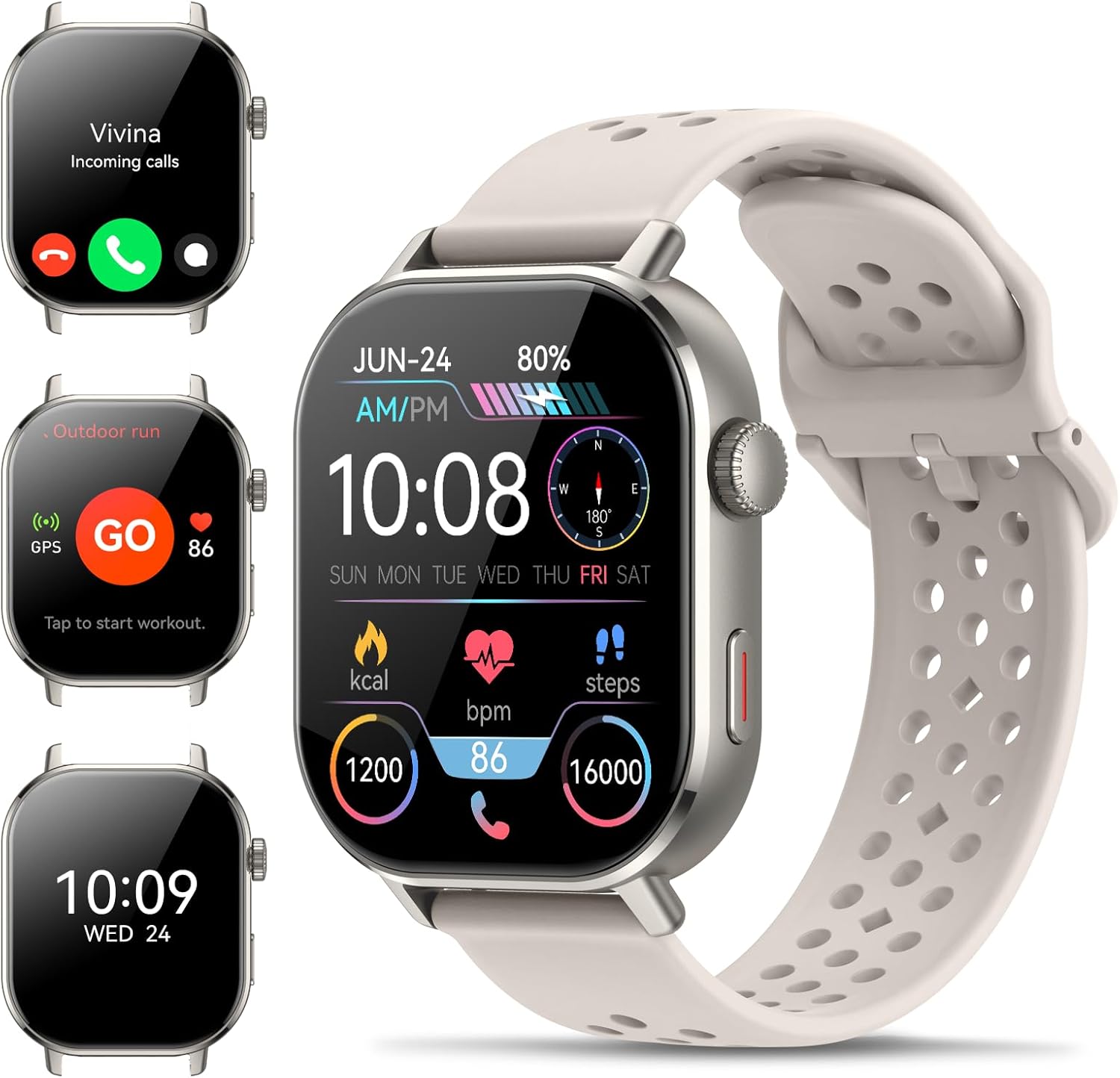
Image: Front view of the Jugeman P131 Smart Watch displaying different interfaces like incoming calls, outdoor run, and time.

Image: A display of multiple Jugeman P131 Smart Watches in various colors, showcasing the design.
Setup
1. Charging the Device
Before initial use, fully charge your Jugeman P131 Smart Watch. Connect the magnetic charging cable to the charging contacts on the back of the watch and a USB power source. A full charge typically takes about 2.5 hours.

Image: The Jugeman P131 Smart Watch connected to its charging cable, illustrating the charging process and battery life indicators.
2. App Installation
To unlock the full functionality of your smart watch, download and install the companion app, GloryFitPro, on your smartphone. You can find the app by scanning the QR code provided in the watch's packaging or searching for "GloryFitPro" in your phone's app store (Google Play Store for Android, Apple App Store for iOS).
3. Pairing with Your Phone
Follow these steps to pair your smart watch with your smartphone via Bluetooth:
- Enable Bluetooth on your smartphone.
- Open the GloryFitPro app.
- Navigate to the 'Device' section and select 'Add Device'.
- The app will search for nearby devices. Select 'P131' from the list.
- Confirm the pairing request on both your phone and the watch.
- Grant necessary permissions within the app for notifications and other features.

Image: Visual guide demonstrating the steps to connect the Jugeman P131 Smart Watch to a smartphone via the GloryFitPro app.
Operating Instructions
1. Basic Navigation
The Jugeman P131 Smart Watch features a responsive touchscreen and a rotatable crown for intuitive navigation. Swipe left, right, up, or down to access different menus and functions. Press the side button to return to the home screen or access the app list.

Image: A detailed view of the 2.06-inch AMOLED display, highlighting its resolution and sensitive touch capabilities.
2. Bluetooth Calls and Message Notifications
Once paired, your watch can make and receive calls directly from your wrist using Bluetooth 5.4. It also displays notifications from various social media apps and messages from your phone.
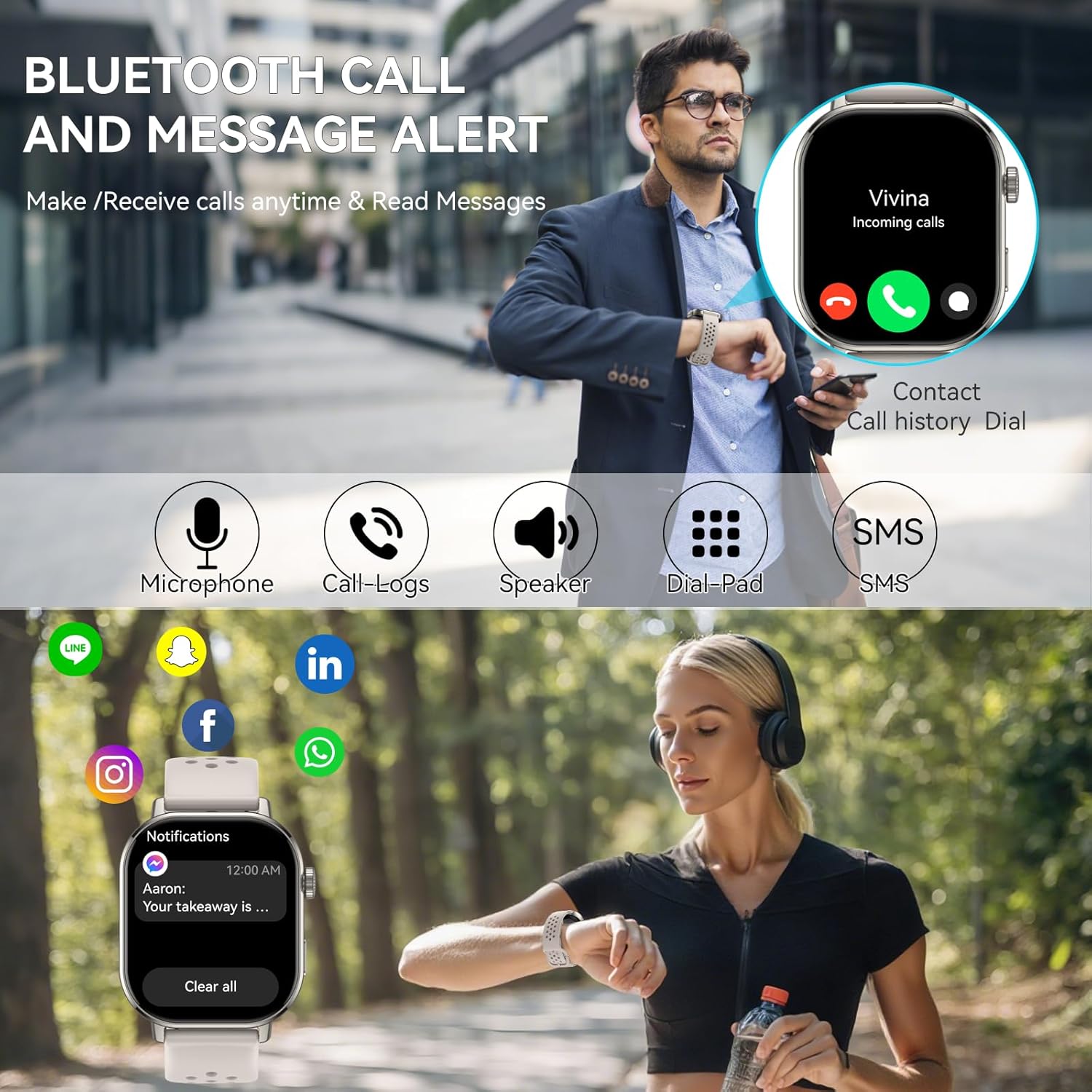
Image: The smart watch showing an incoming call and various social media notification icons.
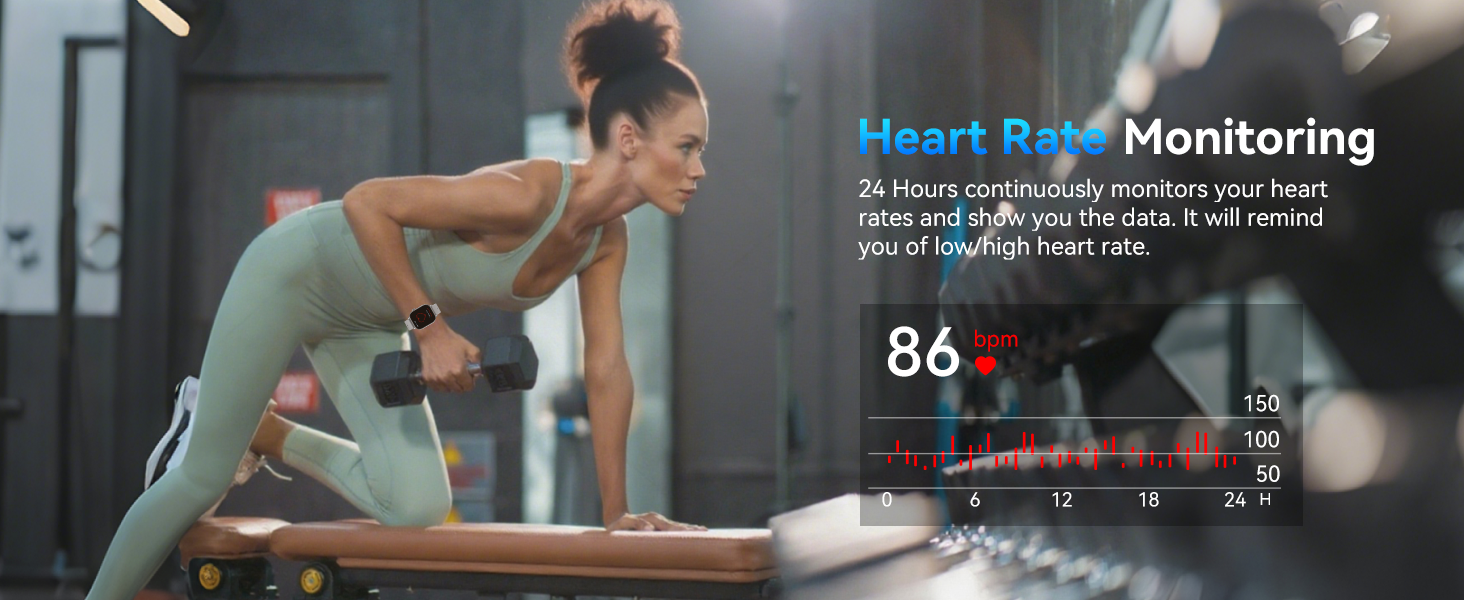
Image: An illustration of the Bluetooth calling interface on the watch, including options to answer, reject, view call history, and contacts.
Video: This video demonstrates the 2.06" HD AMOLED display, GPS, compass, and the ability to answer and make calls directly from the Jugeman P131 Smart Watch.
3. Watch Faces and Always-On Display
Personalize your watch with a variety of pre-installed watch faces or create custom ones by uploading your own photos. The 'Always-On Display' feature ensures the time is visible without needing to activate the screen.

Image: The smart watch showcasing a selection of its 100+ built-in and customizable watch dials.

Image: An illustration of the Always-On Display feature, showing how to customize the clock without touching the screen.
4. Outdoor Features: GPS, Compass, Altimeter, Barometer
The P131 Smart Watch includes an independent GPS module for accurate positioning, compatible with GPS, BeiDou, Galileo, and GLONASS. It also features a built-in compass, altimeter, and barometer for outdoor activities. Note: GPS route tracking should be activated in open areas for optimal performance.

Image: The smart watch showing real-time compass direction, current altitude, and barometric pressure readings, suitable for outdoor adventures.
5. Health Monitoring
The watch continuously monitors various health metrics:
- Heart Rate: 24-hour continuous monitoring.
- Blood Oxygen (SpO2): Tracks blood oxygen levels.
- Sleep Quality: Monitors sleep stages (deep, light, REM, awake) and duration.
- Stress Monitoring: Assesses stress levels.
- Breathing Training: Guided breathing exercises.
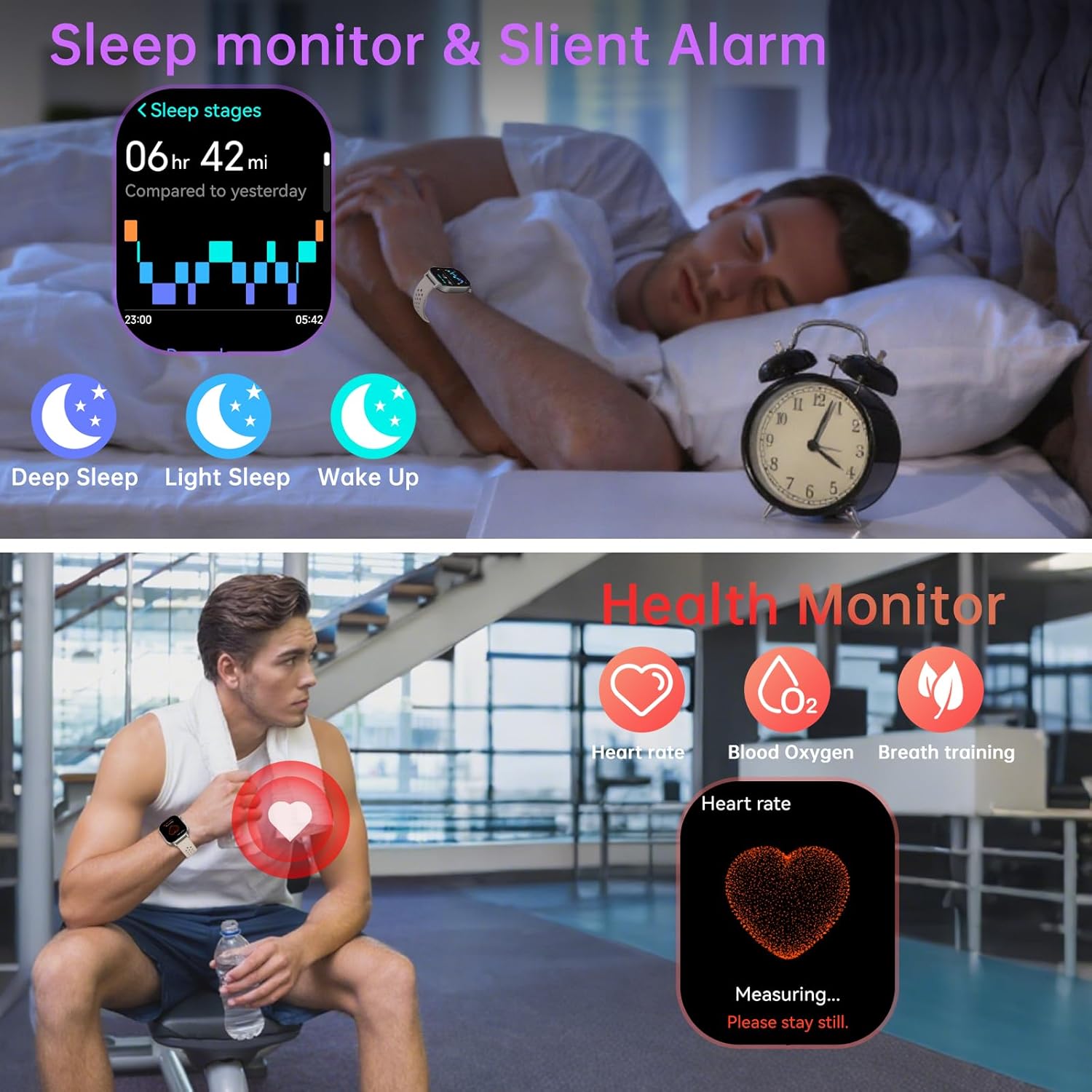
Image: The smart watch displaying sleep stages and a user monitoring their heart rate during exercise.

Image: Displays of stress level monitoring, blood oxygen monitoring, emotional testing, and breathing exercises on the smart watch.
6. Sport Modes and Activity Tracking
The watch supports over 110 sport modes, including running, cycling, swimming, and more. It accurately tracks and records your movement, providing real-time data on distance, speed, steps, and calories burned.

Image: An infographic showing various sport icons representing the 110+ built-in sport modes available on the watch.

Image: The smart watch displaying daily activity tracking, including steps, distance, and calories, with a background of hikers.
7. Other Functions
The Jugeman P131 Smart Watch offers a range of additional practical features:
- Music Control
- Remote Camera Control
- Find Watch/Phone
- Weather Forecast
- Stopwatch and Timer
- Alarms
- Sedentary Reminder
- Drink Water Reminder
- AI Voice Assistant
- Women's Health Tracking (Menstrual Period Reminder)

Image: Icons representing various functions available on the smart watch, such as message reminders, call reminders, heart rate monitoring, camera control, music control, stopwatch, sleep tracker, exercise records, breathing training, sedentary notification, find phone, and voice assistant.

Image: The smart watch displaying the menstrual period reminder feature and a weather forecast screen.
Maintenance
1. Cleaning the Watch
Regularly clean your watch to ensure optimal performance and hygiene. Wipe the screen and body with a soft, damp cloth. Ensure the charging contacts and sensors on the back are free of dirt and debris.
2. Water Resistance
The Jugeman P131 Smart Watch has a 5 ATM water-resistance rating, meaning it can withstand splashes, rain, and brief immersion in shallow water. It is suitable for daily use and activities like washing hands. However, it is not recommended for swimming, diving, hot showers, or sauna use, as steam and high water pressure can damage the device.
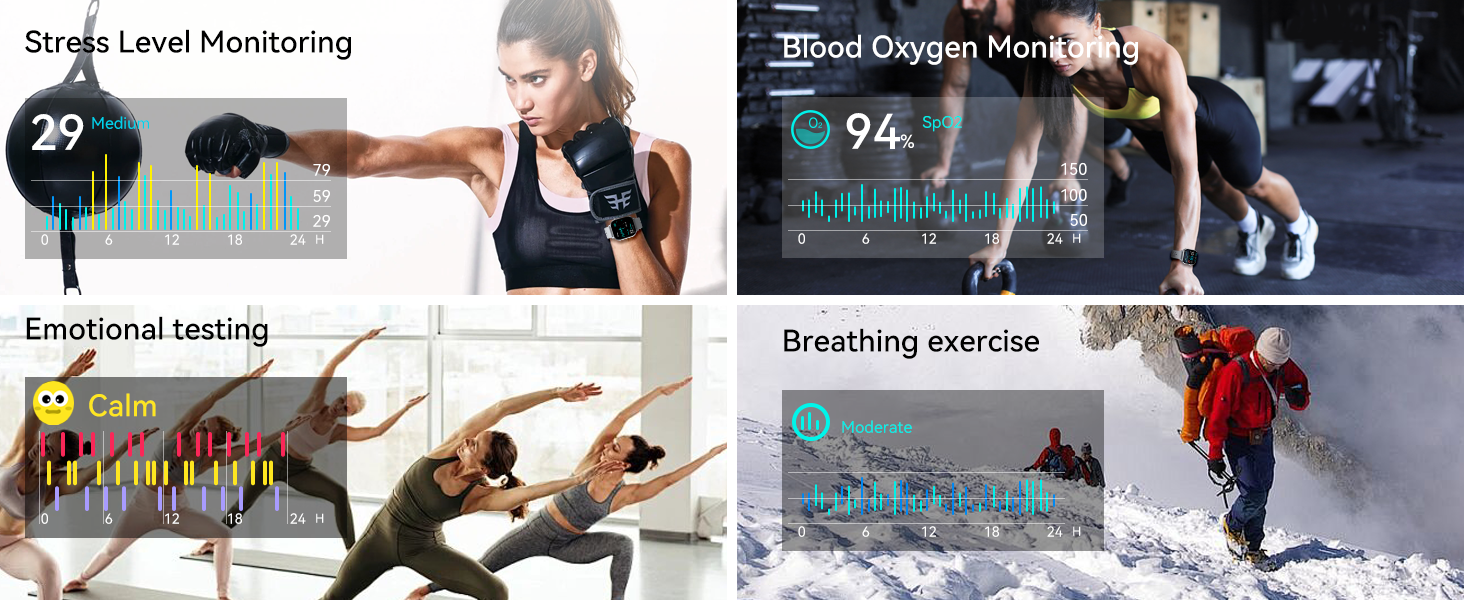
Image: The smart watch being splashed with water, illustrating its 5 ATM waterproof capability for everyday use.
3. Battery Care
To prolong battery life, avoid fully discharging the watch frequently. Charge it when the battery level is low. Store the watch in a cool, dry place when not in use for extended periods. The battery typically lasts 7-10 days with normal use and up to 30 days in standby mode.
Troubleshooting
- Watch not pairing with phone: Ensure Bluetooth is enabled on your phone, the app is open, and the watch is sufficiently charged. Try restarting both the watch and your phone.
- Inaccurate GPS tracking: Ensure GPS is activated in an open outdoor area with a clear view of the sky. Allow sufficient time for the watch to acquire satellite signals.
- Compass calibration issues: Strong magnetic fields can affect the compass. If the compass is inaccurate, try recalibrating it through the watch settings or the app.
- Heart rate or blood oxygen readings are inconsistent: Ensure the watch is worn snugly on your wrist, not too tight or too loose. Clean the sensor on the back of the watch. Remain still during measurements.
- 'Raise to Wake' feature not working: Check the settings in the GloryFitPro app to ensure this feature is enabled. If issues persist, try restarting the watch or performing a factory reset (note: this will erase data).
- Watch restarts unexpectedly: Ensure the firmware is up to date via the GloryFitPro app. If the issue persists, contact customer support.
Specifications
| Display Size | 2.06 Inches AMOLED |
| Screen Resolution | 410*502 pixels |
| Connectivity | Bluetooth 5.4 |
| Water Resistance | 5 ATM |
| GPS | Built-in GPS (compatible with GPS, BeiDou, Galileo, GLONASS) |
| Health Monitoring | Heart Rate, SpO2, Sleep, Stress, Breathing Training |
| Sport Modes | 110+ |
| Battery Life (Typical Use) | 7-10 Days |
| Battery Life (Standby) | Up to 30 Days |
| Charging Time | Approx. 2.5 Hours |
| Operating System | Android Wear 1.3 (compatible with Android/iOS) |
| Item Weight | 5.9 ounces |
Warranty and Support
For warranty information and customer support, please refer to the documentation included with your purchase or visit the official Jugeman website. Keep your purchase receipt as proof of purchase for warranty claims.
Related documentsP131


Ask a question about this manual
Ask about setup, troubleshooting, compatibility, parts, safety, or missing instructions. Manuals+ will review the question and use this page’s manual context to help answer it.