
1. Introduction
Thank you for choosing the TCL Gaming Monitor 25G54. This monitor is designed to provide an immersive gaming experience with its advanced display technology and high performance. This manual will guide you through the setup, operation, and maintenance of your new monitor.
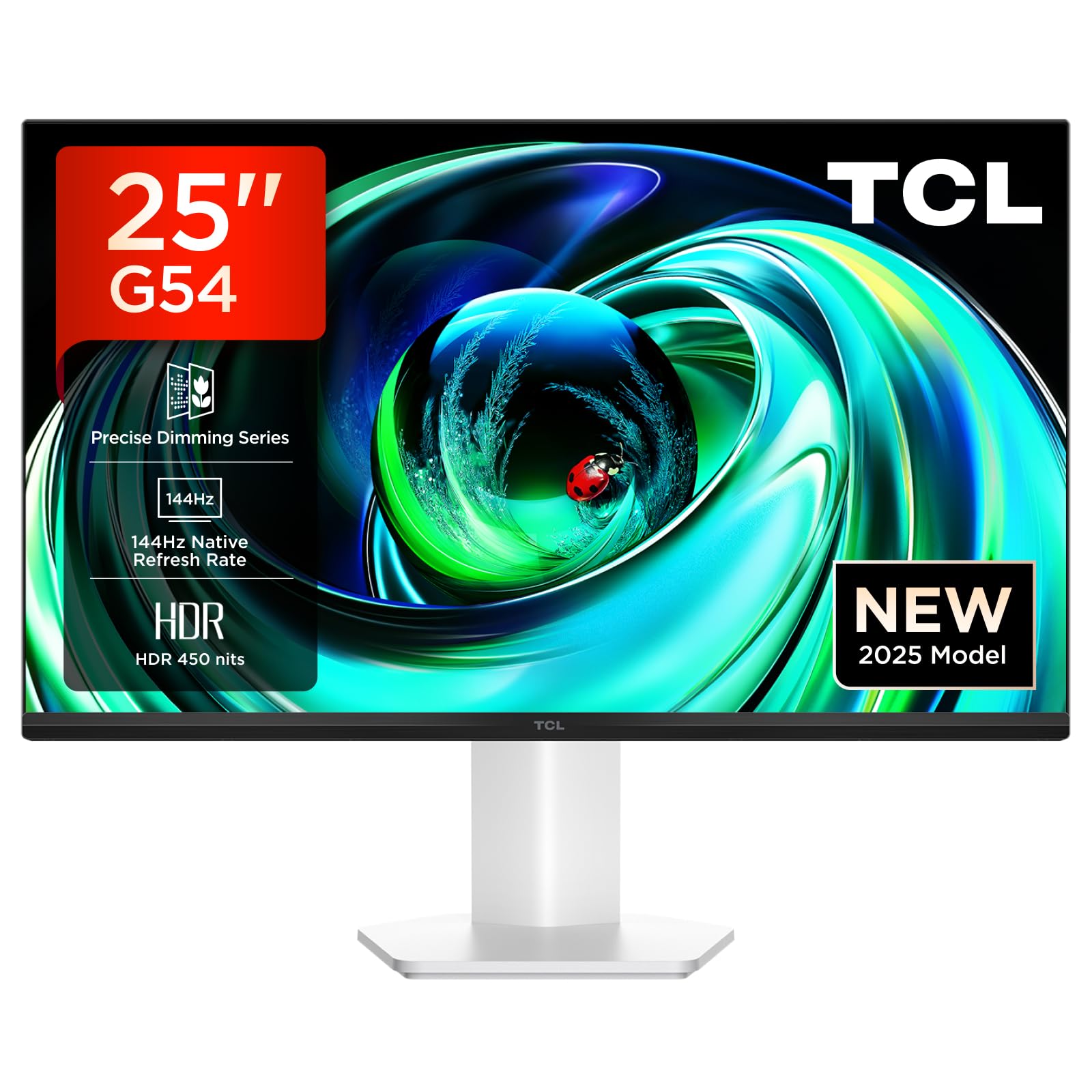
Figure 1: Front view of the TCL Gaming Monitor 25G54.
2. Safety Information
Please read all instructions carefully before using the monitor. Keep this manual for future reference.
- Do not expose the monitor to rain or moisture to prevent fire or electric shock.
- Do not open the monitor casing. There are no user-serviceable parts inside. Refer all servicing to qualified personnel.
- Place the monitor on a stable, flat surface to prevent it from falling.
- Ensure proper ventilation around the monitor. Do not block ventilation openings.
- Use only the power adapter and cables provided by the manufacturer.
- Disconnect the power plug from the outlet if the monitor will not be used for a long period.
3. Package Contents
Verify that all items are present in your package:
- TCL Gaming Monitor 25G54
- Monitor Stand (Base and Neck)
- Power Cable
- HDMI Cable
- User Manual and Warranty Card
Note: Specific cable types (e.g., DisplayPort) may vary by region or package.
4. Setup
4.1 Assembling the Stand
- Carefully remove the monitor and stand components from the packaging.
- Attach the stand neck to the monitor panel. Ensure it clicks securely into place or is fastened with screws as indicated in the quick start guide.
- Attach the stand base to the stand neck, securing it with the provided screw.
- Place the assembled monitor on a stable desk.
4.2 Connecting the Monitor
The monitor supports various input options. Connect the appropriate cable from your computer or gaming console to the monitor.
- HDMI Connection: Use an HDMI cable to connect your device to the monitor's HDMI port.
- DisplayPort Connection: Use a DisplayPort cable to connect your device to the monitor's DisplayPort.
- USB Connections: Utilize the USB ports for connecting peripherals.

Figure 2: Rear view showing the monitor's connectivity ports including HDMI, DisplayPort, and USB.
4.3 Powering On
- Connect the power cable to the monitor's power input and then to a power outlet.
- Press the power button, usually located on the back or bottom of the monitor, to turn it on.
5. Operating Instructions
5.1 On-Screen Display (OSD) Menu
The OSD menu allows you to adjust various monitor settings. Access it using the joystick button, typically located on the back of the monitor.

Figure 3: Illustration of the joystick button for OSD menu navigation.
Common OSD Settings:
- Brightness/Contrast: Adjust the display's luminance and contrast levels.
- Color Settings: Modify color temperature, gamma, and color space (e.g., DCI-P3, sRGB).
- Input Source: Manually select the active input (HDMI, DisplayPort).
- Gaming Features: Enable/disable FreeSync, adjust response time, and other gaming-specific enhancements.
- Picture Mode: Select preset display modes for different content types (e.g., Standard, Game, Movie).
5.2 Ergonomic Adjustments
The monitor stand offers ergonomic adjustments for optimal viewing comfort.
- Tilt: Adjust the screen's vertical angle.
- Swivel: Rotate the screen horizontally.
- Height Adjustment: Raise or lower the screen to eye level.
- Pivot: Rotate the screen to portrait or landscape orientation.

Figure 4: Illustration of the monitor's ergonomic stand, showing tilt and height adjustment capabilities.
6. Features
The TCL Gaming Monitor 25G54 incorporates several key technologies for superior performance:
- Mini LED Technology: Combines QLED and OLED advantages for precise, pixel-level illumination, offering sharp contrast and a wide color gamut.
- Precise Dimming Series: Enhances overall image quality by optimizing light and shadow, providing a high-quality visual experience.
- HDR 400 nit Brightness: With a peak brightness of 450 nits and a contrast ratio of 4,500,000:1, it delivers extended dynamic range and vivid details in both dark and bright areas.
- 144Hz Refresh Rate: Ensures smooth and fluid images in all gaming scenes and actions, minimizing motion blur.
- 1ms (GTG) Response Time: An extremely fast response time reduces ghosting and blurring, allowing for quick target acquisition.
- 93% DCI-P3 Wide Color Gamut: Displays vibrant colors with professional-level accuracy, revealing an immersive world of color.
- TÜV Rheinland Flicker-Free & Low Blue Light: Certified for eye protection, this mode blocks harmful blue light and eliminates flicker for prolonged viewing comfort.

Figure 5: Overview of the TCL 25G54 Mini LED Monitor's key features.
7. Maintenance
Proper maintenance ensures the longevity and optimal performance of your monitor.
- Cleaning the Screen: Gently wipe the screen with a soft, lint-free cloth. For stubborn marks, use a monitor-specific cleaning solution applied to the cloth, not directly to the screen.
- Cleaning the Casing: Use a soft, dry cloth to wipe the monitor casing. Avoid abrasive cleaners.
- Ventilation: Ensure the ventilation openings are clear of dust and debris. Use compressed air to clean if necessary.
- Power Off: Always turn off and unplug the monitor before cleaning or if it will be unused for an extended period.
8. Troubleshooting
If you encounter issues with your monitor, refer to the following common solutions:
| Problem | Possible Cause | Solution |
|---|---|---|
| No image on screen | Power cable disconnected, input cable loose, incorrect input source selected. | Check power and input cable connections. Select correct input source via OSD. |
| Image is blurry or distorted | Incorrect resolution, faulty cable, graphics driver issue. | Set display resolution to 1920x1080. Try a different cable. Update graphics drivers. |
| Flickering screen | Refresh rate mismatch, faulty cable, external interference. | Ensure refresh rate is set to 144Hz. Try a different cable. Check for nearby electronic devices. |
| No sound | Audio cable not connected, volume too low, incorrect audio output selected. | Connect headphones to the monitor's audio output. Adjust volume. Select monitor as audio output on your device. |
If the problem persists after trying these solutions, please contact TCL customer support.
9. Specifications
| Feature | Specification |
|---|---|
| Brand | TCL |
| Model Number | 25G54 |
| Screen Size | 25 Inches |
| Resolution | 1920x1080 (FHD) |
| Panel Type | IPS |
| Refresh Rate | 144 Hz |
| Response Time | 1 ms (GTG) |
| Brightness | 450 nits |
| Contrast Ratio | 4,500,000:1 |
| HDR Support | VESA Display HDR 400 |
| Color Gamut | 93% DCI-P3 |
| Viewing Angle | 178 Degrees |
| Connectivity | 1x HDMI, 1x DisplayPort, 4x USB, Headphone Output |
| Adaptive Sync | FreeSync |
| Dimensions (DxWxH) | 18.2 x 55.6 x 43.9 cm |
| Weight | 4.39 kg |
| Special Features | Mini LED, Flicker-Free, Low Blue Light |
10. Warranty and Support
Your TCL Gaming Monitor 25G54 comes with a 2-year manufacturer's warranty. For warranty claims, technical support, or service inquiries, please visit the official TCL support website or contact your local retailer.
For more information, visit the TCL Store on Amazon.
11. Recycling Information
Please dispose of this product responsibly. Electronic waste should not be disposed of with household waste. Follow local regulations for the proper disposal of electronic devices. This helps protect the environment and human health.


