
1. Product Overview
The wegear MW16-MS is a 2.4GHz wireless optical mouse designed for laptops, PCs, and Macs. It features 6 buttons, adjustable DPI settings, and an ergonomic design for comfortable use.
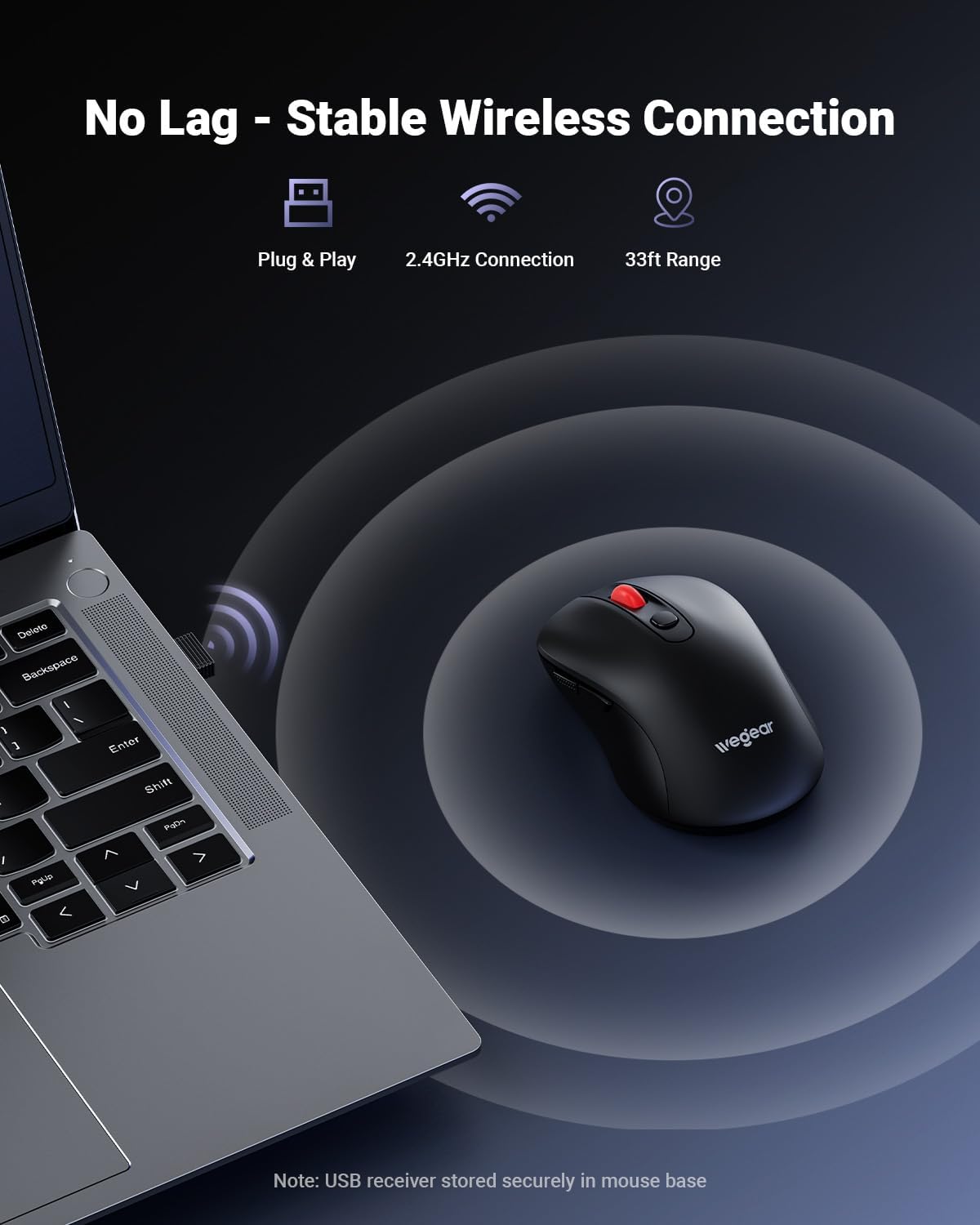
Image 1.1: The wegear MW16-MS wireless mouse shown with its USB receiver.
2. Package Contents
- wegear MW16-MS Wireless Mouse
- USB Receiver (stored at the bottom of the mouse)
- Instruction Manual
3. Setup Instructions
3.1. Battery Installation
- Locate the battery compartment on the underside of the mouse.
- Open the battery compartment cover.
- Insert one AA battery (not included) into the compartment, ensuring correct polarity (+/-).
- Close the battery compartment cover securely.

Image 3.1: Illustration of the battery compartment and battery installation.
3.2. Connecting the USB Receiver
- Remove the USB receiver from its storage slot at the bottom of the mouse.
- Plug the USB receiver into an available USB-A port on your computer (laptop, PC, or Mac).
- The mouse will automatically connect to your computer. No drivers are required.
- For iPads or Macs without a USB-A port, a USB-C to USB-A adapter (not included) may be required.

Image 3.2: The USB receiver plugged into a laptop, establishing a wireless connection with the mouse.
4. Operating Instructions
4.1. Power Management
The mouse features an automatic sleep mode to conserve battery life. After 8 minutes of inactivity, the mouse will enter sleep mode. To reactivate, simply click any button.
4.2. DPI Adjustment
The mouse offers 5 adjustable DPI (Dots Per Inch) levels to control cursor speed and sensitivity. Press the DPI button located behind the scroll wheel to cycle through the settings: 800, 1200, 1600, 2400, and 4000 DPI.

Image 4.1: The DPI button on the mouse, used to adjust cursor sensitivity.
4.3. Button Functions
The mouse is equipped with 6 buttons for enhanced productivity:
- Left Button: Standard click function.
- Right Button: Standard right-click function.
- Scroll Wheel: Scroll up/down, and middle-click function.
- DPI Button: Adjusts cursor sensitivity (DPI levels).
- Forward Button: Navigates forward in web browsers or file explorers. (Note: Not recognized on Mac operating systems.)
- Back Button: Navigates backward in web browsers or file explorers. (Note: Not recognized on Mac operating systems.)
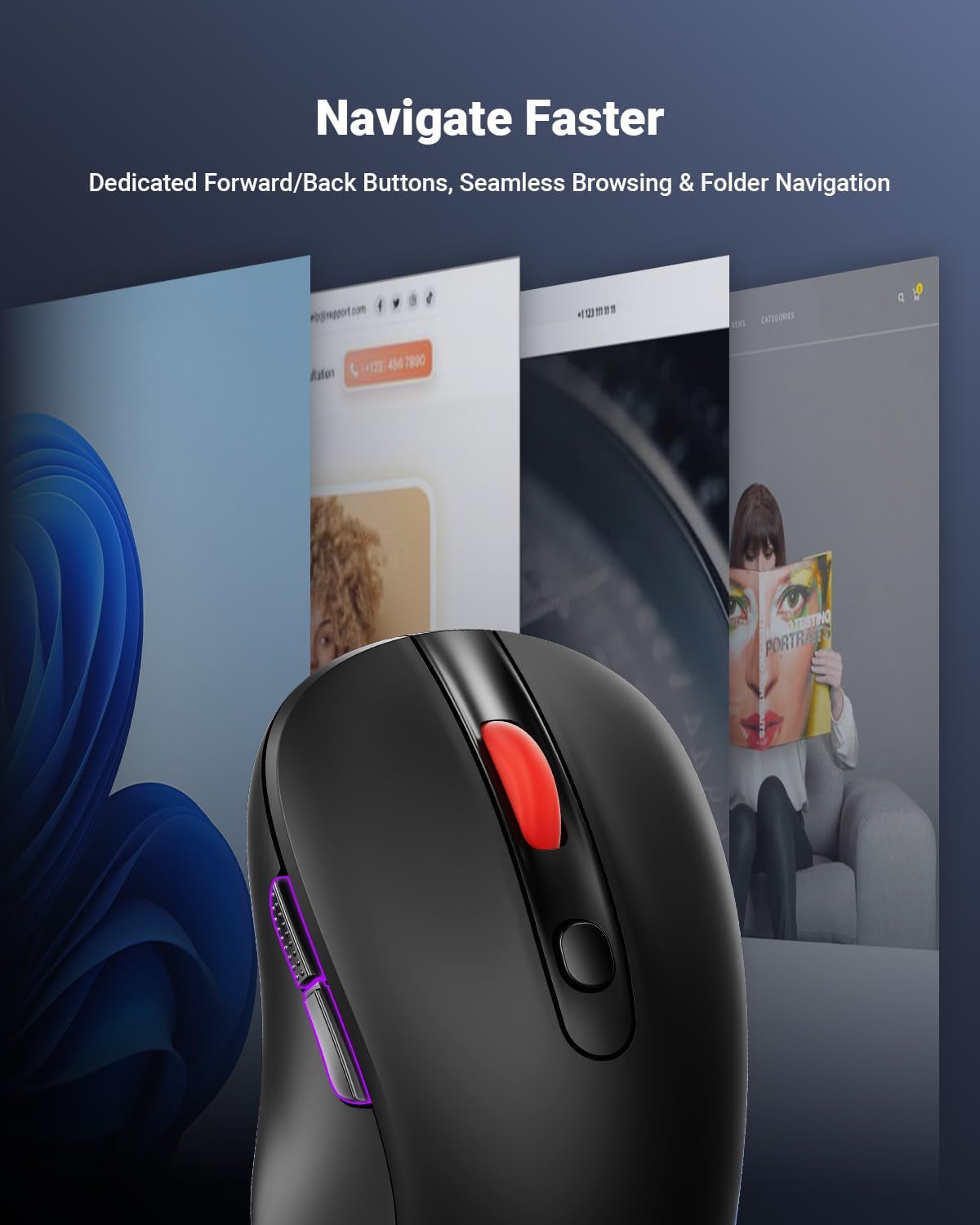
Image 4.2: The forward and back buttons located on the side of the mouse for quick navigation.
5. Maintenance
5.1. Battery Replacement
The mouse operates on a single AA battery, providing up to 24 months of battery life. A red LED indicator will alert you when the battery is low and requires replacement. Follow the steps in Section 3.1 to replace the battery.
5.2. Cleaning
To clean the mouse, use a soft, dry cloth. Avoid using harsh chemicals or abrasive materials, as these may damage the surface or internal components.
6. Troubleshooting
- No Cursor Movement or Lag:
Ensure the USB receiver is securely plugged into a working USB port. Check the mouse battery level and replace if necessary. Ensure the mouse is within the 33ft (10m) operating range of the receiver. Avoid using the mouse on highly reflective or transparent surfaces. - Buttons Not Responding:
Check the battery level. Re-plug the USB receiver into a different USB port. - Cursor Movement is Too Fast or Too Slow:
Adjust the DPI setting using the DPI button on the mouse (refer to Section 4.2). - Forward/Back Buttons Not Working on Mac:
These buttons are not supported by macOS. This is expected behavior.
7. Specifications
| Feature | Detail |
|---|---|
| Brand | wegear |
| Model Number | MW16-MS |
| Connectivity Technology | 2.4GHz Wireless (USB Receiver) |
| Movement Detection Technology | Optical |
| DPI Levels | 800/1200/1600/2400/4000 (Adjustable) |
| Number of Buttons | 6 (Left, Right, Scroll Wheel, DPI, Forward, Back) |
| Battery Type | 1 x AA Battery (not included) |
| Battery Life | Up to 24 months |
| Wireless Range | Up to 33 feet (10 meters) |
| Compatible Operating Systems | Windows 98SE/ME/2000/XP/Vista/7/10/11, macOS 10.x |
| Ergonomic Design | Yes |
| Durability | 5,000,000 click testing |
8. Warranty and Support
8.1. Warranty Information
This wegear product comes with a 1-year warranty from the date of purchase. Please retain your proof of purchase for warranty claims. The warranty covers manufacturing defects but does not cover damage caused by misuse, accidents, or unauthorized modifications.
8.2. Customer Support
For technical assistance, troubleshooting, or warranty inquiries, please contact wegear customer service through the official website or your retailer's support channels.
9. Product Video
Video 9.1: An official video showcasing the wegear MW16 Series Mice, including various color options and features.