
1. Introduction
This manual provides detailed instructions for the setup, operation, and maintenance of your ORICO USB-C Triple Monitor Docking Station. Please read this manual thoroughly before using the device to ensure optimal performance and longevity.
2. Product Overview
The ORICO USB-C Triple Monitor Docking Station is a 15-in-1 solution designed to expand the connectivity of your laptop, supporting up to three external displays. It features a comprehensive array of ports for various peripherals and functions.

Image: Front view of the ORICO USB-C Triple Monitor Docking Station, showcasing its compact, vertical design.
2.1 Port Layout

Image: Diagram illustrating the 15 available ports on the ORICO docking station, including HDMI, USB-A, USB-C, RJ45, PD, and audio ports.
- 3 x HDMI Ports: HDMI1 (4K@60Hz), HDMI2 (4K@30Hz), HDMI3 (1080P@60Hz) for triple display output.
- 3 x USB 3.0 Ports: Up to 5Gbps data transfer speed.
- 4 x USB 2.0 Ports: Up to 480Mbps data transfer speed, suitable for peripherals like keyboards and mice.
- 1 x USB-C Port: For data transfer (5Gbps).
- 1 x Gigabit Ethernet Port (RJ45): Supports 10/100/1000Mbps network speeds.
- 1 x 100W Power Delivery (PD) Port: For charging your host laptop (power adapter not included).
- 1 x SD Card Reader: USB 2.0 speed (480Mbps).
- 1 x TF Card Reader: USB 2.0 speed (480Mbps).
- 1 x 3.5mm Audio Port: For headphones or speakers.
3. System Requirements & Compatibility
This docking station is compatible with a range of operating systems and devices. Driver installation is required for full functionality.

Image: Visual representation of compatible operating systems (Windows, macOS, ChromeOS) and devices (M1/M2 MacBooks, Dell Latitude, Dell XPS, Lenovo).
3.1 Supported Operating Systems
- Windows 10 or later
- macOS 10.14 or later (including M1/M2 MacBooks)
- ChromeOS 100.x or later
3.2 Compatible Devices
Laptops, tablets, and smartphones with a USB-C port that supports Power Delivery, DisplayPort Alt Mode, and Data Transfer. Examples include:
- MacBook Pro (2017 and newer)
- MacBook (2015 and newer)
- iPad Pro (2018 and newer)
- Pixelbook
- Dell Latitude, Dell XPS, Lenovo laptops with compatible USB-C ports.
3.3 Important Compatibility Note

Image: Guide to checking laptop USB-C port capabilities (Thunderbolt, Data+PD+DP Alt, Data+PD, Data Only, Data+DP Alt).
Before purchase and use, please verify that your laptop's USB-C port supports Power Delivery, DisplayPort Alt Mode, and Data Transfer for full functionality of the docking station.
4. Setup
Follow these steps to set up your ORICO docking station:
- Install Drivers: This docking station requires the Siliconmotion driver to be installed on your host computer. Please download the latest driver from the official Siliconmotion website: https://www.siliconmotion.com/downloads/index.html. Follow the on-screen instructions to complete the installation.
- Connect Power (Optional but Recommended): Connect a compatible USB-C power adapter (not included) to the 100W PD port on the docking station. This will provide power to your laptop and connected devices.
- Connect to Host Device: Use the included USB-C cable to connect the docking station to your laptop's USB-C port.
- Connect Monitors: Connect your external monitors to the HDMI ports on the docking station. You can connect up to three monitors.
- Connect Peripherals: Connect your USB devices (keyboard, mouse, external drives), Ethernet cable, and SD/TF cards to the corresponding ports on the docking station.
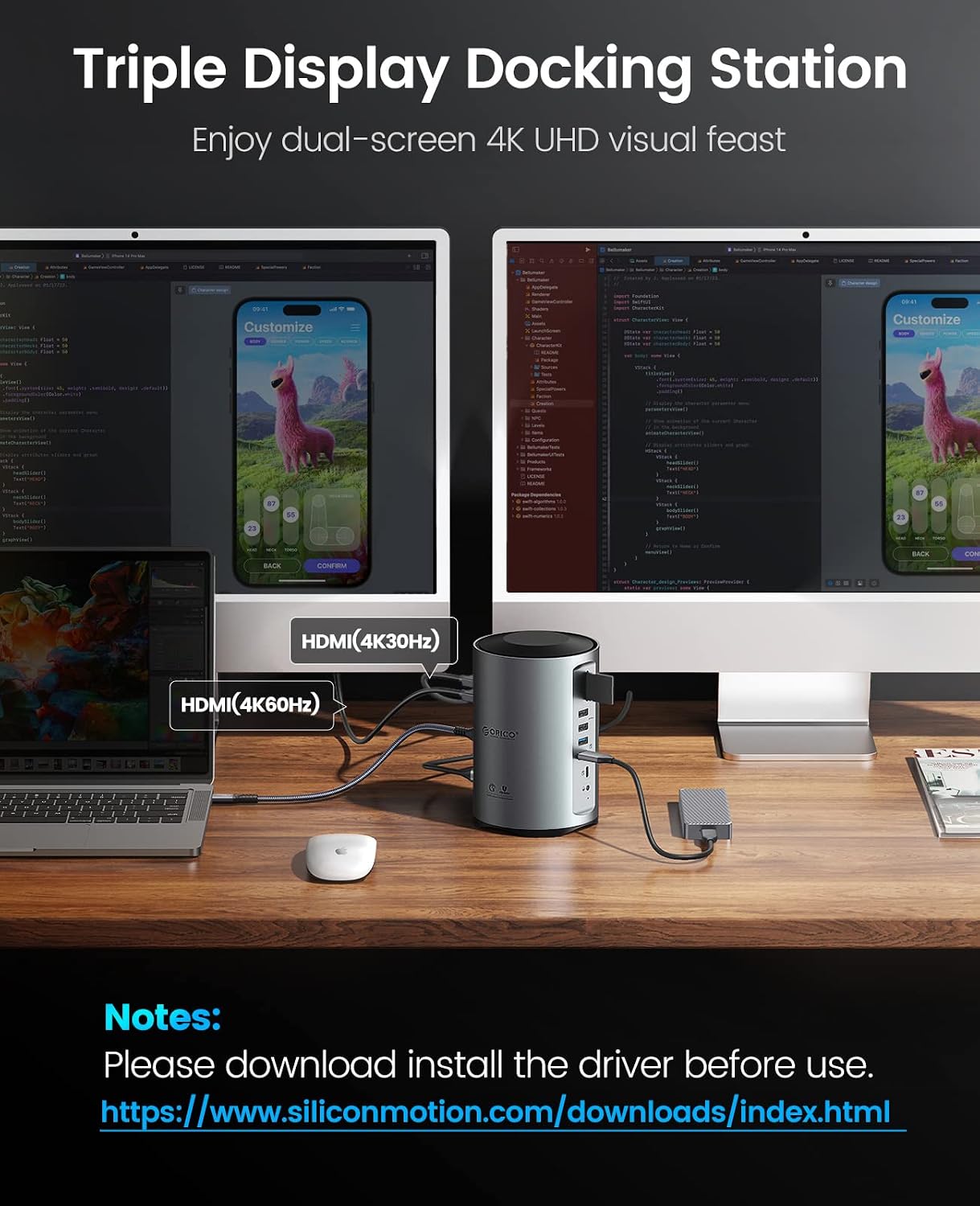
Image: A laptop connected to the ORICO docking station, which is then connected to two external monitors, illustrating a triple display setup. A note emphasizes driver installation.
5. Operating Instructions
5.1 Display Configuration
The docking station supports various display modes for dual and triple monitor setups.
Dual Display Modes

Image: Illustration of dual display modes, showing both Mirror Mode (laptop screen duplicated on external monitors) and Extend Mode (laptop screen extended across external monitors).
- Mirror Mode: Duplicates your laptop's display onto the connected external monitors.
- Extend Mode: Extends your desktop across the connected external monitors, providing more screen real estate.
Triple Display Modes

Image: Illustration of triple display modes, showing both Extend Mode (laptop screen extended across three external monitors) and Mirror Mode (laptop screen duplicated on all three external monitors).
- Extend Mode: Allows you to extend your desktop across three external monitors, creating a multi-tasking environment.
- Mirror Mode: Duplicates your laptop's display onto all three connected external monitors.
Adjust display settings (resolution, orientation, arrangement) through your operating system's display settings.
5.2 Data Transfer
Utilize the various USB ports and card readers for high-speed data transfer.

Image: Graphic illustrating the 5Gbps transfer speed of USB 3.0 compared to 480Mbps of USB 2.0.
- USB 3.0 Ports: Connect external hard drives, SSDs, or other high-speed devices for data transfer up to 5Gbps.
- USB 2.0 Ports: Ideal for connecting keyboards, mice, and other low-bandwidth peripherals.
- USB-C Data Port: Connect USB-C devices for data transfer up to 5Gbps.

Image: A laptop connected to the docking station, with an SD card inserted into the card reader, highlighting the 480Mbps transfer speed for TF/SD USB 2.0.
Note: The SD and TF card reader ports cannot be read simultaneously.
5.3 Network Connection
Connect to a wired network using the Gigabit Ethernet port.

Image: A laptop connected to the docking station, with an Ethernet cable plugged into the RJ45 port, indicating 1000Mbps speed.
- Plug an Ethernet cable into the RJ45 port on the docking station and connect the other end to your router or network switch.
- The port supports speeds up to 1000Mbps for a stable and fast internet connection.
5.4 Power Delivery
Charge your host laptop through the docking station's PD port.

Image: A laptop being charged via the docking station's 100W PD port, with a power adapter connected to a wall outlet.
- Connect a USB-C power adapter (not included) to the 100W PD port on the docking station.
- This allows the docking station to pass up to 100W of power to your connected laptop, keeping it charged during use.
Note: Actual charging speed depends on your device and the power adapter used.
6. Maintenance
To ensure the longevity and proper functioning of your docking station, follow these maintenance guidelines:
- Cleaning: Use a soft, dry cloth to clean the exterior of the docking station. Avoid using liquid cleaners or abrasive materials.
- Storage: Store the docking station in a cool, dry place away from direct sunlight and extreme temperatures.
- Handling: Avoid dropping or subjecting the device to strong impacts. Do not attempt to disassemble the unit.
- Ventilation: Ensure the docking station has adequate ventilation to prevent overheating, especially during prolonged use.
7. Troubleshooting
If you encounter issues with your ORICO docking station, refer to the following common problems and solutions:
| Problem | Possible Solution |
|---|---|
| No display on external monitors. |
|
| Laptop is not charging. |
|
| USB devices are not recognized or function slowly. |
|
| No internet connection via Ethernet. |
|
8. Specifications
- Model: B0FC2CWCY6
- Color: Grey
- Ports: 3x HDMI, 3x USB 3.0, 4x USB 2.0, 1x USB-C (Data), 1x RJ45 Gigabit Ethernet, 1x 100W PD, 1x SD Card Reader, 1x TF Card Reader, 1x 3.5mm Audio
- HDMI Output: HDMI1: 4K@60Hz, HDMI2: 4K@30Hz, HDMI3: 1080P@60Hz
- USB Data Transfer Speed: USB 3.0: Up to 5Gbps; USB 2.0: Up to 480Mbps
- Ethernet Speed: 10/100/1000Mbps
- Power Delivery: Up to 100W (requires external power adapter)
- Item Weight: 1.18 pounds
- Package Dimensions: 8.27 x 5.12 x 5.12 inches
- Manufacturer: SHENZHEN ORICO TECHNOLOGIES CO.,LTD
9. Warranty and Support
ORICO products are designed for reliability and performance. For warranty information and technical support, please refer to the official ORICO website or contact ORICO customer service directly. You can also visit the ORICO store on Amazon for additional product information and support resources.
ORICO Store Link: ORICO Official Store


