1. Product Overview
This CAMECHO Android 15 Car Stereo is designed for Ford Fusion models from 2013 to 2016 (low-end version). It features an 8-Core CPU, 6GB RAM, 128GB ROM, and a 9-inch IPS touchscreen display. The unit integrates various functionalities including wireless Apple CarPlay, Android Auto, GPS navigation, DSP sound processing, Bluetooth 5.0, FM/RDS radio, and support for an AHD backup camera.
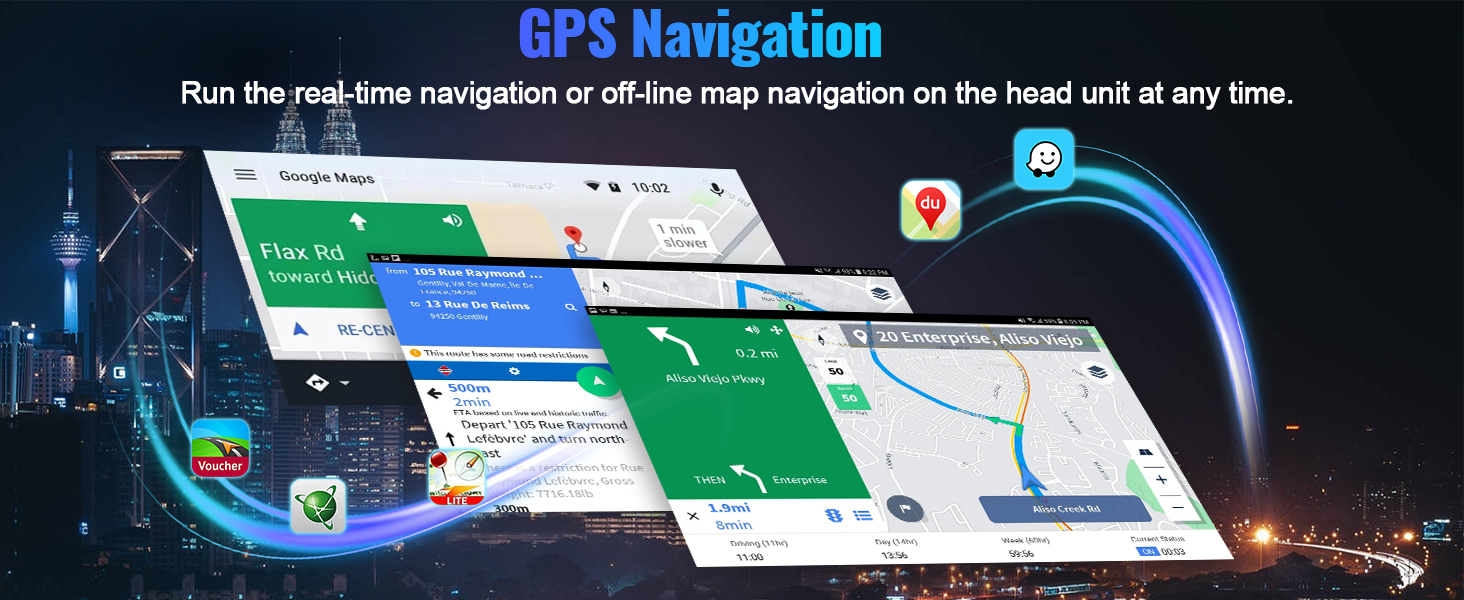
Image: CAMECHO Android 15 Car Stereo main interface with key features highlighted.
2. Compatibility
This head unit is specifically designed for Ford Fusion models manufactured between 2013 and 2016. It is intended for vehicles with the low-end radio version. Please verify your vehicle's dashboard configuration before installation.

Image: Visual guide for Ford Fusion model compatibility (2013-2016 low-end version).

Image: Comparison of compatible and incompatible Ford Fusion dashboards.
3. Package Contents
Verify that all items listed below are included in your package:
- 1 x Android Head Unit
- 1 x AHD Backup Camera
- 1 x External Microphone
- 1 x Protocol Box (CANBUS)
- 1 x GPS Antenna
- 1 x Radio Antenna
- 1 x Power Cable
- 1 x RCA Cable
- 1 x Rear Camera Input Cable
- 2 x USB Cable
- 1 x Original USB Cable
- 1 x Parts (Mounting Brackets, Screws)
- 1 x Installation Tool
- 1 x Instruction Manual

Image: Contents of the product package.

Image: Head unit dimensions and package list overview.
4. Setup and Installation
4.1 CANBUS Connection
Ensure the CANBUS box is connected to the 8-pin connector on the head unit. This connection is crucial for steering wheel controls to function correctly.

Image: CANBUS connection diagram.
4.2 Reversing Camera Installation
The reversing input must be plugged in even if the reversing camera is not used. Follow these steps for wiring:
- Connect the red wire (1) to the positive pole of the car's reversing light power supply.
- Connect the black wire (2) to the negative pole of the car's reversing light power supply.
- The reversing trigger (3) is controlled by the stereo and does not require a separate connection.
- Connect the yellow RCA video cable (4) from the camera to the 'Rear Camera Input' on the head unit.

Image: Reversing camera wiring diagram.
5. Operating Instructions
5.1 Wireless Apple CarPlay & Android Auto
The head unit supports wireless Apple CarPlay and Android Auto for seamless smartphone integration.
Connecting Wireless Apple CarPlay:
- Connect your car radio's Bluetooth to your iPhone. The Bluetooth name is typically "Car BT0" and the PIN is "1234". Ensure "phone audio, music audio" shows as connected.
- Click "SpeedPlay" on the head unit.
- Allow "Contacts and Favorites Sync" and "Use CarPlay with SpeedPlay" on your iPhone.
- Wait for the connection to establish. The first connection may take longer.
Connecting Wireless Android Auto:
- Click "SpeedPlay" on the head unit.
- Connect your Android phone to the head unit's rear 4-pin USB port using your original data cable.
- Allow "USB debugging" on your Android phone.
- Wait for the connection to establish. The first connection may take longer.

Image: Wireless Apple CarPlay and Android Auto in operation.

Image: Wireless Apple CarPlay interface.

Image: Wireless Android Auto interface.

Image: Detailed connection steps for Wireless Apple CarPlay and Android Auto.
5.2 GPS Navigation
The unit includes a built-in GPS receiver and supports offline maps. You can also download other navigation applications like Waze, Navfree, or Yandex Map from the Play Store using Wi-Fi or a mobile hotspot.
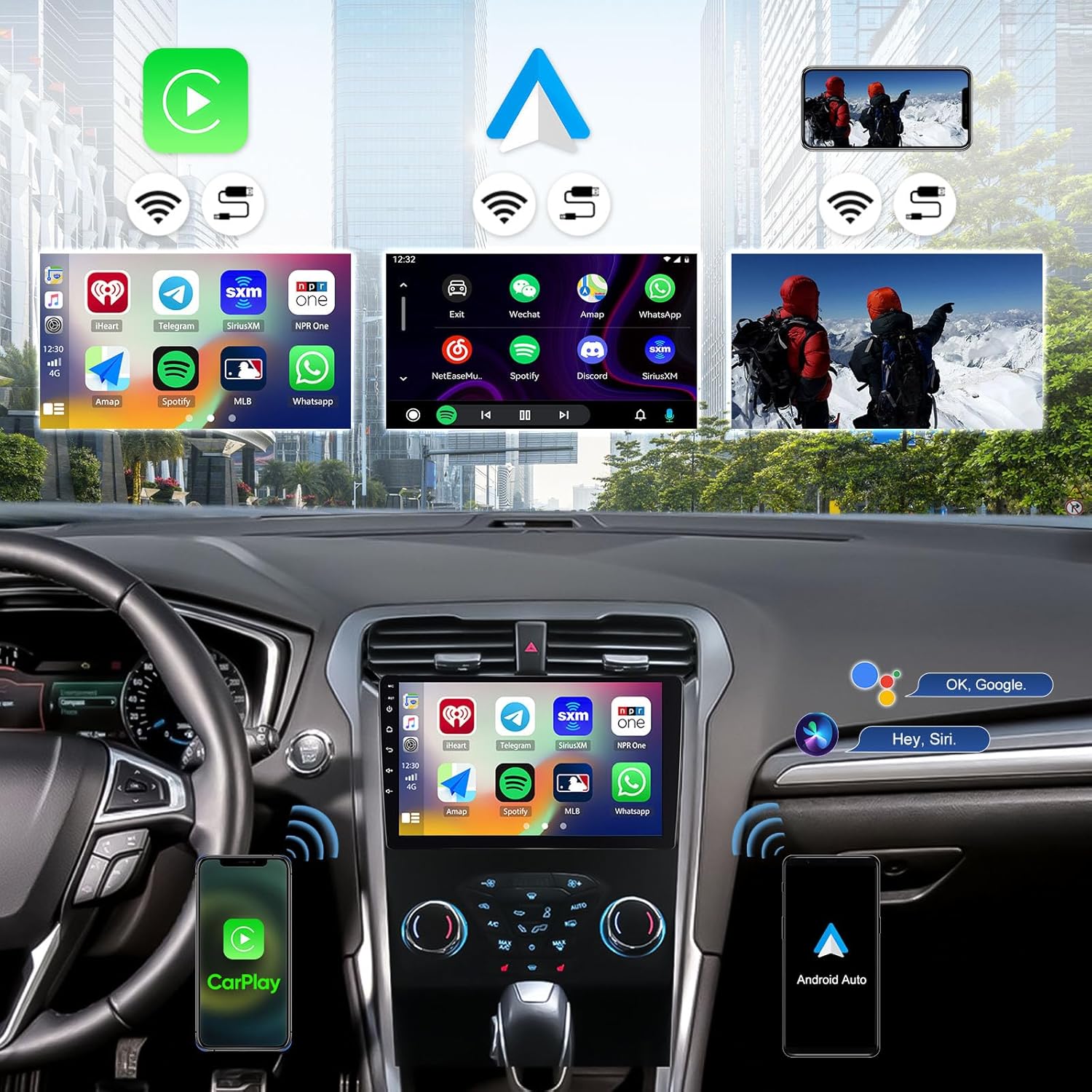
Image: GPS Navigation and Wi-Fi connection features.

Image: Real-time GPS navigation display.
5.3 Wi-Fi Connection
Connect to Wi-Fi or use your phone's hotspot to browse the internet, download apps, stream media, and watch videos directly on the head unit.

Image: Wi-Fi connectivity for streaming and app usage.
5.4 Bluetooth 5.0
Bluetooth 5.0 enables wireless audio streaming and hands-free calling. Pair your smartphone to make and receive calls safely while driving.

Image: Bluetooth 5.0 hands-free calling and FM/RDS radio interface.

Image: Bluetooth 5.0 for hands-free calls and music streaming.
5.5 FM/RDS Radio
The unit supports FM/RDS radio with 18 station presets. Stay updated with news, traffic, and music.

Image: FM/RDS Radio interface.
5.6 DSP & 32-Band EQ
Enhance your audio experience with the built-in Digital Sound Processor (DSP) and 32-band equalizer. Adjust sound settings to your preference.

Image: DSP and 32-Band EQ interface for audio customization.

Image: DSP sound adjustment interface.
5.7 Steering Wheel Control
The unit supports original steering wheel buttons, allowing you to control music, answer calls, and navigate without distraction.

Image: Steering wheel control learning interface.

Image: Steering wheel control for safe operation.
5.8 Mirror Link
Cast your smartphone's screen to the car radio touchscreen for viewing content.

Image: Mirror Link functionality.
5.9 UI Themes
Customize the appearance of your head unit with 59 multiple UI themes. Long press on the home page to switch between different app layouts and themes.

Image: 9-inch IPS touchscreen and various UI desktop themes.

Image: Customized Home App and UI theme selection.
6. Maintenance
To ensure optimal performance and longevity of your CAMECHO car stereo, follow these general maintenance guidelines:
- Cleaning the Screen: Use a soft, lint-free cloth to gently wipe the touchscreen. For stubborn smudges, slightly dampen the cloth with water or a screen-safe cleaner. Avoid harsh chemicals or abrasive materials.
- Software Updates: Periodically check for available software updates to ensure you have the latest features and bug fixes. Updates can typically be found in the system settings or through the manufacturer's website.
- Avoid Extreme Temperatures: Do not expose the unit to extreme heat or cold for extended periods, as this can affect its electronic components and display.
- Cable Connections: Ensure all cables are securely connected. Loose connections can lead to intermittent functionality.
7. Troubleshooting
If you encounter issues with your car stereo, refer to the following troubleshooting tips:
- No Power: Check all power cable connections. Ensure the car's fuse for the stereo is not blown.
- Steering Wheel Controls Not Working: Confirm that the CANBUS box is correctly connected to the 8-pin connector on the head unit. Navigate to Settings > Factory Setup (Password: 1234) > CAN Settings and select the correct protocol for your car: Raise - Ford - Mondeo - 2013-2018 - Low Configuration.
- Backup Camera Image Not Clear/Working: Ensure the rear camera input cable is securely connected. If the image is unclear, adjust the backup camera resolution through Settings > Factory Settings > Password: 1234 > Video Source.
- No Bluetooth/Wi-Fi Signal: Ensure the white plug for the antenna is connected to the main device.
- GPS Signal Issues: Ensure the GPS antenna is properly installed and has a clear view of the sky.
- Sound Distortion: Check speaker connections. Adjust DSP and EQ settings.
- Unit Freezes/Unresponsive: Perform a soft reset by pressing the reset button (if available) or by turning off the car ignition and restarting.
8. Specifications
| Feature | Detail |
|---|---|
| Operating System | Android 15 |
| CPU | 8-Core |
| RAM | 6GB |
| ROM | 128GB |
| Screen Size | 9 Inches |
| Display Type | IPS Touchscreen |
| Resolution | 1280*720 |
| Wireless CarPlay | Supported |
| Wireless Android Auto | Supported |
| GPS Navigation | Built-in receiver, offline maps support |
| Wi-Fi Connectivity | Supported |
| Bluetooth Version | 5.0 |
| Radio | FM/RDS (18 presets) |
| DSP | Built-in 32-band EQ |
| Backup Camera | AHD (IP68 waterproof, night vision) |
| Steering Wheel Control | Supported |
| Mirror Link | Supported |
| UI Themes | 59 Multiple UI themes |
| Item Weight | 3.3 pounds |
| Product Dimensions | 10 x 1.8 x 10.1 inches |
9. Warranty
This product comes with a 1-Year Warranty from the date of purchase. Please retain your proof of purchase for warranty claims. The warranty covers manufacturing defects and malfunctions under normal use. It does not cover damage caused by improper installation, misuse, accidents, or unauthorized modifications.
10. Support
For technical assistance, troubleshooting, or any questions regarding your CAMECHO Android 15 Car Stereo, please contact our customer support team.
Email: CAMECHOVIP@126.com

Image: Customer support contact information.


