1. Introduction
This manual provides comprehensive instructions for the installation, operation, and maintenance of your GOJOHO 9-inch IPS Touchscreen Car Stereo. This unit is specifically designed for Nissan Murano Z51 models from 2009 to 2014, featuring Android 13, 4GB RAM, 64GB ROM, Wireless CarPlay, Android Auto, GPS Navigation, and a built-in DSP.
Please read this manual thoroughly before installation and use to ensure proper function and to maximize your product experience. Keep this manual for future reference.
2. Product Overview
The GOJOHO Car Stereo is an advanced infotainment system designed to upgrade your vehicle's capabilities. Key features include:
- Operating System: Android 13 for smooth performance.
- Display: 9-inch IPS Touchscreen with a 178° full viewing angle for high-definition visuals.
- Memory: 4GB RAM + 64GB ROM for efficient multitasking and storage.
- Smartphone Integration: Wireless Apple CarPlay and Android Auto support for seamless phone connectivity.
- Navigation: Built-in GPS module with support for online and offline maps (e.g., Google Maps, Waze).
- Audio: FM/RDS Radio with 18 preset stations and Hi-Fi sound quality. Built-in DSP for enhanced audio processing.
- Connectivity: Built-in Wi-Fi, Bluetooth for hands-free calls and audio streaming, and USB ports.
- Vehicle Integration: Supports original car steering wheel controls and AHD rear view cameras.
- Additional Features: Split-screen display, Mirror Link for iOS and Android devices.

Figure 2.1: The GOJOHO 9-inch car stereo unit installed in a Nissan Murano Z51 dashboard, showing a navigation application on its screen.
3. Setup and Installation
This section provides general guidelines for installing the GOJOHO Car Stereo. Professional installation is recommended. Ensure the vehicle's power is disconnected before beginning installation.
3.1 Package Contents
Verify that all components are present in the package:
- GOJOHO 9-inch Car Stereo Head Unit
- Wiring Harnesses (specific to Nissan Murano Z51 2009-2014)
- GPS Antenna
- USB Cables
- External Microphone (if included)
- Backup Camera (if included)
- User Manual (this document)
3.2 Pre-Installation Notes
- Vehicle Compatibility: This unit is designed for Nissan Murano Z51 models manufactured between 2009 and 2014.
- Audio System: This unit is not compatible with vehicles equipped with the BOSE audio system.
- Sound Output: Ensure the red and blue lotus connectors of the main wire harness are correctly connected to the RCA ports. Failure to do so may result in no sound output.
- Backup Camera: If installing the included backup camera, connect it directly to the reversing line as per the vehicle's wiring diagram.
3.3 Installation Steps (General)
- Carefully remove the original car stereo and trim panels.
- Connect the GOJOHO unit's wiring harness to the vehicle's factory harness. Pay close attention to all connections, especially the RCA connectors for audio.
- Connect the GPS antenna and route it to a suitable location (e.g., dashboard, A-pillar) for optimal signal reception.
- Connect any additional accessories such as USB cables, external microphone, and the backup camera.
- Mount the new head unit securely into the dashboard opening.
- Reinstall the trim panels.
- Reconnect the vehicle's power and test all functions.

Figure 3.1: Visual comparison of the Nissan Murano Z51 dashboard before and after the GOJOHO car stereo installation.
4. Operating Instructions
This section details the primary functions and operations of your GOJOHO Car Stereo.
4.1 Basic Operation
- Power On/Off: Press and hold the power button (usually on the front panel) to turn the unit on or off. A short press may mute/unmute.
- Volume Control: Adjust volume using the physical buttons or on-screen controls.
- Touchscreen Interface: Navigate through menus and applications by tapping, swiping, and pinching on the 9-inch IPS touchscreen.
- Steering Wheel Controls: The unit supports your vehicle's original steering wheel controls for functions like volume adjustment, track skipping, and answering calls. Configuration may be required in the settings menu.
4.2 Wireless Apple CarPlay & Android Auto
Connect your smartphone wirelessly to access navigation, music, calls, and messages directly on the car stereo display.
- Ensure Bluetooth and Wi-Fi are enabled on your smartphone.
- On the car stereo, open the CarPlay or Android Auto application.
- Follow the on-screen prompts to pair your phone via Bluetooth. Once paired, the system will establish a Wi-Fi connection for data transfer.
- You can now control compatible apps using the touchscreen or voice commands (Siri/Google Assistant).
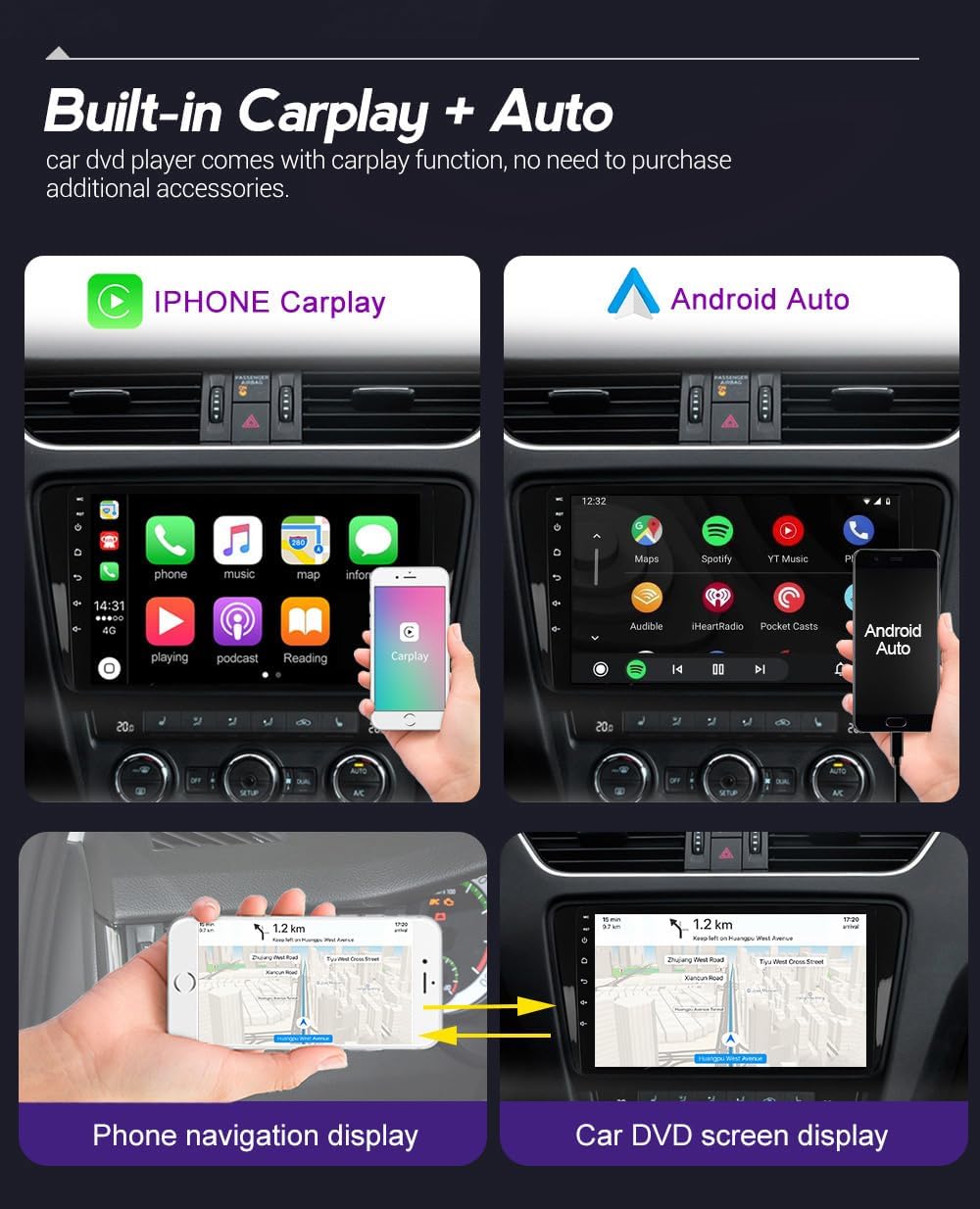
Figure 4.1: Display of Apple CarPlay and Android Auto interfaces on the car stereo, demonstrating smartphone integration.
4.3 GPS Navigation
The unit features a built-in GPS module and supports various navigation applications.
- Online Maps: Connect the unit to Wi-Fi (e.g., via a mobile hotspot) to use online navigation apps like Google Maps, Waze, etc.
- Offline Maps: Download map data for offline use through compatible navigation apps.
- Using Navigation: Open your preferred navigation app from the main menu, enter your destination, and follow the voice and visual prompts.

Figure 4.2: The car stereo displaying a Google Maps interface, highlighting its GPS navigation capabilities.
4.4 FM/RDS Radio
Access local radio stations with clear reception.
- Open the "Radio" application from the main menu.
- Use the scan function to find available stations.
- Save your favorite stations to one of the 18 preset slots.
- RDS (Radio Data System) provides additional information like station name and song title where available.
4.5 Bluetooth Connectivity
Connect your phone via Bluetooth for hands-free calling and audio streaming.
- Enable Bluetooth on your phone and the car stereo.
- Search for available devices on the car stereo and select your phone.
- Confirm the pairing code on both devices.
- Once connected, you can make/receive calls, access your phone book, and stream music (A2DP Bluetooth).

Figure 4.3: The car stereo displaying a Bluetooth phone interface, illustrating hands-free calling capabilities.
4.6 Rear View Camera Display
When the vehicle is shifted into reverse gear, the car stereo will automatically display the rear view camera feed.
- Ensure the backup camera is correctly installed and connected to the unit's reversing input.
- The display supports 1080P HD resolution, night vision, and a wide-angle view.

Figure 4.4: The car stereo displaying the rear view camera feed with parking assistance lines.
4.7 Split Screen Display
The unit supports displaying two applications simultaneously on the screen.
- To activate split screen, open one application, then long-press the recent apps button or drag another compatible app from the recent apps list to one side of the screen.
- This allows for convenient multitasking, such as using navigation while playing music or watching a video (when safe and stationary).
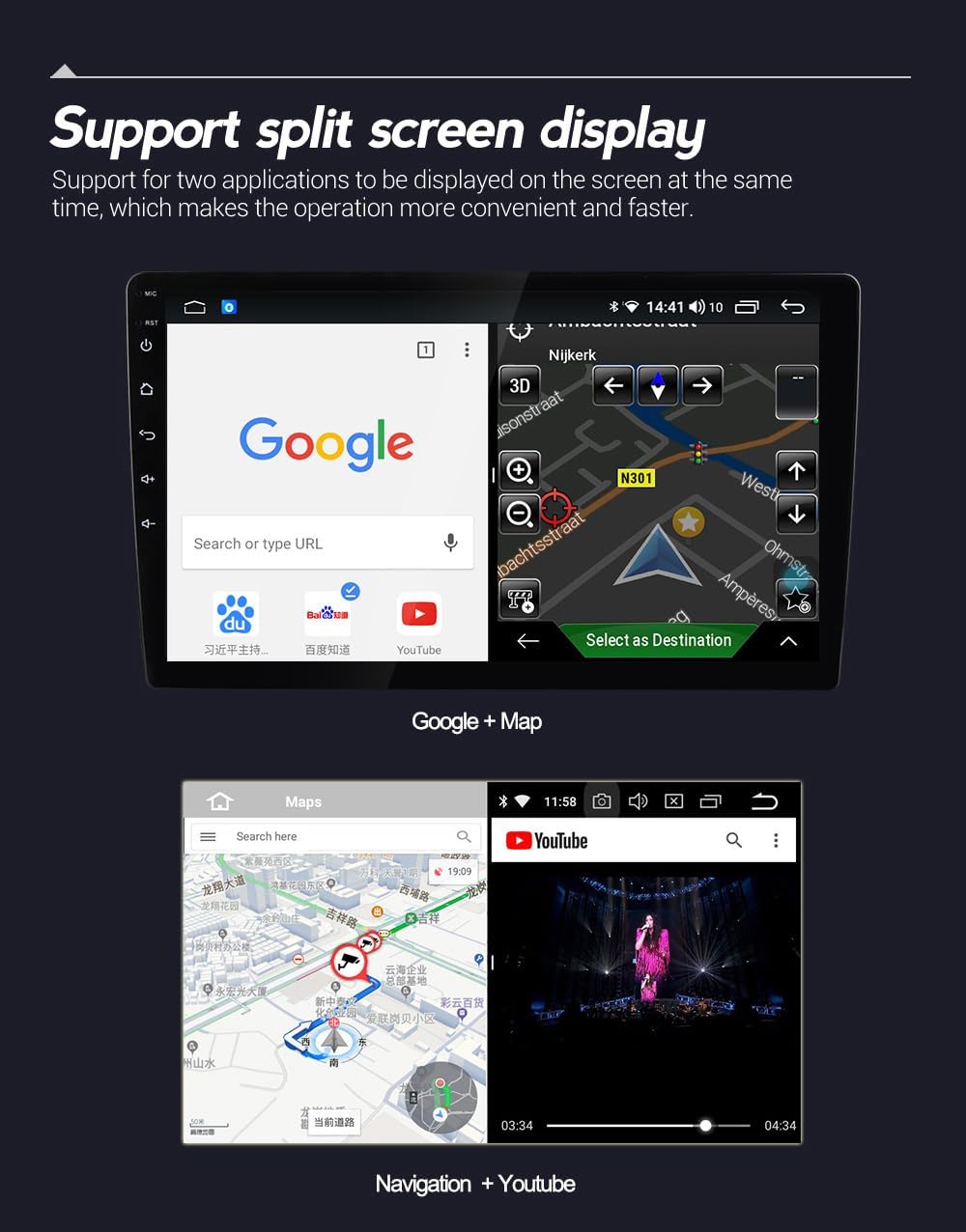
Figure 4.5: The car stereo displaying two applications side-by-side using the split-screen feature.
4.8 Mirror Link
Mirror Link allows you to cast your smartphone's screen onto the car stereo display.
- Supports both iOS (via Wi-Fi) and Android (via USB or Wi-Fi) devices.
- Open the "Mirror Link" app on the car stereo and follow the instructions to connect your phone.
- Once connected, your phone's screen content will be mirrored, allowing you to play media or use apps from your phone on the larger display.

Figure 4.6: The car stereo displaying a mirrored smartphone screen, demonstrating the Mirror Link function.
5. Maintenance
Proper maintenance ensures the longevity and optimal performance of your car stereo.
- Cleaning the Screen: Use a soft, lint-free cloth to gently wipe the touchscreen. For stubborn smudges, slightly dampen the cloth with water or a screen-safe cleaner. Avoid harsh chemicals or abrasive materials.
- General Cleaning: Keep the unit and surrounding dashboard area free from dust and debris.
- Temperature: Avoid exposing the unit to extreme temperatures (very hot or very cold) for extended periods, as this can affect performance and lifespan.
- Software Updates: Periodically check for available software updates from the manufacturer to ensure the system runs efficiently and has the latest features and security patches.
6. Troubleshooting
If you encounter issues with your GOJOHO Car Stereo, refer to the following common problems and solutions. If the problem persists, contact customer support.
- No Power:
- Check all power connections and fuses.
- Ensure the vehicle's battery is charged.
- No Sound:
- Verify that the red and blue lotus connectors of the main wire harness are properly connected to the RCA ports.
- Check volume levels and mute settings.
- Ensure speakers are correctly wired.
- Confirm the unit is not connected to a BOSE audio system, as it is incompatible.
- GPS Signal Loss:
- Ensure the GPS antenna is securely connected and placed in an unobstructed location.
- Check if you are in an area with poor satellite coverage (e.g., tunnels, dense urban areas).
- CarPlay/Android Auto Not Connecting:
- Ensure Bluetooth and Wi-Fi are enabled on your phone and the car stereo.
- Try restarting both your phone and the car stereo.
- Check for any pending software updates for your phone or the car stereo.
- Rear Camera Not Displaying:
- Verify the camera is correctly wired and receiving power.
- Ensure the reverse trigger wire is properly connected to detect when the vehicle is in reverse.
7. Specifications
| Feature | Detail |
|---|---|
| Model Number | 4GB RAM+64GB ROM |
| Operating System | Android 13 |
| Display Size | 9 Inches IPS Touchscreen |
| RAM | 4GB |
| Internal Storage (ROM) | 64GB |
| Connectivity | Bluetooth, USB, Wi-Fi |
| Special Features | Wireless CarPlay, Android Auto, GPS Navigation, Built-in DSP, FM/RDS Radio, Steering Wheel Control Support, AHD Rear View Camera Support, Split Screen, Mirror Link |
| Vehicle Compatibility | Nissan Murano Z51 (2009-2014) |
| Audio Output Mode | Stereo |
| Item Weight | 3 pounds |
| Package Dimensions | 13 x 12 x 4.7 inches |
8. Warranty Information
The GOJOHO 9-inch IPS Touchscreen Car Stereo comes with a 1-year warranty from the date of purchase. This warranty covers manufacturing defects and malfunctions under normal use. It does not cover damage caused by improper installation, misuse, accidents, unauthorized repairs, or normal wear and tear.
Please retain your proof of purchase for warranty claims.
9. Customer Support
For technical assistance, troubleshooting not covered in this manual, or warranty inquiries, please contact GOJOHO customer support through the retailer where the product was purchased or refer to the official GOJOHO website for contact details.
When contacting support, please have your product model number (4GB RAM+64GB ROM) and proof of purchase readily available.


