
Introduction
This manual provides essential information for setting up, operating, and maintaining your luckeu I25 Ultra smartphone. Please read it thoroughly to ensure optimal performance and longevity of your device. The I25 Ultra features an expansive 6.99-inch FHD+ display, an Octa-core processor, 8GB RAM, 256GB storage, a 108MP main camera, a 50MP front camera, a 6800mAh battery with 18W fast charging, and runs on Android 14. It also includes a built-in stylus for enhanced interaction.
What's in the Box
Verify that all items are present in the package:
- luckeu I25 Ultra Smartphone
- Earphone
- Phone Case
- Power Adapter
- USB Cable
- Screen Protector
Setup
1. SIM Card Installation
The I25 Ultra supports dual Nano SIM cards. Follow these steps to install your SIM card(s):
- Locate the SIM card tray on the side of the phone.
- Insert the SIM ejector tool (not explicitly listed in box, but typically included) into the small hole next to the tray and press gently until the tray pops out.
- Place your Nano SIM card(s) into the designated slots on the tray. Ensure the gold contacts face downwards.
- Carefully reinsert the tray into the phone until it clicks into place.
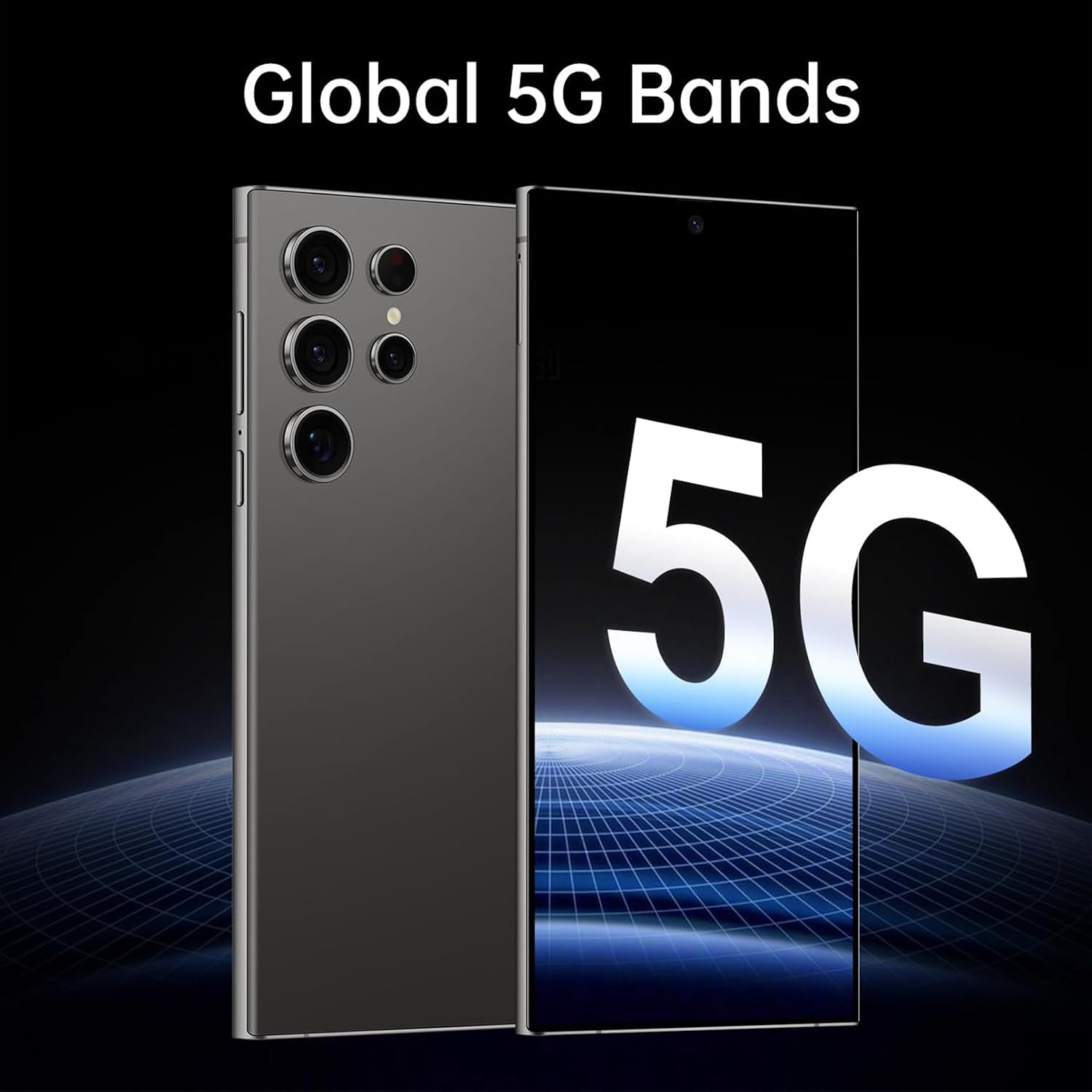
Image: Close-up of the luckeu I25 Ultra smartphone showing the SIM card tray location.
2. Initial Power On and Basic Settings
- Press and hold the Power button until the screen lights up.
- Follow the on-screen prompts to select your language, connect to Wi-Fi, and set up your Google account.
- Configure security features such as Face ID or a fingerprint.
Operating Instructions
Display and Navigation
The I25 Ultra features a 6.99-inch FHD+ display with a 120Hz refresh rate for smooth visuals. Navigation is primarily touch-based, with Android 14 gestures or traditional navigation buttons available in settings.

Image: The luckeu I25 Ultra displaying a vibrant full-screen image, highlighting its 6.9-inch screen size and high resolution.
Camera Usage
Your phone is equipped with a 108MP rear camera and a 50MP front camera. Open the Camera app to access various modes like Photo, Video, Portrait, and Pro mode.
- Taking Photos: Tap the shutter button to capture an image.
- Switching Cameras: Tap the camera icon to switch between front and rear cameras.
- Zoom: Pinch in or out on the screen to adjust zoom.

Image: Detailed view of the luckeu I25 Ultra's rear camera system, indicating the 108MP main camera and 13MP macro camera.
Stylus Functionality
The built-in stylus enhances productivity and creativity. It can be used for precise navigation, note-taking, drawing, and more. To use, gently pull the stylus from its slot at the bottom of the phone.

Image: A hand using the built-in stylus on the luckeu I25 Ultra screen to draw a dress design, demonstrating its precision and creative applications.
Battery and Charging
The device is powered by a 6800mAh battery and supports 18W fast charging. Use the provided power adapter and USB cable for optimal charging performance.
- Connect the USB cable to the phone's USB Type-C port and the power adapter.
- Plug the power adapter into a wall outlet.
- Avoid using non-certified chargers to prevent damage.

Image: The luckeu I25 Ultra smartphone connected to a charger, illustrating its 18W Fast Charge capability and 6800mAh battery.
Security Features
The I25 Ultra offers AI Face Unlock and fingerprint recognition for secure access to your device.
- Face ID: Register your face in the security settings for quick unlocking.
- Fingerprint: Set up your fingerprint for an alternative secure unlock method.
Maintenance
- Cleaning: Use a soft, lint-free cloth to clean the screen and body. Avoid harsh chemicals.
- Software Updates: Regularly check for and install system updates to ensure optimal performance and security. Go to Settings > System > System update.
- Battery Care: Avoid extreme temperatures. Do not let the battery fully discharge frequently.
- Storage Management: Periodically clear unnecessary files and apps to free up storage space and maintain performance.
Troubleshooting
Phone Not Turning On
- Ensure the battery is charged. Connect the phone to the charger for at least 15 minutes before attempting to power on.
- Press and hold the Power button for 10-15 seconds to perform a forced restart.
Poor Battery Life
- Reduce screen brightness.
- Close unused applications running in the background.
- Disable Wi-Fi, Bluetooth, or GPS when not in use.
- Check battery usage in Settings to identify power-hungry apps.
Network Connectivity Issues
- Ensure your SIM card is correctly inserted and activated.
- Restart the phone.
- Check if Airplane Mode is off.
- Reset network settings: Go to Settings > System > Reset options > Reset Wi-Fi, mobile & Bluetooth.
Stylus Not Responding
- Ensure the stylus is fully inserted and removed correctly from its slot.
- Restart the phone.
- Check for any physical damage to the stylus.
Specifications
| Feature | Detail |
|---|---|
| Brand | luckeu |
| Model Name | I25 Ultra |
| Operating System | Android 14 |
| RAM Memory | 8 GB |
| Memory Storage Capacity | 256 GB |
| Screen Size | 6.99 Inches (FHD+) |
| Resolution | 2340 x 1080 |
| Refresh Rate | 120 Hz |
| Cellular Technology | 5G |
| SIM Card Slot Count | Dual SIM (Nano) |
| Rear Camera Resolution | 108 MP |
| Front Camera Resolution | 50 MP |
| Battery Capacity | 6800 mAh |
| Fast Charging | 18W |
| Biometric Security | Face Recognition, Fingerprint |
| Additional Features | Built-In GPS, Built-in Stylus, 3.5mm Headphone Jack |

Image: The luckeu I25 Ultra smartphone from multiple angles, highlighting its metal integrated frame and camera design.
Warranty and Support
Your luckeu I25 Ultra smartphone comes with a 1-year warranty from the date of purchase. This warranty covers manufacturing defects and malfunctions under normal use conditions.
For warranty claims, technical support, or any inquiries, please contact luckeu customer service. Refer to the contact information provided on the product packaging or the official luckeu website.
Please retain your proof of purchase for warranty validation.