1. Introduction
This manual provides essential information for the ACEMAGIC LX15 Laptop, designed to guide you through its features, setup, operation, and maintenance. Please read this manual thoroughly to ensure proper use and to maximize your laptop's performance and longevity.

Figure 1: ACEMAGIC LX15 Laptop. This image displays the laptop's overall design, highlighting its 15.6-inch Full HD display and integrated keyboard.
2. What's in the Box
Upon unboxing your ACEMAGIC LX15 Laptop, verify that all the following items are included:
- 1 x ACEMAGIC LX15 Laptop
- 1 x Power Adapter
- 1 x User Manual (this document)
3. Product Overview
3.1 Ports and Connectivity
The ACEMAGIC LX15 Laptop offers a comprehensive selection of ports for various peripherals and external devices.

Figure 2: Laptop Ports. This diagram illustrates the location and type of ports available on the ACEMAGIC LX15, including USB 3.2, Type-C (Data), HDMI, DC Jack, Security Lock, TF Card Socket, and 3.5mm Headphone Jack.
- USB 3.2 Ports: For connecting USB devices such as external drives, mice, and keyboards.
- Type-C (Data) Port: For data transfer with compatible Type-C devices.
- HDMI Port: For connecting to external displays or projectors.
- DC Jack: For connecting the power adapter to charge the laptop.
- Security Lock Slot: For attaching a security cable to protect your laptop from theft.
- TF Card Socket: For reading and writing data from TF (microSD) cards.
- 3.5mm Headphone Jack: For connecting headphones or external speakers.
3.2 Display
The LX15 features a 15.6-inch Full HD (1920 x 1080) IPS display, providing clear and vibrant visuals for various tasks, from document editing to multimedia consumption. The ultra-thin micro-edge bezel design maximizes the screen area for an immersive viewing experience.

Figure 3: 15.6-inch Full HD IPS Display. This image highlights the visual clarity and immersive experience provided by the laptop's display.
3.3 Keyboard and Touchpad
The laptop is equipped with a full-size ergonomic keyboard, including an integrated numeric keypad, designed for comfortable and efficient typing. The responsive touchpad provides precise cursor control.

Figure 4: Full-Size Ergonomic Keyboard. This image showcases the laptop's keyboard layout, numeric keypad, and integrated touchpad.
3.4 Camera with Privacy Feature
The integrated camera includes a physical privacy slider, allowing you to cover the camera lens when not in use for enhanced security and privacy.

Figure 5: Camera Privacy Slider. This image demonstrates the functionality of the physical webcam cover, showing its locked and unlocked positions.
3.5 Audio System
The laptop features built-in dual microphones and stereo speakers, providing clear audio for video calls, presentations, and multimedia playback.
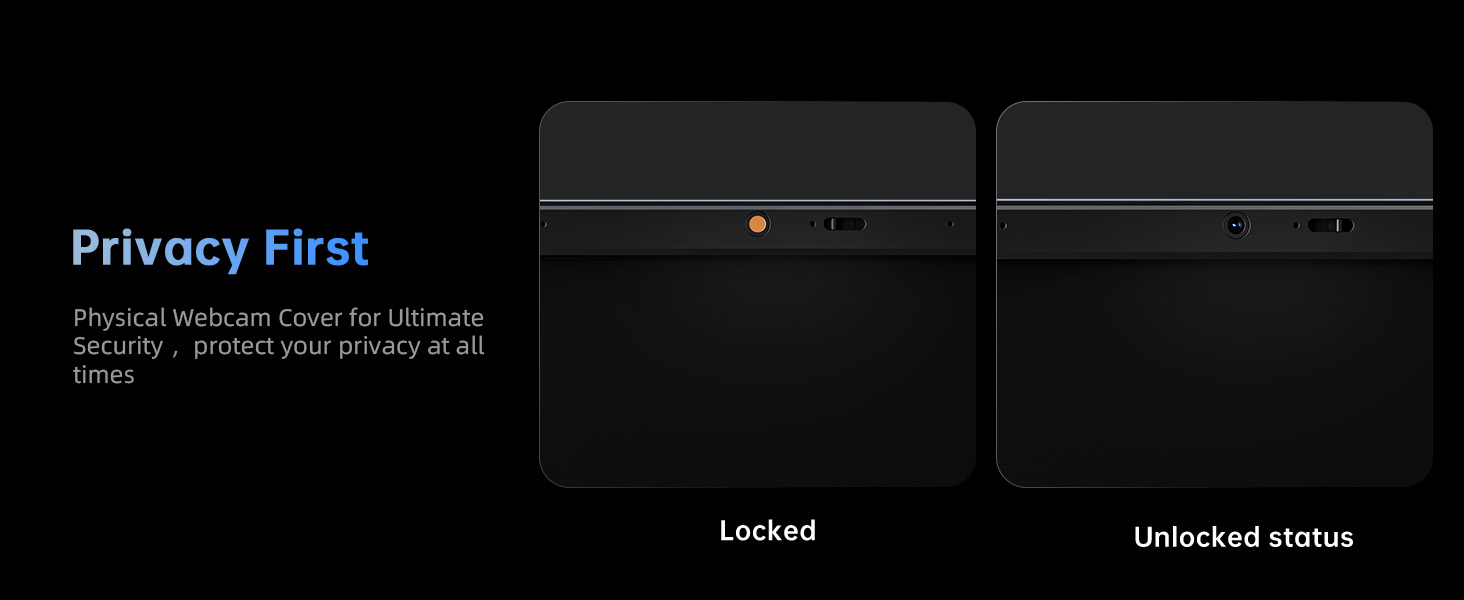
Figure 6: Integrated Audio System. This image visually represents the laptop's audio capabilities, including stereo speakers and digital microphones.
4. Setup
4.1 Initial Power-On
- Connect the power adapter to the DC Jack on the laptop and then to a power outlet.
- Open the laptop lid.
- Press the power button located on the keyboard to turn on the laptop.
4.2 Windows 11 Pro Setup
Follow the on-screen instructions to complete the initial setup of Windows 11 Pro. This typically involves selecting your region, language, connecting to a Wi-Fi network, and creating a user account.
4.3 Connecting to Wi-Fi
During the Windows setup, you will be prompted to connect to a wireless network. Select your network from the list, enter the password, and click 'Connect'. If you skip this step, you can connect later via the Windows Settings menu.
5. Operating Instructions
5.1 Power Management
- Power On: Press the power button.
- Sleep Mode: Close the lid or select 'Sleep' from the Start menu.
- Shut Down: Select 'Shut down' from the Start menu.
- Restart: Select 'Restart' from the Start menu.
5.2 Using External Devices
Connect USB devices, external monitors via HDMI, or headphones to their respective ports as described in Section 3.1. The laptop will typically detect and configure these devices automatically.

Figure 7: Laptop in Use. This image shows a user engaged in work on the ACEMAGIC LX15 Laptop, demonstrating its suitability for daily tasks.
6. Maintenance
6.1 Cleaning the Laptop
- Use a soft, lint-free cloth to clean the screen and exterior surfaces.
- For stubborn marks, dampen the cloth with water or a mild, non-abrasive cleaner.
- Avoid spraying liquids directly onto the laptop.
- Use compressed air to clear dust from keyboard keys and vents.
6.2 Software Updates
Regularly check for and install Windows updates to ensure system stability, security, and optimal performance. You can find updates in Windows Settings > Update & Security > Windows Update.
6.3 Battery Care
- Avoid fully discharging the battery frequently.
- Store the laptop in a cool, dry place when not in use for extended periods.
- If storing for a long time, ensure the battery is charged to about 50-70%.
6.4 Storage Expansion
The laptop's memory (RAM) and storage (SSD) can be upgraded. The M.2 SSD can be expanded up to 2TB for increased storage capacity.

Figure 8: Storage and Memory Expansion. This image details the laptop's 8GB DDR4 RAM and 256GB SSD, highlighting the potential for storage expansion up to 2TB.
6.5 Efficient Cooling
The LX15 incorporates an efficient cooling system designed to maintain optimal operating temperatures, ensuring stable performance and extending the lifespan of internal components.

Figure 9: Cooling System. This image provides an internal view of the laptop, showcasing its heat dissipation components.
7. Troubleshooting
7.1 Laptop Does Not Power On
- Ensure the power adapter is securely connected to both the laptop and a working power outlet.
- Verify the power outlet is functional by plugging in another device.
- If the battery is completely drained, allow it to charge for a few minutes before attempting to power on.
7.2 Wi-Fi Connectivity Issues
- Check if Wi-Fi is enabled in Windows Settings or via the keyboard's function keys.
- Restart your router and modem.
- Forget the Wi-Fi network in Windows Settings and reconnect.
- Update your Wi-Fi adapter drivers through Device Manager.
- If issues persist, consider performing a network reset in Windows Settings.
7.3 Slow Performance
- Close unnecessary applications running in the background.
- Check for and install any pending Windows updates.
- Run a disk cleanup and defragmentation (for HDD, not typically needed for SSD).
- Scan for malware or viruses.
- Ensure the laptop's cooling vents are not obstructed.
8. Specifications
The following table outlines the key technical specifications of the ACEMAGIC LX15 Laptop:
| Feature | Specification |
|---|---|
| Model Name | LX15 |
| Operating System | Windows 11 Pro |
| Processor | Intel N97 (4C/4T, 6MB Cache, up to 3.6GHz) |
| Display | 15.6-inch FHD (1920 x 1080) IPS |
| RAM | 8GB DDR4 SDRAM (Expandable) |
| Storage | 256GB SSD (Expandable up to 2TB) |
| Graphics | Integrated Intel UHD Graphics |
| Wireless Connectivity | WiFi5 (802.11ac), Bluetooth 5.0 |
| Ports | 3x USB 3.0, 1x Type-C (Data), 1x HDMI, 1x DC Jack, 1x TF Card Socket, 1x 3.5mm Headphone Jack, 1x Security Lock |
| Battery | 38Wh (5000mAh) Nonstandard Battery |
| Dimensions (LxWxH) | 13.8 x 9 x 1.7 inches |
| Item Weight | 3.99 pounds |

Figure 10: Intel N97 Processor Details. This image provides a visual summary of the processor's core specifications and performance comparison.

Figure 11: RAM Speed Comparison. This graphic highlights the benefits of higher RAM frequency for improved laptop experience.

Figure 12: Laptop Battery. This image shows the internal 5000mAh battery, emphasizing its role in providing long-lasting power.
9. Warranty and Support
9.1 Warranty Period
ACEMAGIC provides a one-year effective warranty period for the LX15 Laptop, which includes free return or exchange services for eligible issues. Offline maintenance services are also available for products beyond this period.
9.2 Customer Support
For any product-related inquiries or support needs, please contact ACEMAGIC customer service:
- Email: service@acemagic.com
- Phone (US): +1 833 988 3568 (Monday-Friday, 9am-5pm EST)

Figure 13: Customer Support. This image represents the availability of customer service for assistance.


