
Buoan YL-52-Black
Buoan YL-52-Black Smart Fingerprint Door Lock User Manual
Model: YL-52-Black
1. Introduction
The Buoan YL-52-Black is a versatile 5-in-1 smart door lock designed for keyless entry, offering multiple convenient and secure unlocking methods. This digital knob integrates fingerprint recognition, Bluetooth app control, password entry, NFC card access, and traditional mechanical key functionality. It is suitable for various applications including exterior, interior, and bedroom doors, providing enhanced security and ease of use for your home or office.
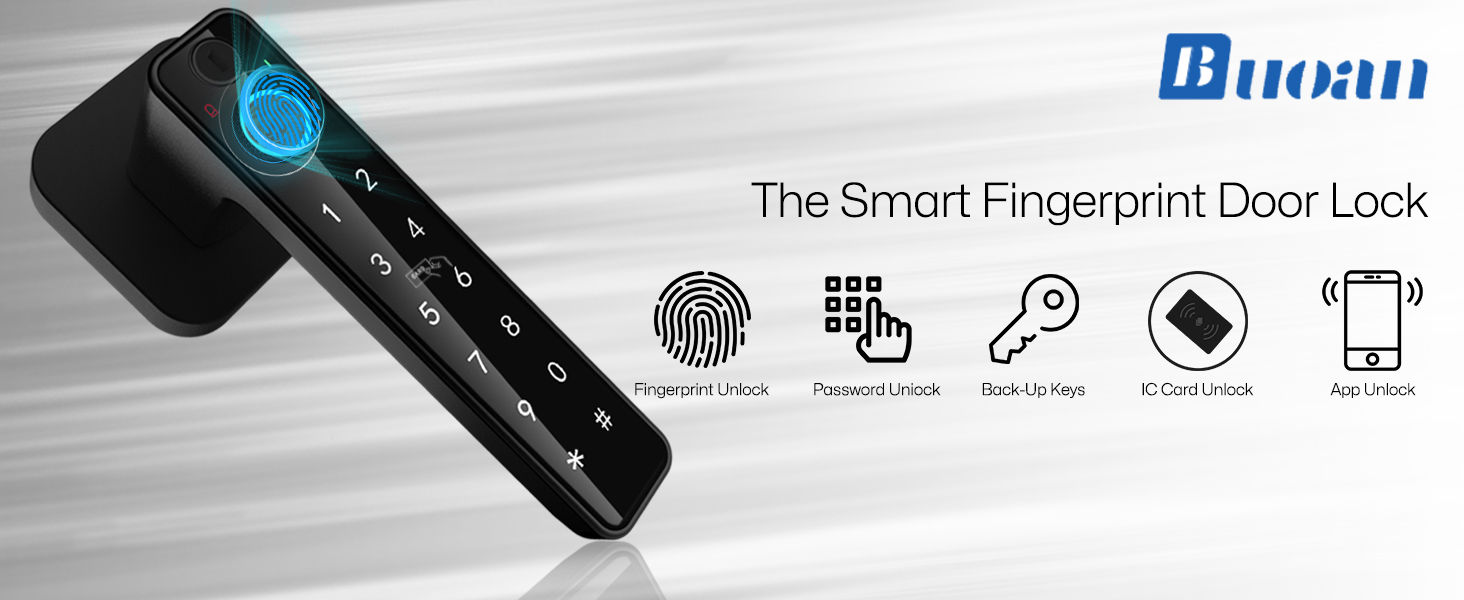
Figure 1.1: Overview of the Buoan Smart Fingerprint Door Lock and its five unlocking methods.

Figure 1.2: Visual representation of the five primary unlocking methods available with the smart door lock.

Figure 1.3: Key functions and security features of the smart door lock, including user capacity and protective measures.
2. What's Included
Please verify that all components are present before beginning installation:
- Front Handle Assembly (with keypad and fingerprint sensor)
- Rear Handle Assembly (with battery compartment)
- Latch Mechanism
- Strike Plate
- Mounting Screws
- Mechanical Keys (2)
- NFC Cards (2)
- Installation Guide (this manual)

Figure 2.1: Main components of the Buoan YL-52-Black Smart Fingerprint Door Lock.
3. Installation Guide
The Buoan YL-52-Black smart door lock is designed for easy DIY installation, typically completed within 10 minutes using a small screwdriver. It is compatible with most standard doors in the United States and features an adjustable latch (2.36" or 2.75").
3.1 Pre-Installation Check
- Ensure your door thickness and bore hole dimensions match the lock's requirements. Refer to Figure 3.1 for detailed measurements.
- Confirm the door's handing (left-handed or right-handed) as shown in Figure 3.2. The lock is adaptable for both.
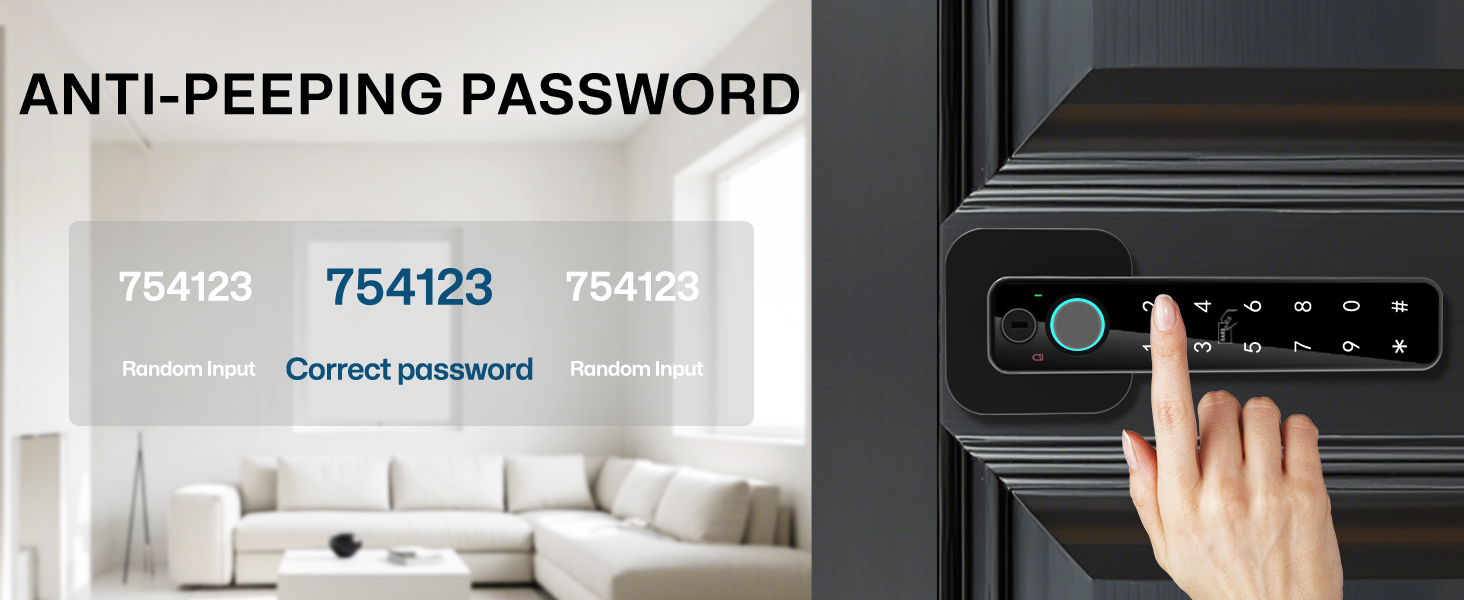
Figure 3.1: Door measurement guide for proper fit.

Figure 3.2: Adaptability for left-handed and right-handed door configurations.

Figure 3.3: Visual guide for DIY installation and adjustable latch mechanism.
3.2 Installation Steps
- Prepare the Latch: Adjust the latch to either 2.36" or 2.75" backset as needed for your door.
- Install the Latch: Insert the latch mechanism into the door edge and secure it with screws.
- Connect Power Cable (Crucial Step): The door handle comes pre-assembled. To install, you must first disconnect the power cable running between the two handles. Locate the screw on the end of the inside handle. Remove this screw to access and unplug the power cable. This allows for proper positioning during installation and battery insertion.
- Install Exterior Handle: Insert the exterior handle assembly through the door, ensuring the spindle aligns with the latch.
- Install Interior Handle: Route the power cable through the door and connect it to the interior handle assembly. Secure the interior handle to the exterior handle using the provided mounting screws.
- Insert Batteries: Open the battery compartment on the interior handle and insert four (4) 1.5V alkaline AAA batteries. Ensure correct polarity.
- Test Operation: After installation, test all unlocking methods (mechanical key, keypad, fingerprint) to ensure proper function before closing the door.
Important Note: The smart lock requires 1.5V alkaline AAA batteries for optimal performance. Using other battery types may lead to malfunctions or reduced battery life.
4. Operating Instructions
The Buoan YL-52-Black offers five convenient ways to unlock your door:
4.1 Fingerprint Unlock
The biometric fingerprint sensor allows for quick access in approximately 0.3 seconds. The lock can store up to 100 unique fingerprints.
- To register fingerprints, follow the instructions in the mobile application (see Section 4.5).
- To unlock, place your registered finger firmly on the fingerprint sensor. The light will turn green upon successful recognition, and the lock will disengage.

Figure 4.1: Fingerprint unlocking in action.

Figure 4.2: Features of the upgraded fingerprint reader.
4.2 Password Unlock
Enter your programmed password on the backlit keypad. The lock supports anti-peeping password entry, allowing you to input random digits before or after your actual code to prevent others from guessing your entry sequence.
- To set up passwords, use the mobile application.
- To unlock, press any random digits, then your actual password, then more random digits (e.g., 123456789012, where 456789 is your password), and finally press the '#' key.
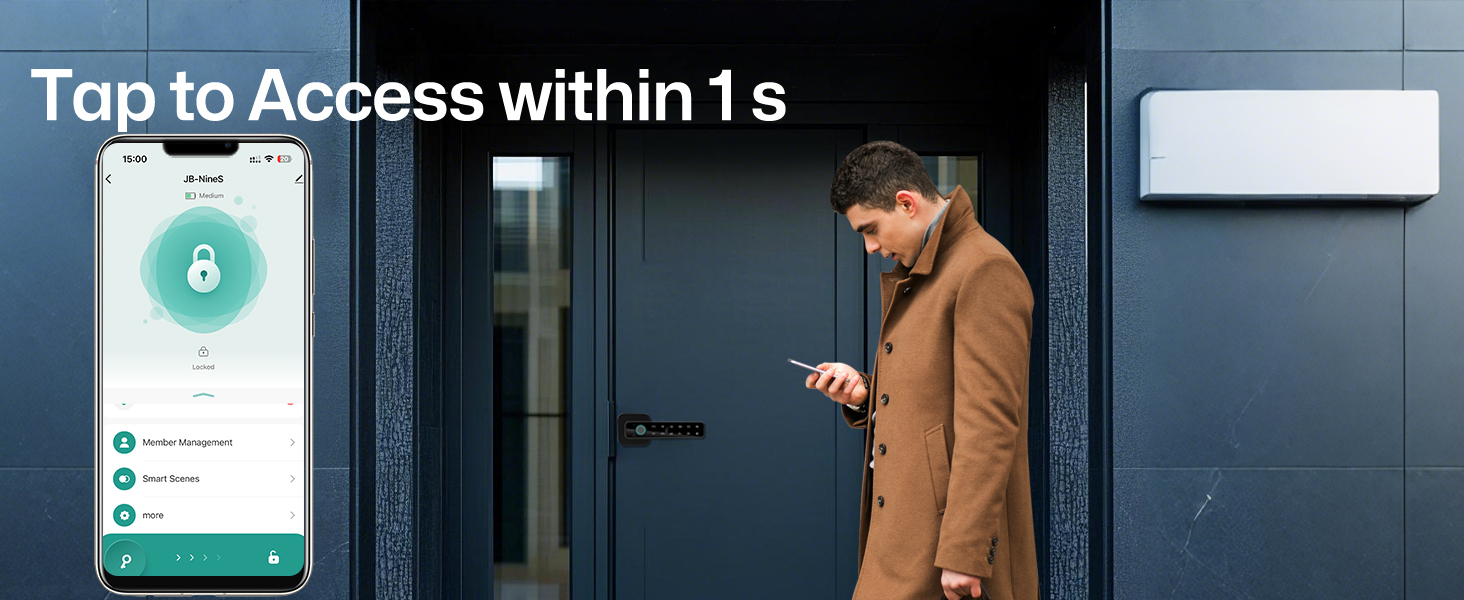
Figure 4.3: Anti-peeping password entry for enhanced security.

Figure 4.4: Combining anti-peeping password with auto-lock functionality.
4.3 NFC Card Unlock
For quick and easy access, simply tap your registered NFC card or compatible smartphone to the lock's sensor.
- Register NFC cards through the mobile application.
- Hold the registered NFC card or smartphone near the lock's card reader area until the lock disengages.
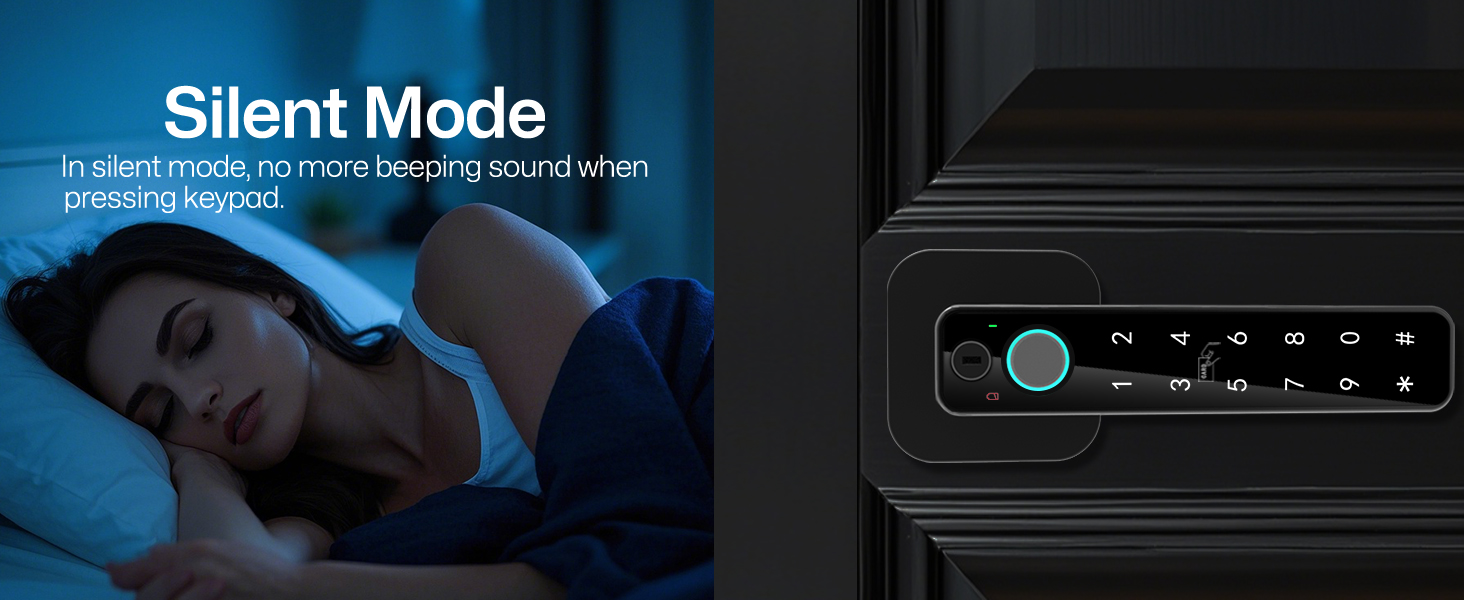
Figure 4.5: Unlocking with an NFC card.
4.4 Mechanical Key Unlock
In case of emergency, battery depletion, or preference, you can always use the provided mechanical keys.
- Insert the mechanical key into the keyhole located on the exterior handle.
- Turn the key to unlock the door.

Figure 4.6: Using the mechanical key for backup access.
4.5 Bluetooth App Control
The smart lock can be controlled via a Bluetooth-enabled mobile application (Tuya Smart App). This app is required for initial setup and full functionality.
- Download and Install: Search for "Tuya Smart" in your device's app store and install it.
- Pairing: Follow the in-app instructions to pair your smart lock via Bluetooth.
- Features:
- View unlock records and receive real-time notifications.
- Manage user permissions: Set up "Share Members" (limited authorities) and "Family Members" (all authorities).
- Generate one-time passwords for temporary access.
- Adjust settings such as auto-lock duration and silent mode.

Figure 4.7: Controlling the lock via the mobile application.
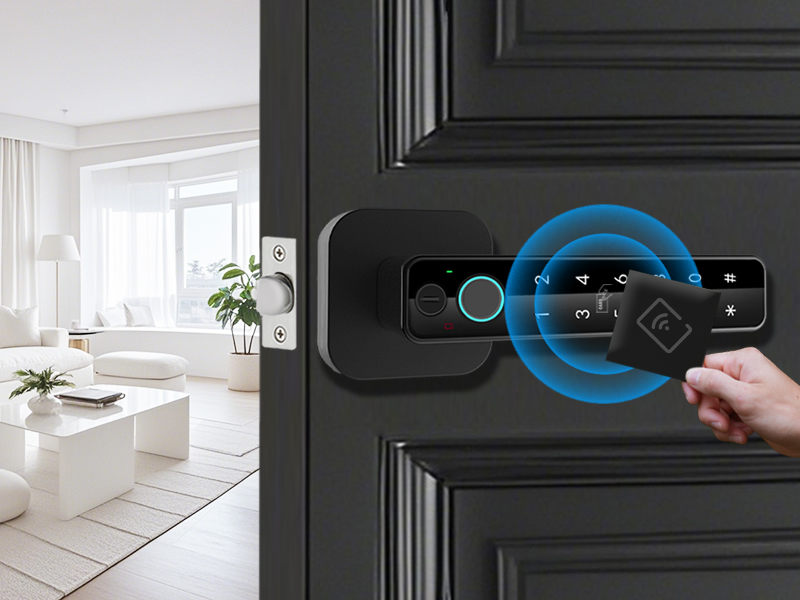
Figure 4.8: Real-time notifications and unlock logs in the app.

Figure 4.9: Generating a one-time password for temporary access.
Note: The Tuya Smart App is a third-party program and may not be compatible with smart home ecosystems like Alexa, Nest, or Google Home.
4.6 Auto-Lock Feature
The lock features an auto-lock function for added security, automatically locking after a set period. This duration can typically be adjusted or disabled via the mobile application settings.
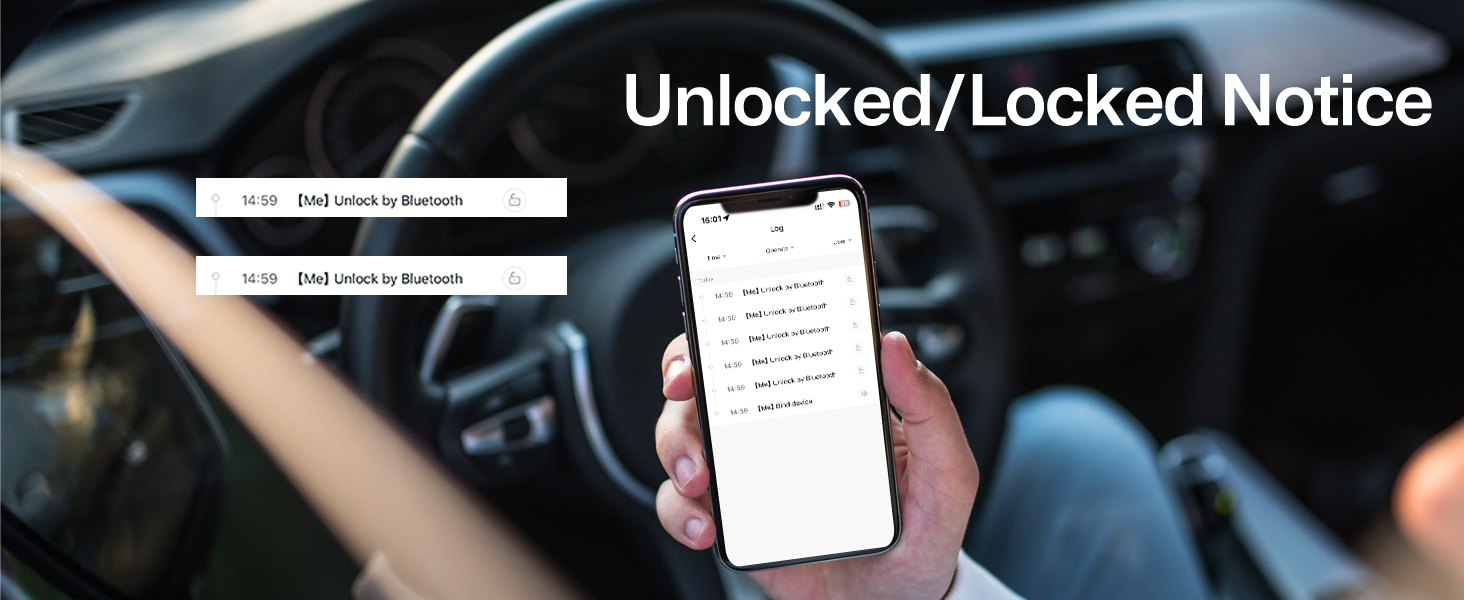
Figure 4.10: The convenience of auto-lock.
4.7 Silent Mode
Activate silent mode through the app to eliminate beeping sounds when pressing the keypad, ideal for quiet environments or late-night entry/exit.
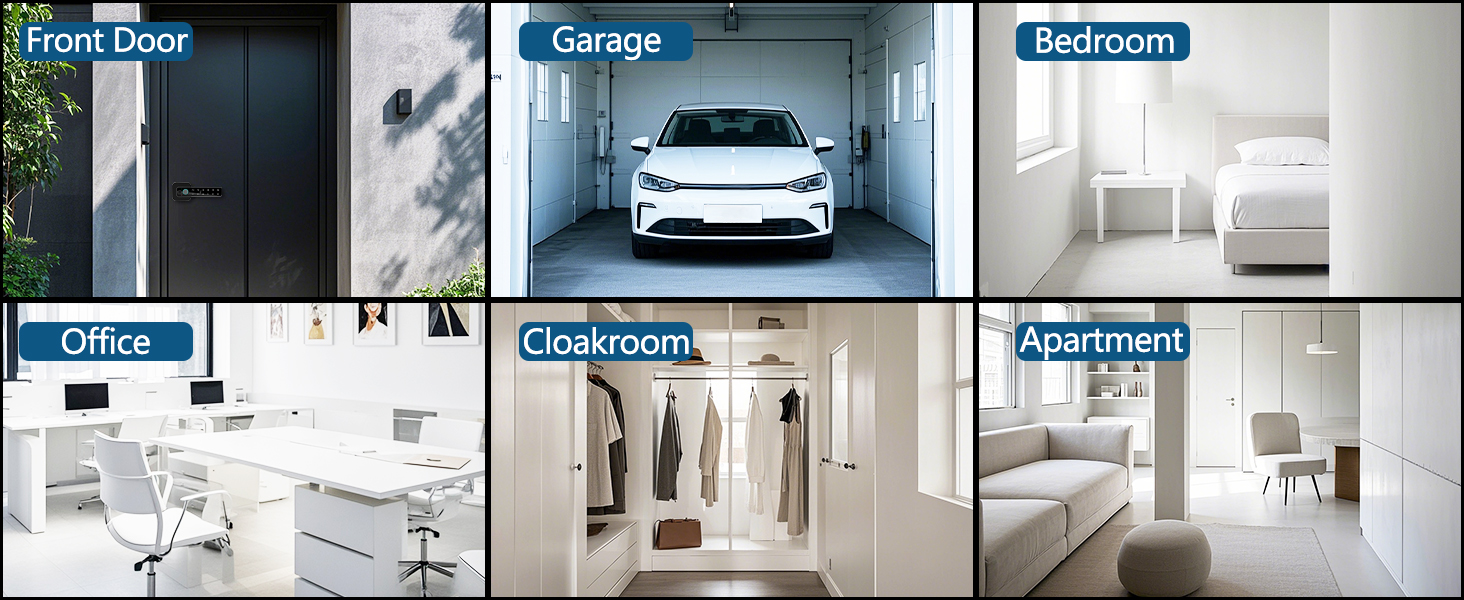
Figure 4.11: Silent mode for discreet operation.
5. Maintenance
5.1 Battery Replacement
The smart lock is powered by four (4) 1.5V alkaline AAA batteries. When the red battery indicator light turns on, it's time to replace them promptly.
- Open the battery compartment cover on the interior handle.
- Remove the old batteries and insert new 1.5V alkaline AAA batteries, ensuring correct polarity.
- Close the battery compartment cover.

Figure 5.1: Battery location and emergency power options.
5.2 Emergency Power
If the batteries completely drain before replacement, you can use a mechanical key or provide emergency power via a Type-C portable charger (power bank) connected to the port on the exterior handle.
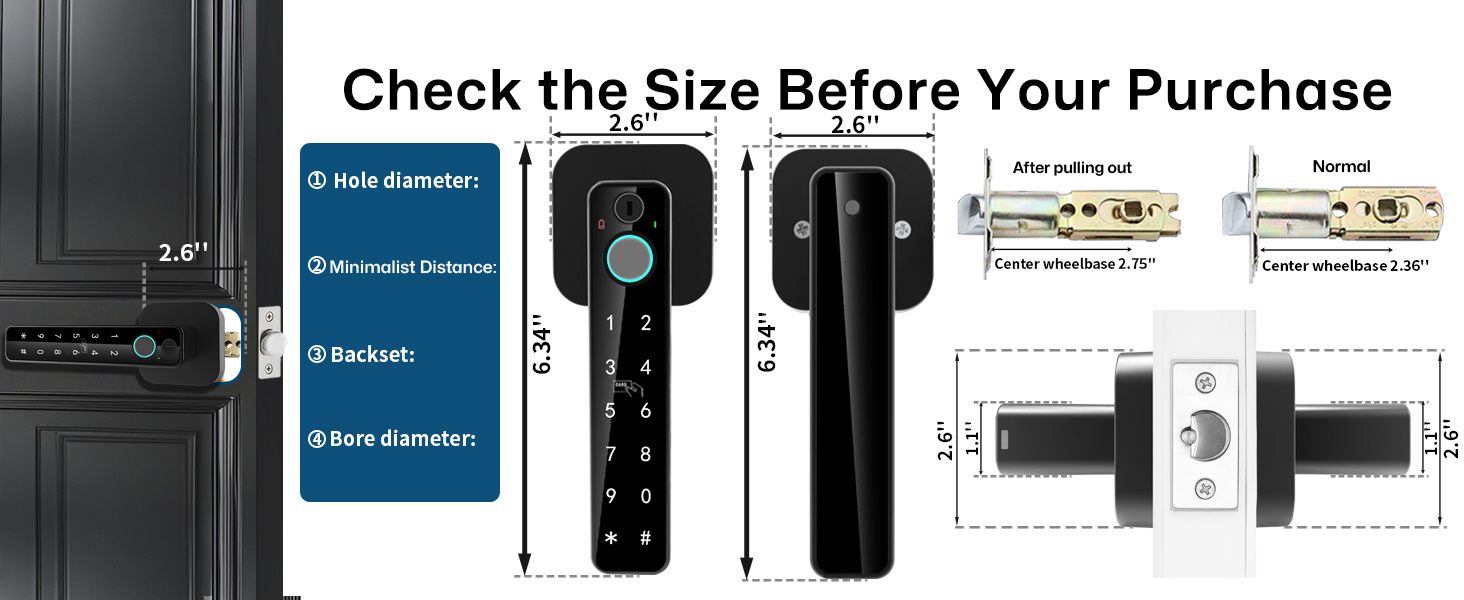
Figure 5.2: Emergency charging via Type-C port.
5.3 Cleaning
Wipe the lock's surface with a soft, dry cloth. Avoid using abrasive cleaners or solvents, as they may damage the finish or electronic components.
6. Troubleshooting
| Problem | Possible Cause | Solution |
|---|---|---|
| Lock not responding / No power |
|
|
| Fingerprint not recognized |
|
|
| Auto-lock is inconvenient |
|
|
| App connectivity issues |
|
|
| "Hijack" alerts (as reported by some users) |
|
|
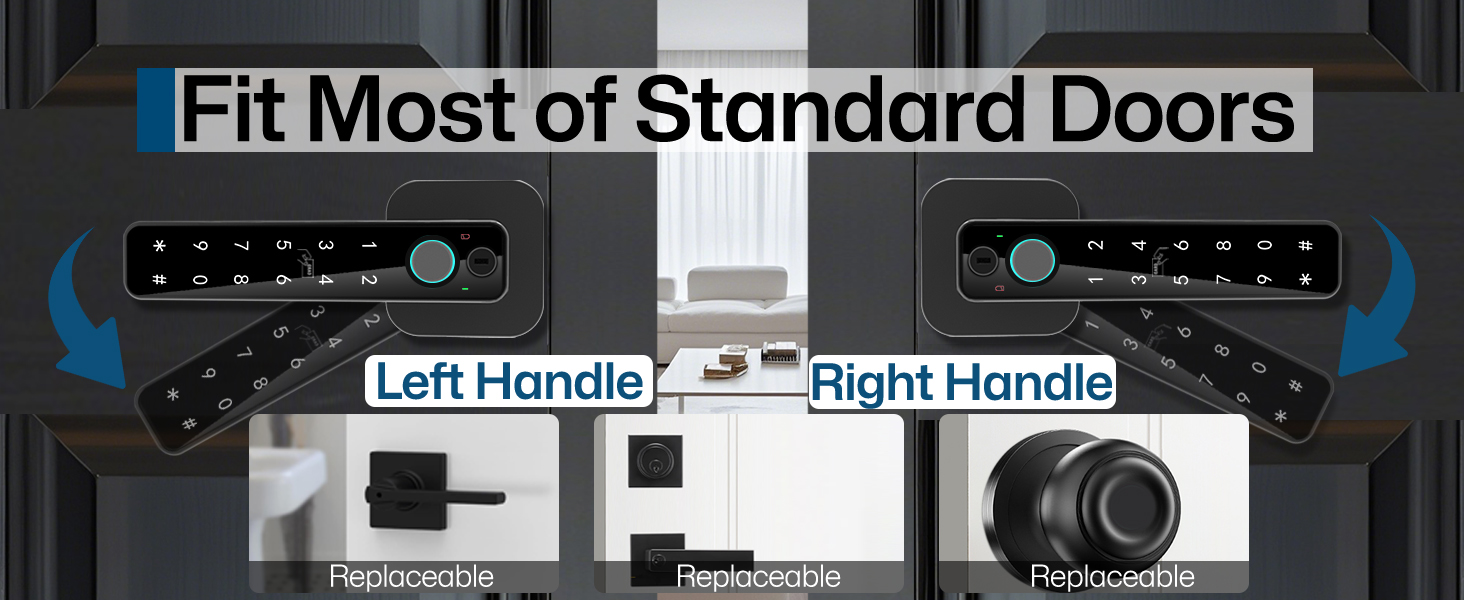
Figure 6.1: Smart alerts for low battery and failed verification attempts.
7. Specifications
| Feature | Detail |
|---|---|
| Model Name | YL-52-Black |
| Brand | Buoan |
| Lock Type | Biometric |
| Unlocking Methods | Fingerprint, App, Password, NFC Card, Mechanical Key |
| Fingerprint Capacity | Up to 100 fingerprints |
| User Code Capacity | Up to 200 users |
| Fingerprint Recognition Speed | 0.3 seconds |
| Material | Zinc Alloy |
| Power Source | 4 x 1.5V AAA Alkaline Batteries (not included) |
| Emergency Power | Type-C USB port |
| Adjustable Latch | 2.36" or 2.75" |
| Item Weight | 1.76 pounds |
| Package Dimensions | 8.62 x 7.95 x 3.78 inches |
8. Warranty and Support
For warranty information and technical support, please refer to the contact details provided with your product packaging or visit the official Buoan store on Amazon:
Visit the Buoan Store on Amazon
Please have your model number (YL-52-Black) and purchase details ready when contacting support.
Ask a question about this manual
Ask about setup, troubleshooting, compatibility, parts, safety, or missing instructions. Manuals+ will review the question and use this page’s manual context to help answer it.