
1. Introduction and Overview
This manual provides detailed instructions for the installation, operation, and maintenance of your ZHNN Android 13 Car Radio. This 9-inch touch screen car stereo offers advanced features including wireless CarPlay, Android Auto, GPS navigation, Wi-Fi, Bluetooth, and support for backup cameras. It is specifically designed for compatibility with Subaru Forester, WRX, and Impreza STi models from 2016 to 2018.
Please read this manual thoroughly before installation and use to ensure proper functionality and to maximize your driving experience.
2. Vehicle Compatibility Check
Before proceeding with installation, verify that your vehicle's console and air vent design match the compatible models. This unit is designed for Subaru Forester, WRX, and Impreza STi models from 2016, 2017, and 2018 that feature a silver air vent decoration.

Image 2.1: Visual guide for vehicle compatibility, highlighting the required silver air vent decoration for 2015-2018 models and showing that both emergency button types are supported.
If you are uncertain about compatibility, please provide your car's model, year, and a picture of your car console to customer support for verification.
3. Setup and Installation
3.1 Package Contents
Ensure all components are present before beginning installation:
- 9 Inch Car Radio
- Wiring Harness
- Backup Camera
- Microphone (Mic)
- RCA Cable
- AHD Rear Camera
- Tools (for installation)
- Reverse Camera Cable
- USB Cable (x2)
- GPS Antenna
- Canbus Box
- FM Antenna Adapter Cable
- Frame Accessories
- Instruction Manual

Image 3.1: Complete list of items included in the product package.
3.2 Wiring Connections
Carefully connect the wiring harness to your vehicle's existing wiring. Refer to the provided wiring diagram for specific connections.

Image 3.2: Overview of the main wiring connections for the car radio.
- AMP Wire Connection: If your vehicle is equipped with a factory external amplifier, connect the blue AMP wire from the Power Harness to the RCA cable's AMP Wire. If your vehicle does not have a factory amplifier, this connection is not required.
- CANBUS Connection: If your car requires a CANBUS, ensure the CANBUS cable is connected to the designated port.

Image 3.3: Detailed view of the AMP wire connection on the wiring harness.
3.3 Backup Camera Connection
The unit supports both original factory cameras and aftermarket backup cameras.
- Factory Camera: If your vehicle has a factory camera, connect it using the appropriate connector on the wiring harness. If the factory camera connector differs, you may use the included aftermarket camera.
- Aftermarket Camera: Connect the included AHD rear camera by plugging the CAM-labeled wire into the head unit's reverse camera port. Ensure the camera's power cable is connected to the reversing lamp (red wire to power+, black to GND).
Video 3.1: Instructions for connecting both factory and aftermarket backup cameras.

Image 3.4: Wiring diagram for aftermarket backup camera installation.
4. Operating Instructions
4.1 Android 13 Operating System
The head unit operates on Android 13, providing a familiar tablet-like interface. With 2GB RAM and 64GB storage, it supports smooth operation for various applications. Connect to Wi-Fi to access the Play Store and download additional apps.
4.2 Wireless CarPlay and Android Auto
The preinstalled CarPlay app enables seamless wireless connectivity with your smartphone. Enjoy hands-free calls, navigation, music, and app usage by connecting via Bluetooth, Wi-Fi, or USB.

Image 4.1: Display of Wireless CarPlay and Android Auto interfaces.
Video 4.1: Demonstration on how to switch between CarPlay function and other applications.
4.3 GPS Navigation
The built-in GPS module supports both offline and online navigation. Connect to Wi-Fi for real-time traffic information and map updates.
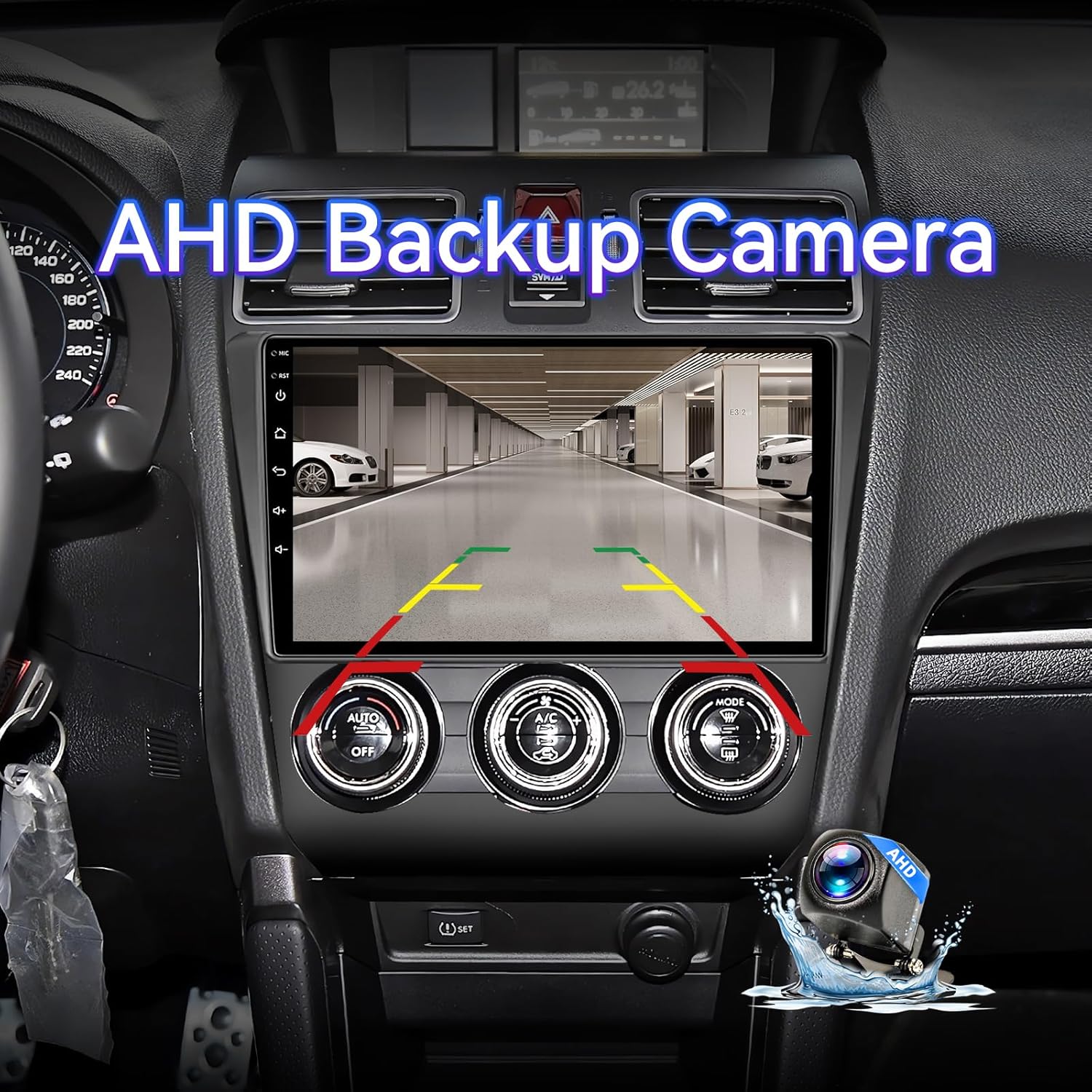
Image 4.2: GPS Navigation interface on the car radio.
4.4 Wi-Fi and Bluetooth Connectivity
Utilize Wi-Fi for internet access and app downloads. Bluetooth enables hands-free phone calls, phone book syncing, and wireless music streaming for a safer driving experience.
4.5 FM/RDS Radio
The integrated FM/RDS radio provides stable reception. You can preset your favorite stations and receive real-time news, sports, and weather updates.
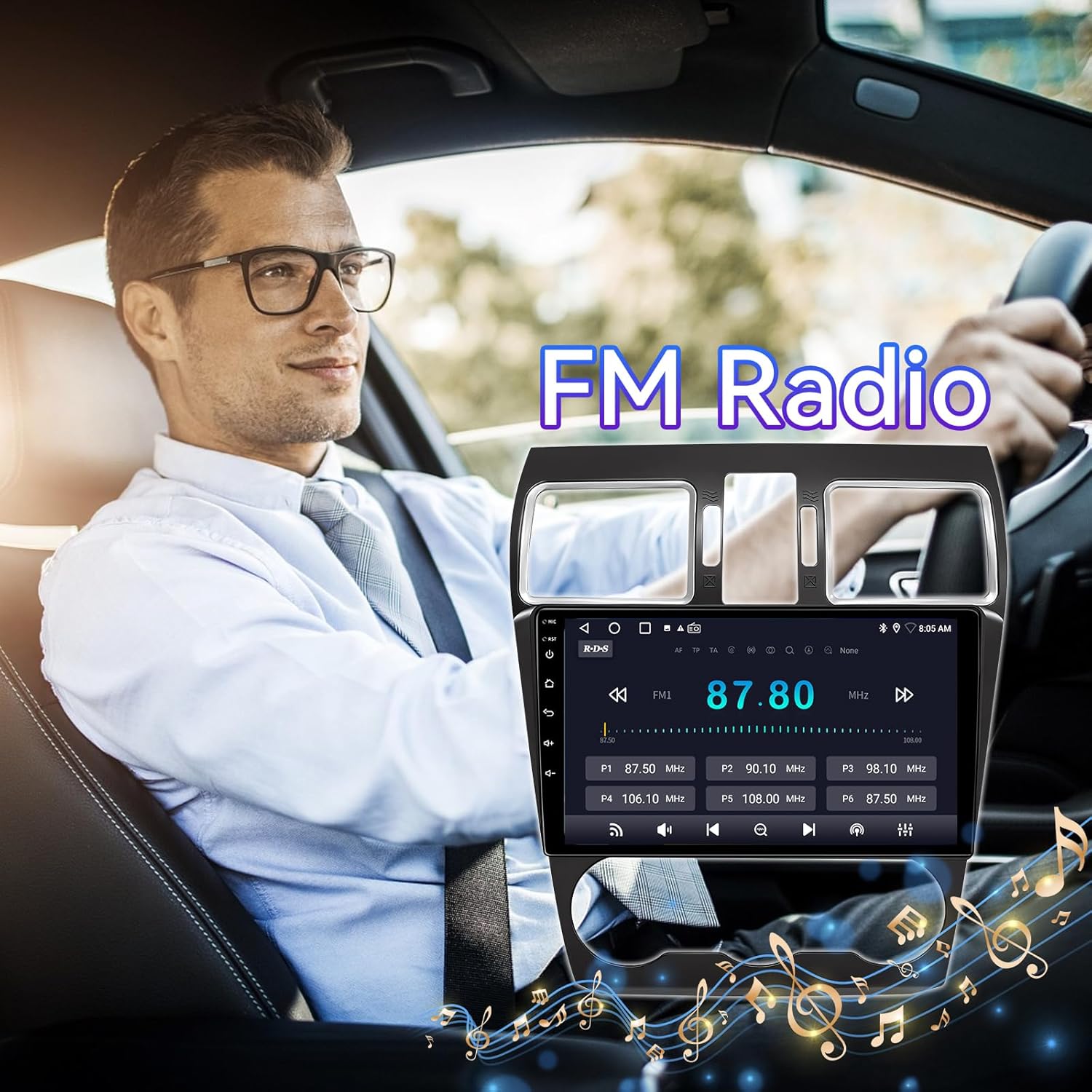
Image 4.3: FM Radio interface on the car radio.
4.6 Steering Wheel Control
The car head unit supports your vehicle's original factory steering wheel control functions. This allows you to manage audio, calls, and navigation directly from your steering wheel.
Video 4.2: Guide on how to set up and use steering wheel controls with the car radio.
4.7 Split Screen Functionality
The split-screen feature allows you to run two applications simultaneously, such as navigation and music playback, enhancing multitasking capabilities.
4.8 Mirror Link
Mirror Link functionality enables you to display your smartphone's screen directly onto the car radio's display.
5. Maintenance
To ensure the longevity and optimal performance of your car radio, follow these maintenance guidelines:
- Screen Cleaning: Use a soft, lint-free cloth to gently wipe the touch screen. Avoid abrasive cleaners or solvents that could damage the display.
- Temperature Control: Avoid exposing the unit to extreme temperatures, both hot and cold, for extended periods.
- Software Updates: Periodically check for available software updates to ensure you have the latest features and performance enhancements. Updates can typically be performed via Wi-Fi.
- General Care: Keep the unit free from dust and debris. Ensure all connections remain secure.
6. Troubleshooting
If you encounter any issues with your ZHNN Android 13 Car Radio, please refer to the following common troubleshooting tips:
- No Power: Check all power connections and fuses. Ensure the vehicle's ignition is on.
- No Sound: Verify speaker connections and amplifier wiring (if applicable). Check volume settings on both the unit and any connected devices.
- CarPlay/Android Auto Not Connecting: Ensure Bluetooth and Wi-Fi are enabled on your smartphone and the car radio. Try reconnecting the device. For USB connection, ensure the cable is functional.
- GPS Signal Issues: Ensure the GPS antenna is properly installed and has a clear view of the sky.
- Steering Wheel Controls Not Working: Verify the wiring for steering wheel controls. If the factory steering wheel control function fails, contact customer support for guidance.
- Backup Camera Not Displaying: Check the camera's power and video signal connections. Ensure the reverse gear is engaged. If the factory camera fails, contact customer support.
For persistent issues or specific technical assistance, please contact ZHNN customer support via Amazon Message. We offer one-on-one step-by-step installation and setup guidance.
7. Specifications
| Brand | ZHNN |
| Operating System | Android 13 |
| Screen Size | 9 Inches |
| Display Type | LCD, Capacitive Touch Screen |
| Memory Storage Capacity | 64 GB |
| Connectivity Technology | Bluetooth, USB, Wi-Fi |
| Special Features | Android Auto, Wireless CarPlay, Touchscreen, GPS Navigation, FM/RDS Radio |
| Vehicle Service Type | Car |
| Map Type | North America |
| Audio Output Mode | Stereo |
| Control Method | Remote, Touch, Voice |
8. Warranty and Support
ZHNN is committed to providing quality products and customer satisfaction. This product comes with a standard manufacturer's warranty covering defects in materials and workmanship under normal use. For specific warranty details, please refer to the product packaging or contact customer support.
If you require assistance with installation, setup, or troubleshooting, please do not hesitate to contact us directly via Amazon Message. Our support team is available to provide one-on-one guidance to help resolve any issues you may encounter.
For additional support and resources, visit the ZHNN Store on Amazon.