Introduction
This manual provides comprehensive instructions for the installation, operation, and maintenance of your Commercial Electric 12 inch LED Flush Mount Smart Light. This fixture features CCT (Correlated Color Temperature) and RGB (Red, Green, Blue) color selection, a night light function, and smart control capabilities via the Hubspace app, Wi-Fi, or Bluetooth. It is also compatible with Alexa and Google Assistant for voice control.
Safety Information
Please read and understand all instructions before beginning installation. Failure to follow these instructions may result in electric shock, fire, or other hazards that could cause injury or property damage.
- WARNING: Risk of electric shock. Disconnect power at the fuse or circuit breaker before installing or servicing.
- WARNING: Risk of fire. Use only with 120V AC, 60Hz circuits.
- Do not install this fixture in wet locations. Suitable for damp locations.
- Ensure all electrical connections are secure and comply with local codes and ordinances.
- Do not attempt to disassemble or modify the fixture. There are no user-serviceable parts inside.
- Consult a qualified electrician if you are unsure about the installation process.
Package Contents
Verify that all parts listed below are included in your package:
- LED Flush Mount Smart Light Fixture
- Mounting Bracket
- Mounting Screws and Wire Nuts
- Instruction Manual
Setup and Installation
Follow these steps to properly install your LED flush mount light fixture.
Pre-Installation
- Turn off power: Locate the circuit breaker or fuse box and turn off the power to the light switch location.
- Prepare wiring: Ensure the existing wiring from the ceiling is properly stripped and ready for connection.
Mounting the Fixture
- Attach mounting bracket: Secure the mounting bracket to the junction box in the ceiling using the provided screws.
- Connect wiring: Connect the fixture's white wire to the supply white wire, the fixture's black wire to the supply black wire, and the fixture's ground wire to the supply ground wire using the provided wire nuts. Ensure connections are secure.
- Attach fixture: Carefully align the fixture with the mounting bracket and secure it in place.
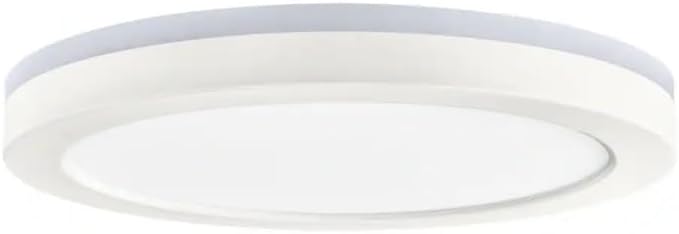
Image: Commercial Electric 12 inch LED Flush Mount Smart Light Fixture, showing its matte white finish and circular design.
Hubspace App Connection
- Download Hubspace App: Download the free Hubspace app from your device's app store.
- Create Account: Open the app and create a Hubspace account or log in.
- Add Device: Follow the in-app instructions to add your new LED flush mount light. Ensure your Wi-Fi network is 2.4GHz.
- Power On: Once prompted by the app, turn on the power to the light fixture at the circuit breaker. The light should begin to blink, indicating it is in pairing mode.
- Complete Pairing: Follow the remaining steps in the Hubspace app to complete the pairing process.
Operating Instructions
Your smart light offers various control options and features:
- Remote Control via Hubspace App: Control your light from anywhere using the Hubspace app on your smartphone or tablet.
- Wireless Operation: Connects directly to your existing Wi-Fi or Bluetooth network; no additional hub is required.
- Voice Control: Compatible with Amazon Alexa and Google Assistant for hands-free operation. Link your Hubspace account to your voice assistant app.
- CCT (Color Temperature) Selection: Adjust the white light color temperature from 2700K (soft white) to 6500K (daylight) using the Hubspace app.
- RGB Color Selection: Choose from a wide spectrum of colors to match any mood or setting.
- Dimming: Adjust the brightness from 5% to 100% through the Hubspace app.
- Night Light Function: Activate a low-level, warm light setting for nighttime use.
- Group Control: If you have multiple Hubspace-enabled lights, you can group them together in the app to control them simultaneously.
Maintenance
To maintain the appearance and performance of your LED flush mount light, follow these simple guidelines:
- Cleaning: Ensure the power is off before cleaning. Wipe the fixture with a soft, dry, or slightly damp cloth. Do not use abrasive cleaners, solvents, or polishes as they may damage the finish or electrical components.
- No User-Serviceable Parts: The LED components are integrated and not replaceable. Do not attempt to open the fixture.
Troubleshooting
If you encounter issues with your light fixture, refer to the table below for common problems and solutions.
| Problem | Possible Cause | Solution |
|---|---|---|
| Light does not turn on. | No power to the fixture. Loose wiring connection. | Check circuit breaker/fuse. Ensure all wire connections are secure. |
| Light flickers or dims unexpectedly. | Loose wiring. Incompatible dimmer switch (if not using app dimming). | Check wiring connections. This smart light is dimmable via the Hubspace app only; do not use with external dimmer switches. |
| Cannot connect to Hubspace app. | Incorrect Wi-Fi password. Router is 5GHz only. Light not in pairing mode. | Verify Wi-Fi password. Ensure your router supports 2.4GHz. Power cycle the light (turn off/on at switch) to re-enter pairing mode. |
| Voice control not working. | Hubspace account not linked to voice assistant. Incorrect commands. | Ensure Hubspace is linked in your Alexa/Google Home app. Refer to voice assistant documentation for correct commands. |
Specifications
| Feature | Detail |
|---|---|
| Model Number | 1010633889 |
| Brand | Commercial Electric |
| Material | Acrylic |
| Light Fixture Form | Ceiling |
| Number of Light Sources | 1 |
| Item Weight | 3 Pounds |
| Product Dimensions (L x W x H) | 12.13 x 12.13 x 1.25 inches |
| Maximum Brightness | 1350 Lumens |
| Color Temperature (CCT) | 2700K (Soft White) to 6500K (Daylight) |
| Dimming Range | 5% to 100% (via Hubspace app) |
| Connectivity | Wi-Fi (2.4GHz) / Bluetooth |
| Voice Assistant Compatibility | Alexa, Google Assistant |
Warranty and Support
For warranty information or technical support, please refer to the documentation included with your purchase or visit the Commercial Electric website. You may also contact customer service through the Hubspace app for assistance with smart features.


