
Introduction
Thank you for choosing the Xtrike Me GK916 Mechanical Gaming Keyboard. This keyboard is designed for an enhanced gaming experience, featuring durable mechanical switches, vibrant rainbow LED backlighting, and advanced anti-ghosting technology. This manual provides essential information for setup, operation, maintenance, and troubleshooting to ensure optimal performance.
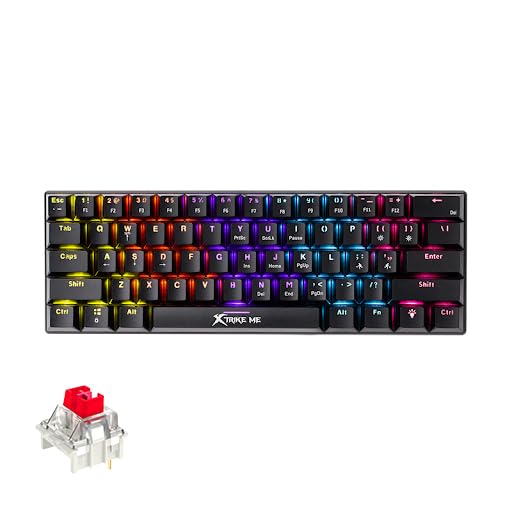
Image: Top-down view of the Xtrike Me GK916 mechanical gaming keyboard, showcasing its compact 87-key layout and illuminated rainbow backlighting.
Setup
- Unpacking: Carefully remove the keyboard and its USB cable from the packaging.
- Connection: Connect the USB cable from the keyboard to an available USB 2.0 port on your computer, laptop, or compatible gaming console.
- Driver Installation: The Xtrike Me GK916 is a plug-and-play device. No additional drivers are required for basic functionality. Your operating system (Windows XP or newer) will automatically detect and install the necessary components.
- Placement: Place the keyboard on a stable, flat surface. Adjust the rear feet for a comfortable typing angle if desired.

Image: Side profile of the Xtrike Me GK916 keyboard, illustrating the adjustable feet that allow users to modify the typing angle for ergonomic comfort.
Operating Instructions
Basic Operation
- Key Layout: The keyboard features an 87-key QWERTY layout, providing essential keys for gaming and general use.
- Mechanical Switches: Equipped with red mechanical switches, offering a linear feel, 4.0mm travel distance, and 45g actuation force. These switches are rated for 50 million presses, ensuring durability and responsiveness.
- Anti-Ghosting: The advanced anti-ghosting technology supports up to 22 simultaneous key presses, ensuring that all your commands are registered accurately during intense gaming sessions.
LED Backlighting Control
The keyboard features rainbow LED backlighting with 12 different lighting modes. To cycle through these modes or adjust brightness, use the following key combinations:
- Change Lighting Mode: Press Fn + Insert (or similar designated key, refer to keyboard legends) to cycle through the 12 available rainbow lighting effects.
- Adjust Brightness: Press Fn + Up Arrow to increase brightness, and Fn + Down Arrow to decrease brightness.
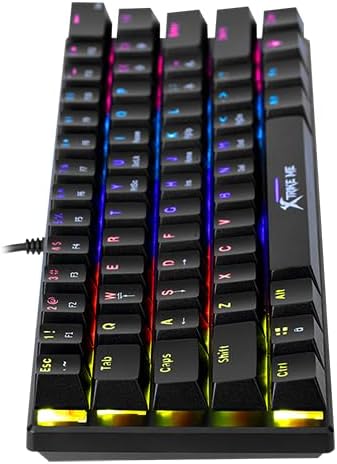
Image: Angled view of the Xtrike Me GK916 keyboard, highlighting the vibrant rainbow LED backlighting visible through the transparent keycaps and key legends.
Maintenance
- Cleaning: Use a soft, dry cloth to wipe the surface of the keyboard. For deeper cleaning, you may use compressed air to remove dust and debris from between the keycaps. Avoid using harsh chemicals or abrasive materials.
- Spills: In case of liquid spills, immediately disconnect the keyboard from your computer. Turn it upside down to drain any liquid and allow it to dry completely before reconnecting. Do not attempt to use the keyboard while it is wet.
- Storage: Store the keyboard in a cool, dry place away from direct sunlight and extreme temperatures when not in use for extended periods.
Troubleshooting
- Keyboard Not Responding:
- Ensure the USB cable is securely connected to both the keyboard and the computer.
- Try connecting the keyboard to a different USB port.
- Test the keyboard on another computer to rule out system-specific issues.
- Backlighting Not Working:
- Check if the backlighting is turned off or set to the lowest brightness level using the Fn key combinations mentioned in the Operating Instructions.
- Ensure the keyboard is receiving sufficient power from the USB port.
- Keys Not Registering:
- Clean the affected key to ensure no debris is obstructing the switch.
- If multiple keys are not registering, try reconnecting the keyboard or restarting your computer.
Specifications
| Feature | Detail |
|---|---|
| Brand Name | Xtrike Me |
| Model Number | GK916 |
| Compatible Devices | PC, Laptop, Gaming Consoles |
| Connectivity Technology | USB |
| Keyboard Description | Mechanical |
| Recommended Uses | Gaming |
| Special Features | Rainbow LED Backlighting, Mechanical Red Switches |
| Style | Mechanical Gaming Keyboard |
| Material | Plastic |
| Included Components | USB Cable |
| Number of Keys | 87 |
| Power Source | USB Powered |
| Switch Type | Linear (Red Switches) |
| Keyboard Layout | QWERTY |
| Hand Orientation | Ambidextrous |
| Item Weight | 800 grams |

Image: Overhead view of the Xtrike Me GK916 mechanical gaming keyboard, displaying the full 87-key QWERTY layout and keycap details.
Warranty and Support
Warranty Information
This Xtrike Me GK916 Mechanical Gaming Keyboard comes with a 30-day warranty from the date of purchase. This warranty covers manufacturing defects under normal use. It does not cover damage caused by misuse, accidents, unauthorized modifications, or improper maintenance.
Customer Support
For any questions, technical assistance, or warranty claims, please contact your retailer or the Xtrike Me customer support team. Please have your purchase receipt and product model number (GK916) ready when contacting support.