1. Introduction
Thank you for purchasing the Maypug Mini Projector. This manual provides essential information for setting up, operating, and maintaining your projector. Please read it thoroughly before use to ensure optimal performance and safety.
2. Safety Information
- Do not block the ventilation openings. Ensure adequate airflow around the projector.
- Avoid direct exposure to the projector lens light.
- Keep the projector away from water, moisture, and extreme temperatures.
- Use only the provided power adapter.
- Do not attempt to disassemble or repair the projector yourself. Contact customer support for assistance.
3. Package Contents
Please check that all items are present in your package:
- Maypug Mini Projector
- Remote Control
- Power Adapter
- User Manual
4. Product Overview
The Maypug Mini Projector is a compact and versatile device designed for home entertainment and presentations. It features Android TV, 1080P native resolution with 4K support, high brightness, and various connectivity options.

Image: Front view of the Maypug Mini Projector, showcasing its compact design and smart features with various streaming app logos in the background.

Image: An infographic summarizing key features including 1080P FHD, 4K support, 20000LM brightness, 180° rotation, flexible zoom, 2GB RAM, 16GB ROM, Android TV 11.0, Bluetooth 5.4, and WiFi 6.
5. Setup
5.1 Placement
Position the projector on a stable, flat surface. The integrated stand allows for flexible placement and projection angles. You can adjust the height and rotate the projector up to 180 degrees to project onto walls or ceilings.

Image: The projector shown with its adjustable stand, demonstrating its 180-degree rotation feature for versatile projection angles, including ceiling projection.
5.2 Projection Distance and Screen Size
The optimal projection distance ranges from 1 to 4 meters, supporting screen sizes from 40 to 130 inches. Adjust the projector's distance from the projection surface to achieve your desired screen size.
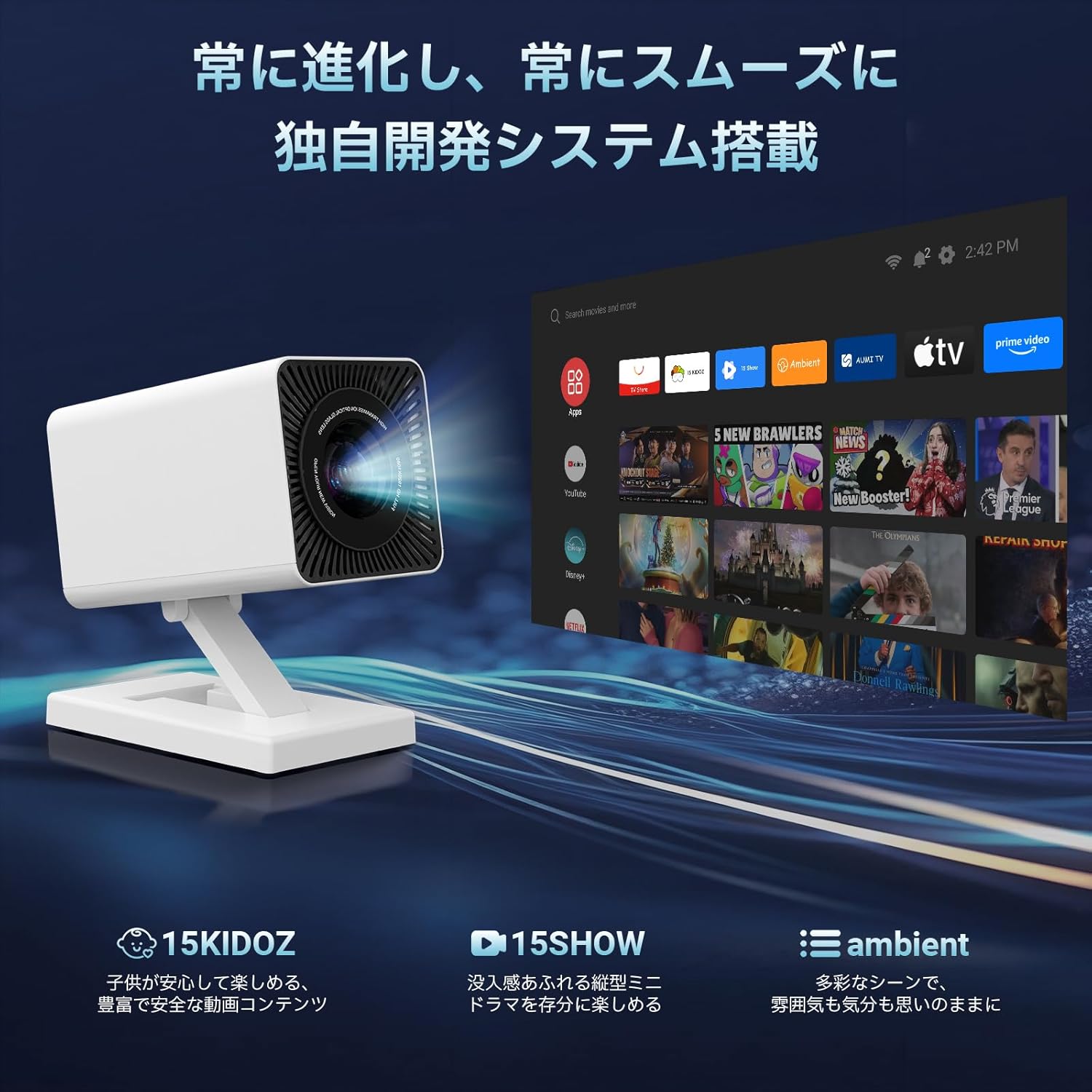
Image: A diagram illustrating recommended projection distances (1.2m, 2m, 4m) and corresponding screen sizes (40", 100", 130") for the projector.
5.3 Power Connection
- Connect the power adapter to the projector's power input port.
- Plug the power adapter into a wall outlet.
6. Operating Instructions
6.1 Power On/Off
- Power On: Press the power button on the projector or remote control.
- Power Off: Press the power button again. Confirm shutdown if prompted.
6.2 Initial Setup
Upon first power-on, follow the on-screen instructions to set up your language, Wi-Fi network, and Google account (for Android TV features).
7. Connectivity
7.1 Wi-Fi Connection (Wi-Fi 6)
The projector supports high-speed dual-band Wi-Fi 6 (2.4GHz and 5GHz) for stable and fast wireless connections. Navigate to the network settings to connect to your home Wi-Fi network.

Image: The projector displaying a screen with WiFi 6 connection status, indicating faster and more stable wireless performance, alongside a smartphone mirroring its screen to the projector.
7.2 Bluetooth Connection (Bluetooth 5.4)
Connect external Bluetooth speakers, headphones, or other compatible devices using Bluetooth 5.4. Go to Bluetooth settings to pair your devices.
7.3 Wired Connections
The projector includes HDMI, USB, and a 3.5mm audio jack for connecting various devices such as PCs, game consoles (PS5, Switch), USB storage, and external audio systems. (HDMI cable sold separately).
8. Smart Features
8.1 Android TV and Apps
Equipped with a smart OS, the projector supports both its own app store and Google Play, providing access to over 8,000 applications and 600,000+ movies and TV shows. Popular streaming apps like YouTube and Android TV are readily available.

Image: The projector displaying its 'Smart Lilac OS' interface, showing various streaming service icons like Hulu, Prime Video, and Netflix, indicating its smart TV capabilities.
8.2 Home Screen Customization
The home screen is customizable, allowing you to arrange frequently used apps and settings for quick access and a smoother user experience.
8.3 System Updates and Additional Features
Regular system updates enhance functionality. Recent updates include the '15KIDOZ' video app for children and '15SHOW' for English mini-dramas. The 'Ambient' function allows you to project photos and videos from your smartphone onto walls, creating dynamic backgrounds.

Image: The projector displaying new features like '15KIDOZ', '15SHOW', and 'Ambient' mode, highlighting continuous system evolution and content updates.
9. Image Adjustment
9.1 Automatic Keystone Correction
The projector features automatic keystone correction (up to 15°) to ensure a perfectly rectangular image, even if the projector is placed at an angle. Manual keystone correction is also available for fine-tuning.
9.2 Focus Adjustment
Both manual and automatic focus adjustments are supported, providing a clear image within seconds.
9.3 Zoom Function
Adjust the screen size from 50% to 100% using the digital zoom function to fit your viewing environment without moving the projector.

Image: A visual representation of the projector's automatic keystone correction and flexible zoom (50%-100%) capabilities, showing how the image can be adjusted to fit the screen perfectly.
10. Audio
The projector is equipped with a built-in 5W stereo sound system, delivering clear and powerful audio. For an enhanced audio experience, you can connect external speakers via Bluetooth or the 3.5mm audio jack.
11. Maintenance
11.1 Cleaning the Lens
Use a soft, lint-free cloth specifically designed for optical lenses to gently clean the projector lens. Avoid abrasive materials or harsh chemicals.
11.2 Cleaning the Exterior
Wipe the projector's exterior with a soft, dry cloth. Do not use liquid cleaners directly on the device.
11.3 Ventilation
Ensure the ventilation openings are free from dust and obstructions to prevent overheating. Periodically clean the vents with a soft brush or compressed air.
12. Troubleshooting
- No Power: Check if the power adapter is securely connected to both the projector and the power outlet.
- No Image: Ensure the input source is correctly selected. Check all cable connections (HDMI, USB). Adjust focus and keystone correction.
- No Sound: Verify that the volume is not muted or set too low. Check audio output settings and external speaker connections.
- Blurred Image: Adjust the focus manually or use the auto-focus function. Ensure the projection surface is flat.
- Wi-Fi/Bluetooth Connection Issues: Restart the projector and your router/Bluetooth device. Ensure the projector is within range.
If problems persist, please contact Maypug customer support.
13. Specifications

Image: An illustration highlighting the projector's image quality features: 20000LM brightness, 4K support, 1080P native resolution, 15000:1 contrast ratio, and 50000+ hours light source life.
| Feature | Description |
|---|---|
| Brand | Maypug |
| Native Resolution | 1920x1080P (Full HD) |
| 4K Support | Yes |
| Brightness | 20000 Lumens |
| Contrast Ratio | 15,000:1 |
| Light Source Life | 50,000+ hours |
| Operating System | Smart OS (Android TV compatible) |
| Internal Storage (ROM) | 16GB |
| CPU | 4-core |
| Wi-Fi | Wi-Fi 6 (Dual-band 2.4GHz/5GHz) |
| Bluetooth | Bluetooth 5.4 |
| Built-in Speaker | 5W Stereo |
| Projection Size | 40-130 inches |
| Projection Distance | 1-4 meters |
| Keystone Correction | Automatic (up to 15°) & Manual |
| Focus Adjustment | Automatic & Manual |
| Zoom Function | 50-100% |
| Rotation Angle | 180° |
| Input Ports | HDMI, USB, 3.5mm Audio Jack |
| Weight | Approximately 0.46 kg |
| Power Voltage | 120V (AC) |
14. Warranty and Support
14.1 Warranty
This product comes with a 1-year warranty from the date of purchase. If you encounter any defects or issues with your projector during this period, please contact our customer service team.
14.2 Customer Support
For any questions, technical assistance, or warranty claims, please contact us via email. Our support team is available to help you. The system supports multiple languages, and you can select your preferred language in the settings. An electronic version of the Japanese instruction manual is available upon request from customer service.


