1. Introduction
The UGREEN FineTrack Slim G is an ultra-thin Bluetooth tracker card designed to help you locate your valuables using the Google Find Hub app on Android devices. This manual provides essential information for setting up, operating, maintaining, and troubleshooting your FineTrack Slim G tracker.
Key Features:
- Google Find Hub App Integration: Seamlessly pair with your Android phone (Android 9.0 and above) to track items.
- Smart Tracking: Locate items nearby by playing a sound or remotely via the Google Find Hub network.
- Lost Mode & Alerts: Receive notifications when out of range and enable Lost Mode to share contact information for recovery.
- Extended Battery Life: Up to 5 years of operation without frequent replacement.
- Ultra-Thin & Durable: At 1.7mm thin, it fits easily into wallets, passports, and cardholders. IP68 waterproof rating ensures protection against dust and water.
- Family Sharing: Share your tracker's location with family members for collaborative tracking.
Note: This device is compatible with Android 9.0 and above only. It is not compatible with iOS or HarmonyOS systems.
2. Setup Guide
Follow these steps to set up your UGREEN FineTrack Slim G tracker card with your Android device.
Preparation:
- Ensure Bluetooth is enabled on your Android phone.
- Ensure your phone has a stable internet connection.
- Download the Google Find Hub app from the Google Play Store.
Pairing Instructions:
- Step 1: Power On
Place the FineTrack Slim G near your Android phone. Press the button on the tracker card once to turn it on. The product will automatically shut down if pairing is not completed within 5 minutes; you will need to press the button again to restart the power. - Step 2: Connect via App
A pop-up window will automatically appear on your phone. Tap "Connect," then "Agree and continue," followed by "Open app," and finally "Allow access to nearby devices." This will complete the pairing process.
Image: The FineTrack Slim G tracker card is shown next to an Android phone, illustrating the first step of pressing the button to power it on for pairing.
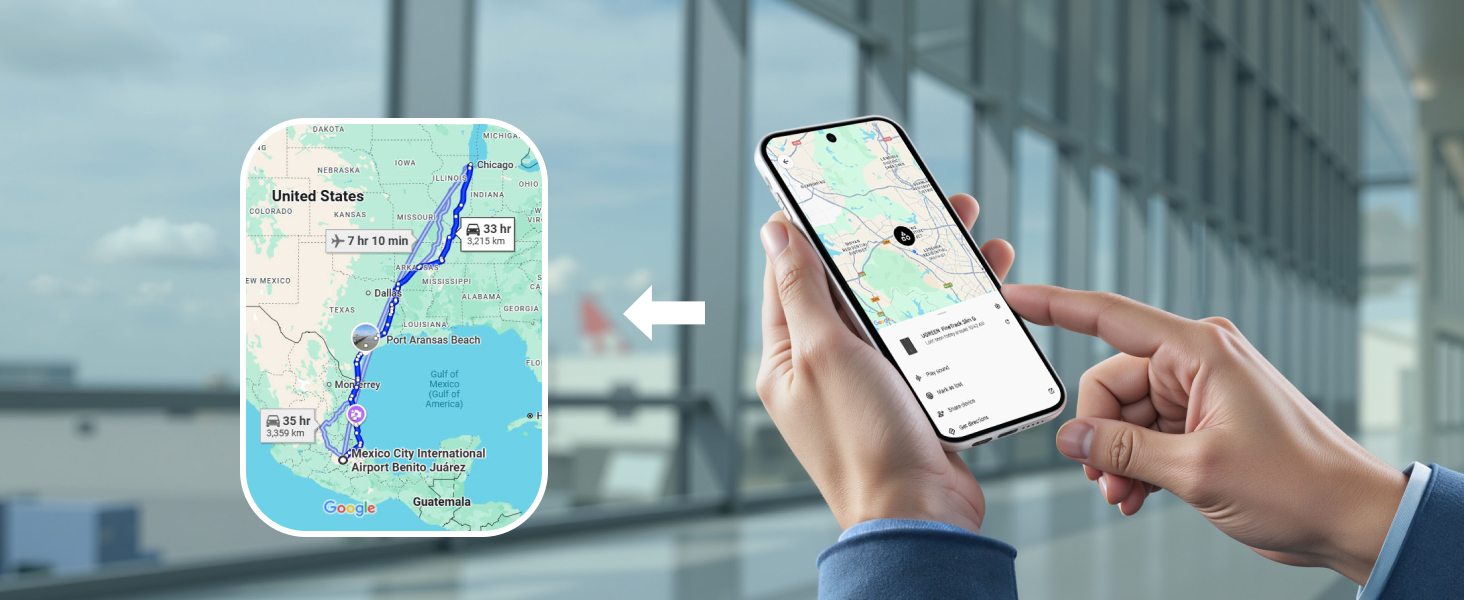
Image: A sequence of four phone screens demonstrates the steps within the Google Find Hub app to connect the tracker, including prompts for connection, agreement, app opening, and permission granting.
3. Operating Instructions
Once your FineTrack Slim G is paired, you can utilize its features to keep track of your belongings.
Locating Nearby Items:
If your tracker card is within Bluetooth range, you can use the Google Find Hub app to play a sound on the tracker, helping you quickly pinpoint its location.
- Open the Google Find Hub app.
- Select your FineTrack Slim G device.
- Tap the "Play Sound" button. The tracker will emit an audible beep.
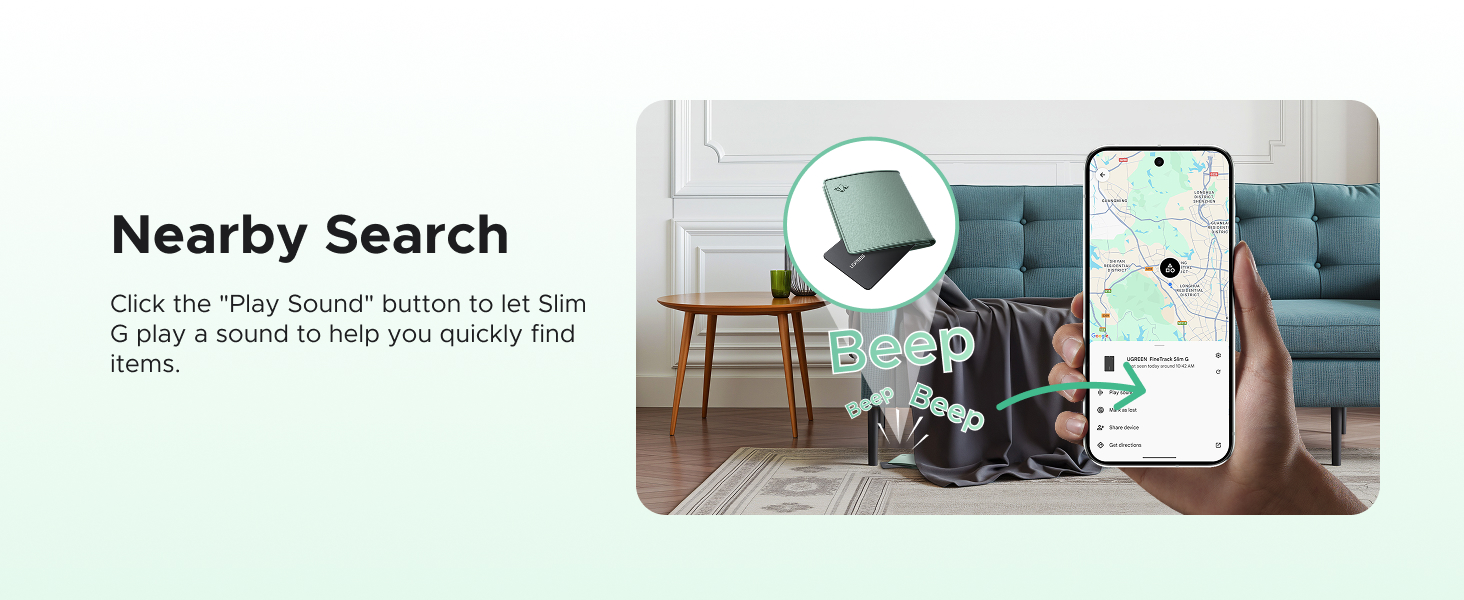
Image: A visual representation of the 'Nearby Search' function, showing the tracker card beeping and the corresponding option in the Find Hub app on a phone.
Locating Far Away Items (Remote Search):
When your tracker card is out of Bluetooth range, the Google Find Hub app leverages the vast network of Android devices to anonymously detect your tracker's location and provide its last known position on a map.
- Open the Google Find Hub app.
- Select your FineTrack Slim G device.
- View the tracker's last known location on the map.
- Tap the "Get Directions" button to navigate to your lost item.

Image: A user is shown viewing a map on their phone, which provides directions to the location of their lost FineTrack Slim G tracker.
Lost Item Alerts & Lost Mode:
The Google Find Hub app can notify you if your tracker moves out of range. If an item is confirmed lost, you can activate Lost Mode.
- When your tracker card moves out of range, the app sends an alert with its last known location.
- If your item is lost, enable "Lost Mode" in the app. You can then leave your contact information.
- If another Android device detects your FineTrack Slim G, it can remotely access your contact information to help facilitate recovery.
Note: Lost Mode must be activated in advance for these functions to work.
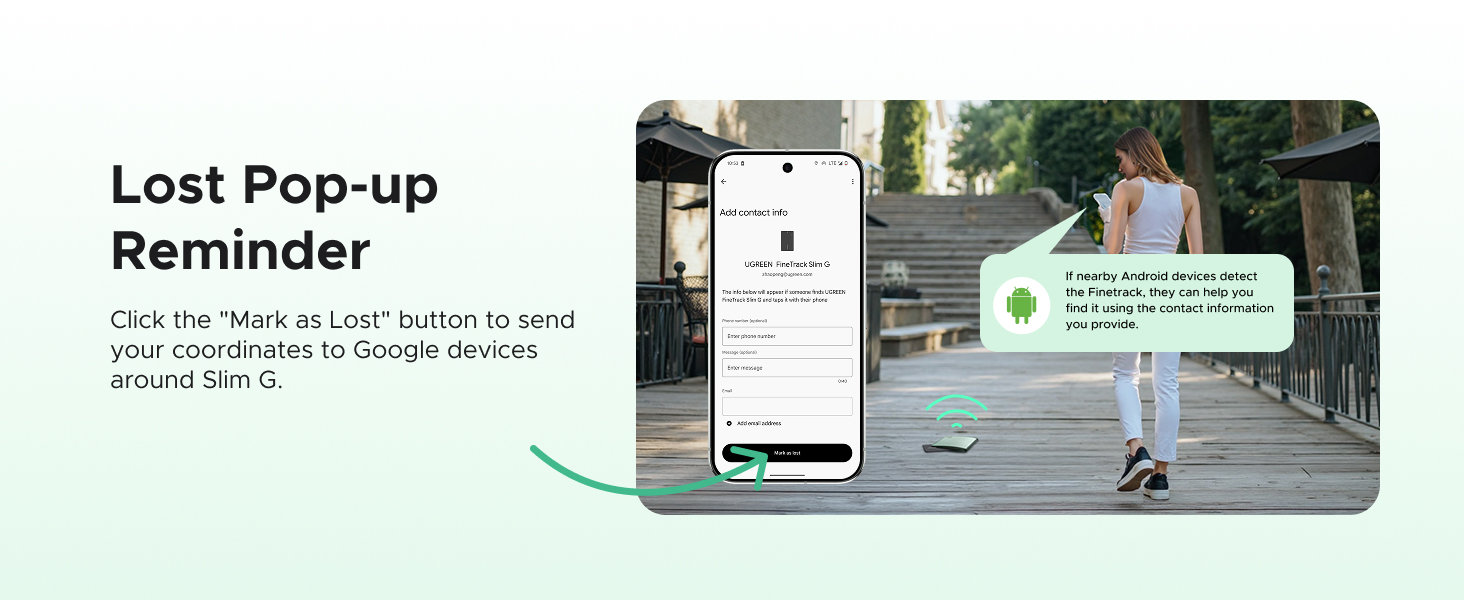
Image: This image illustrates the 'Lost Pop-up Reminder' feature, showing how users can input contact details in the app to aid in the recovery of a lost tracker.
Family Sharing:
You can share the location of your FineTrack Slim G with family members or trusted friends, allowing multiple people to help keep track of important items.
- In the Google Find Hub app, select your FineTrack Slim G.
- Tap the "Share Device" button.
- Follow the on-screen prompts to share access to the tracker's location.
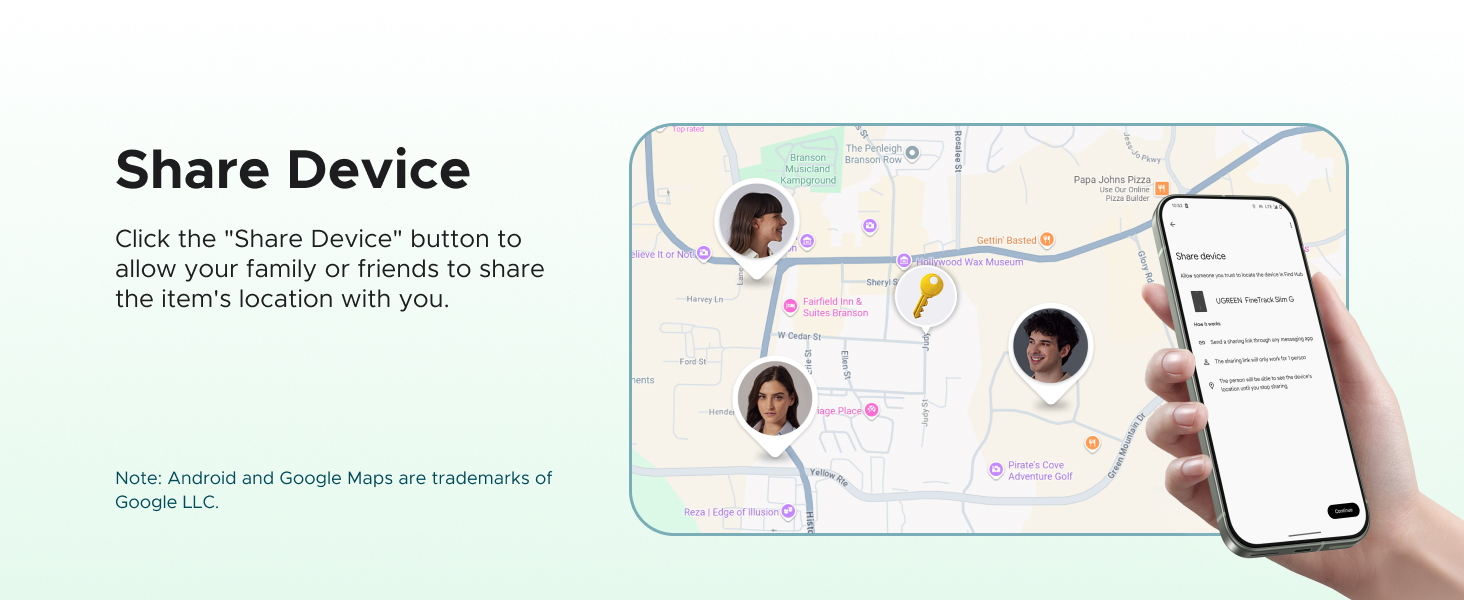
Image: The 'Share Device' feature is depicted, showing how users can share the tracker's location with others through the Find Hub app.
4. Maintenance
The UGREEN FineTrack Slim G is designed for minimal maintenance.
Battery Life:
The FineTrack Slim G features a non-rechargeable battery with an estimated lifespan of up to 5 years (60 months). You can monitor the current battery level through the Google Find Hub app. Once the battery is depleted, the unit will need to be replaced.

Image: The tracker card is shown alongside a visual emphasizing its 5-year battery life.
Cleaning and Care:
The device has an IP68 waterproof rating, meaning it is protected against dust and can withstand immersion in water up to 1.5 meters for up to 30 minutes. To clean, gently wipe the surface with a soft, damp cloth. Avoid using harsh chemicals or abrasive materials.
5. Troubleshooting
If you encounter issues with your UGREEN FineTrack Slim G, refer to the following common problems and solutions.
| Problem | Possible Cause | Solution |
|---|---|---|
| Tracker does not pair with phone. | Bluetooth off, unstable network, pairing timeout, device not powered on correctly. |
|
| Tracker not appearing in Google Find Hub app after pairing. | Incomplete app setup, temporary software glitch. |
|
| Tracker location is inaccurate or not updating. | Limited network of Android devices in the area, weak signal, app permissions. |
|
| Tracker does not beep when commanded. | Out of Bluetooth range, low battery, temporary connection issue. |
|
6. Specifications
| Feature | Detail |
|---|---|
| Model Number | 75497 |
| Dimensions (L x W x Th) | 3.3 x 2.08 x 0.17 inches (83.8 x 52.8 x 4.3 mm) |
| Item Weight | 2.82 ounces (80 grams) |
| Connectivity | Bluetooth |
| Battery Type | 1 Lithium Ion battery (included, non-replaceable) |
| Battery Life | Up to 5 years |
| Waterproof Rating | IP68 |
| Material | Plastic |
| Color | Black |
| Compatibility | Android 9.0 and above (Not compatible with iOS/HarmonyOS) |
7. Warranty and Support
Warranty Information:
For detailed warranty information regarding your UGREEN FineTrack Slim G, please refer to the official UGREEN website or contact UGREEN customer support directly. Warranty terms may vary by region and purchase location.
Customer Support:
If you require further assistance, have questions, or encounter issues not covered in this manual, please contact UGREEN customer support through their official website or the contact information provided with your product packaging.


