
1. Important Safety Information
Please read this manual carefully before installation and use. Keep this manual for future reference.
- Weight Capacity: Do not exceed the maximum weight capacity of 19.8 lbs (9 kg). Exceeding this limit may result in serious injury or product damage.
- Monitor Size: This monitor arm is designed for screens between 13 and 34 inches.
- VESA Compatibility: Ensure your monitor has VESA mounting patterns of 75x75mm or 100x100mm.
- Desk Thickness: Verify your desk thickness is within the specified range for C-clamp (0.39″–2.56″) or grommet base (0.39″–2.95″) mounting.
- Assembly: Assemble the product according to the instructions. Improper assembly may cause damage or serious personal injury.
- Moving Parts: Keep hands and fingers clear of moving parts to avoid pinching.
- Gas Spring: The gas spring is under high pressure. Do not disassemble or puncture. Adjust tension carefully as instructed.
2. Package Contents
Verify all components are present before beginning assembly:
- Monitor Arm Assembly
- Desk Clamp Base
- Grommet Base Components
- VESA Plate
- Mounting Hardware (screws, washers, spacers)
- Hex Keys for Adjustment
- Cable Clips
3. Setup Instructions
3.1 Choose Your Mounting Option
The ErGear Single Monitor Arm offers two installation methods: C-clamp or Grommet base. Select the method suitable for your desk.
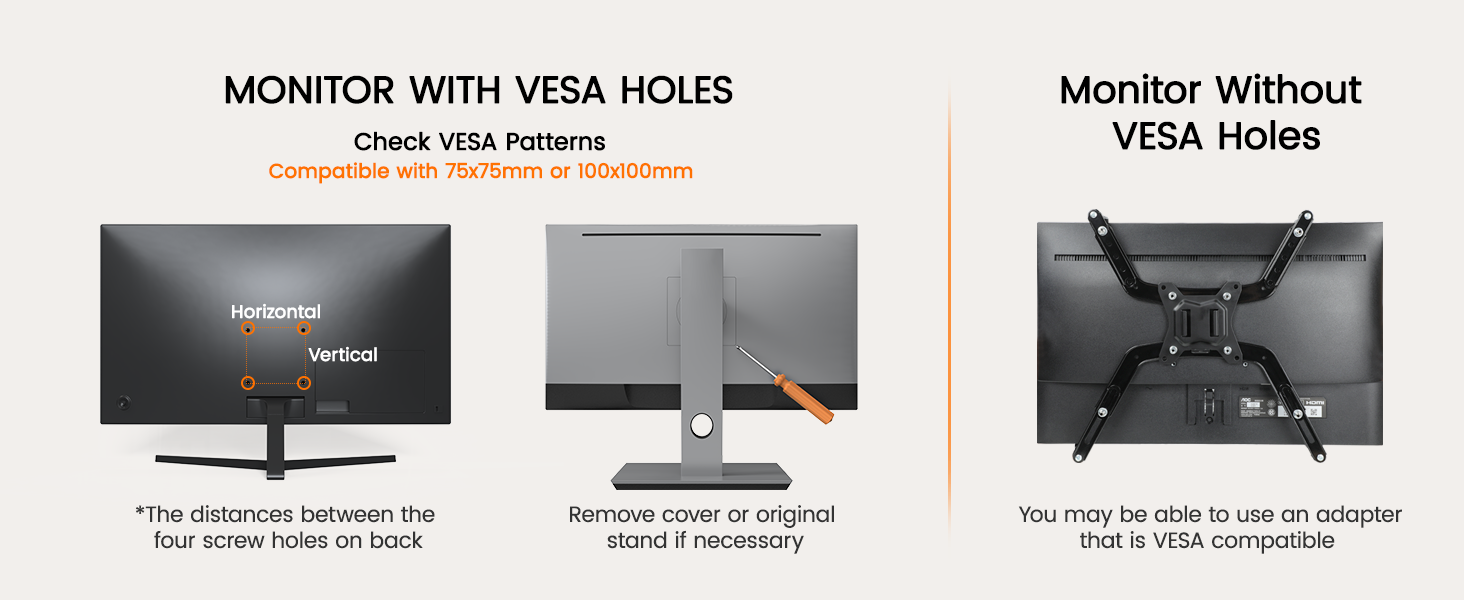
Image: Illustration of C-clamp mounting for desks 0.39″–2.56″ thick and grommet base mounting for desks 0.39″–2.95″ thick.
3.2 Attach VESA Plate to Monitor
The VESA plate features tool-free mounting for quick attachment to your monitor. Select the appropriate screws (M4 or M5) and spacers for your monitor's VESA holes (75x75mm or 100x100mm).

Image: A person demonstrating the tool-free VESA mounting by hand-tightening screws to attach the VESA plate to a monitor, contrasting with a traditional screwdriver method.
3.3 Assemble the Monitor Arm and Mount to Desk
Follow the step-by-step diagram to assemble the arm and secure it to your chosen desk mount. Ensure all connections are tight and stable.

Image: A visual guide showing the three main steps for quickly setting up the monitor arm: attaching the clamp to the desk, connecting the arm, and then attaching the monitor.
3.4 Cable Management
Utilize the integrated cable clips to route and organize your monitor cables along the arm. This helps maintain a clean and clutter-free workspace.
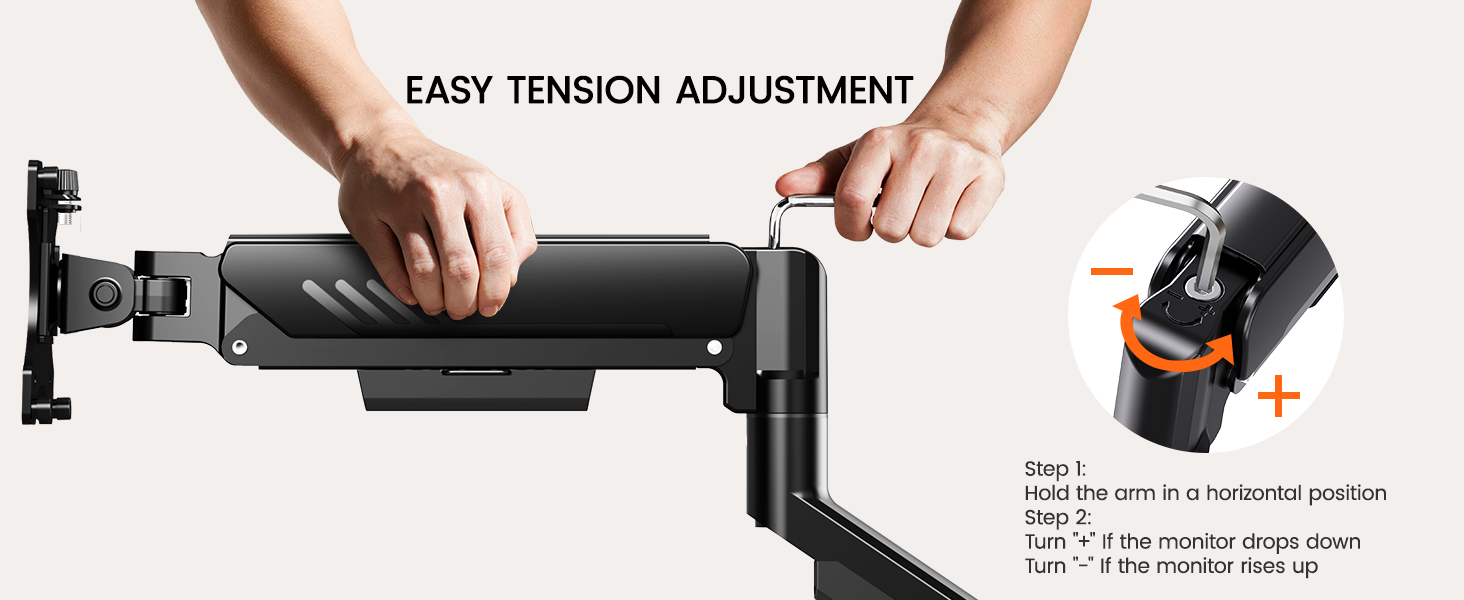
Image: A person demonstrating how to use the easy-access cable clips on the monitor arm to neatly route and hide monitor cables, contributing to a tidy workspace.
3.5 Video Guide: Simple Installation
Video: A seller-provided video demonstrating the simple installation process for the monitor arm, including attaching it to the desk and mounting the monitor.
4. Operating Instructions
4.1 Full Motion Flexibility
The ErGear Single Monitor Arm offers extensive adjustability to achieve your ideal viewing angle and ergonomic position. It features +80°/-50° tilt, ±90° swivel, and 360° rotation.

Image: A visual representation of the monitor arm's full motion capabilities, including tilt, rotation, and swivel, allowing users to find their perfect viewing angle.
4.2 Ergonomic Viewing Position
Adjust the monitor arm to raise your screen to eye level, reducing neck and shoulder strain. The arm provides precise height adjustment up to 17.5″ and a reach up to 18.1″.
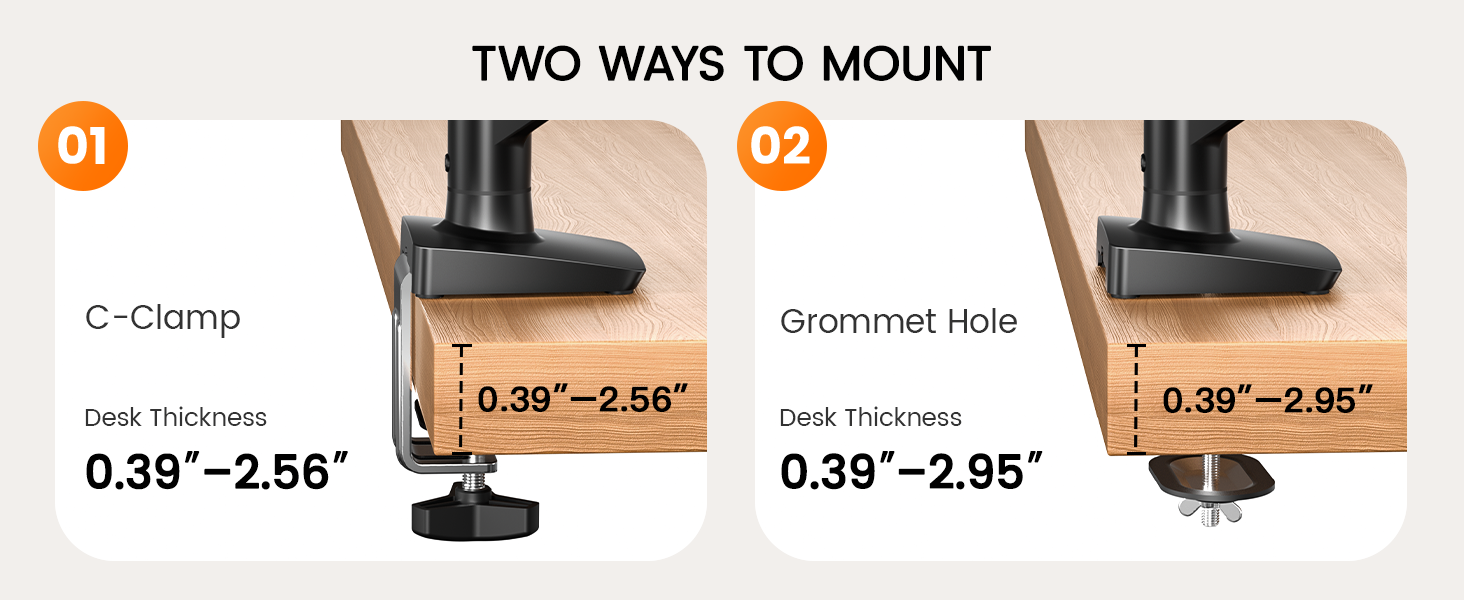
Image: An illustration showing a user maintaining an ergonomic posture with the monitor arm adjusted to bring the screen to an optimal eye-level position, reducing strain.
5. Tension Adjustment
If your monitor sags or rises unexpectedly, the gas spring tension needs adjustment. Use the provided hex key to fine-tune the tension.
- Monitor Falling Down: Turn the screw counter-clockwise to increase tension.
- Monitor Rising Up: Turn the screw clockwise to reduce tension.

Image: A detailed diagram illustrating the process of adjusting the gas spring tension on the monitor arm. It shows the hex key insertion point and the direction to turn for increasing or decreasing tension, depending on whether the monitor is falling or rising.
5.1 Video Guide: Tension and Tilt Head Adjustment
Video: A seller-provided video demonstrating how to adjust the tension and tilt head of the monitor arm to ensure proper balance and stability for your monitor.
6. Maintenance
To ensure the longevity and optimal performance of your ErGear Single Monitor Arm, follow these maintenance guidelines:
- Cleaning: Wipe the arm and base with a soft, damp cloth. Avoid abrasive cleaners or solvents that could damage the finish.
- Periodic Checks: Periodically check all screws and connections to ensure they remain tight. Re-tighten if necessary.
- Lubrication: No lubrication is required for the gas spring mechanism.
7. Troubleshooting
If you encounter any issues with your monitor arm, refer to the following common solutions:
- Monitor Sags or Won't Stay Up: The gas spring tension is too low. Refer to Section 5: Tension Adjustment and turn the screw counter-clockwise to increase tension.
- Monitor Rises or Won't Stay Down: The gas spring tension is too high. Refer to Section 5: Tension Adjustment and turn the screw clockwise to reduce tension.
- Arm Movement is Stiff: Check for any obstructions. Ensure all pivot points are free to move. If the tension is too high, adjust it as described above.
- Wobbling: Ensure the desk clamp or grommet base is securely tightened to the desk. Also, check that the VESA plate is firmly attached to the monitor and the monitor is securely mounted to the arm. The arm features a 40% wider VESA head and tighter-fitting VESA panel for enhanced stability.

Image: A visual comparison highlighting the robust design of the ErGear VESA head, featuring a wider bearing and tighter-fitting panels for superior stability compared to standard designs, which helps prevent wobbling and sagging.
8. Specifications
| Feature | Detail |
|---|---|
| Model Number | EGDMA69B |
| Mounting Type | Tabletop Mount (C-clamp or Grommet) |
| Compatible Screen Size | 13 - 34 Inches |
| Weight Capacity | Up to 19.8 lbs (9 kg) |
| VESA Patterns | 75x75mm, 100x100mm |
| Movement Type | Swivel, Tilt, Rotation, Height Adjustment |
| Maximum Tilt Angle | +80° / -50° |
| Swivel Range | ±90° |
| Rotation Range | 360° |
| Max Height Adjustment | 17.5 inches |
| Max Extension | 18.1 inches |
| Material | Alloy Steel |
| Color | Black |
9. Warranty & Support
9.1 Warranty Information
This ErGear product comes with a 2-year warranty. Please retain your proof of purchase for warranty claims.
9.2 Customer Support
For technical assistance, troubleshooting, or warranty inquiries, please contact ErGear customer support. Refer to the product packaging or the official ErGear website for the most current contact information.


