
1. Introduction
The KEXIN Dual USB-C & USB-A Flash Drive is a portable storage device designed for convenient data transfer between various devices. It features both USB Type-C and USB Type-A connectors, offering broad compatibility with modern smartphones, tablets, computers, and other electronics. This manual provides essential information for the proper use, maintenance, and troubleshooting of your flash drive.
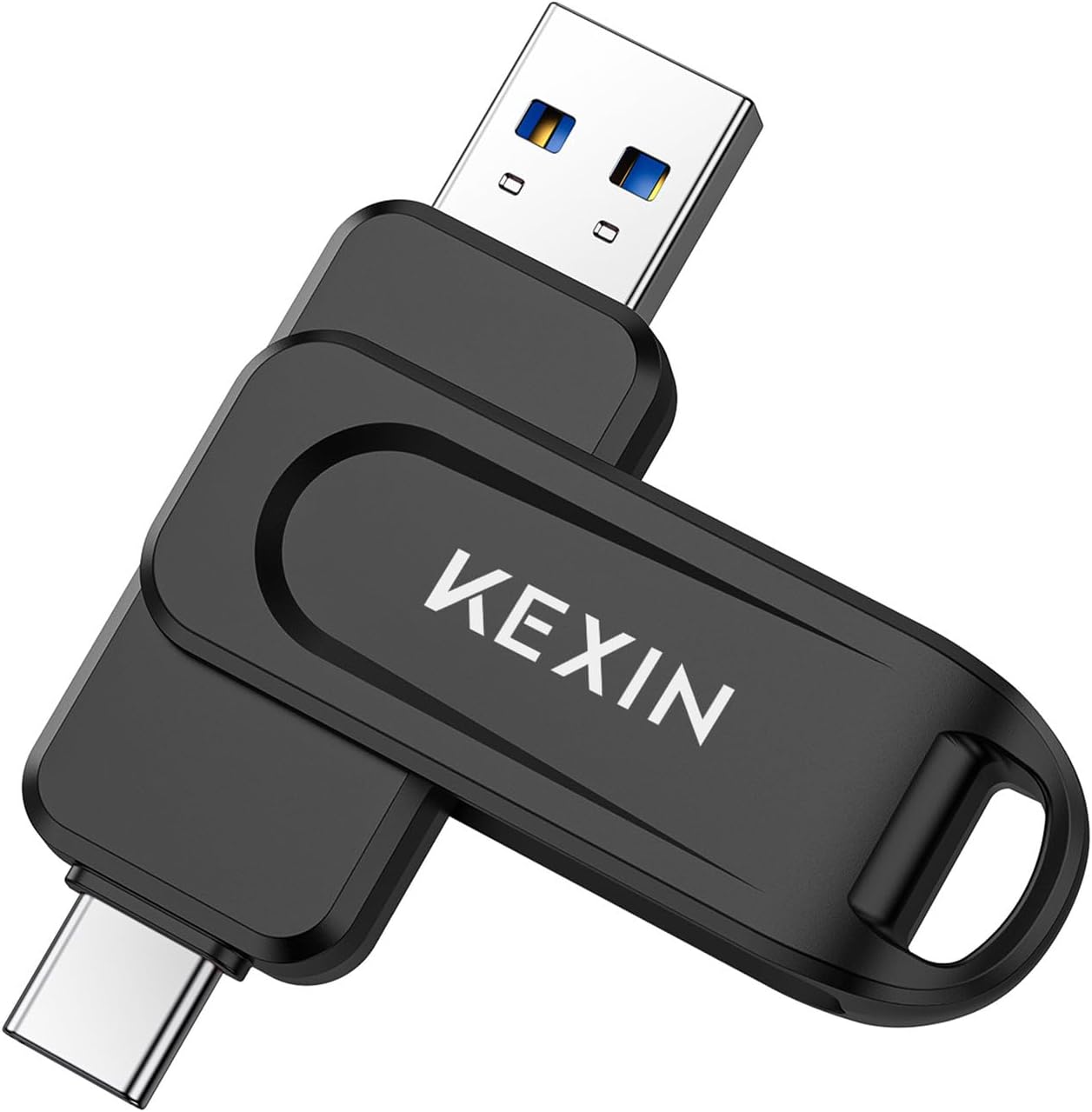
Image 1.1: KEXIN Dual USB-C and USB-A 256GB Flash Drive.
2. Product Features
- Dual Connectivity: Equipped with both USB Type-C and USB Type-A connectors for versatile device compatibility.
- High Capacity: 256GB storage for documents, photos, videos, and other digital files.
- Fast Data Transfer: Achieves read speeds of up to 100MB/s, facilitating quick file transfers.
- 360° Swivel Design: A protective metal cover rotates 360 degrees to shield the unused connector and prevent damage.
- Portable Design: Features a sizable lanyard loop for easy attachment to keychains or bags, enhancing portability.
- Wide Compatibility: Supports a range of devices including smartphones, tablets (e.g., iPhone 15/16 with USB-C, Android devices), laptops, car audio systems, Smart TVs, and game consoles.
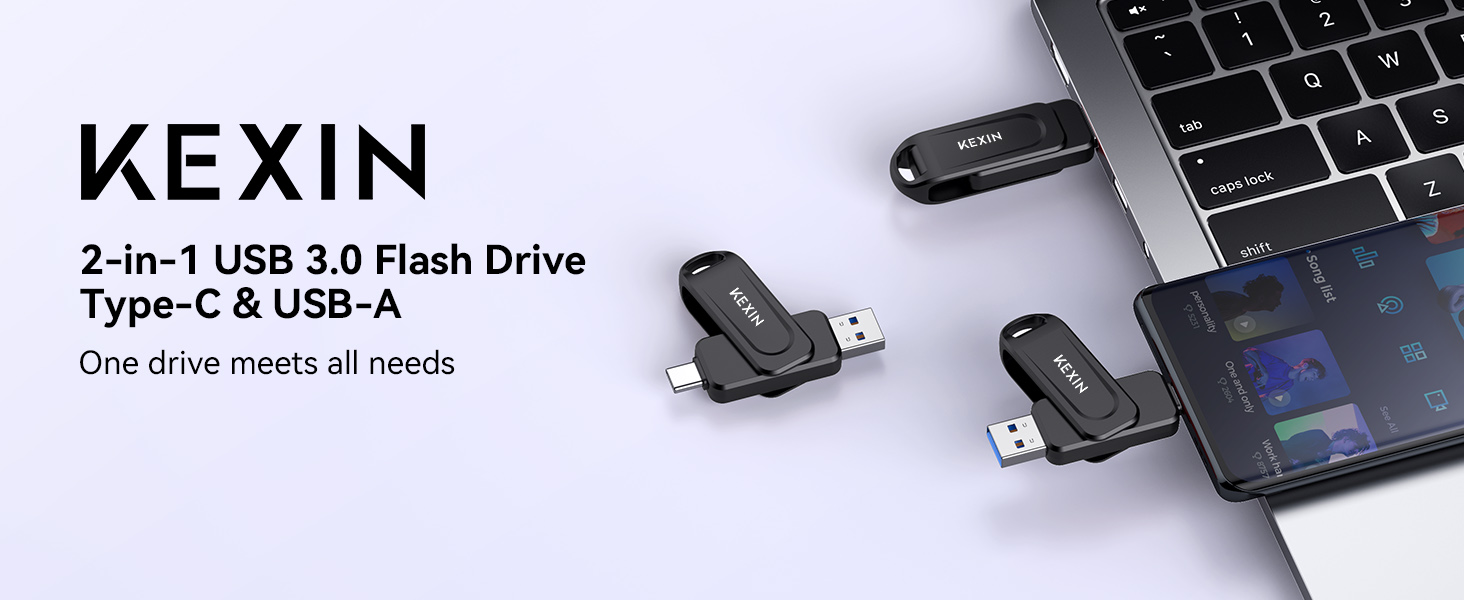
Image 2.1: The KEXIN flash drive demonstrating its dual USB-C and USB-A connectivity with a laptop and smartphone.
3. Setup and Basic Operation
3.1 Connecting the Flash Drive
The KEXIN flash drive is designed for plug-and-play operation. No drivers are typically required for most operating systems.
- Identify the appropriate port on your device: USB Type-C or USB Type-A.
- Rotate the swivel cover to expose the required connector.
- Insert the flash drive firmly into the device's port.
- Your device should recognize the flash drive as an external storage device.

Image 3.1: The 360° swivel cover protects connectors and allows easy switching.
3.2 Data Transfer
Once connected, the flash drive will appear as a removable drive. You can drag and drop files to and from the drive using your device's file management system.
For optimal performance, ensure your device supports USB 3.0 for the USB-A connection or a compatible USB-C standard for the Type-C connection.

Image 3.2: High-speed data transfer up to 100MB/s.
3.3 iPhone/iPad (USB-C Models) Data Transfer
For iPhone 15/16 series and USB-C iPads, follow these steps to transfer photos:
- Plug the USB-C flash drive into the USB-C port of your iPhone/iPad.
- Locate the 'Files' app on your iPhone/iPad.
- Open the 'Files' app and tap the storage drive, which may be labeled as 'NO NAME' or 'Untitled' under 'Locations'.
- Select the photos or files you wish to export from your device to the flash drive. Use the Share icon and choose 'Save Image' or 'Save to Files' to the flash drive.

Image 3.3: Step-by-step guide for iPhone data transfer.
4. Compatibility
The KEXIN Dual USB-C & USB-A Flash Drive offers broad compatibility with a variety of devices and operating systems:
- USB Type-C Devices: Smartphones (e.g., iPhone 15/16 series, Android phones), tablets, laptops, and other devices with a USB-C port.
- USB Type-A Devices: Desktop computers, laptops, Smart TVs, car audio systems, game consoles, and other devices with a standard USB-A port.
- Operating Systems: Compatible with Windows, macOS, Linux, Android, and iOS (for USB-C iPhones/iPads).
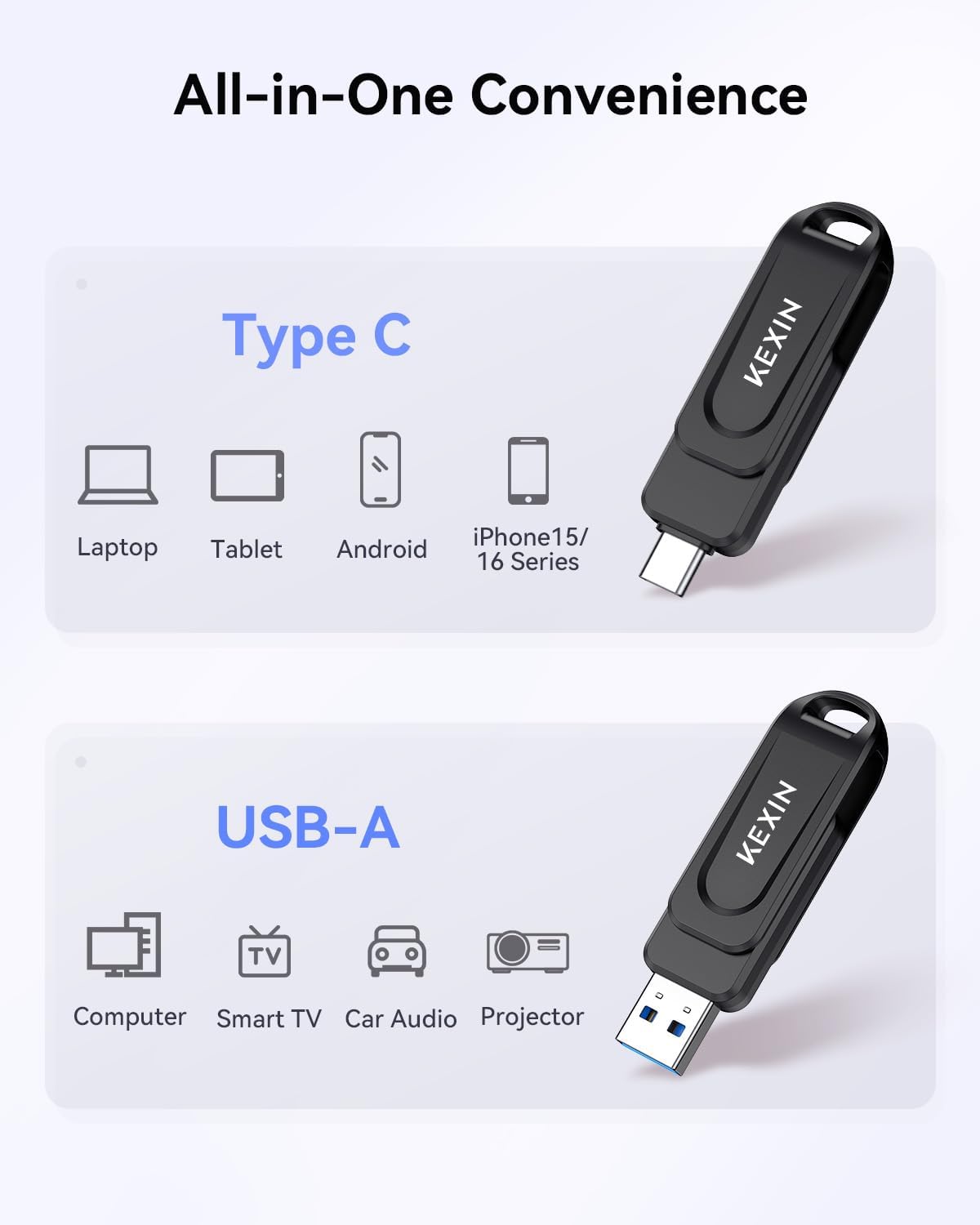
Image 4.1: Overview of compatible devices for both USB-C and USB-A connectors.
5. Maintenance
To ensure the longevity and optimal performance of your KEXIN flash drive, consider the following maintenance guidelines:
- Physical Protection: Utilize the 360° swivel cover to protect the connectors from dust, dirt, and physical damage when not in use.
- Safe Removal: Always safely eject the flash drive from your device before physically removing it to prevent data corruption.
- Storage: Store the flash drive in a cool, dry place away from extreme temperatures and direct sunlight.
- Cleaning: If necessary, gently clean the exterior with a soft, dry cloth. Avoid using liquids or abrasive cleaners.
- Avoid Impact: Do not drop or subject the flash drive to strong impacts, as this can damage internal components.
6. Troubleshooting
If you encounter issues with your KEXIN flash drive, refer to the following common troubleshooting steps:
- Device Not Recognized:
- Ensure the flash drive is fully inserted into the port.
- Try connecting to a different USB port on the same device.
- Test the flash drive on another computer or compatible device to rule out a device-specific issue.
- For smartphones/tablets, ensure your device's operating system is updated and supports external storage. Check your device's file manager (e.g., 'Files' app on iOS) for the drive.
- Slow Data Transfer:
- Verify that your device's USB port supports USB 3.0 or higher for optimal speeds. Connecting to a USB 2.0 port will result in slower transfer rates.
- Ensure there are no other intensive operations running on your device during transfer.
- Large numbers of small files can transfer slower than a single large file of the same total size.
- Cannot Write Files:
- Check if the flash drive is full.
- Ensure the files you are trying to transfer are not read-only or protected.
- The flash drive might be formatted with a file system (e.g., FAT32) that has a maximum file size limit (e.g., 4GB for FAT32). Consider reformatting to exFAT or NTFS if you need to store larger individual files (note: reformatting will erase all data).
7. Specifications
| Brand | KEXIN |
| Model Number | 1bc4370b-cb9e-4c7b-bafe-30fbce8c4f4a |
| Memory Storage Capacity | 256 GB |
| Connectivity Technology | USB |
| Hardware Connectivity | USB Type A, USB Type C |
| Hardware Interface | USB 3.0 |
| Read Speed | Up to 100 Megabytes Per Second |
| Flash Memory Type | NAND |
| Color | Black |
| Item Weight | 0.335 ounces (approximately 9.5 grams) |
| Product Dimensions (LxWxH) | 2.68 x 0.75 x 0.45 inches (approximately 6.8 x 1.9 x 1.1 cm) |
| Special Feature | Lightweight, Compact, 360° Swivel Cover |
8. Warranty and Support
KEXIN is committed to providing quality products and customer service. If you have any questions, concerns, or require assistance with your flash drive, please contact KEXIN customer service. Refer to the product packaging or the official KEXIN website for the most current contact information and warranty details.
KEXIN aims to provide 24-hour quality customer service for all inquiries.