
1. Introduction and Overview
This manual provides essential information for the proper setup, operation, and maintenance of your Diyeeni 4G/5G LTE WiFi Hotspot, Model DiyeeniSQ6V1UP873. This portable device is designed to provide high-speed internet access by utilizing a 4G or 5G SIM card, creating a personal WiFi hotspot for multiple connected devices. It supports LTE CAT4 standard with speeds up to 300Mbps and can connect up to 10 devices simultaneously.
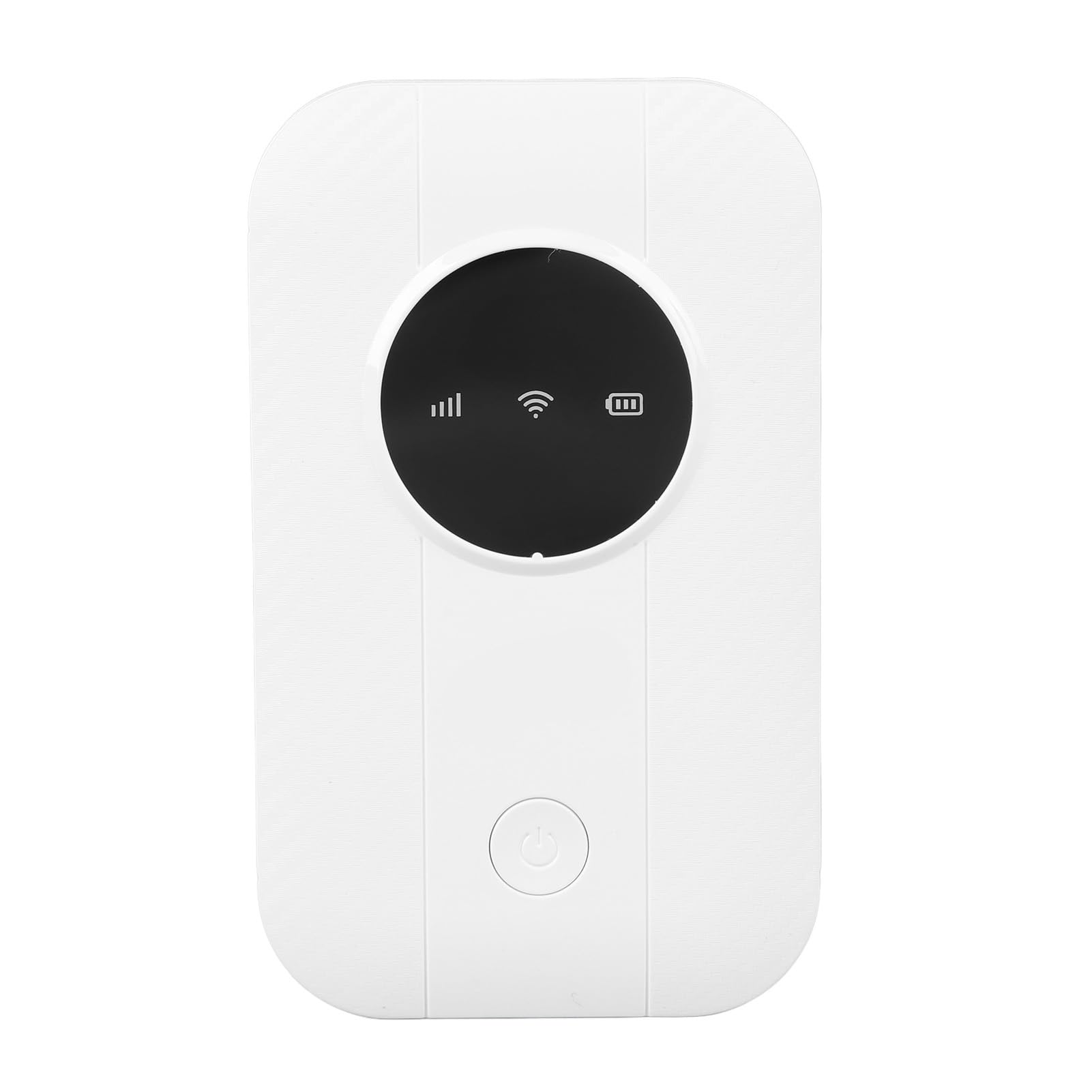
Image 1.1: Front view of the Diyeeni 4G/5G LTE WiFi Hotspot.
2. Setup Instructions
Follow these steps to set up your Diyeeni 4G/5G LTE WiFi Hotspot:
- Insert SIM Card: Locate the SIM card slot on the device. Carefully insert your activated 4G or 5G SIM card into the designated slot. Ensure the SIM card is correctly oriented.
- Power On: Press and hold the power switch until the device powers on. The indicator lights will illuminate.
- Initial Configuration (if necessary): If your SIM card is not plug-and-play, you may need to disable the SIM card PIN code or change the Access Point Name (APN) settings. To do this, connect a device (e.g., laptop, smartphone) to the hotspot's default WiFi network (SSID and password usually found on a sticker inside the device or on the packaging). Then, open a web browser and enter the router's IP address (e.g., 192.168.0.1 or 192.168.1.1) to access the configuration interface. Follow the on-screen instructions to adjust settings.
- Verify SIM Card Activation: Ensure your SIM card is activated with your mobile network provider to establish an internet connection.
Image 2.1: Side view of the hotspot, indicating potential SIM card slot location and ventilation.
3. Operating Instructions
Once set up, your Diyeeni 4G/5G LTE WiFi Hotspot is ready for use:
- Connecting Devices: Search for available WiFi networks on your smartphone, tablet, laptop, or other WiFi-enabled devices. Select the hotspot's SSID (network name) and enter the password. The device supports up to 10 simultaneous connections.
- Battery Life: The hotspot is equipped with a 2100mAh battery, providing over 10 hours of continuous use under optimal conditions.
- Recharging: The device can be recharged via a computer USB port, a power bank, or a car USB charger using the provided USB cable.

Image 3.1: The hotspot supports multiple device connections, including monitors, desktop PCs, laptops, and phones.
Video 3.1: An overview of the LTE WiFi Hotspot and its features, demonstrating its compact design and functionality.
4. Maintenance
To ensure the longevity and optimal performance of your hotspot:
- Cooling: For extended use, ensure adequate cooling to maintain optimal performance and prevent overheating. Avoid placing the device in enclosed spaces or direct sunlight.
- Cleaning: Use a soft, dry cloth to clean the exterior of the device. Do not use liquid cleaners or abrasive materials.
- Battery Care: Avoid fully discharging the battery frequently. For long-term storage, charge the battery to about 50% and store in a cool, dry place.

Image 4.1: The device features a high-performance battery for extended use.
5. Troubleshooting
If you encounter issues with your Diyeeni 4G/5G LTE WiFi Hotspot, refer to the following common problems and solutions:
- No Internet Connection:
- Ensure the SIM card is properly inserted and activated with your mobile network provider.
- Check if the SIM card PIN code is disabled.
- Verify and, if necessary, change the APN settings through the router's web interface.
- Confirm that the device is within an area with 4G/5G network coverage.
- Slow Internet Speed:
- Internet speed is dependent on network strength and local conditions.
- Reduce the number of connected devices if performance is critical.
- Ensure the device has adequate cooling to prevent performance throttling due to overheating.
- Device Not Powering On:
- Ensure the battery is charged. Connect the device to a power source using the USB cable.
- Press and hold the power button for a few seconds.
- Cannot Connect to Hotspot WiFi:
- Verify the correct SSID and password are being used.
- Ensure the hotspot is powered on and broadcasting its WiFi signal.
- Restart both the hotspot and the connecting device.
6. Specifications
Key technical specifications for the Diyeeni 4G/5G LTE WiFi Hotspot:
| Feature | Specification |
|---|---|
| Brand | Diyeeni |
| Model Name | DiyeeniSQ6V1UP873 |
| Data Transfer Rate | 300 Mbps |
| Connectivity Protocol | 4G, 5G |
| Wireless Communication Standard | 802.11ac |
| Frequency Band Class | Dual-Band |
| Supported Network Bands | FDD B1, B3, B5, B7, B8, B20, TDD B40, B41 |
| Battery Capacity | 2100mAh |
| Maximum Connected Devices | 10 |
| Security Protocol | WPA2, WPA3 |
| Operating System | ZyNOS |
| Dimensions (L x W x H) | 98mm x 58mm x 15mm (approximate) |

Image 6.1: Product dimensions of the Diyeeni 4G/5G LTE WiFi Hotspot.
7. Warranty Information
This Diyeeni 4G/5G LTE WiFi Hotspot comes with a manufacturer's warranty for 90 days from the date of purchase. Please retain your proof of purchase for any warranty claims. The warranty covers defects in materials and workmanship under normal use. It does not cover damage caused by misuse, accidents, unauthorized modifications, or improper installation.
8. Support
For further assistance, technical support, or inquiries regarding your Diyeeni 4G/5G LTE WiFi Hotspot, please refer to the manufacturer's official website or contact their customer service department. Contact information can typically be found on the product packaging or the manufacturer's website.