
TMKB M1
Contents
TMKB Falcon M1 Wireless Gaming Mouse User Manual
Model: M1
Introduction
The TMKB Falcon M1 Wireless Gaming Mouse is engineered for precision and versatility, offering a superior gaming and work experience. This lightweight mouse features a high-precision optical sensor, multiple connectivity options, and customizable RGB lighting.
Key Features:
- 24K DPI Precision Tracking: Adjustable 200-24,000 DPI with visual feedback and customizable 125-1000Hz Polling Rate.
- Long 180Hr Smart Power + Rapid USB-C Recharge: 1,000mAh rechargeable battery for extended use, with quick 1-hour USB-C charging.
- Tri-Mode Pro Connectivity: Seamless switching between ultra-fast 2.4GHz, BT5.2 (dual-device pairing), and USB-C wired modes.
- 90g Honeycomb Ergonomic Design: Lightweight honeycomb shell with matte grip and PTFE skates for comfortable, precise control.
- Fully Programmable Ecosystem: 6 customizable buttons for macros, key remapping, and 13 RGB effects (Windows Systems only).
What's in the Box
- TMKB Falcon M1 Wireless Gaming Mouse (x1)
- USB A to C Nylon Braided Cable (x1)
- User Manual (x1)
Setup
1. Physical Setup and Connectivity
The TMKB Falcon M1 mouse offers three modes of connection: 2.4GHz Wireless, Bluetooth 5.2, and USB-C Wired. Choose the mode that best suits your device and preference.

Image: TMKB Falcon M1 Mouse illustrating its versatile multi-device connectivity options, including PC, tablet, phone, laptop, and gaming console, via Bluetooth, 2.4GHz wireless, and USB-C wired connections.
2.4GHz Wireless Mode:
- Locate the 2.4G USB receiver stored in the compartment on the underside of the mouse.
- Plug the USB receiver into an available USB port on your PC, Mac, or laptop.
- Slide the switch on the bottom of the mouse to the "2.4G" position. The mouse will automatically connect.
Bluetooth 5.2 Mode:
- Slide the switch on the bottom of the mouse to either "BT1" or "BT2" for dual-device pairing.
- On your device (PC, Mac, Laptop, Tablet, Phone), go to Bluetooth settings and search for "TMKB M1".
- Select the mouse to pair. The mouse's RGB lighting will indicate successful pairing.
USB-C Wired Mode:
- Connect the provided USB A to C Nylon Braided Cable to the USB-C port on the front of the mouse.
- Plug the USB-A end of the cable into an available USB port on your computer.
- The mouse will automatically switch to wired mode and begin charging.
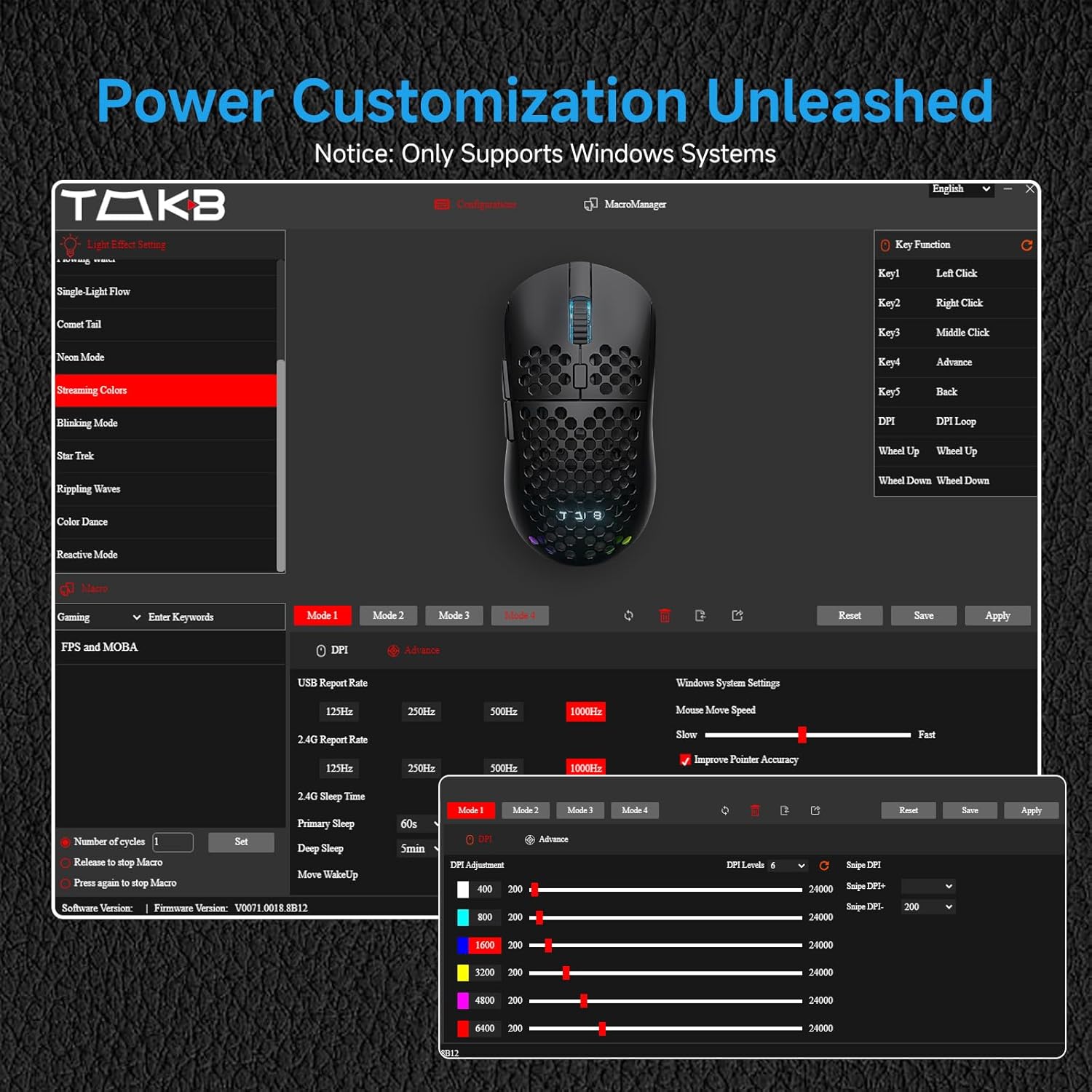
Image: Detailed top and bottom views of the TMKB Falcon M1 Mouse, clearly labeling the USB-C interface, the 2.4G and Dual Bluetooth device switch, the power switch with ECO mode, the 2.4G receiver storage compartment, and the PTFE skates.
2. Software Installation (Windows Systems Only)
For full customization of DPI settings, polling rate, button macros, and RGB lighting effects, download and install the official TMKB driver software from the manufacturer's website. This software is compatible with Windows operating systems only.
- Visit the official TMKB website to download the latest driver software for the Falcon M1 mouse.
- Follow the on-screen instructions to complete the installation.
- Once installed, launch the software to access advanced customization options.

Image: A screenshot of the TMKB Falcon M1 Mouse's software interface, demonstrating the extensive power customization options available, including detailed DPI settings and various RGB lighting effects.
Operating Instructions
1. DPI Adjustment
The Falcon M1 mouse features adjustable DPI settings from 200 to 24,000. You can cycle through 6 preset DPI levels directly on the mouse, with 7 additional expandable levels via software. The active DPI is indicated by dual visual feedback: the scroll wheel LED and the RGB strip color-coding.
- Press the dedicated DPI Loop button (located behind the scroll wheel) to cycle through preset DPI levels.
- Observe the scroll wheel LED and RGB strip for the corresponding color indicating the current DPI setting.
- For fine-tuning and expanding DPI levels, use the TMKB software (Windows only).

Image: The TMKB Falcon M1 Mouse showcasing its precision tracking capabilities, including a DPI range of 200-24,000, a polling rate of 125-1000Hz, a tracking speed of 300 IPS, and 35G acceleration.
2. Programmable Buttons
The mouse is equipped with 6 customizable buttons: Left Click, Right Click, Middle Click (scroll wheel press), Forward, Backward, and DPI Loop. These buttons can be programmed for various functions using the TMKB software (Windows only).
- Macro Recording: Create complex sequences of actions.
- Key Remapping: Assign any keyboard key or function to a mouse button.
- Shortcut and Rapid Fire: Configure buttons for quick access to shortcuts or rapid-fire actions in games.
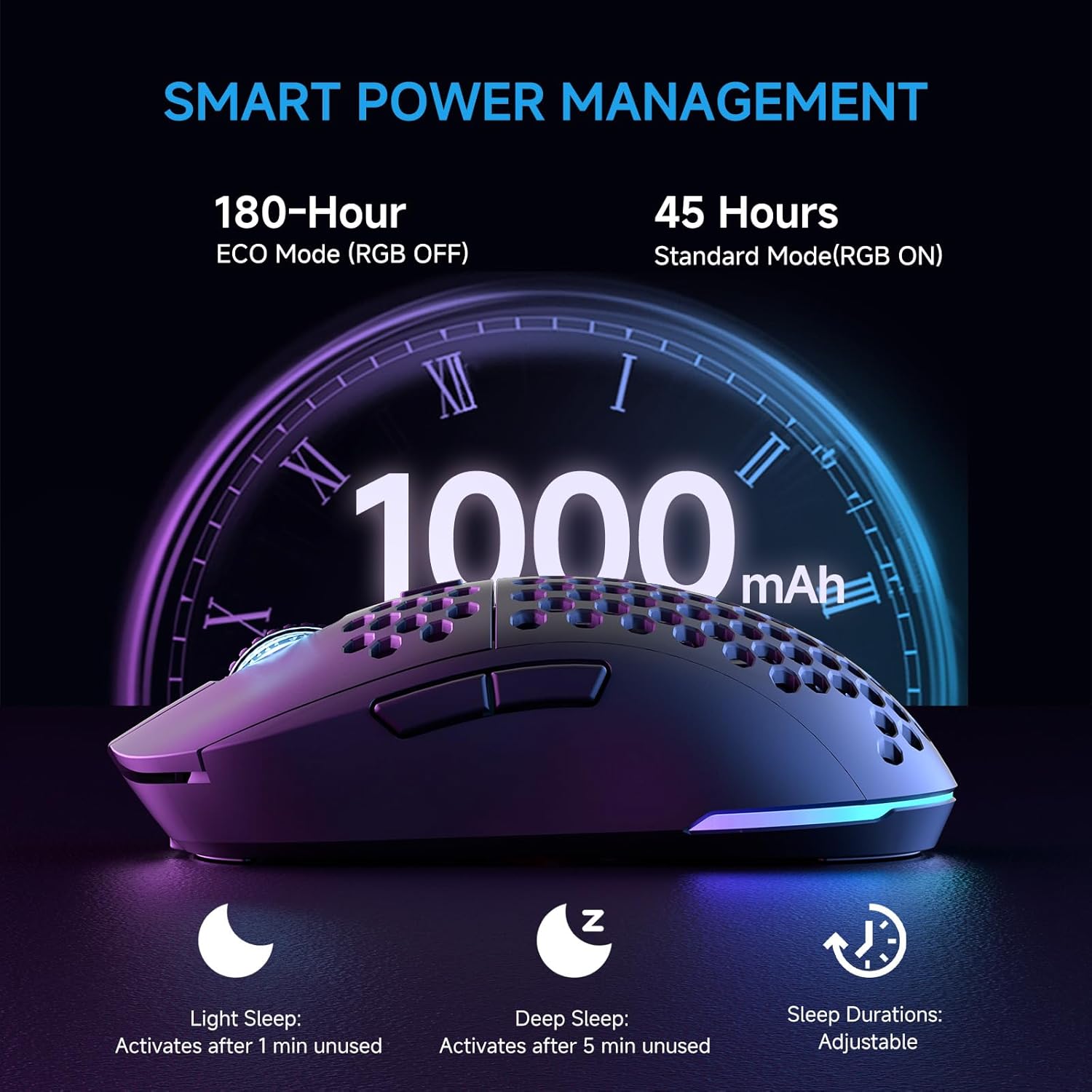
Image: A clear diagram of the TMKB Falcon M1 Mouse, illustrating the placement and default functions of its 6 programmable buttons, including Left Click, Right Click, Middle Click, Forward, Backward, and DPI Loop, along with customization options like key remapping and macro recording.
3. RGB Lighting Customization
The TMKB Falcon M1 features a customizable RGB strip with 13 preset lighting effects (e.g., Breath, Static, Flow, Starlight) and 16.8 million colors. Use the TMKB software to personalize your lighting experience.
- Open the TMKB software to access the RGB lighting settings.
- Choose from various preset effects or create your own DIY lighting strip modes.
- Adjust colors, brightness, and speed to match your setup.
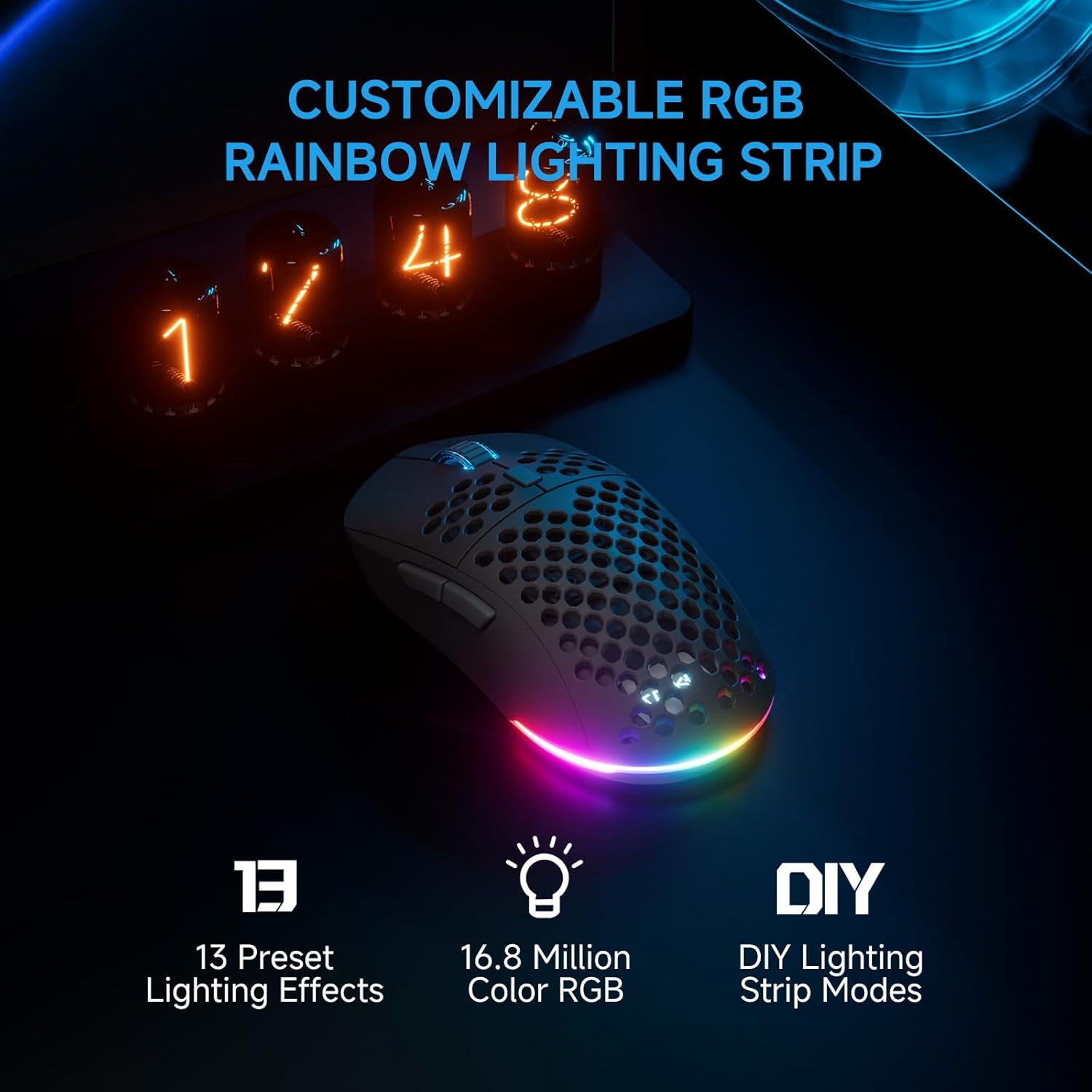
Image: The TMKB Falcon M1 Mouse illuminated by its customizable RGB rainbow lighting strip, showcasing 13 preset lighting effects, 16.8 million color options, and DIY lighting strip modes.
4. Polling Rate Adjustment
The polling rate, which determines how often the mouse reports its position to the computer, can be customized from 125-1000Hz for ultra-responsive tracking. Adjust this setting via the TMKB software for optimal performance in different scenarios.
Maintenance
1. Charging the Mouse
The Falcon M1 mouse is equipped with a 1,000mAh rechargeable battery. It fully recharges via USB-C in approximately 1 hour.
- Connect the provided USB A to C cable to the mouse's USB-C port and a power source (e.g., computer USB port, USB wall adapter).
- The mouse can be used while charging in wired mode.
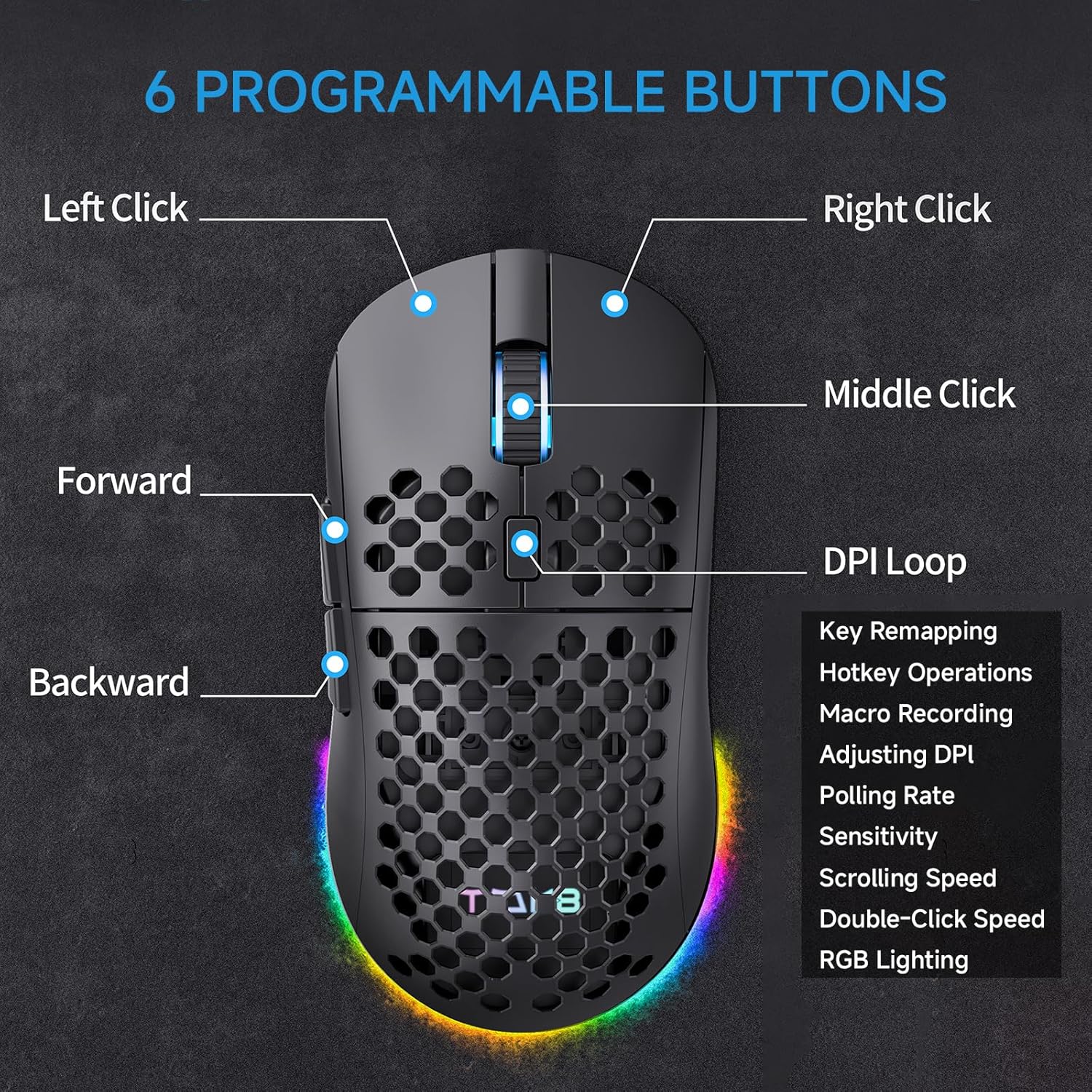
Image: The TMKB Falcon M1 Mouse demonstrating its smart power management features, including an impressive 180-hour runtime in ECO Mode (RGB OFF) and 45 hours in Standard Mode (RGB ON), powered by a 1000mAh battery.
2. Smart Power Management
The mouse features smart auto-sleep functions to conserve battery life:
- Light Sleep: Activates after 1 minute of idle time (wake via movement).
- Deep Sleep: Activates after 5 minutes of idle time (wake via button).
- Sleep timers are adjustable via the TMKB driver software for personalized power management.
3. Cleaning
To maintain optimal performance, regularly clean your mouse:
- Use a soft, dry cloth to wipe the surface of the mouse.
- For the honeycomb shell, use compressed air to remove dust and debris.
- Avoid using harsh chemicals or abrasive materials.
Troubleshooting
- Mouse not responding: Ensure the mouse is charged and the correct connectivity mode (2.4G, BT1/BT2, or Wired) is selected. Re-pair Bluetooth or re-insert the 2.4G USB receiver.
- Lag or erratic movement: Check for interference in 2.4G or Bluetooth mode. Ensure the mouse is within range. Update mouse drivers if using Windows.
- RGB lights not working: Verify RGB settings in the TMKB software. Ensure the mouse is not in ECO mode if you desire RGB lighting.
- Buttons not programmable: Ensure the TMKB software is correctly installed and running (Windows only).
Specifications
| Feature | Detail |
|---|---|
| Product Dimensions | 4.39 x 2.48 x 0.04 inches |
| Item Weight | 5.6 ounces |
| Item Model Number | M1 |
| Batteries | 1 Nonstandard Battery (included) |
| Connectivity Technology | Bluetooth, USB, Wireless (2.4 GHz RF) |
| Special Features | Lightweight, Long battery life (Rechargeable), Max 24,000 DPI, Programmable Buttons, Wireless |
| Movement Detection Technology | Optical |
Official Product Videos
Watch these official videos for more insights into the TMKB Falcon M1 Wireless Gaming Mouse:

Video: "Showcasing TMKB Falcon M1 Wireless Gaming Mouse" by Dragon Blogger Tech and Entertainment. This video provides a comprehensive overview of the mouse's features and design.

Video: "Awesome RGB mouse, Long battery life & multiple connections" by Danny Black. This video highlights the mouse's impressive RGB lighting, extended battery life, and various connectivity options.

Video: "Quick Look! TMKB Falcon M1 Wireless Gaming Mouse" by Dragon Blogger Tech and Entertainment. A concise video offering a rapid overview of the mouse's key attributes.
Warranty and Support
For warranty information, technical support, or any product-related inquiries, please refer to the official TMKB website or contact their customer service directly. Keep your purchase receipt for warranty claims.
Documents and downloads
Ask a question about this manual
Ask about setup, troubleshooting, compatibility, parts, safety, or missing instructions. Manuals+ will review the question and use this page’s manual context to help answer it.