
1. Introduction
This manual provides detailed instructions for the installation, operation, and maintenance of your XTRONS Android 14 Car Stereo Head Unit. Please read this manual thoroughly before using the product to ensure proper functionality and safety.

Figure 1: XTRONS Audi A4 S4 RS4 Android 14 Car Stereo Head Unit
2. Product Features
- Operating System: Latest Android 14 OS with Octa Core CPU, 4GB RAM & 64GB ROM for fast and smooth performance.
- Display: 7-inch Grade-A G+G IPS Touch Screen with 1024x600 resolution, supporting 2K video playback.
- Connectivity: Global 4G LTE (Micro-SIM required), Dual Band Wi-Fi (2.4GHz & 5GHz), Bluetooth 5.0 for calls and audio streaming.
- Smartphone Integration: Built-in Wireless CarAutoPlay and Wired/Wireless Android Auto.
- Audio: Built-in DSP (Digital Sound Processor) for enhanced audio experience.
- Vehicle Integration: Optimized CANbus decoding for Steering Wheel Control, reversing control, and door status display.
- Multitasking: Split Screen function to run two applications simultaneously.
3. Applicable Models & Specifications
3.1 Applicable Vehicle Models
- Audi A4 B6 (8E/8H) (2000-2006)
- Audi A4 B7 (8E/8H) (2004-2008)
- Audi S4 B7 (8E/8H) (2005-2008)
- Audi S4 B6 (8E/8H) (2003-2005)
- Audi RS4 (2002-2008)
- RS4 B7 (8E) (2006-2008)
- Seat Exeo (2008-2012)

Figure 2: Before and After installation in a compatible Audi model.
3.2 Important Compatibility Notes
Please verify your vehicle's original CD unit size. This unit is not compatible if your original CD is single DIN size. Also, if your vehicle has RNS-D (Radio Navigation System) or BNS 5.x (Basic Navigation System), this unit is not compatible.

Figure 3: Visual guide for compatibility checks.
3.3 Technical Specifications
| Specification | Value |
|---|---|
| Display Size | 7 Inches |
| Screen Resolution | 1024x600 |
| Operating System | Android 14 |
| Processor | Octa Core |
| RAM | 4GB |
| ROM | 64GB |
| Connectivity | Bluetooth, USB, Wi-Fi, 4G LTE |
| Special Features | Bluetooth, Touchscreen, Built-in DSP, CarPlay, Android Auto |
4. Installation
Proper installation is crucial for optimal performance. It is recommended to have this unit installed by a qualified professional. The following video demonstrates the dashboard removal and wiring procedures for an Audi A4.
Video 1: Dashboard Removal and Wiring Procedures for Audi A4. This video demonstrates how to safely remove the factory radio and connect the new head unit's wiring harness.
5. Setup
5.1 Connecting to Wi-Fi
To access online features, connect your device to a Wi-Fi network. Navigate to Settings > Network & Internet > Wi-Fi and select your desired network.
Video 2: Demonstrates connecting the device to Wi-Fi, which is the first step in refreshing themes.
5.2 Customizing UI Themes and Wallpaper
Personalize your head unit's interface by changing themes and wallpapers. Access the App Store to find various themes. You can also set custom wallpapers from your gallery.
Video 3: Shows how to access the App Store, browse themes, install, and apply them to refresh the UI style.
Video 4: Demonstrates changing the wallpaper and button colors for further customization.
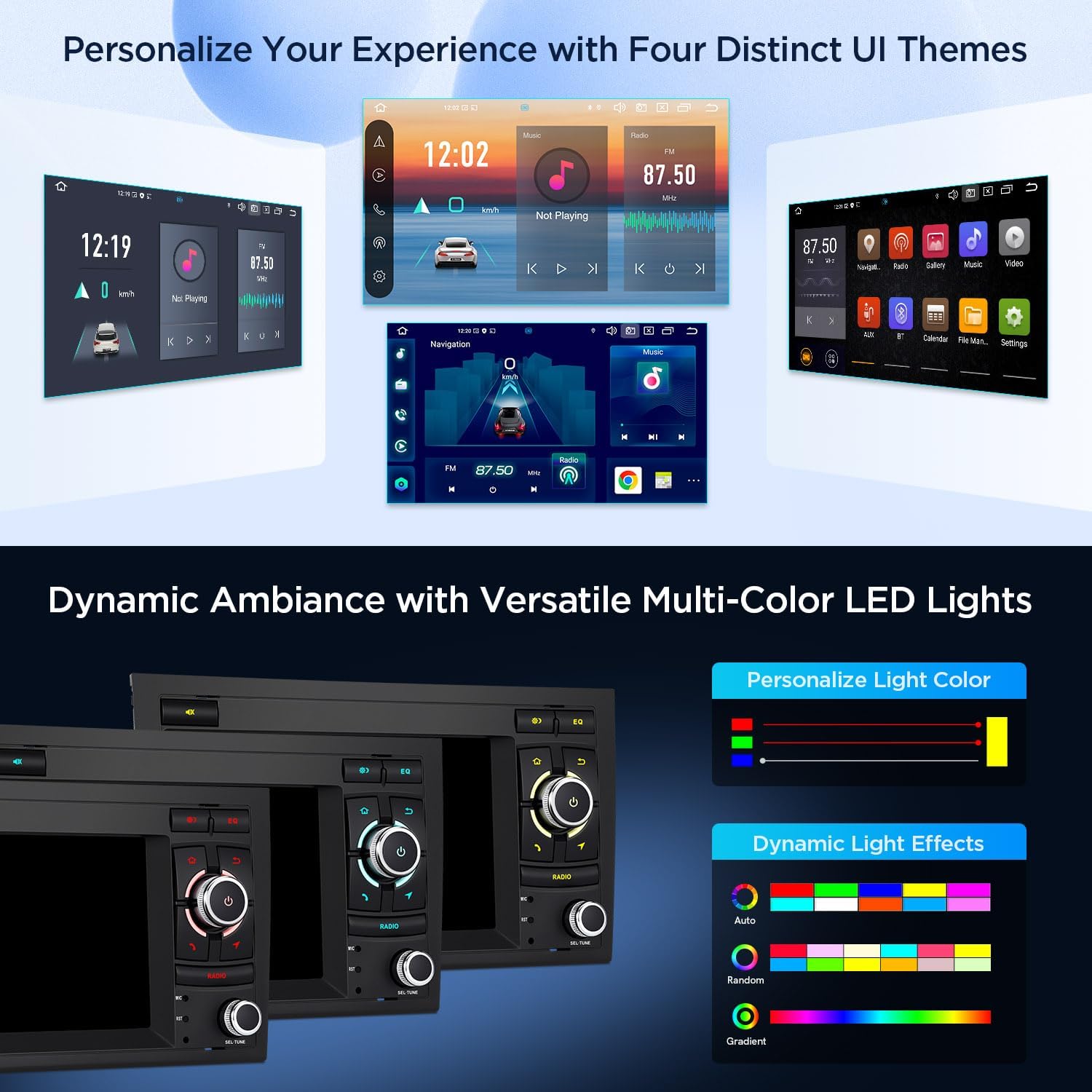
Figure 4: Examples of distinct UI themes and dynamic multi-color LED lights.
6. Operating Instructions
6.1 CarPlay and Android Auto
Connect your smartphone for seamless integration. Use Wireless CarAutoPlay for iPhones or Wired/Wireless Android Auto for Android devices to access navigation, music, messages, and voice assistants directly on the head unit's screen.
Video 6: Shows the GPS navigation features using Google Maps on the head unit.
6.3 Bluetooth Functionality
Connect your mobile phone via Bluetooth 5.0 for hands-free calls and audio streaming. Access your phone book, call logs, and search contacts directly from the head unit.
Video 7: Demonstrates Bluetooth music quality and hands-free calling features.
6.4 Media Playback (Video & Music)
Enjoy 2K format video playback on the IPS screen. The unit supports various audio and video formats for an enhanced entertainment experience.
Video 8: Shows video playback and music features on the head unit.
6.5 Radio Functionality
Tune into your favorite FM/AM radio stations. The unit provides clear reception and easy station management.
Video 9: Demonstrates AM/FM radio tuning and preset functions.
6.6 Built-in DSP
The built-in Digital Sound Processor allows for precise audio tuning, enabling you to customize your sound experience with various equalizer settings and sound field adjustments.
Video 10: Illustrates the DSP settings for adjusting sound quality and effects.
6.7 OBD2 Support (Optional)
With an optional OBD2 adapter, you can retrieve real-time data and trouble codes from your vehicle's computer, providing valuable diagnostic information.
Video 11: Shows the Torque app interface for OBD2 diagnostics.
7. Accessories
7.1 Included Accessories
- 2 × ISO Wiring Harness
- 1 × RCA Cable
- 1 × 4G Antenna
- 1 × Camera Cable
- 1 × CANbus Box
- 2 × USB Cable
- 1 × GPS Antenna
- 1 × Radio Antenna Cable
- 1 × CANbus Cable
- 1 × User Manual
- 4 x Fitting Key
- 1 x Microphone
- 1 x WIFI Antenna
7.2 Optional Accessories
Enhance your experience with additional accessories (sold separately):
- OBD Function: Search ASIN B015MU8UN6 / B08HQ9LQ9X
- TPMS Function: Search ASIN B07WQFKV5G / B07DKB4GD2
- Front / Reversing Camera: Search ASIN B07HMLYLJJ / B00GY3BVT6
- External DVR: Search ASIN B07MBYCG4C / B08MF1ZRJ3

Figure 6: Overview of included accessories and unit dimensions.
8. Troubleshooting
If you encounter any issues, please refer to the troubleshooting section in the included User Manual. Common issues often relate to wiring connections, software settings, or compatibility. Ensure all connections are secure and settings are configured correctly.
9. Warranty Information
This product comes with a 1-Year Manufacturer Warranty. Please retain your proof of purchase for warranty claims. For detailed terms and conditions, refer to the warranty card included with your product.
10. Support & Contact
For further assistance, technical support, or inquiries regarding your XTRONS Car Stereo, please visit the official XTRONS website or contact their customer service. Contact details can be found in the included User Manual or on the XTRONS brand store page.


