
Introduction
This manual provides instructions for the proper use, setup, and maintenance of your Motorola Moto Buds Loop wireless earbuds. Please read this manual thoroughly before using your device to ensure optimal performance and longevity.
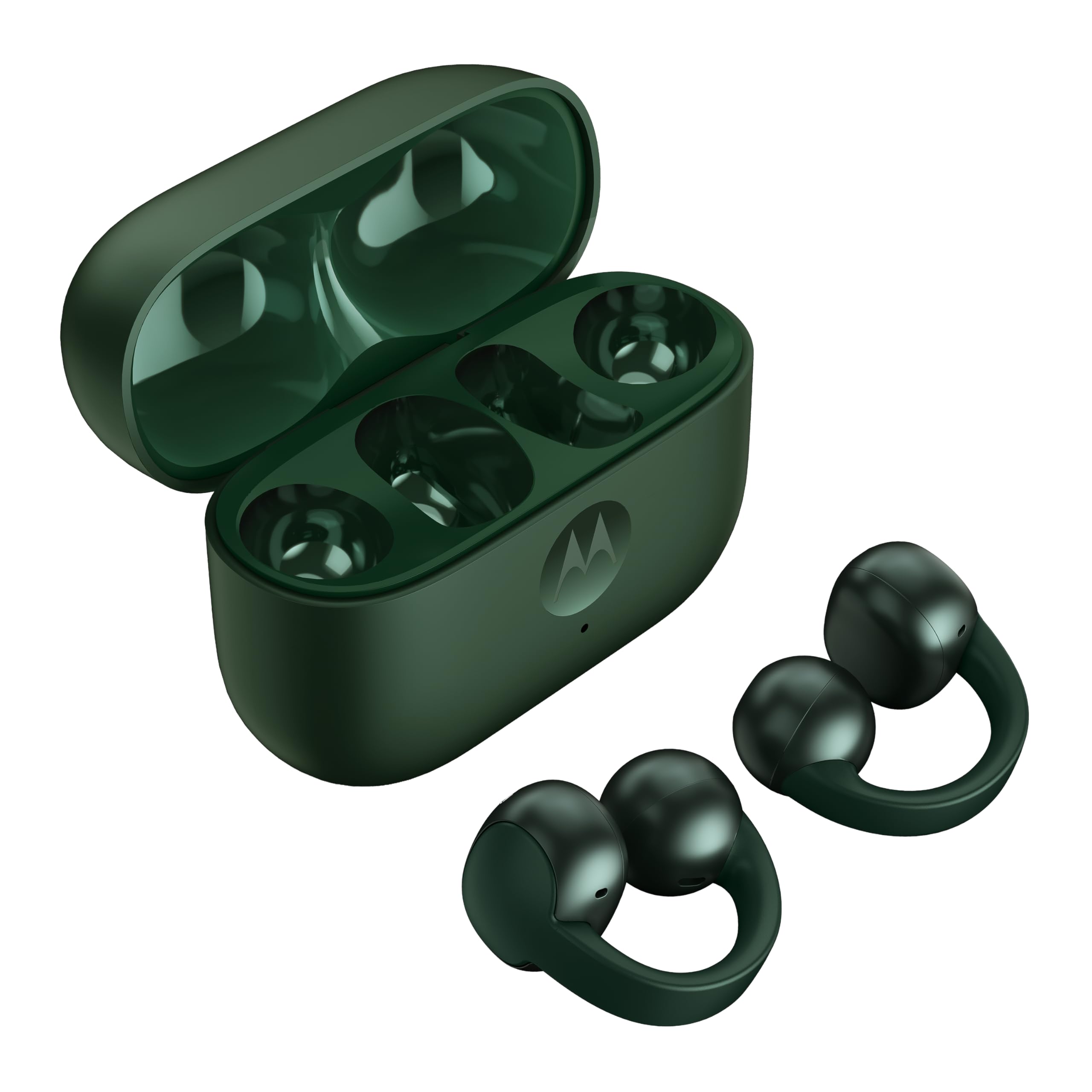
Image: Motorola Moto Buds Loop wireless earbuds in Pantone Trekking Green, showcasing their unique over-ear loop design and charging case.
Package Contents
Ensure all items are present in the package:
- Motorola Moto Buds Loop Earbuds (Left and Right)
- Charging Case
- USB Charging Cable
- User Manual (this document)
Setup
1. Charging the Earbuds and Case
Before first use, fully charge the Moto Buds Loop and their charging case.
- Place both earbuds into the charging case.
- Connect the USB charging cable to the charging port on the case and to a power source.
- The indicator light on the case will show charging status. A full charge typically takes approximately 3 hours for the case and earbuds.

Image: The Motorola Moto Buds Loop charging case shown open with both earbuds securely placed inside, ready for charging.
2. Pairing with Your Device
The Moto Buds Loop use Bluetooth for wireless connection.
- Open the charging case. The earbuds will automatically enter pairing mode (indicator lights will flash).
- On your device (smartphone, tablet, laptop), go to Bluetooth settings and enable Bluetooth.
- Search for available devices and select "Moto Buds Loop" from the list.
- Once connected, the indicator lights on the earbuds will stop flashing, and your device will confirm the connection.
Smart Connect: For Motorola devices, use Smart Connect technology for effortless pairing and management within the Motorola ecosystem.
3. Fitting the Earbuds
Proper fit is essential for sound quality and comfort.
- Identify the Left (L) and Right (R) earbuds.
- Gently place each earbud into your ear, ensuring the loop rests comfortably over the top of your ear.
- Adjust the earbud until it feels secure and comfortable, forming a good seal in your ear canal.

Image: Front view of the Motorola Moto Buds Loop earbuds, highlighting the ergonomic design for a secure fit.
Operating Instructions
Power On/Off
- Power On: The earbuds power on automatically when removed from the charging case.
- Power Off: Place the earbuds back into the charging case to power them off and begin charging.
Touch Controls
The Moto Buds Loop feature touch controls for various functions. Specific gestures can be customized via the Moto Buds app.
| Function | Gesture |
|---|---|
| Play/Pause Music | Single tap on either earbud |
| Next Track | Double tap on right earbud |
| Previous Track | Double tap on left earbud |
| Answer/End Call | Single tap on either earbud |
| Reject Call | Press and hold on either earbud |
| Activate Voice Assistant | Triple tap on either earbud |
| Volume Up | Swipe up on right earbud (if supported) |
| Volume Down | Swipe down on left earbud (if supported) |
Note: Some gestures may require the Moto Buds app for customization or activation.
Moto Buds App
Download the official Moto Buds app from your device's app store to enhance your listening experience. The app allows you to:
- Customize touch controls.
- Adjust equalizer settings.
- Check battery levels of each earbud and the charging case.
- Update earbud firmware.
- Access additional features and settings.
Moto AI Integration
When paired with select Motorola devices featuring moto ai, you can trigger actions with simple voice commands. Press the designated button (refer to app for customization) and speak a command like "Catch Me Up" to utilize moto ai features.
Maintenance
Cleaning the Earbuds
- Use a soft, dry, lint-free cloth to wipe the earbuds and charging case.
- Do not use abrasive cleaners, alcohol, or chemical solvents.
- Gently clean the ear tips and speaker mesh with a dry cotton swab to remove any earwax or debris.
Storage
Always store the earbuds in their charging case when not in use to protect them and keep them charged.
Battery Care
- Avoid exposing the earbuds and case to extreme temperatures.
- Charge the device regularly, even if not used frequently, to maintain battery health.
Troubleshooting
Common Issues and Solutions
- No Sound / Poor Sound Quality:
- Ensure earbuds are properly paired and connected to your device.
- Check the volume level on both your device and the earbuds.
- Clean the earbud speaker mesh for any obstructions.
- Ensure earbuds are fully charged.
- Earbuds Not Pairing:
- Make sure Bluetooth is enabled on your device.
- Place earbuds back in the case, close it, then open it again to re-enter pairing mode.
- Forget "Moto Buds Loop" from your device's Bluetooth list and try pairing again.
- Ensure earbuds and case have sufficient charge.
- Charging Issues:
- Verify the charging cable is securely connected to both the case and the power source.
- Try a different USB charging cable or power adapter.
- Ensure the charging contacts on the earbuds and inside the case are clean and free of debris.
Resetting the Earbuds
If you experience persistent issues, a factory reset may resolve them. Refer to the Moto Buds app or Motorola's official support website for specific instructions on how to perform a factory reset for your model.
Specifications
| Feature | Detail |
|---|---|
| Brand | Motorola |
| Model Name | Moto Buds Loop |
| Model Number | PG38C07164 |
| Color | PANTONE Trekking Green |
| Ear Placement | In Ear |
| Noise Control | Active Noise Cancellation |
| Audio Driver Type | 12mm Ironless Dynamic Driver |
| Connectivity Technology | Wireless (Bluetooth 5.0) |
| Battery Average Life (Earbuds) | Up to 8 Hours |
| Battery Charge Time (Case) | Approx. 3 Hours |
| Water Resistance Level | Water Resistant |
| Control Method | Touch, App, Voice Control |
| Weight | 65 Grams (total) |
| Material | Plastic |
Warranty and Support
Your Motorola Moto Buds Loop are covered by a limited warranty. For detailed warranty information, please refer to the warranty card included in your product packaging or visit the official Motorola support website.
For technical support, FAQs, and additional resources, please visit the Motorola support website or contact their customer service. Keep your proof of purchase for warranty claims.
Motorola Support: www.motorola.com/support


