
1. Introduction
Thank you for choosing the KYSONA EM18 Wireless Ergonomic Vertical Mouse. This manual provides detailed instructions for setting up, operating, and maintaining your new mouse. The EM18 is designed to enhance comfort and reduce wrist strain with its unique ergonomic vertical design and versatile connectivity options.
2. Package Contents
- KYSONA EM18 Wireless Ergonomic Vertical Mouse
- 2.4GHz USB Receiver
- User Manual (this document)
Note: 2x AAA batteries are not included and must be purchased separately.
3. Product Overview
The KYSONA EM18 features a vertical design that promotes a natural handshake position, reducing forearm twisting and wrist pressure. It includes multiple buttons for enhanced functionality and adjustable sensitivity.
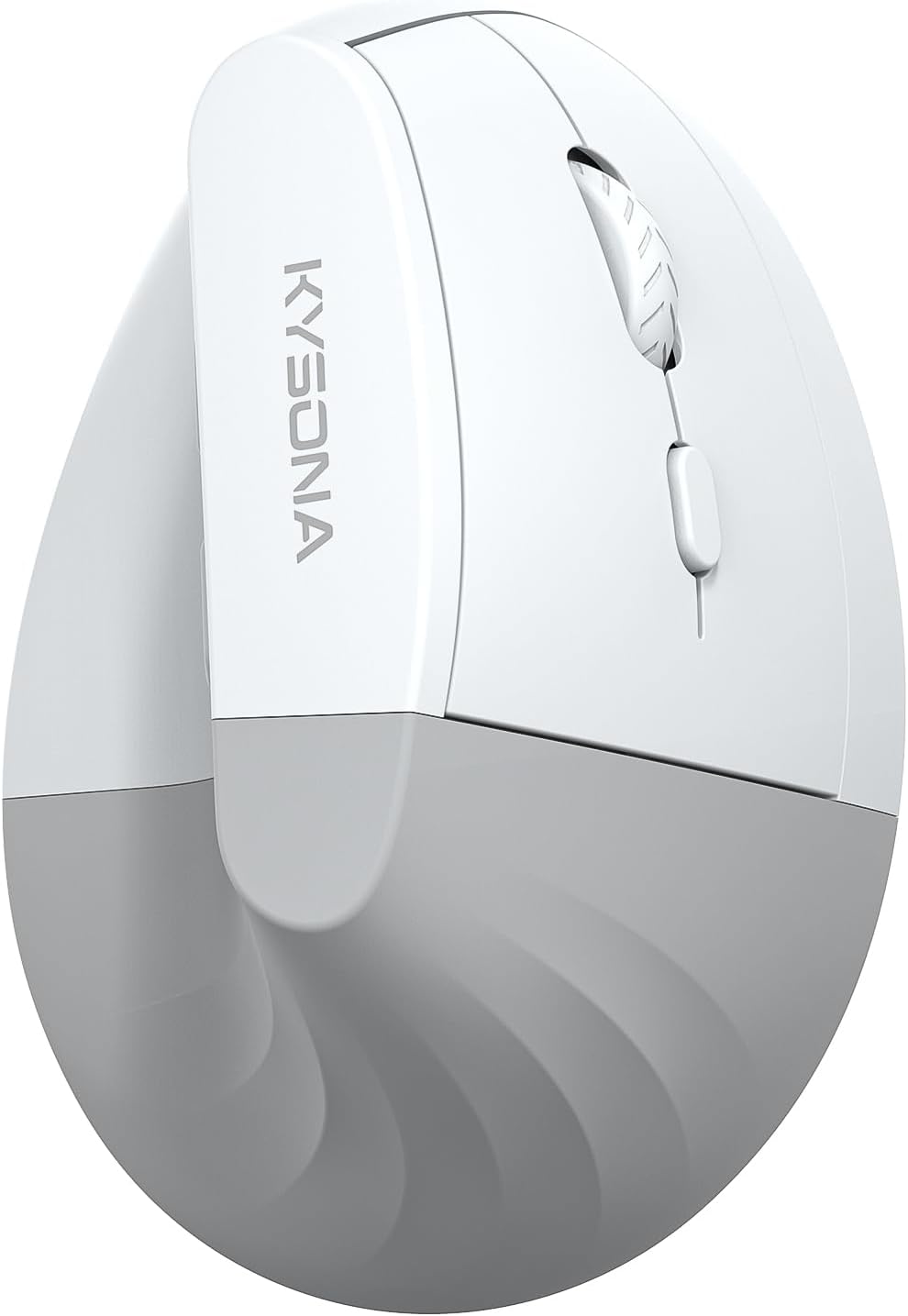
Figure 1: Front view of the KYSONA EM18 Wireless Ergonomic Vertical Mouse, showcasing its unique vertical shape and button layout.
3.1 Key Features
- Ergonomic 57° Tilt Angle: Designed to align with the natural posture of your hand and wrist.
- Multi-Mode Connectivity: Supports Bluetooth 5.0, Bluetooth 3.0, and 2.4GHz wireless connections.
- Adjustable DPI: Five sensitivity levels (800/1200/1600/2400/4000 DPI) for precise control.
- Silent Click Buttons: Reduces noise for a quiet working environment.
- Forward/Backward Buttons: Convenient navigation for web browsing and document viewing.
- Wide Compatibility: Works with Windows, Mac, Android, and Linux systems.

Figure 2: Illustration of the 57-degree ergonomic tilt, designed to reduce wrist strain and promote a natural hand position.
4. Setup
4.1 Installing Batteries
- Locate the battery compartment on the underside of the mouse.
- Open the battery cover.
- Insert two AAA batteries, ensuring correct polarity (+/-).
- Close the battery cover securely.

Figure 3: The battery compartment on the underside of the mouse, where two AAA batteries are inserted.
4.2 2.4GHz Wireless Connection
- Remove the 2.4GHz USB receiver from its storage slot on the underside of the mouse.
- Plug the USB receiver into an available USB-A port on your computer or laptop.
- Turn on the mouse using the ON/OFF switch located on the underside.
- The mouse should automatically connect to your device.
Video 1: Demonstrates the process of connecting the KYSONA EM18 mouse using the 2.4GHz USB receiver. This video also shows the Bluetooth connection process.
4.3 Bluetooth Connection
The EM18 supports two Bluetooth channels (BT1 and BT2) for connecting to multiple devices.
- Turn on the mouse using the ON/OFF switch.
- Press the mode switch button on the underside of the mouse to select either BT1 or BT2. The corresponding indicator light will flash slowly.
- Press and hold the mode switch button for 3-5 seconds until the indicator light flashes rapidly, indicating pairing mode.
- On your device (computer, tablet, smartphone), go to Bluetooth settings and search for "KYSONA EM18" or a similar device name.
- Select the mouse to pair. Once connected, the indicator light will stop flashing.
- To switch between connected Bluetooth devices or the 2.4GHz mode, simply press the mode switch button.

Figure 4: The KYSONA EM18 mouse demonstrating multi-device connectivity, showing connections to a laptop via 2.4GHz and a tablet via Bluetooth.
5. Operating Instructions
5.1 DPI Adjustment
The mouse features a DPI adjustment button located below the scroll wheel. Press this button to cycle through five different DPI settings: 800, 1200, 1600, 2400, and 4000. This allows you to adjust the cursor speed and sensitivity to suit your task, from precise design work to general browsing.

Figure 5: Visual representation of the five adjustable DPI levels (800-4000), allowing users to customize mouse sensitivity for various tasks.
5.2 Forward and Backward Buttons
Two programmable buttons are located on the thumb side of the mouse. By default, these buttons function as forward and backward navigation in web browsers and file explorers, enhancing productivity. These buttons can often be customized through your operating system's mouse settings or third-party software.
5.3 Silent Click Feature
The EM18 is equipped with silent micro-switches, providing a quiet clicking experience. This feature is particularly beneficial in shared workspaces, libraries, or during late-night use, minimizing disturbance to others.

Figure 6: An illustration highlighting the whisper-quiet click feature of the mouse, comparing its low decibel level to common environmental sounds.
5.4 Ergonomic Design Benefits
The vertical orientation of the EM18 mouse helps maintain a neutral wrist and forearm posture, which can alleviate discomfort and reduce the risk of repetitive strain injuries (RSIs) such as carpal tunnel syndrome. This design is especially beneficial for users who spend long hours working with a mouse.

Figure 7: A hand comfortably resting on the KYSONA EM18 ergonomic vertical mouse, demonstrating the natural and relaxed grip it provides.
6. Maintenance
- Cleaning: Use a soft, dry cloth to clean the mouse. For stubborn dirt, a slightly damp cloth can be used, but ensure no moisture enters the device.
- Battery Replacement: Replace AAA batteries when the mouse performance degrades or the indicator light signals low power.
- Storage: When not in use for extended periods, turn off the mouse to conserve battery life. Store the USB receiver in its dedicated slot.
7. Troubleshooting
| Problem | Possible Solution |
|---|---|
| Mouse not responding (2.4GHz) |
|
| Mouse not responding (Bluetooth) |
|
| Cursor movement is erratic or slow |
|
| Mouse wheel squeaks |
|
8. Specifications
| Feature | Detail |
|---|---|
| Model | EM18 |
| Brand | KYSONA |
| Connectivity Technology | Bluetooth (5.0, 3.0), 2.4GHz Wireless |
| DPI Levels | 800 / 1200 / 1600 / 2400 / 4000 |
| Movement Detection Technology | Optical |
| Special Features | Ergonomic Design, Lightweight, Silent Click, Wireless |
| Power Source | 2x AAA Batteries (not included) |
| Item Weight | 5 ounces |
| Package Dimensions | 4.61 x 3.35 x 3.23 inches |
| Compatibility | Windows, Mac, Android, Linux |
9. Warranty and Customer Support
KYSONA provides professional customer support for the EM18 Wireless Ergonomic Vertical Mouse. If you encounter any issues or have questions regarding your product, please contact us promptly through the Amazon platform. Our support team is available to provide timely solutions and assistance.
For the most up-to-date warranty information, please refer to the product listing on Amazon or contact KYSONA customer service directly.

