
DAREU EK75
DAREU EK75 Wired Mechanical Keyboard User Manual
Model: EK75
Introduction
This manual provides detailed instructions for the setup, operation, maintenance, and troubleshooting of your DAREU EK75 Wired Mechanical Keyboard. Please read this manual thoroughly to ensure proper use and to maximize your experience with the product.
Setup
Follow these steps to set up your DAREU EK75 keyboard:
- Unpack the Keyboard: Carefully remove the keyboard and the included USB-C cable from its packaging.
- Connect the USB-C Cable: Insert the USB-C end of the cable into the port on the back of the DAREU EK75 keyboard.
- Connect to Computer: Plug the standard USB-A end of the cable into an available USB port on your computer (PC or Laptop).
- Driver Installation: The keyboard is plug-and-play. Your operating system (Windows, macOS, etc.) should automatically detect and install the necessary drivers. No additional software installation is typically required for basic functionality.

Operating Instructions
The DAREU EK75 keyboard features a 75% compact layout, an integrated volume knob, and customizable backlighting.
Keyboard Layout and Keys
The EK75 features an 81-key 75% compact layout, which optimizes desk space while retaining essential keys like arrow keys and function row. All 81 keys support N-key rollover, ensuring every keystroke is registered accurately, even during rapid input.


Volume Control Knob
The keyboard includes a dedicated rotary knob for convenient audio control:
- Rotate Clockwise: Increases volume.
- Rotate Counter-clockwise: Decreases volume.
- Press Knob: Toggles mute/unmute or play/pause functionality.

Backlighting Control
The EK75 features rainbow backlighting and RGB side light strips. You can customize the lighting effects to suit your preferences:
- The keyboard offers 7 distinct backlight modes for the keys.
- There are 3 different side light strip modes.
- Specific key combinations (e.g., Fn + a designated key) are used to cycle through modes or adjust brightness. Refer to the quick start guide or keyboard legends for exact key combinations.
- The backlight can be turned off if not desired.
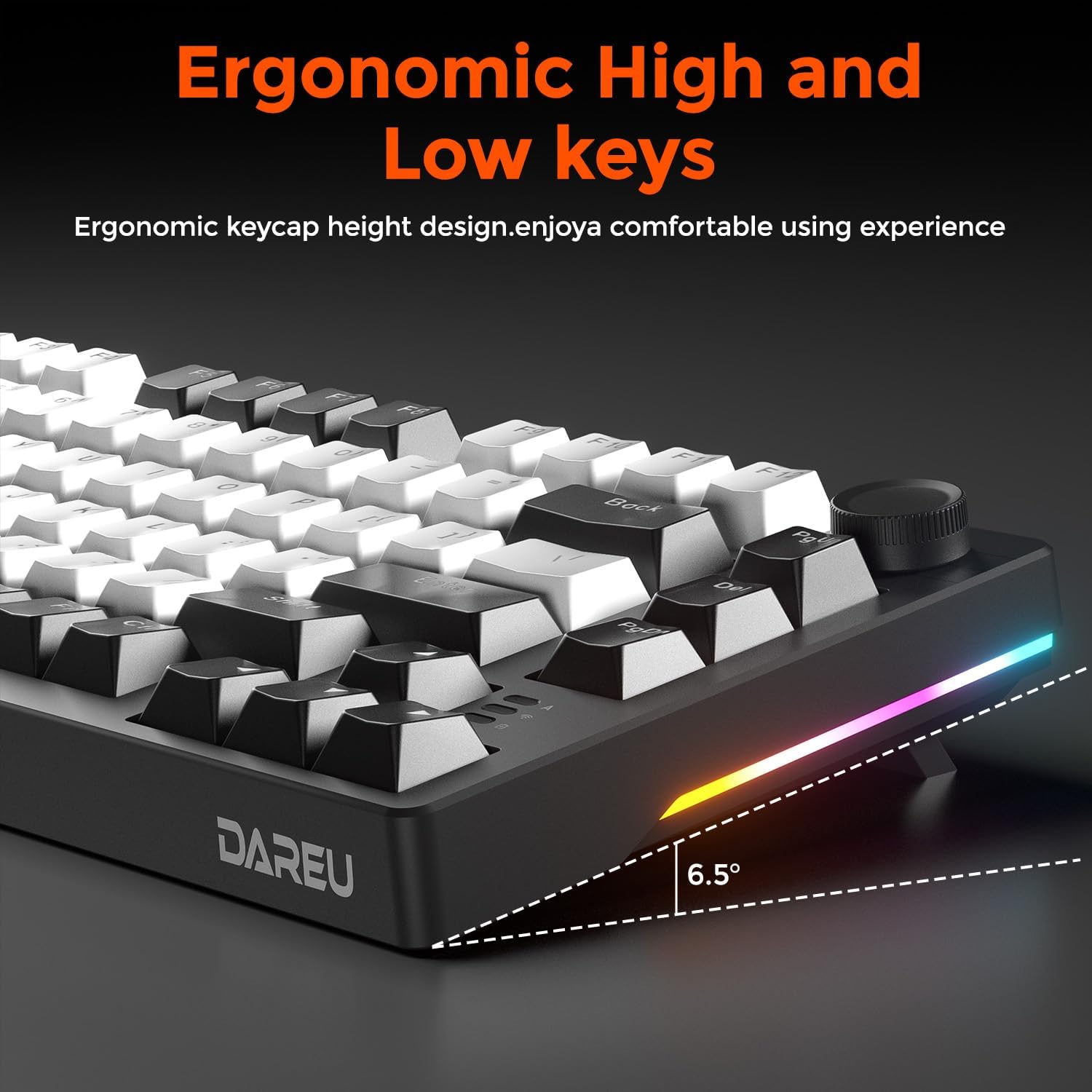
Ergonomic Design
The keyboard is designed with ergonomic high and low key profiles to provide a comfortable typing experience, reducing strain during extended use.

Maintenance
Proper maintenance ensures the longevity and performance of your DAREU EK75 keyboard.
Cleaning
- Disconnect the keyboard from your computer before cleaning.
- Use a soft, lint-free cloth slightly dampened with water or a mild cleaning solution to wipe the keycaps and chassis. Avoid excessive moisture.
- For dust and debris between keys, use compressed air.
- Do not use harsh chemicals, abrasives, or solvents, as these can damage the keyboard's finish and keycap legends.
Keycap and Switch Care
The DAREU EK75 features durable PBT keycaps and Linear Dream Switches. While designed for longevity, care should be taken during cleaning or customization.
- If removing keycaps for deep cleaning or replacement, use the included keycap puller tool to avoid damaging the keycaps or switches.
- Gently pull keycaps straight up. Do not twist or apply excessive force.
- When reattaching, align the keycap stem with the switch stem and press down firmly until it clicks into place.


Troubleshooting
If you encounter issues with your DAREU EK75 keyboard, refer to the following common solutions:
- Keyboard Not Responding:
- Ensure the USB-C cable is securely connected to both the keyboard and the computer.
- Try plugging the keyboard into a different USB port on your computer.
- Restart your computer.
- Test the keyboard on another computer to rule out a system-specific issue.
- Backlighting Not Working or Incorrect:
- Check if the backlight is simply turned off. Use the designated Fn key combinations to cycle through lighting modes or adjust brightness.
- Ensure no software conflicts are present if you are using third-party lighting control applications.
- Volume Knob Not Functioning:
- Verify that the keyboard is properly connected and recognized by your system.
- Check your computer's audio settings to ensure the correct output device is selected.
- Restart your computer.
- Keys Not Registering or Double-Typing:
- Ensure the keycaps are properly seated on the switches.
- Clean around the affected switch using compressed air to remove any debris.
- If the issue persists, it may indicate a switch malfunction. Contact DAREU support for further assistance.
Specifications
| Feature | Detail |
|---|---|
| Model Name | EK75-BK |
| Layout | 75% Compact (81 Keys) |
| Connectivity | Wired USB-C |
| Switches | Linear Dream Switch |
| Keycaps | PBT Keycaps |
| Mounting Style | Gasket-Mounted Structure |
| Backlighting | Rainbow Backlit + RGB Sidelit |
| Special Features | Volume Control Knob, N-Key Rollover, Anti-Ghosting, Ergonomic Design |
| Product Dimensions | 12.99 x 5.5 x 1.57 inches (33 x 14 x 4 cm) |
| Item Weight | 1.85 pounds (0.84 kg) |
| Compatible Devices | Laptop, PC, Tablet |
| Included Components | USB Cable |
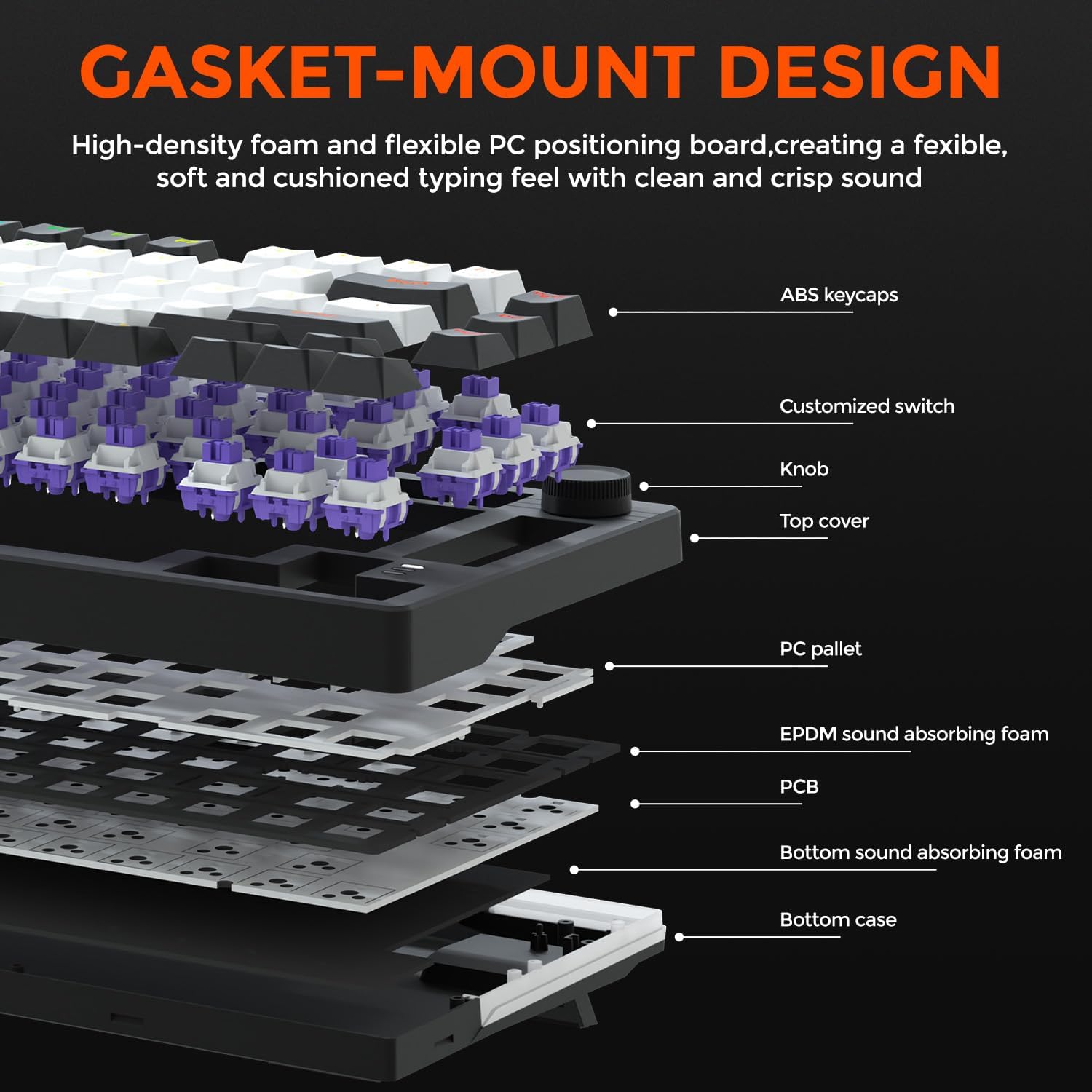
Gasket-Mounted Structure
The DAREU EK75 utilizes a gasket-mounted design, where gaskets are strategically placed around the positioning plate. This construction isolates the plate from the keyboard case, resulting in a softer, more cushioned typing feel and a purer sound profile by reducing harsh impacts and vibrations.
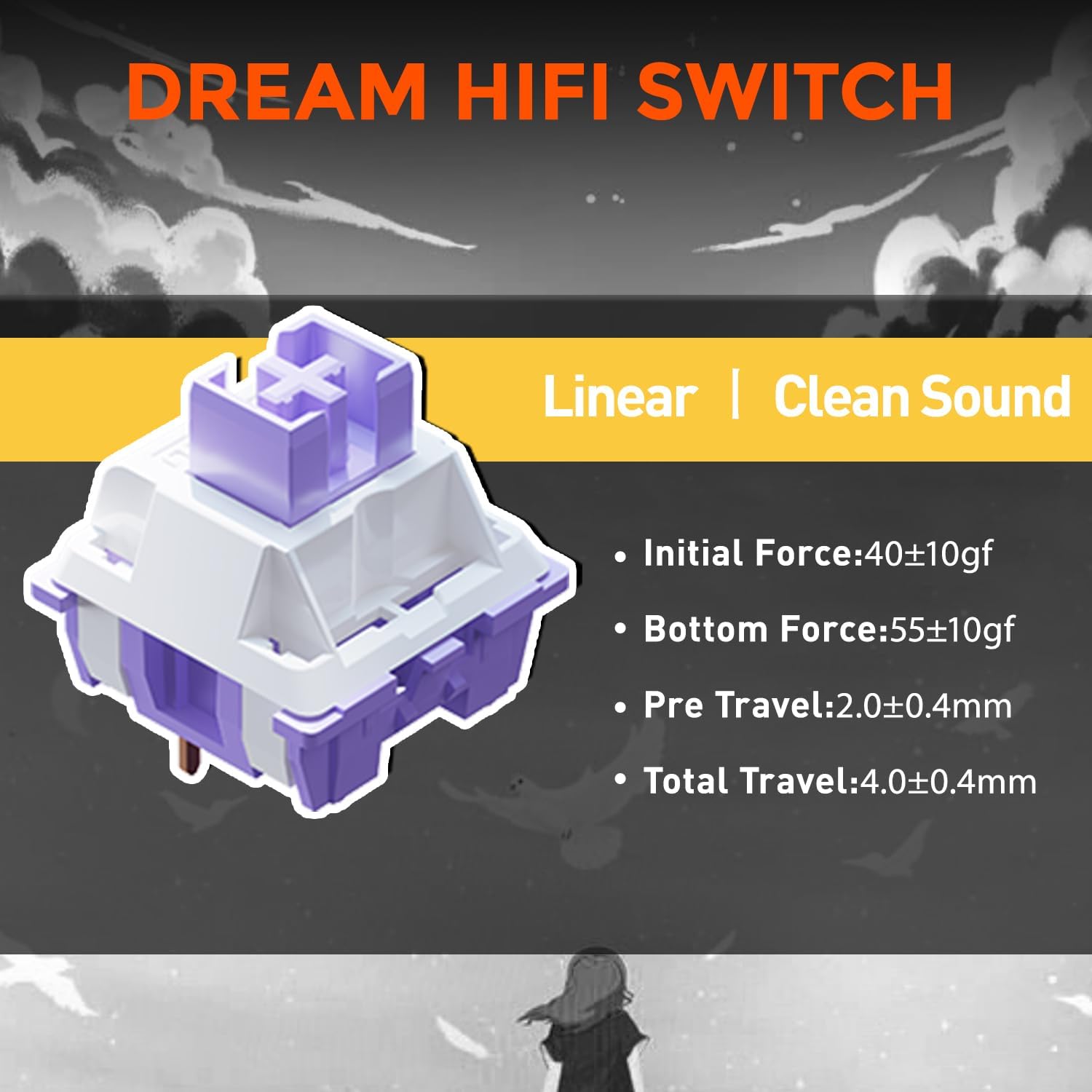
Linear Dream Switches
The keyboard is equipped with DAREU's Linear Dream Switches, known for their smooth and consistent keystroke without a tactile bump. These switches provide a clean sound and are ideal for both typing and gaming.
- Initial Force: 40±10gf
- Bottom Force: 55±10gf
- Pre Travel: 2.0±0.4mm
- Total Travel: 4.0±0.4mm
Warranty and Support
For warranty information, technical support, or service inquiries regarding your DAREU EK75 keyboard, please refer to the official DAREU website or contact DAREU customer service directly. Details regarding specific warranty periods and terms are typically provided with your purchase documentation or on the manufacturer's support pages.
Additional protection plans may be available for purchase from your retailer. Please consult your retailer for details on these extended service options.
Related documentsEK75


Ask a question about this manual
Ask about setup, troubleshooting, compatibility, parts, safety, or missing instructions. Manuals+ will review the question and use this page’s manual context to help answer it.