
1. Introduction
Thank you for purchasing the Goiaey C26 Mini Portable Projector. This device integrates a Google TV system, offering a comprehensive entertainment experience with built-in streaming apps, voice control, and advanced connectivity. This manual provides essential information for safe operation, setup, and maintenance of your projector.
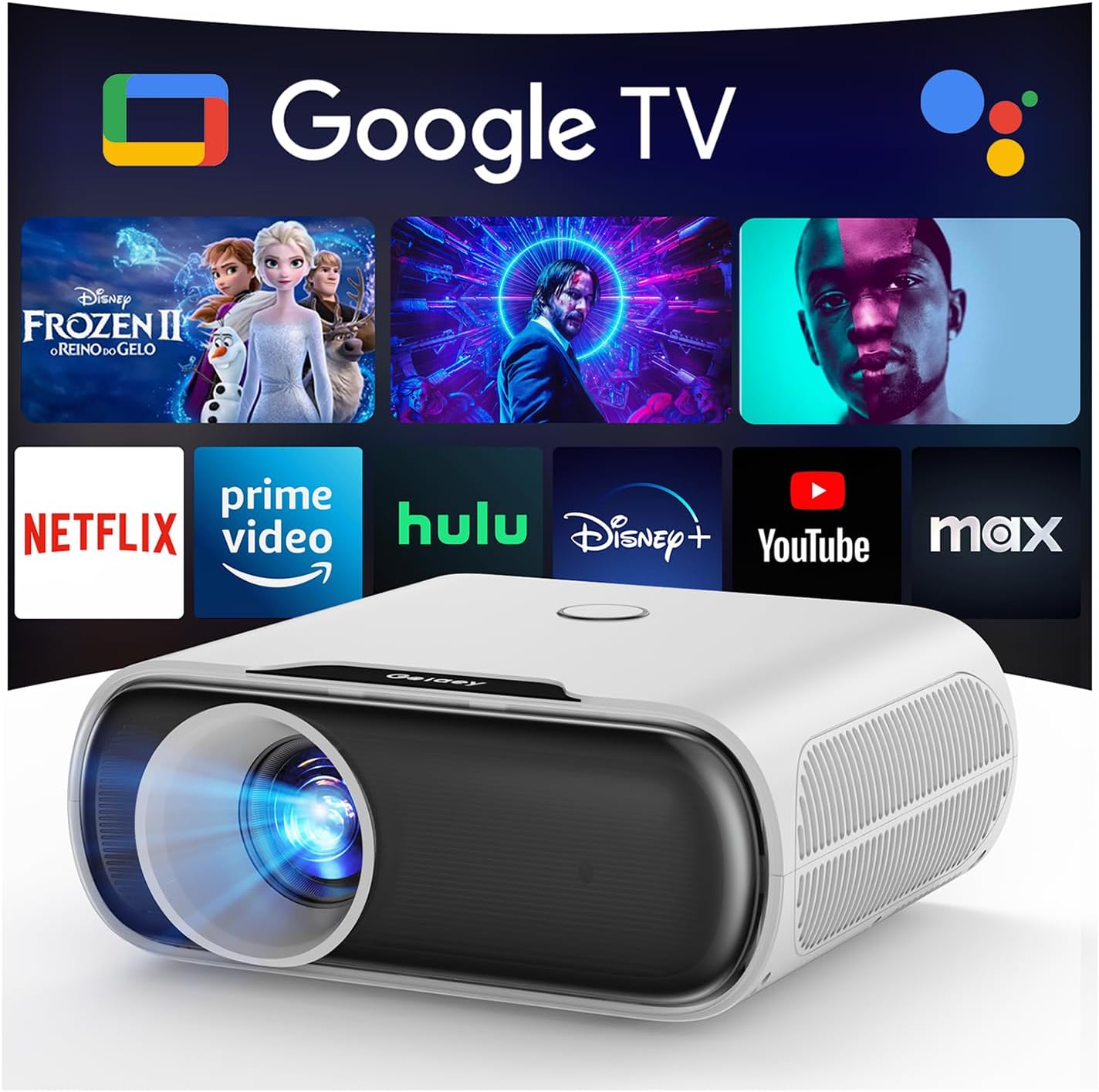
Image 1.1: The Goiaey C26 Mini Portable Projector, showcasing its compact design and integrated Google TV interface with popular streaming applications like Netflix, YouTube, and Disney+.
2. Safety Information
Please read all safety instructions before using the projector to prevent injury or damage to the device.
- Power Supply: Use only the provided power adapter. Ensure the voltage matches the projector's requirements.
- Ventilation: Do not block ventilation openings. Ensure adequate airflow around the projector to prevent overheating.
- Placement: Place the projector on a stable, flat surface. Avoid placing it in direct sunlight, near heat sources, or in humid environments.
- Cleaning: Disconnect power before cleaning. Use a soft, dry cloth. Do not use liquid or aerosol cleaners.
- Eye Protection: Avoid looking directly into the projector lens when the lamp is on, as the bright light can cause eye strain.
- Children: Keep the projector and its accessories out of reach of children.
- Disassembly: Do not attempt to disassemble or repair the projector yourself. Refer all servicing to qualified personnel.
3. Package Contents
Verify that all items are present in the package:
- 1x Goiaey C26 Google TV Projector
- 1x Bluetooth and Infrared Remote Control
- 1x Power Cord
- 1x HDMI Cable
- 1x User Manual (this document)
4. Product Overview
The Goiaey C26 is a compact and lightweight projector designed for portability and ease of use. It features a native 1080P resolution with 4K support, 800 ANSI lumens brightness, and HDR10 compatibility for vibrant images. Its dimensions are approximately 6.3 x 2.91 x 7.4 inches, and it weighs about 1.76 pounds.
4.1 Key Features
- Built-in Google TV System with access to 10,000+ official apps.
- Google Voice Assistant and Google Cast functionality.
- HDMI ARC and CEC functions for simplified control and audio connectivity.
- Electric Focus and 4-Point Keystone Correction for quick image adjustment.
- WiFi 6 and Bluetooth 5.2 for fast wireless connectivity.

Image 4.1: The Goiaey C26 projector's compact size (7.4 x 6.3 x 2.9 inches, 2.2 lbs) makes it highly portable.
5. Setup
5.1 Initial Power On
- Connect the power cord to the projector and then to a power outlet.
- Press the power button on the projector or the remote control to turn it on.
- Follow the on-screen instructions to complete the initial Google TV setup, including connecting to your Wi-Fi network and logging into your Google account.
5.2 Image Adjustment
The projector features Electric Focus and Auto Vertical Keystone correction for optimal image clarity.
- Electric Focus: Use the dedicated focus buttons on the remote control (F+ / F-) to adjust the image sharpness. A single click will bring the entire image into clear focus.
- Auto Vertical Keystone: The projector automatically corrects vertical image distortion within a 15° range when moved.
- 4-Point Keystone Correction: For larger or horizontal image adjustments, navigate to the settings menu to manually adjust the four corners of the image.
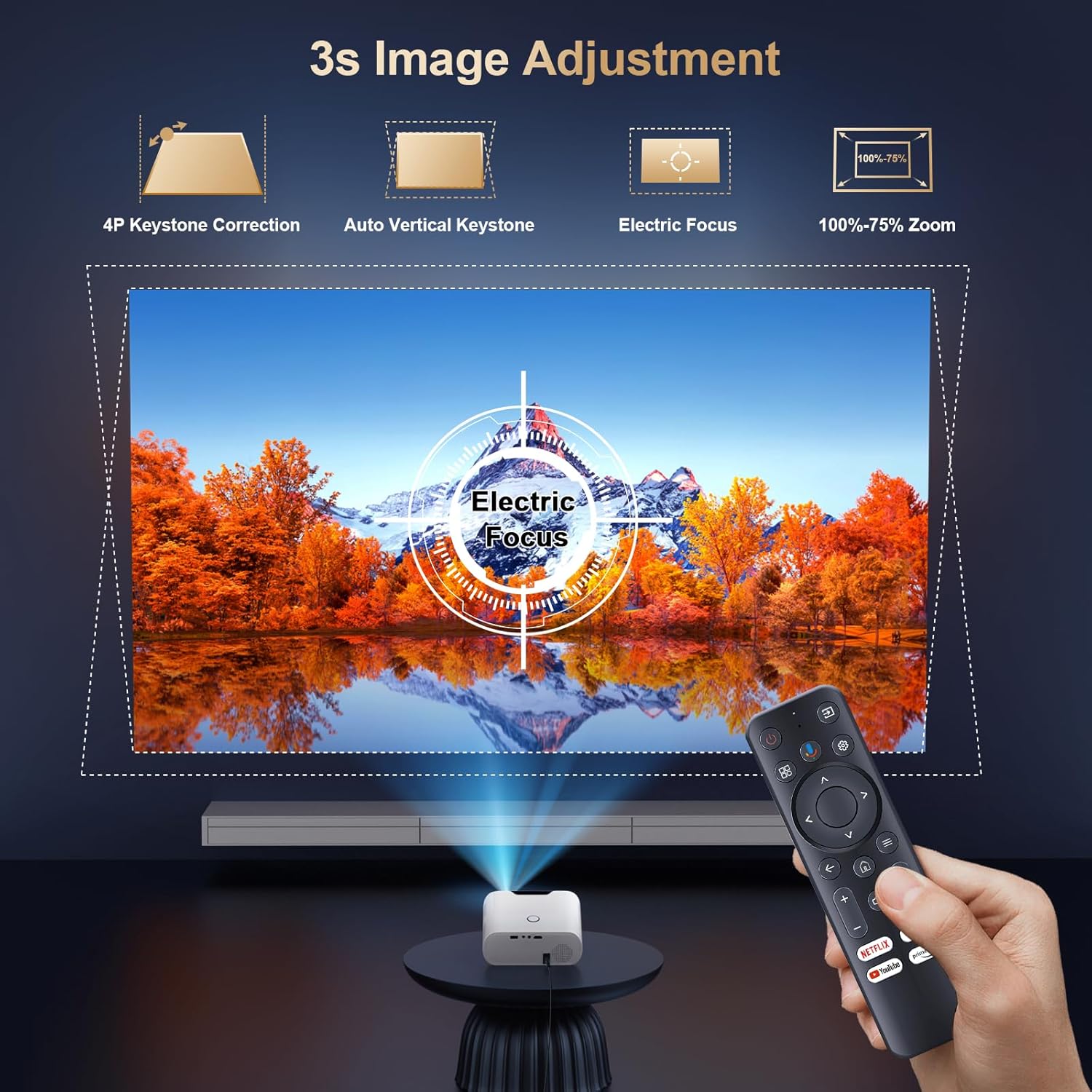
Image 5.1: The remote control provides quick access to Electric Focus and Keystone Correction features for precise image adjustment.
6. Operating Instructions
6.1 Google TV System & Apps
The Goiaey C26 comes with an official Google TV system, providing direct access to a vast library of streaming applications.
- Navigate the Google TV interface using the remote control.
- Download and install your favorite streaming apps (e.g., Netflix, YouTube, Prime Video, Disney+) from the Google Play Store.

Image 6.1: Seamless streaming is enabled by the integrated Google TV system, offering access to numerous official applications.
6.2 Google Voice Assistant
Control your projector and content using voice commands.
- Press and hold the dedicated Voice Assistant button on your remote control.
- Speak commands such as "Open Netflix" or "Play Hot Movies."

Image 6.2: The Google Voice Assistant allows for convenient control of the projector and content through spoken commands.
6.3 Google Cast & WiFi 6 Mirroring
Mirror content from your smartphone or tablet to the projector.
- Ensure your mobile device and the projector are connected to the same WiFi 6 network for optimal performance.
- Use the Google Cast function from compatible apps on your phone/tablet to seamlessly project content.

Image 6.3: WiFi 6 mirroring and Google Cast enable seamless display of content from mobile devices onto the projector screen.
6.4 Bluetooth 5.2 Connectivity
Connect external Bluetooth speakers for an enhanced audio experience.
- Go to the projector's settings menu and select Bluetooth.
- Ensure your Bluetooth speaker is in pairing mode.
- Select your speaker from the list of available devices to pair.
- Note: Bluetooth functionality is available once you are signed into your Google account.

Image 6.4: Connect additional Bluetooth speakers to the projector for an immersive audio experience.
6.5 HDMI ARC and CEC Function
The projector supports HDMI ARC (Audio Return Channel) and CEC (Consumer Electronics Control) for simplified connectivity and control.
- HDMI ARC: Connect an external speaker system via an HDMI cable to the ARC-enabled HDMI port for audio output.
- HDMI CEC: This feature allows a single remote control to operate multiple CEC-enabled devices connected via HDMI, simplifying your home entertainment setup.
7. Maintenance
Proper maintenance ensures the longevity and optimal performance of your Goiaey C26 projector.
- Proper Ventilation: Always ensure the projector has adequate space for airflow. Do not place it in enclosed spaces or cover its vents.
- Regular Cleaning: Periodically clean the projector's exterior with a soft, dry cloth. For the lens, use a specialized lens cleaning cloth and solution.
- Correct Shutdown: Always power off the projector using the designated power button and allow it to complete its shutdown cycle before unplugging.
- Optimal Usage Time: Avoid continuous operation for excessively long periods to prevent overheating and extend component lifespan.
- Stable Power Supply: Use a stable power source and avoid frequent power fluctuations. Consider a surge protector.
- Proper Storage: When not in use for extended periods, store the projector in a cool, dry, dust-free environment.
8. Troubleshooting
If you encounter issues with your projector, refer to the following common solutions:
| Problem | Possible Cause | Solution |
|---|---|---|
| No image or blurry image | Incorrect focus, keystone settings, or input source. | Adjust Electric Focus (F+/F- buttons). Check 4-Point Keystone Correction in settings. Ensure correct input source is selected. |
| No sound | Volume too low, incorrect audio output settings, or un-paired Bluetooth device. | Increase volume. Check audio output settings (internal speaker, HDMI ARC, Bluetooth). Re-pair Bluetooth device if necessary. |
| Remote control not working | Low batteries, obstruction, or not paired (for Bluetooth remote). | Replace batteries. Ensure no obstructions between remote and projector. Re-pair Bluetooth remote if it's a Bluetooth remote. |
| Wi-Fi connectivity issues | Weak signal, incorrect password, or network interference. | Ensure projector is within Wi-Fi range. Verify password. Restart router and projector. |
| Projector overheats | Blocked ventilation or prolonged use. | Ensure vents are clear. Operate in a well-ventilated area. Allow projector to cool down after extended use. |
If the problem persists, please contact Goiaey customer support for assistance.
9. Specifications
| Feature | Detail |
|---|---|
| Brand | Goiaey |
| Model Number | C26 |
| Display Resolution | Native 1920 x 1080 (Full HD), 4K Supported |
| Brightness | 800 ANSI Lumens |
| HDR Support | HDR 10 |
| Connectivity Technology | Bluetooth 5.2, USB, Wi-Fi 6 |
| Operating System | Google TV System |
| Special Features | Google Voice Assistant, Google Cast, HDMI ARC, HDMI CEC, Electric Focus, 4P Keystone, Portable Design |
| Product Dimensions | 6.3 x 2.91 x 7.4 inches |
| Item Weight | 1.76 pounds |
| Recommended Uses | Home Cinema, Gaming, Party |

Image 9.1: The Goiaey C26 offers native 1080P resolution, 800 ANSI lumens, and HDR10 support for premium image quality.
10. Warranty and Support
10.1 Product Warranty
The Goiaey C26 Mini Portable Projector comes with a comprehensive warranty:
- 1-Year Replacement: In case of product defects, a replacement will be provided within one year from the purchase date.
- 2-Year Repair: Repair services are available for up to two years from the purchase date for eligible issues.
Please retain your proof of purchase for warranty claims.
10.2 Customer Support
For any questions, technical assistance, or warranty claims, please contact Goiaey customer support. You can find the official contact address in the manual provided with your product or on the Goiaey official website. Our support team aims to respond within 24 business hours.