
1. Introduction
The Perixx PERIBOARD-832RGB is a compact, wireless mini keyboard featuring RGB backlighting and multi-device Bluetooth connectivity. This manual provides instructions for setting up, operating, and maintaining your keyboard to ensure optimal performance.

Image 1.1: The Perixx PERIBOARD-832RGB keyboard in use, showcasing its compact design and backlit keys.
2. Package Contents
Please check the package for the following items:
- Perixx PERIBOARD-832RGB Wireless RGB Backlit Mini Keyboard
- USB-C to A Charging Cable
- User Manual (this document)

Image 2.1: Contents of the Perixx PERIBOARD-832RGB package, including the keyboard, USB-C cable, and manual.
3. Setup and Connection
3.1 Charging the Keyboard
Before first use, fully charge the keyboard. Connect the provided USB-C to A cable to the keyboard's USB-C charging port and the other end to a USB power source (e.g., computer USB port, USB wall adapter).
- The charging indicator light will illuminate during charging.
- The indicator will change or turn off once charging is complete.

Image 3.1: Location of the USB-C charging port and power ON/OFF switch on the keyboard.
3.2 Power On/Off
Locate the power switch on the side or back of the keyboard. Slide it to the 'ON' position to power on the keyboard. Slide it to 'OFF' when not in use to conserve battery.
3.3 Bluetooth Pairing (Multi-Device Connection)
The PERIBOARD-832RGB supports connection to up to three devices via Bluetooth. Follow these steps to pair your keyboard:
- Ensure the keyboard is powered on.
- Press and hold the Fn key and one of the Bluetooth channel keys (Q for BT1, W for BT2, or E for BT3) for 3-5 seconds until the corresponding indicator light (usually above the key) starts blinking rapidly. This indicates the keyboard is in pairing mode.
- On your device (PC, laptop, tablet, smartphone), enable Bluetooth and search for new devices.
- Select "PERIBOARD-832RGB" from the list of available devices.
- If prompted, enter the pairing code displayed on your screen using the keyboard and press Enter.
- Once paired, the indicator light will stop blinking and remain solid for a few seconds before turning off. The keyboard is now connected.
To connect to additional devices, repeat the process using a different Bluetooth channel key (Fn+W or Fn+E).

Image 3.2: Visual guide for connecting the keyboard to up to three devices using Fn+Q/W/E keys.
4. Operation
4.1 Switching Between Connected Devices
To switch between your paired devices, simply press the Fn key along with the corresponding Bluetooth channel key (Q, W, or E) for the desired device. The keyboard will automatically connect to the selected device.
4.2 Backlight Control
The PERIBOARD-832RGB features RGB backlighting with multiple color options.
- Turn Backlight On/Off: Press Fn + F11 (RGB) to toggle the backlight on or off.
- Change Backlight Color: Press Fn + F12 (RGB) to cycle through the available RGB colors (7 colors).
- Adjust Brightness: Use Fn + Page Up to increase brightness and Fn + Page Down to decrease brightness.
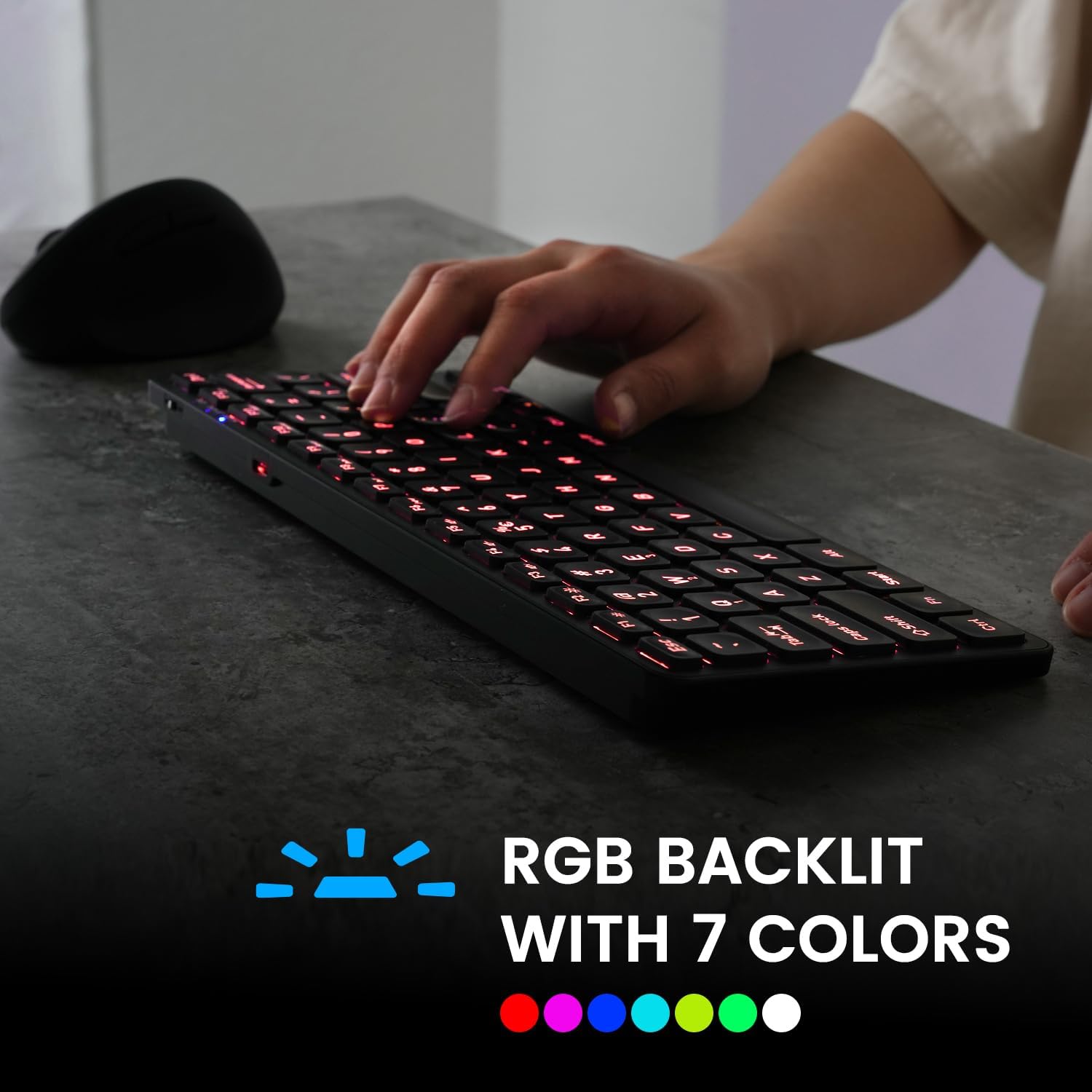
Image 4.1: The keyboard illuminated with RGB backlighting, demonstrating visibility in low-light conditions.
4.3 Function Keys (Fn Combinations)
Many keys have secondary functions accessible by holding the Fn key and pressing the desired function key. These include media controls, volume adjustments, and other system shortcuts.
| Key Combination | Function |
|---|---|
| Fn + Q | Switch to Bluetooth Device 1 |
| Fn + W | Switch to Bluetooth Device 2 |
| Fn + E | Switch to Bluetooth Device 3 |
| Fn + F1 | Media Player |
| Fn + F2 | Volume Down |
| Fn + F3 | Volume Up |
| Fn + F4 | Mute |
| Fn + F5 | Previous Track |
| Fn + F6 | Play/Pause |
| Fn + F7 | Next Track |
| Fn + F8 | Stop |
| Fn + F9 | Web Browser |
| Fn + F10 | |
| Fn + F11 (RGB) | Backlight On/Off |
| Fn + F12 (RGB) | Cycle Backlight Colors |
| Fn + Page Up | Increase Backlight Brightness |
| Fn + Page Down | Decrease Backlight Brightness |

Image 4.2: Detailed view of the keyboard keys, highlighting the primary and secondary (Fn) functions.
5. Maintenance
To ensure the longevity and optimal performance of your keyboard, follow these maintenance guidelines:
- Cleaning: Use a soft, lint-free cloth slightly dampened with water or a mild cleaning solution to wipe the surface of the keyboard. Avoid harsh chemicals or abrasive materials.
- Dust Removal: Use compressed air to remove dust and debris from between the keys.
- Battery Care: Avoid fully discharging the battery frequently. Charge the keyboard regularly, especially if it will not be used for an extended period.
- Storage: Store the keyboard in a cool, dry place away from direct sunlight and extreme temperatures.
6. Troubleshooting
If you encounter issues with your PERIBOARD-832RGB, refer to the following common solutions:
| Problem | Possible Solution |
|---|---|
| Keyboard does not turn on. | Ensure the power switch is in the 'ON' position. Charge the keyboard fully using the provided USB-C cable. |
| Cannot connect via Bluetooth. | Make sure the keyboard is in pairing mode (Fn + Q/W/E, indicator blinking). Ensure Bluetooth is enabled on your device. Try unpairing and re-pairing the keyboard. Move the keyboard closer to your device. |
| Keys are not responding or typing incorrectly. | Check battery level and charge if necessary. Ensure the keyboard is connected to the correct device. Restart the keyboard and your device. |
| Backlight is not working. | Press Fn + F11 to toggle the backlight. Ensure the keyboard has sufficient battery charge. |
| Keyboard disconnects frequently. | Ensure the keyboard is within the effective Bluetooth range (typically 10 meters). Reduce interference from other wireless devices. Charge the keyboard. |
7. Specifications
| Feature | Detail |
|---|---|
| Brand | Perixx |
| Model | PERIBOARD-832RGB |
| Connectivity Technology | Bluetooth |
| Keyboard Description | Mechanical (Scissor-switch type) |
| Special Feature | RGB Backlit (7 colors) |
| Compatible Devices | PC, Laptop, Tablet, Smartphone |
| Product Dimensions | 11.06"L x 4.53"W x 0.87"H (28.09 x 11.51 x 2.21 cm) |
| Item Weight | 1.06 pounds (0.48 kg) |
| Material | Plastic |
| Power Source | USB Powered (Rechargeable Battery) |
| Included Components | USB-C to A cable |
8. Warranty and Support
Perixx products are covered by a limited warranty. For detailed warranty information, technical support, or customer service, please refer to the official Perixx website or contact their customer support directly. Keep your purchase receipt for warranty claims.


