1. Introduction
This manual provides detailed instructions for the installation, operation, and maintenance of your Fortdows Car Radio Upgrade for Ford Escape 2013-2018 models. This system integrates advanced features such as a 9-inch HD touchscreen, wireless CarPlay and Android Auto, GPS navigation, Bluetooth 5.0, 5G WiFi, and DSP HiFi sound. Please read this manual thoroughly before installation and use to ensure proper functionality and safety.

Image 1.1: Product compatibility and key features overview.
2. Safety Information
- Professional Installation Recommended: Due to the complexity of vehicle electrical systems, professional installation is highly recommended to prevent damage to the unit or vehicle.
- Disconnect Battery: Always disconnect the vehicle's negative battery terminal before beginning any electrical work to prevent short circuits and electrical hazards.
- Wiring: Ensure all wiring connections are secure and properly insulated to avoid electrical shorts or interference.
- Driving Safety: Do not operate the unit in a manner that distracts you from driving. Always prioritize road safety.
- Temperature: Avoid exposing the unit to extreme temperatures or direct sunlight for prolonged periods.
3. Package Contents
Verify that all items listed below are included in your package. If any items are missing or damaged, please contact customer support.

Image 3.1: Included accessories with the Fortdows Car Radio Upgrade.
- Fortdows Car Radio Head Unit
- Reversing Cable
- GPS Antenna
- Backup Camera
- Power Cable
- Microphone (Mic)
- Crowbar (for trim removal)
- Original USB Cable
- CAN BUS Decoder
- RCA Cable
- Additional USB Cable
4. Setup and Installation
4.1 Pre-Installation Checks
- Confirm vehicle compatibility: This unit is designed for Ford Escape models from 2013 to 2018.
- Gather necessary tools: Trim removal tools (crowbar included), screwdriver set, wire strippers/crimpers (if needed).
- Disconnect the vehicle battery before starting.
4.2 Installation Overview
The installation process involves removing the factory radio, connecting the new unit's wiring harness, and mounting the new display. The unit is designed for a seamless fit.

Image 4.1: Before and After installation in a Ford Escape dashboard.
4.3 Wiring Diagram
Refer to the following diagram for proper wiring connections. Ensure each cable is connected to its corresponding port.

Image 4.2: Radio Wiring Diagram.
- Power Cable: Connect the main power harness to the vehicle's wiring.
- CAN BUS: Connect the CAN BUS decoder for steering wheel controls and vehicle data integration.
- USB Cables: Connect the provided USB cables for external devices and data transfer.
- GPS Antenna: Mount the GPS antenna in a location with a clear view of the sky, typically on the dashboard.
- Radio Antenna: Connect the vehicle's radio antenna.
- Backup Camera: Connect the reversing cable and backup camera for rear view functionality.
- Microphone: Connect the external microphone for improved call quality.
- RCA Cables: Use RCA cables for external audio/video input or output, such as amplifiers or additional displays.
4.4 Post-Installation
- Reconnect the vehicle battery.
- Power on the unit and perform initial setup, including language, time, and network settings.
- Test all functions: radio, GPS, Bluetooth, CarPlay/Android Auto, steering wheel controls, and backup camera.
5. Operating Instructions
5.1 Basic Interface Navigation
The unit features a responsive 9-inch 1280x800 HD touchscreen. Navigate through menus and applications by tapping, swiping, and pinching gestures similar to a smartphone or tablet.

Image 5.1: Main interface of the Fortdows Car Radio.
5.2 Wireless CarPlay & Android Auto
Connect your iPhone or Android device wirelessly for seamless integration of navigation, music, messages, and voice assistants.

Image 5.2: Wireless CarPlay and Android Auto functionality.
- Pairing: Enable Bluetooth and Wi-Fi on your smartphone. On the car radio, go to the CarPlay/Android Auto app and follow the on-screen instructions to pair your device.
- Voice Control: Use "Hey Siri" or "Hey Google" for hands-free operation.
5.3 Bluetooth 5.0
Connect your smartphone via Bluetooth for hands-free calling and audio streaming.

Image 5.3: Bluetooth 5.0 for calls and music.
- Pairing: Go to the Bluetooth settings on the car radio, enable Bluetooth, and search for your phone. Pair the devices using the provided PIN.
- Hands-Free Calling: Access your phonebook, make, and receive calls directly from the touchscreen.
- Music Streaming: Play audio from your phone through the car's speakers.
5.4 GPS Navigation
The built-in GPS module provides accurate navigation. Supports online and offline maps.

Image 5.4: GPS Navigation in action.
- Online Maps: Connect to Wi-Fi or a mobile hotspot to use real-time traffic and updated map data.
- Offline Maps: Download map data for your region to navigate without an internet connection.
5.5 Steering Wheel Controls (SWC)
Maintain control of your audio and calls without taking your hands off the steering wheel.

Image 5.5: Steering Wheel Controls setup interface.
- Configuration: Access the SWC settings menu on the unit. Follow the on-screen instructions to program each button on your steering wheel to its corresponding function on the radio.
5.6 5G WiFi & Hotspot
Connect to high-speed internet for streaming, app downloads, and system updates.
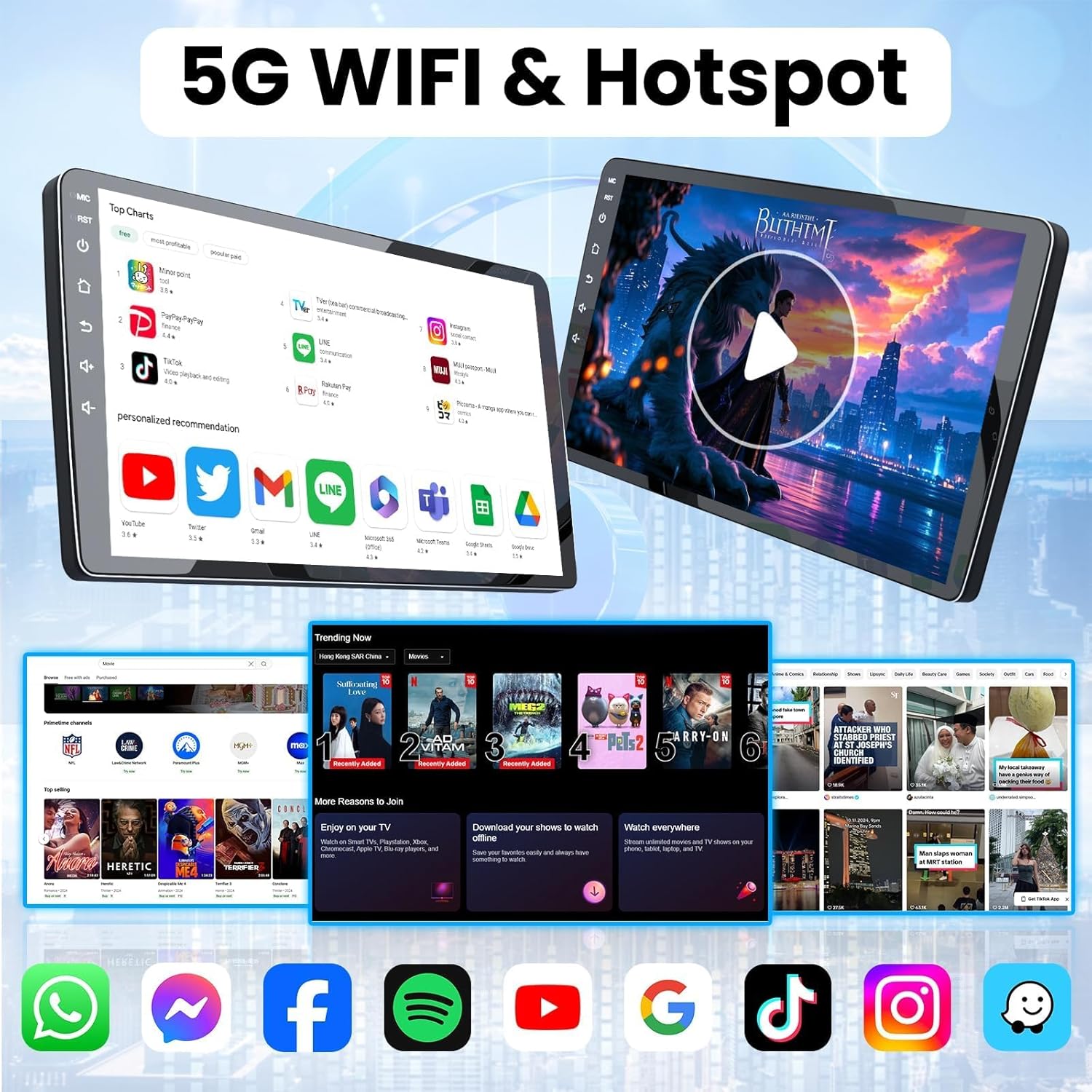
Image 5.6: 5G WiFi connectivity for entertainment and apps.
- Connecting to WiFi: Go to Settings > Network > Wi-Fi. Select your desired network and enter the password.
- Hotspot: The unit can also act as a hotspot, sharing its internet connection with other devices (if connected to mobile data via a dongle, not included).
5.7 Reversing Camera
The included backup camera provides a clear view of the area behind your vehicle when reversing.

Image 5.7: Reversing Camera view.
- Automatic Activation: The display automatically switches to the camera view when the vehicle is put into reverse gear.
- Guidelines: Dynamic parking guidelines assist with safe maneuvering.
5.8 Split Screen Function
Multitask efficiently by running two applications side-by-side on the large display.

Image 5.8: Split Screen Functionality.
- Activation: Long-press the recent apps button or drag an app to one side of the screen to activate split-screen mode.
5.9 Mirror Link (Wired & Wireless)
Mirror your smartphone's screen directly onto the car radio display.

Image 5.9: Wired and Wireless Mirror Link.
- Wired Connection: Connect your smartphone via USB cable.
- Wireless Connection: Connect via Wi-Fi by following the instructions in the Mirror Link application.
5.10 DSP HiFi Sound with RDS
Enjoy enhanced audio quality with the built-in Digital Signal Processor (DSP) and HiFi sound technology. RDS provides clear radio information.
- DSP Settings: Access the equalizer and sound field settings to customize your audio experience.
- RDS: Radio Data System displays station information, song titles, and other broadcast data.
6. Maintenance
- Screen Cleaning: Use a soft, lint-free cloth specifically designed for electronics screens. Do not use abrasive cleaners or solvents.
- Software Updates: Periodically check for software updates via the system settings to ensure optimal performance and access to new features.
- Environmental Conditions: Avoid exposing the unit to extreme heat, cold, or humidity.
7. Troubleshooting
If you encounter issues, refer to the following common problems and solutions:
| Problem | Possible Cause | Solution |
|---|---|---|
| Unit does not power on | Loose power connection, blown fuse, incorrect wiring. | Check power cable connections. Inspect vehicle fuses. Verify wiring against diagram. |
| No sound | Volume too low, mute activated, speaker wires disconnected, incorrect audio settings. | Increase volume. Check mute status. Ensure speaker wires are connected. Adjust audio output settings. |
| GPS signal lost or inaccurate | GPS antenna obstructed or improperly placed, outdated map data. | Ensure GPS antenna has a clear view of the sky. Update map data if necessary. |
| Bluetooth connection issues | Device not paired, Bluetooth disabled, interference. | Ensure Bluetooth is enabled on both devices. Re-pair the devices. Move away from sources of interference. |
| CarPlay/Android Auto not connecting | Incorrect pairing, Wi-Fi/Bluetooth issues, phone software outdated. | Verify Wi-Fi and Bluetooth are active. Re-pair the phone. Update phone's operating system. |
| Steering Wheel Controls not working | CAN BUS not connected, controls not programmed. | Ensure CAN BUS is correctly connected. Re-program SWC in settings. |
8. Specifications
Key technical specifications of the Fortdows Car Radio Upgrade:

Image 8.1: Core system specifications.
- Operating System: Android 13
- Processor: 4-Core
- RAM: 4GB
- Internal Storage (ROM): 64GB
- Display Size: 9 Inches
- Display Resolution: 1280x800 HD
- Connectivity: Bluetooth 5.0, 5G Wi-Fi
- Special Features: Wireless CarPlay, Wireless Android Auto, GPS Navigation, DSP HiFi Sound, RDS, Steering Wheel Control (SWC) support, Backup Camera support.
- Item Weight: Approximately 5.93 pounds
- Package Dimensions: 17.13 x 13.79 x 6.61 inches
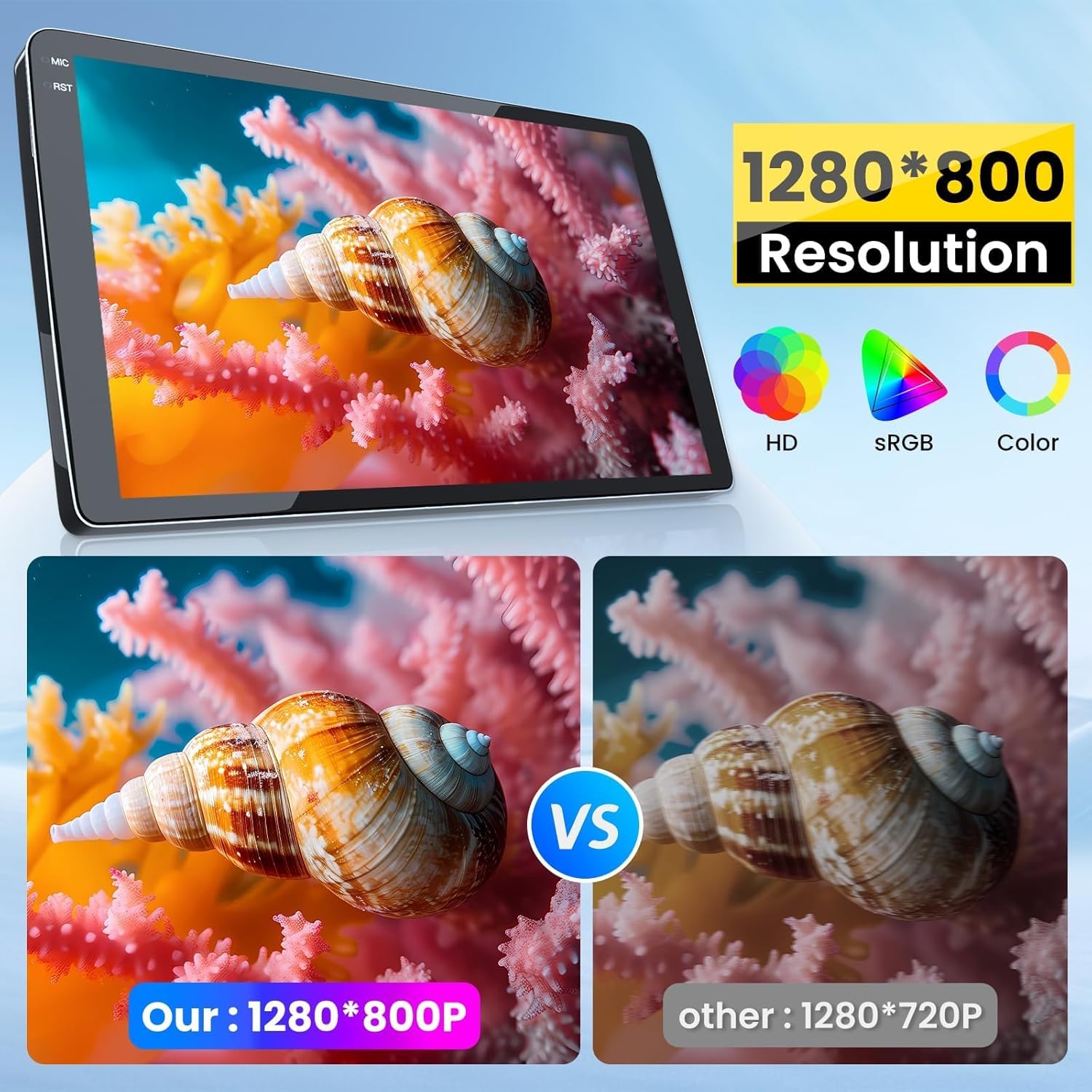
Image 8.2: Display resolution comparison.
9. Warranty and Support
For warranty information and technical support, please refer to the documentation included with your purchase or contact Fortdows customer service directly. Contact details can typically be found on the manufacturer's website or through your retailer.
- Customer Service: For assistance with installation, troubleshooting, or warranty claims, please reach out to Fortdows support.
- Online Resources: Check the official Fortdows website for FAQs, updated manuals, and software downloads.


