
1. Introduction
This manual provides essential information for setting up, operating, maintaining, and troubleshooting your Xiaomi Redmi Pad 2 tablet. Please read these instructions carefully to ensure optimal performance and longevity of your device.
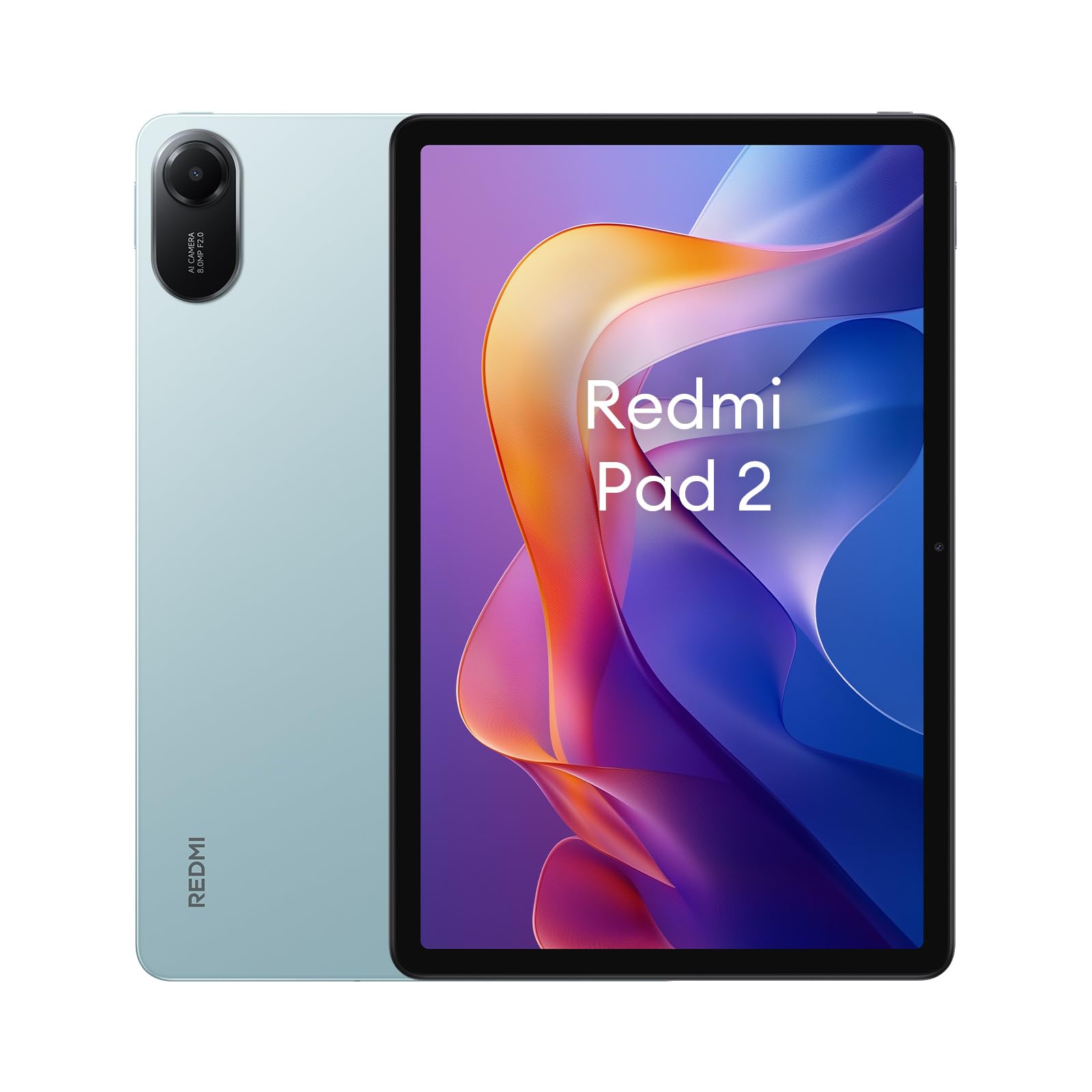
Image: Rear view of the Xiaomi Redmi Pad 2 tablets in two different colors, highlighting the camera design.
2. Setup
2.1. Unboxing and Initial Charge
Carefully remove all components from the packaging. Before first use, it is recommended to fully charge the tablet's 9000 mAh battery using the provided charger and cable. A full charge ensures the device is ready for initial setup and prolonged use.
2.2. Powering On/Off
- To power on: Press and hold the power button located on the side of the tablet until the Xiaomi logo appears.
- To power off: Press and hold the power button, then select "Power off" from the options displayed on the screen.
- To restart: Press and hold the power button, then select "Restart" from the options.
2.3. Initial Configuration
Upon first startup, the tablet will guide you through the initial setup process. This includes selecting your language, connecting to a Wi-Fi network, setting up your Google account, and configuring basic security settings.
2.4. MicroSD Card Installation (Optional)
The Redmi Pad 2 supports storage expansion up to 2TB via a microSD card. Locate the card slot on the side of the tablet. Insert the microSD card gently into the slot until it clicks into place. Ensure the tablet is powered off before inserting or removing the card.
3. Operating Instructions
3.1. Display and Navigation
The tablet features an 11-inch 2.5K (2560 x 1600 pixels) IPS LCD display with a 90Hz refresh rate for smooth visuals. Navigate the interface using touch gestures: tap to select, swipe to scroll, pinch to zoom.

Image: A person comfortably using the Redmi Pad 2 tablet, demonstrating its use for entertainment or reading.
3.2. Audio Features
Experience immersive sound with the tablet's four integrated speakers, supporting Dolby Atmos technology. Adjust volume using the dedicated volume buttons on the side of the device.
3.3. Camera Usage
The Redmi Pad 2 is equipped with an 8 MP rear camera and a 5 MP front camera. Open the Camera application to capture photos and videos. Tap the screen to focus and press the shutter button to take a picture.
3.4. Connectivity
- Wi-Fi: Connect to wireless networks via Wi-Fi 5 (802.11g). Go to Settings > Wi-Fi to enable and connect to available networks.
- Bluetooth: Pair with Bluetooth devices such as headphones or keyboards using Bluetooth 5.3. Go to Settings > Bluetooth to manage connections.
- USB: The USB 2.0 port can be used for charging, data transfer, and connecting compatible accessories.
3.5. Operating System
The tablet runs on Xiaomi HyperOS, based on Android. This system provides a user-friendly interface and access to a wide range of applications through the Google Play Store.
4. Maintenance
4.1. Cleaning Your Tablet
Use a soft, lint-free cloth to clean the screen and body of the tablet. Avoid using harsh chemicals, abrasive materials, or excessive moisture. The tablet offers resistance to splashes and dust, but it is not fully waterproof.
4.2. Software Updates
Regularly check for and install software updates to ensure your tablet has the latest features, security patches, and performance improvements. Go to Settings > About tablet > System update.
4.3. Battery Care
To prolong battery life, avoid exposing the tablet to extreme temperatures. It is recommended to keep the battery charge between 20% and 80% for daily use. Avoid leaving the tablet fully charged or fully discharged for extended periods.
4.4. Storage Management
Periodically review and delete unnecessary files, apps, and media to free up storage space. Utilize cloud storage or the microSD card slot for large files to maintain optimal performance.
5. Troubleshooting
5.1. Common Issues and Solutions
- Tablet not powering on: Ensure the battery is charged. Connect the charger and wait a few minutes before attempting to power on again.
- Screen unresponsive: Try restarting the tablet by holding the power button for approximately 10-15 seconds until it reboots.
- Wi-Fi connection issues: Check if Wi-Fi is enabled in settings. Restart your router and the tablet. Forget the network and reconnect.
- Applications crashing: Clear the cache of the problematic app (Settings > Apps > [App Name] > Storage > Clear cache). If the issue persists, reinstall the app.
5.2. Factory Reset
If you encounter persistent software issues, a factory reset may resolve them. Warning: A factory reset will erase all data on your tablet. Back up important data before proceeding. Go to Settings > System > Reset options > Erase all data (factory reset).
6. Specifications
| Feature | Detail |
|---|---|
| Brand | XIAOMI |
| Model Name | Redmi Pad 2 |
| Storage Capacity | 128 GB |
| Screen Size | 11 Inches |
| Max Display Resolution | 2560 x 1600 pixels (2.5K) |
| Refresh Rate | 90 Hz |
| Operating System | Xiaomi HyperOS (based on Android) |
| Processor | MediaTek Helio G100-Ultra |
| RAM | 4 GB |
| Battery Capacity | 9000 mAh |
| Average Battery Life | 17 hours |
| Rear Camera | 8 MP |
| Front Camera | 5 MP |
| Connectivity | Wi-Fi 5 (802.11g), Bluetooth 5.3, USB 2.0 |
| Expandable Storage | microSD up to 2 TB |
| Dimensions (L x W x Thickness) | 25L x 16W x 0.7 Thickness cm |
| Weight | 516 Grams |
| Special Features | Splash and dust resistance, harmful blue light protection |

Image: Visual summary of the Redmi Pad 2's display, battery, and audio capabilities.
7. Warranty and Support
7.1. Warranty Information
Your Xiaomi Redmi Pad 2 tablet is covered by a 2-year legal conformity warranty. This warranty covers manufacturing defects and ensures the product meets its advertised specifications. Please retain your proof of purchase for warranty claims.
7.2. Customer Support
For further assistance, technical support, or warranty inquiries, please visit the official Xiaomi support website or contact their customer service. You can find more information on the XIAOMI Brand Store.


