
1. Introduction
This manual provides detailed instructions for the installation, operation, and maintenance of your Asuwish Phone Case for Samsung Galaxy Z Fold 3 5G. This product is designed to offer comprehensive protection and versatile functionality, including a wallet, detachable cover, and multiple carrying options.
2. Package Contents
Please verify that all items listed below are included in your package:
- 1 x Asuwish Phone Case (Blue)
- 1 x Tempered Glass Screen Protector
- 1 x Detachable Wrist Strap
- 1 x Detachable Crossbody Strap
3. Compatibility
This phone case is specifically designed for the Samsung Galaxy Z Fold 3 / Samsung Galaxy Z Fold 3 5G. It is NOT compatible with other devices, including the original Samsung Galaxy Fold or Samsung Galaxy Z Fold 2.
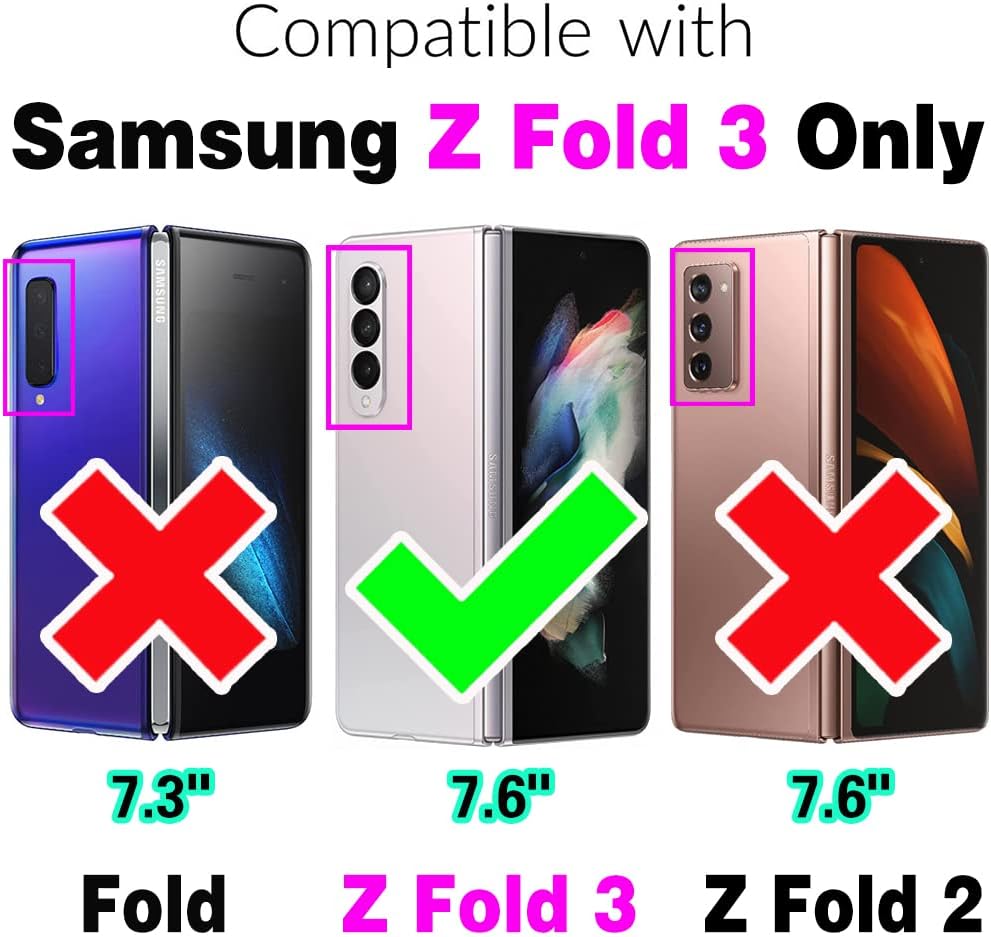
Image: Compatibility chart illustrating that the case is only for Samsung Z Fold 3.
4. Setup
4.1. Installing the Phone Case
- Ensure your Samsung Galaxy Z Fold 3 is clean and free of dust.
- Gently align your phone with the inner protective shell of the case.
- Press the phone firmly into the shell until it is securely seated. Ensure all edges are properly covered.
4.2. Installing the Tempered Glass Screen Protector
- Clean the phone screen thoroughly with the provided cleaning wipes (if included) to remove any dust, smudges, or fingerprints.
- Peel off the protective film from the adhesive side of the tempered glass.
- Carefully align the screen protector with the edges and cutouts of your phone screen.
- Gently lower the screen protector onto the screen. It will adhere automatically.
- Use a clean cloth or your finger to push out any air bubbles towards the edges.
4.3. Attaching the Straps
The case includes a detachable wrist strap and a detachable crossbody strap. Both can be attached to the small metal rings located on the top edge of the wallet case using their respective clasps.
5. Operating Instructions
5.1. Wallet Functionality
The case features an integrated wallet design with multiple compartments:
- Card Slots: 8 dedicated slots for ID, credit cards, or driver's license.
- Cash Slot: 1 larger slot for bills.
- Zipper Purse: 1 zippered compartment for coins or small items.

Image: Detailed view of the wallet's card slots, cash slot, and zipper purse.
5.2. Detachable Back Cover and Magnetic Car Mount Support
The inner phone cover is detachable from the wallet portion. This allows you to use the slim cover independently. The back cover has a built-in metal disk, enabling it to be attached to a magnetic car phone holder. Note: Using the magnetic disk may interfere with wireless charging functionality.

Image: Illustration of the detachable wallet case and the slim inner cover.

Image: The detachable phone cover being used with a magnetic car mount.
5.3. Kickstand Holder Function
The wallet case can be folded to create a kickstand, allowing for hands-free viewing of content on your phone.

Image: The case configured as a kickstand for media viewing.
5.4. Using Wrist and Crossbody Straps
Attach the wrist strap for convenient carrying or the crossbody strap for hands-free use, allowing you to keep your phone secure and accessible.
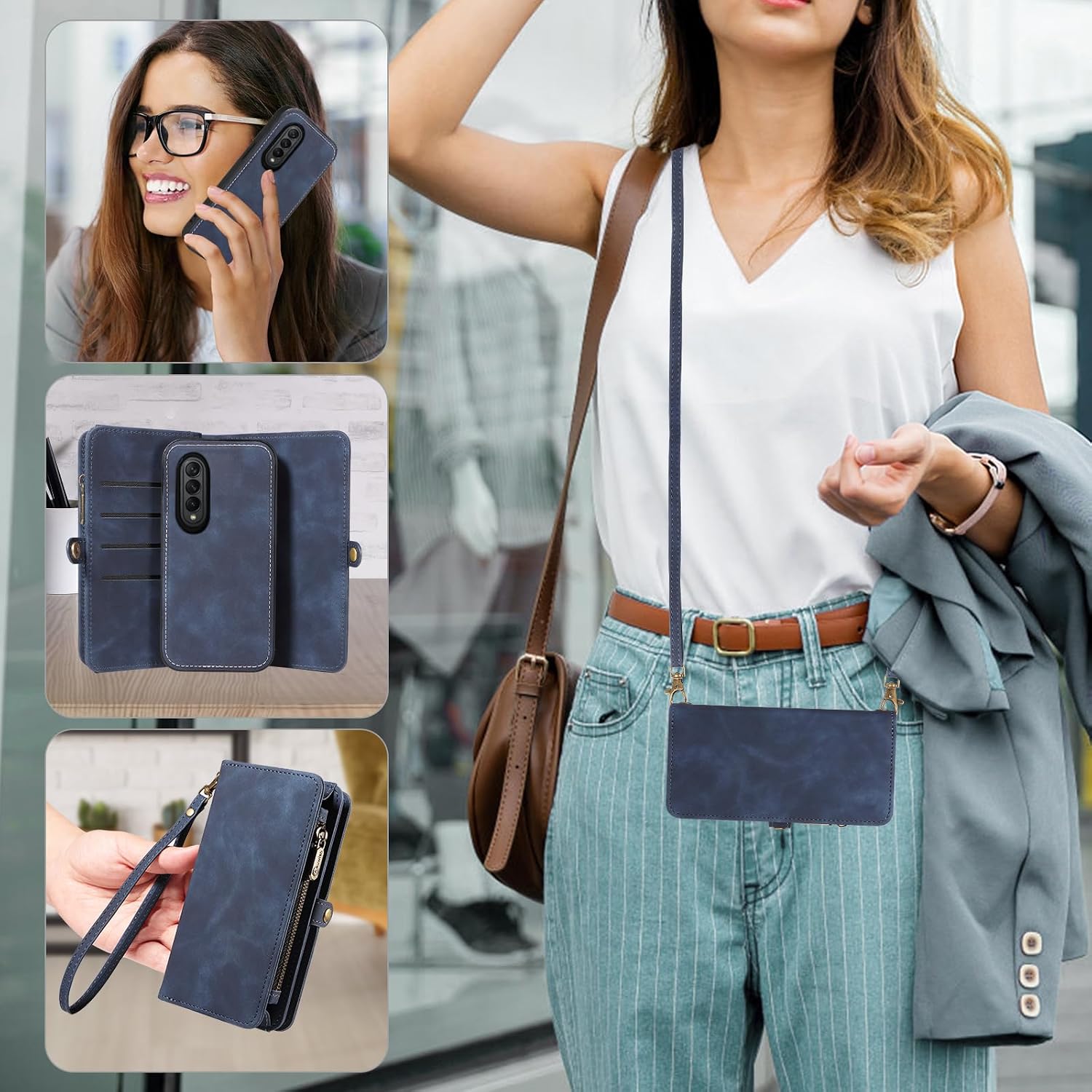
Image: Examples of carrying the phone case using the wrist and crossbody straps.
6. Maintenance
6.1. Cleaning the Faux Leather Case
- Wipe the faux leather surface with a soft, damp cloth.
- For stubborn stains, use a mild soap solution and wipe gently.
- Avoid harsh chemicals, abrasive cleaners, or excessive moisture, as these can damage the material.
- Allow the case to air dry completely before reattaching your phone.
6.2. Cleaning the Screen Protector
- Use a microfiber cloth to gently wipe the screen protector and remove fingerprints or smudges.
- For deeper cleaning, a screen cleaner spray designed for electronics can be used sparingly on the cloth, not directly on the screen.
7. Troubleshooting
7.1. Wireless Charging Issues
If you experience issues with wireless charging, ensure the detachable back cover is removed from the wallet portion. The built-in metal disk for magnetic car mounts can interfere with wireless charging functionality.
7.2. Screen Protector Bubbles
If air bubbles appear after screen protector installation, gently press them towards the nearest edge using a soft cloth or a credit card wrapped in cloth. For persistent bubbles, carefully lift the nearest edge of the protector and reapply, ensuring no dust particles are trapped underneath.
8. Specifications
| Feature | Detail |
|---|---|
| Brand | Asuwish |
| Compatible Phone Models | Samsung Galaxy Z Fold3 |
| Color | Blue |
| Material | Faux Leather |
| Additional Features | Built-in Screen Protector, Detachable Wallet, Magnetic Car Mount Support, Kickstand |
| Form Factor | Flip |
| Model Number | Z-Fold-3-FG008-Blue |
| Number of Items | 1 (case, screen protector, 2 straps) |
9. Warranty and Support
This product comes with a three months warranty from the date of purchase. For warranty claims or technical support, please contact Asuwish customer service through your original point of purchase.