Introduction
This manual provides essential instructions for setting up, operating, maintaining, and troubleshooting your Brother DCP-T436W multifunction ink tank printer. Please read this manual thoroughly before using the printer to ensure correct operation and to maximize its performance and lifespan.

Image: Brother DCP-T436W printer shown with its accompanying ink bottles, ready for setup.
1. Setup
Follow these steps to set up your Brother DCP-T436W printer for the first time.
1.1 Unboxing and Initial Placement
- Carefully remove the printer and all packing materials from the box.
- Place the printer on a stable, flat surface with adequate space around it for ventilation and operation.
- Remove all protective tapes and films from the printer exterior and interior.
1.2 Filling the Ink Tanks
The Brother DCP-T436W uses a refillable ink tank system. Use only genuine Brother BTD100 series ink bottles.
- Open the ink tank cover located on the right side of the printer.
- Uncap the black (BTD100BK), cyan (BTD100C), magenta (BTD100M), and yellow (BTD100Y) ink bottles.
- Carefully align each ink bottle with its corresponding color tank and insert it to begin filling. The ink will flow automatically.
- Once the tank is full, remove the bottle and securely close the ink tank cover.

Image: A hand demonstrating the process of refilling an ink tank on the Brother DCP-T436W printer.
1.3 Loading Paper
The printer supports various paper sizes and types, with a maximum input capacity of 150 sheets.
- Pull out the paper tray completely from the front of the printer.
- Adjust the paper guides to fit the width of your paper.
- Load the paper stack into the tray, ensuring it is flat and below the maximum fill line.
- Gently push the paper tray back into the printer until it clicks into place.

Image: A hand pulling out the paper tray from the Brother DCP-T436W printer, illustrating the paper loading process.
1.4 Power Connection and Software Installation
- Connect the power cord to the printer and then to a power outlet.
- Turn on the printer using the power button.
- Insert the provided installation CD into your computer's CD-ROM drive, or download the latest drivers and software from the official Brother support website.
- Follow the on-screen instructions to complete the software installation.
1.5 Network Connectivity (Wi-Fi)
The DCP-T436W supports Wi-Fi (Dual Band) connectivity for wireless printing.
- On the printer's control panel, navigate to the network settings.
- Select "Wi-Fi Setup" and follow the prompts to connect to your wireless network.
- Alternatively, use the Wi-Fi Protected Setup (WPS) button on your router and the printer for a quick connection.
- For mobile printing, download the Brother Mobile Connect app on your Android or iOS device and follow the in-app instructions to connect to your printer.

Image: A smartphone displaying the Brother Mobile Connect app next to the Brother DCP-T436W printer, illustrating wireless printing capabilities.
2. Operating Instructions
Learn how to use the print, scan, and copy functions of your Brother DCP-T436W printer.
2.1 Printing Documents
- From a Computer: Open the document you wish to print, select "Print" from the application's menu, choose your Brother DCP-T436W printer, and adjust settings (e.g., color/monochrome, paper size, quality) before initiating the print job.
- Borderless Printing: This feature allows printing without margins on compatible paper types. Select the borderless option in your printer settings before printing photos or documents that require edge-to-edge output.
- Apple AirPrint: For iOS devices, ensure your device and printer are on the same Wi-Fi network. Open the app, tap the share icon, select "Print," and choose your Brother printer.
- Brother Mobile Connect: Use the app for direct printing from your smartphone or tablet.
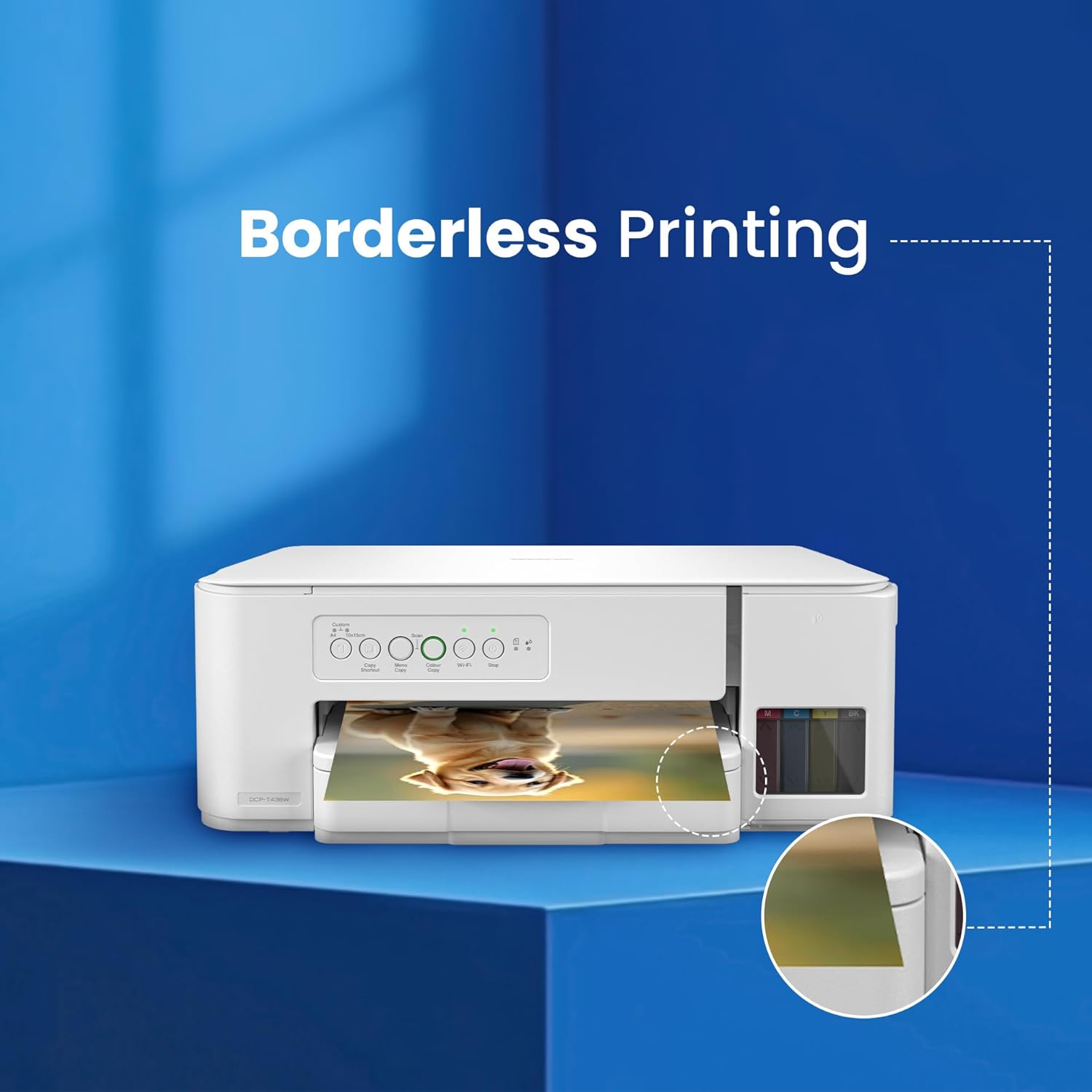
Image: The Brother DCP-T436W printer producing a borderless print, highlighting its edge-to-edge printing capability.
2.2 Scanning Documents
The flatbed scanner allows you to digitize documents and photos.
- Lift the scanner cover.
- Place the document face down on the scanner glass, aligning it with the guide marks.
- Close the scanner cover gently.
- From your computer, open the Brother scanning software or use a compatible application. Select "Scan" and adjust settings such as resolution (up to 1200 x 2400 dpi optical), color mode, and destination.
- Initiate the scan.

Image: A hand placing a document on the scanner glass of the Brother DCP-T436W printer, preparing for a scan operation.
2.3 Copying Documents
Use the control panel for quick copies.
- Place the document on the scanner glass as described in the scanning section.
- On the printer's control panel, press the "Copy" button.
- Use the arrow keys or number pad to select the number of copies.
- Press "Start" (Color or Mono) to begin copying.
3. Maintenance
Regular maintenance ensures optimal performance and extends the life of your printer.
3.1 Ink Level Monitoring and Refill
- Visually inspect the ink tanks periodically to monitor ink levels.
- Refill ink tanks promptly when levels are low to prevent air from entering the ink tubes, which can affect print quality. Refer to Section 1.2 for ink filling instructions.
- Always use genuine Brother BTD100 series ink bottles for best results and to avoid potential damage to the printer.
3.2 Cleaning the Printer
- Exterior: Wipe the exterior of the printer with a soft, lint-free cloth. Do not use abrasive cleaners or solvents.
- Scanner Glass: Gently clean the scanner glass with a soft, lint-free cloth dampened with a non-abrasive glass cleaner.
- Print Head Cleaning: If print quality degrades (e.g., streaks, missing colors), perform a print head cleaning cycle through the printer's utility software on your computer or via the printer's control panel.
4. Troubleshooting
This section addresses common issues you might encounter with your Brother DCP-T436W printer.
4.1 Printer Not Responding
- Check Power: Ensure the printer is plugged in and turned on.
- Check Connections: Verify that the USB cable is securely connected to both the printer and computer, or that the Wi-Fi connection is active and stable.
- Restart Devices: Turn off the printer, computer/mobile device, and router. Wait a few minutes, then turn them back on in sequence (router first, then printer, then computer/device).
- Printer Driver: Ensure the correct printer driver is installed and up to date on your computer.
4.2 Print Quality Issues
- Low Ink Levels: Check ink tank levels and refill if necessary.
- Print Head Cleaning: Perform a print head cleaning cycle.
- Paper Type: Ensure you are using the correct paper type and quality for your print job.
- Alignment: Perform a print head alignment from the printer's utility software.
4.3 Wi-Fi Connectivity Problems
- Network Password: Double-check that you are entering the correct Wi-Fi password.
- Signal Strength: Ensure the printer is within range of your Wi-Fi router.
- Router Settings: Verify that your router is broadcasting on a compatible frequency (2.4 GHz or 5 GHz, as the printer supports dual-band).
- Firewall/Security: Temporarily disable any firewall or security software on your computer or router to see if it's blocking the connection.
5. Specifications
Key technical specifications for the Brother DCP-T436W printer:
| Feature | Specification |
|---|---|
| Model Name | DCP-T436W |
| Functions | Print, Scan, Copy |
| Printer Type | Ink Tank Printer |
| Connectivity | Wi-Fi (Dual Band), USB 2.0 |
| Print Speed (Monochrome) | Up to 27 ppm |
| Print Speed (Color) | Up to 11 ppm |
| Print Resolution | Up to 1200 x 6000 dpi |
| Scanner Type | Flatbed |
| Scanner Resolution (Optical) | Up to 1200 x 2400 dpi |
| Scanner Resolution (Interpolated) | Up to 19200 x 19200 dpi |
| Max Input Sheet Capacity | 150 pages |
| Supported Paper Sizes | A4, Letter, Legal, Mexico Legal, India Legal, Folio, Executive, B5 (JIS), A5, B6 (JIS), A6, Photo(10x15cm), Photo-L(9x13cm), Photo-2L(13x18cm), Indexcard(13x20cm), Com-10, DL Envelope, Monarch, C5 |
| Ink Bottles | BTD100BK (Black), BTD100C (Cyan), BTD100M (Magenta), BTD100Y (Yellow) |
| Page Yield (Black) | Up to 7,500 pages |
| Page Yield (Color) | Up to 5,000 pages (each CMY) |
| OS Compatibility | Windows, Mac, Linux, Chrome |
| Product Dimensions (D x W x H) | 34.3 x 39 x 14.9 Centimeters |
| Item Weight | 5.9 kg |
| Power Consumption | 16 Watts |
| Special Features | Borderless Printing, Refillable Ink Tank, Email Print, Scan To E-Mail |

Image: A diagram highlighting key features of the Brother DCP-T436W, including print speed, AirPrint compatibility, resolution, Wi-Fi, memory, LED display, and paper tray capacity.

Image: The Brother DCP-T436W printer with its compact dimensions (390mm W, 343mm D, 148.5mm H) and weight (less than 6.5 kg) indicated.
6. Warranty Information
Your Brother DCP-T436W printer comes with a limited warranty. For specific terms and conditions, please refer to the warranty card included with your product or visit the official Brother website. Keep your purchase receipt as proof of purchase for warranty claims.
7. Customer Support
For further assistance, technical support, or service requests, please contact Brother customer support through the following channels:
- Official Website: Visit www.brother.in for FAQs, drivers, and support resources.
- Email Support: Send your queries to customercare@brother.in.
- WhatsApp Support: For 24x7 support, message us at 7045 450 450.
- Toll-Free Numbers:
- 1-800-222-422 (For MTNL and BSNL users)
- 1-800-209-8904 (For Others and all Mobiles)
Operating Hours: Monday to Friday - 8:30 AM to 6:30 PM | Saturday - 9:00 AM to 6:00 PM

Image: A graphic displaying various contact methods for Brother customer support, including chat, WhatsApp, email, and toll-free numbers.


